
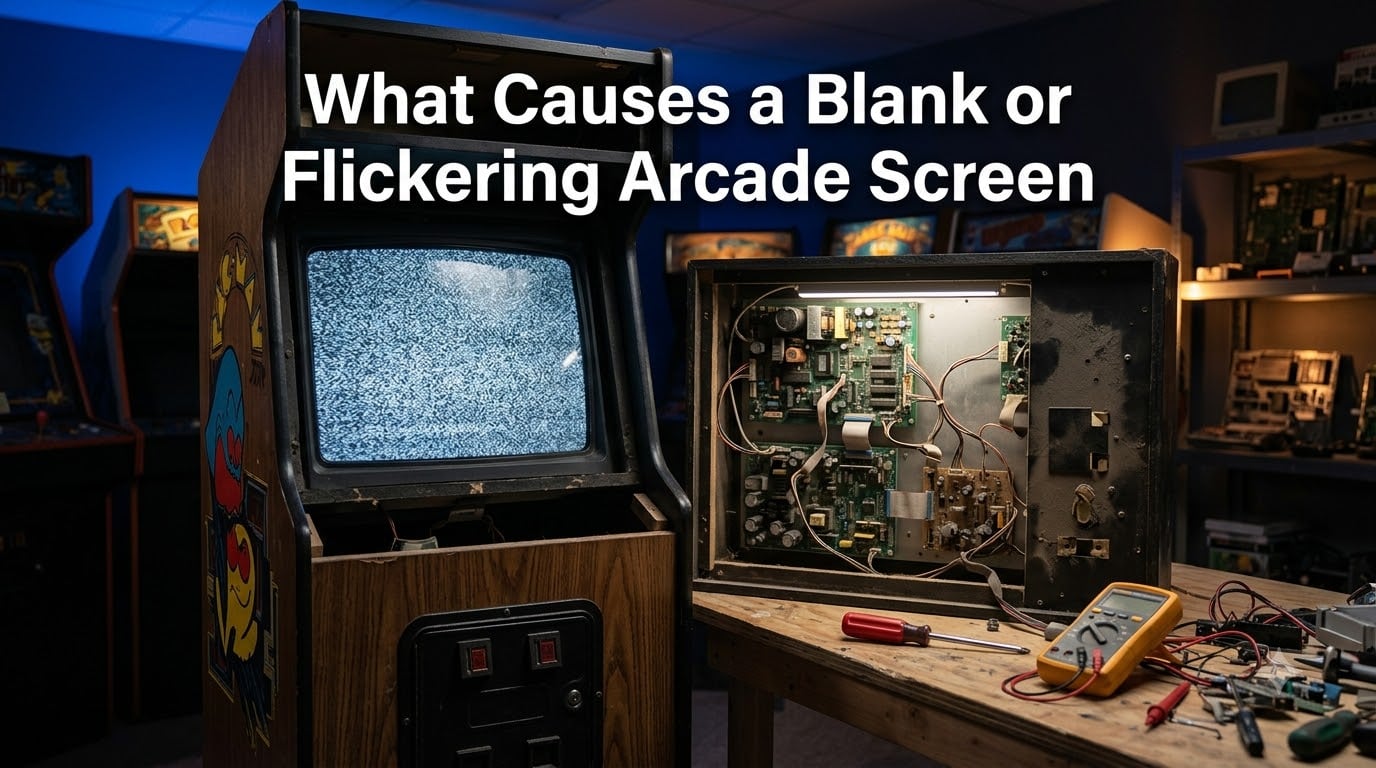
There is nothing worse than walking up to your favorite arcade cabinet, hitting the power button, and staring at a blank or flickering arcade screen. I have been there, and the first instinct is panic, thinking the monitor is dead. In most cases, it is not.
Arcade screen flickering and blank screens come from a handful of well-understood causes. The challenge is knowing which one applies to your specific cabinet. A loose ribbon cable, a failing electrolytic capacitor, a power supply dropping voltage under load, or a sync issue between your game board and monitor can all produce the same symptom: an unstable or missing picture.
This guide covers what causes a blank or flickering arcade screen across CRT monitors, LCD panels, and modern cabinets like Arcade1Up. I will walk you through each common cause, then give you a systematic troubleshooting method that starts with the simplest fixes and works toward component-level diagnosis.
Whether you are running a vintage CRT with a Kortek chassis, a MAME machine with a JPAC interface, or a stock Arcade1Up cabinet, the approach is the same. You isolate the problem along the display chain, from cable to power supply to monitor board to signal source. Most issues get solved somewhere in that chain without needing a full monitor replacement.
Our team has pulled together insights from arcade repair forums, community troubleshooting threads, and hands-on repair experience to build this guide. The goal is simple: help you identify the cause, apply the right fix, and get your cabinet back to displaying crisp, stable gameplay.
Table of Contents
- Quick Summary: What Causes a Blank or Flickering Arcade Screen
- Common Causes of Arcade Screen Flickering
- Connection and Cable Issues: The Most Common Culprit
- Loose Internal Cables and Ribbon Connections
- Faulty Display Cables (HDMI, DisplayPort, VGA)
- Power Supply Problems: When Voltage Drops Cause Flicker
- Failing Power Supply Unit
- Voltage Fluctuations and Power Delivery
- Monitor Component Failures: The Component-Level Causes
- CRT-Specific Component Failures
- LCD-Specific Component Failures
- Sync and Signal Issues: When the Monitor Cannot Lock On
- Horizontal and Vertical Hold Problems
- JPAC and PCB Sync Issues
- Software and Driver Causes: PC-Based Cabinet Issues
- GPU Driver Problems
- Gaming Mode Switching and Adaptive Sync
- Modern Arcade Cabinets: Arcade1Up and Legends Issues
- Systematic Troubleshooting Steps for Arcade Screen Flickering
- When to Repair vs Replace Your Arcade Monitor?
- Prevention and Maintenance Tips
- Conclusion
- FAQs
- Is a flickering screen a serious problem?
- How to fix the flickering screen problem?
- Why does my screen flicker and go black?
- How to fix screen flickering in game?
- Can a flickering monitor be repaired?
- How to fix monitor black screen flicker?
- Why is my screen flickering and blacking out?
- Can bad RAM cause screen flickering?
Quick Summary: What Causes a Blank or Flickering Arcade Screen
A blank or flickering arcade screen is caused by one of five things: loose or faulty cable connections, power supply problems, failing monitor components (especially capacitors), sync or signal issues between the game board and monitor, or software and driver problems in PC-based setups. Most cases trace back to cables and capacitors, which are cheap and relatively easy to fix.
Here is the quick breakdown of the five main causes and their telltale signs:
Connection issues – Intermittent flicker when the cabinet is moved or bumped; reseating cables often fixes it immediately.
Power supply problems – Screen goes black under heavy load or flickers in a rhythmic pattern; voltage drops affect the monitor or GPU.
Monitor component failures – Rolling picture, unstable hold, dim display, or total blackout in CRTs; backlight flicker or dead zones in LCDs.
Sync and signal issues – Picture rolls vertically or horizontally, tears, or loses lock when a game launches; JPAC sync light flickers.
Software and driver causes – Flicker only in PC-based cabinets, often tied to G-Sync, FreeSync, HDR, or mode switching during gameplay.
If you want the short answer: start with cables, check your power supply, then look at capacitors and sync settings. Those four steps solve the majority of arcade screen flickering cases.
Common Causes of Arcade Screen Flickering
Arcade screen flickering falls into two broad categories: hardware causes and software causes. Hardware causes include physical connections, power delivery, and monitor components. Software causes apply mainly to PC-based arcade cabinets running MAME or similar frontends, where drivers, refresh rate mismatches, and adaptive sync settings create display instability.
From my experience and the patterns reported across repair forums, hardware causes are far more common in vintage CRT cabinets. Software causes dominate in MAME builds and modern LCD-based cabinets. Knowing which type of cabinet you have narrows the diagnosis significantly.
The sections below break down each cause in detail, with specific symptoms, diagnostic tips, and fixes. I have organized them from most common and easiest to fix to least common and most involved.
Connection and Cable Issues: The Most Common Culprit
Loose connections are the number one cause of arcade screen flickering, and they are also the easiest to fix. Inside an arcade cabinet, vibration from speakers, movement during transport, and years of thermal cycling can slowly work connectors loose. The display signal travels through multiple connection points, and any one of them can introduce instability.
Loose Internal Cables and Ribbon Connections
Most arcade cabinets have internal wiring harnesses, ribbon cables, and plug connectors that carry the video signal from the game board (or PC) to the monitor. Over time, these connections oxidize, vibrate loose, or develop cold solder joints. The result is intermittent flickering that comes and goes, often triggered by cabinet vibration or temperature changes.
Arcade1Up owners report this problem frequently. The internal LCD panels in these cabinets use ribbon cables that can come slightly unseated from the factory or during transport. Reseating these cables is one of the most commonly successful first fixes reported in the Arcade1Up community.
For vintage CRT cabinets, check the video signal connector at the monitor chassis, the wiring harness from the power supply to the monitor, and any intermediate connections on the game board. Unplug each connector, inspect for corrosion or bent pins, clean with contact cleaner if needed, and reseat firmly.
The sync line is particularly sensitive. If the sync connection is loose, the monitor cannot lock onto the signal, causing the picture to roll, tear, or drop out entirely. This is why checking connections before anything else is the right first move.
Faulty Display Cables (HDMI, DisplayPort, VGA)
In PC-based arcade cabinets and modern LCD setups, the display cable itself is a frequent point of failure. HDMI and DisplayPort cables can develop internal breaks, especially at the connector ends where bending stress concentrates. A damaged cable can pass signal most of the time but drop frames or black out intermittently under specific conditions.
The community experience is consistent here: swapping HDMI cables and trying different display ports resolves flickering for many users. If your cabinet uses a standard display cable between a PC and monitor, try a known-good replacement cable before diving into more complex diagnostics.
For VGA-connected CRTs in MAME builds, the VGA cable and any adapters (VGA to BNC, VGA to JPAC) are common weak points. Check for bent pins, loose adapter connections, and cable damage. A high-quality shielded cable makes a real difference with analog video signals.
Power Supply Problems: When Voltage Drops Cause Flicker
Arcade monitors and the components driving them need stable, clean power. When the power supply unit (PSU) begins to fail or cannot deliver enough current under load, the display signal becomes unstable. This manifests as flickering, dimming, or complete blackout, often correlated with what the cabinet is doing at the moment.
Power-related flicker has a distinctive pattern. If the screen flickers or goes black when the cabinet is under heavy load (during a graphically intense scene, when the amplifier is driving loud audio, or when multiple components are active simultaneously), suspect the power supply. The PSU may be sagging under demand.
Failing Power Supply Unit
In classic arcade cabinets, the power supply feeds both the game board and the monitor. A failing switching power supply can produce unstable voltages that cause the monitor to behave erratically. Check the voltage outputs at the power supply terminals with a multimeter. The standard arcade switching PSU should output steady +5V, +12V, and sometimes -5V rails.
If the +5V rail reads below 4.8V or fluctuates, that is a problem. The game board may reset or produce unstable video sync, which the monitor displays as flickering or rolling. Similarly, if the +12V rail feeding the monitor or audio amplifier is unstable, you can get visual artifacts and flicker.
For PC-based cabinets, the computer PSU matters. Multiple users on gaming forums report that using separate PCIe power cables for the GPU (instead of pigtails or daisy-chained cables) resolves black screen flashes during gameplay. The GPU demands spike under load, and a single cable cannot deliver clean power.
Voltage Fluctuations and Power Delivery
Beyond the PSU itself, power delivery to the monitor chassis matters. In CRT arcade monitors, the chassis has its own power section that steps down and rectifies AC power. If the incoming AC voltage fluctuates, or if the chassis power components (diodes, filter caps, voltage regulators) are degrading, the monitor picture becomes unstable.
Heat is a related factor. Components that run hot degrade faster. If your cabinet has poor ventilation, power components may fail prematurely. Check for discolored or bulging components on the monitor chassis and power supply board. Any visible physical damage to capacitors or resistors is a clear sign of trouble.
One more thing worth checking: the line voltage at the wall. If your cabinet shares a circuit with heavy-draw appliances, voltage dips can propagate to the monitor. A dedicated circuit or a power conditioner can help stabilize power for sensitive arcade setups.
Monitor Component Failures: The Component-Level Causes
When cables and power check out, the problem may live inside the monitor itself. CRT and LCD monitors have different failure modes, but both develop component-level issues over time. The good news is that many of these failures are repairable with basic soldering skills and inexpensive replacement parts.
CRT-Specific Component Failures
Vintage CRT arcade monitors are the heart of classic cabinets, and they have predictable failure points. The most common is electrolytic capacitor degradation. Electrolytic capacitors have a finite lifespan, typically 15 to 20 years, and most arcade CRTs are well past that mark.
When electrolytic capacitors dry out or change value, the monitor develops hold issues. The picture may roll vertically (vertical hold drift), tear horizontally (horizontal hold problems), or display with incorrect size and position. Flickering, wavering, or an image that will not stabilize are classic symptoms of failing caps.
The community strongly recommends full capacitor kit replacements for vintage CRT monitors. A cap kit for a common chassis like the Kortek KTM-F20 costs under $20 and can restore a flickering, unstable monitor to solid performance. Specific capacitor values matter; for example, a 22uF 250V capacitor in the wrong circuit position can cause width and hold problems.
Other CRT failure points include the flyback transformer (which can cause arcing, hissing, or total picture loss), the width coil (adjustable but fragile; using improper tools can break the ferrite core), and potentiometers (pots) that control hold, brightness, and focus. Dirty or worn pots cause flickering when the picture drifts as the pot’s resistance changes.
One important warning from the arcade repair community: do not randomly adjust pots without understanding what each one does. Random adjustments can make the problem worse and make professional diagnosis harder. If you must adjust a pot, mark its original position first so you can return it.
LCD-Specific Component Failures
Modern arcade cabinets use LCD panels, which have their own failure modes. The most common LCD-related cause of flickering is backlight degradation or failure. Cold cathode fluorescent lamp (CCFL) backlights in older LCDs flicker as they age or as their inverter boards fail. LED backlights are more durable but can develop driver board issues.
If your LCD arcade screen flickers but you can still see a faint image by shining a flashlight at the screen, the backlight or inverter is the culprit. Inverter board replacement is a straightforward fix for CCFL-based panels. For LED backlights, individual LED strips or the driver board may need replacement.
Another LCD issue is the T-con (timing control) board, which drives the panel’s pixel matrix. A failing T-con board can cause flickering, horizontal lines, or partial screen blackout. The logic board that processes the input signal can also develop capacitor issues or connector problems.
For both CRT and LCD monitors, the ribbon cables connecting internal boards are vulnerable. Heat cycling, vibration, and oxidation all take their toll. Reseating these internal connections is a common fix that costs nothing and takes minutes.
Sync and Signal Issues: When the Monitor Cannot Lock On
Sync problems are unique to arcade monitors and are a major cause of flickering, rolling, and blank screens. The monitor needs a stable sync signal to know when to draw each line and frame. If the sync signal is weak, noisy, or intermittent, the monitor loses lock and the picture tears, rolls, or disappears.
Horizontal and Vertical Hold Problems
CRT arcade monitors have adjustable horizontal and vertical hold controls, usually potentiometers on the chassis. When these drift (due to aging components, temperature changes, or capacitor degradation), the picture becomes unstable. Vertical hold failure causes the picture to roll up or down continuously. Horizontal hold failure causes the picture to tear diagonally or break into horizontal stripes.
If the picture was stable and suddenly starts rolling or tearing, suspect capacitor degradation in the hold circuits rather than the pots themselves. Adjusting the hold pot may temporarily stabilize the picture, but if it drifts again quickly, the underlying cause is likely a failing cap.
In MAME builds using real arcade monitors via a JPAC or similar interface, the sync signal comes from the PC’s video output through the interface board. The JPAC has a sync indicator LED that is an invaluable diagnostic tool. If the sync light is solid, the monitor is receiving valid sync. If the sync light flickers or goes dark, the PC is not outputting stable sync, and the monitor will lose lock.
JPAC and PCB Sync Issues
The JPAC (J-PAC) interface connects a PC to a real arcade monitor using the JAMMA wiring standard. It amplifies and conditions the sync signal from the PC’s VGA output to match what the arcade monitor expects. When sync problems occur in a JPAC setup, the flickering sync light tells you the issue is on the PC side, not the monitor side.
Common JPAC sync issues include incorrect refresh rate output from the PC (arcade monitors expect 15kHz, not the standard 31kHz PC VGA output), resolution mismatches, and software configuration problems in the frontend or emulator. The fix usually involves configuring the PC to output 15kHz compatible modelines.
For original arcade game boards (PCBs), sync issues can arise from dirty edge connectors, failing custom chips, or damaged sync circuitry on the board. If swapping a known-good game board produces a stable picture while the original board causes flickering, the problem is on the game board, not the monitor.
Software and Driver Causes: PC-Based Cabinet Issues
Not all arcade screen flickering is caused by hardware. In PC-based arcade cabinets running MAME, Attract Mode, or other frontends, software and driver issues can produce the exact same symptoms. The display path from GPU driver through the operating system to the monitor involves many layers, and any of them can introduce instability.
GPU Driver Problems
GPU drivers are a well-known cause of screen flickering and black flashes. A driver that is outdated, corrupted, or incompatible with your monitor can cause the display to lose signal momentarily. The standard approach is not just updating the driver but doing a clean reinstall using a tool like Display Driver Uninstaller (DDU).
DDU removes all traces of the old driver, including registry entries and leftover files that can cause conflicts. After running DDU in safe mode and rebooting, install the latest driver from the GPU manufacturer. This clean reinstall approach is preferred over a simple update and resolves flickering for many users.
Windows itself can cause flickering. Windows 11 display issues are frequently traced to incompatible display drivers or conflicting applications. If flickering started after a Windows update, consider rolling back the display driver or using System Restore to revert to a stable configuration.
Gaming Mode Switching and Adaptive Sync
Mode switching is a specific trigger for screen flickering in PC-based arcade cabinets. When a game launches, the display often switches resolution, refresh rate, or between windowed and fullscreen mode. Each switch causes a brief blackout, which is normal. But if the switch fails or creates a mismatch, the screen may flicker persistently or go black.
Adaptive sync technologies (NVIDIA G-Sync and AMD FreeSync) are frequent culprits. Multiple users report that turning off G-Sync resolved their black screen flashes during gaming. The adaptive sync handshake between the GPU and monitor can fail, especially with certain cable types or at specific refresh rate boundaries.
HDR (High Dynamic Range) switching is another trigger. If your monitor or game toggles HDR mode, the brief mode switch can cause a black flash. Disabling HDR if you do not need it, or setting your system to a consistent HDR state, can eliminate these flashes.
The general fix for mode switching flicker is to minimize transitions. Lock your refresh rate, disable unnecessary adaptive sync, use exclusive fullscreen consistently, and match the game resolution to your desktop resolution. Reducing the number of mode switches reduces the opportunities for flicker to occur.
Modern Arcade Cabinets: Arcade1Up and Legends Issues
Modern home arcade cabinets from Arcade1Up and AtGames Legends use LCD panels fed by embedded systems or small PCs. While they do not have CRT component failures, they do experience flickering issues with specific patterns and causes.
Arcade1Up cabinets commonly report flickering that resolves by reseating internal cables. The ribbon cable connecting the LCD panel to the controller board can come slightly loose from the factory or during shipping. Opening the cabinet back panel and firmly reseating all ribbon connectors is the first fix to try.
Some Arcade1Up models, particularly Generation 2 cabinets like the Mortal Kombat II, have reported screen flicker that traces to the LCD controller board or its power connection. In these cases, the fix may involve replacing the controller board or improving the power connection to eliminate voltage drops.
For AtGames Legends cabinets, most flicker issues relate to HDMI connections between the internal board and display. Check that the HDMI cable is fully seated and not pinched by the cabinet frame. A cable tie can add strain over time, so make sure routing is clean and without tension.
Systematic Troubleshooting Steps for Arcade Screen Flickering
Now that you know the causes, here is a systematic method to diagnose what causes a blank or flickering arcade screen in your specific cabinet. Follow these steps in order. Each step is simpler and cheaper than the next, and you should stop as soon as you find the problem.
Step 1: Reseat all connections. Power off the cabinet and unplug it. Open the back panel and check every cable connection along the display chain. Reseat the video signal cable at both ends, the power connections to the monitor, and any internal ribbon cables. This single step fixes a surprising percentage of flicker cases.
Step 2: Swap the display cable. If your cabinet uses a standard HDMI, DisplayPort, or VGA cable between the source and monitor, replace it with a known-good cable. Use a high-quality shielded cable, especially for analog VGA runs. If the flicker stops, the old cable was the problem.
Check the sync indicator. If you have a JPAC or similar interface, observe the sync LED. Solid means good sync. Flickering means the PC is not outputting stable sync. If the sync light flickers, your problem is on the source side, not the monitor side.
Step 3: Test with a different source. Connect a different video source to the monitor (a laptop, a different game board, or a test pattern generator). If the picture is stable with the alternate source, your monitor is fine and the problem is in the original source (PC, game board, or wiring from the source).
Step 4: Check power supply voltages. Use a multimeter to check the output voltages on the cabinet’s power supply. The +5V rail should read between 4.9V and 5.1V. The +12V rail should be steady. If voltages are low or fluctuating, the power supply needs adjustment or replacement.
Step 5: Inspect monitor components. For CRT monitors, visually inspect the chassis for bulging or leaking electrolytic capacitors, discolored resistors, or cracked solder joints. For LCD panels, look for bulging caps on the power or inverter board. Any visible component damage is a clear indicator.
Step 6: Clean reinstall GPU drivers. For PC-based cabinets, run DDU in safe mode, reboot, and install the latest GPU driver. Then test with a graphically intense game to see if the flicker persists. Disable G-Sync or FreeSync temporarily and test again.
Step 7: Isolate with trigger testing. Try to identify what triggers the flicker. Does it happen only in games, not on the desktop? That points to mode switching or adaptive sync. Does it happen when the cabinet gets hot? That points to a heat-sensitive component. Does it happen when the cabinet is bumped? That points to a loose connection. The trigger pattern tells you where to look.
Step 8: Test components individually. If you have spare parts, swap them one at a time. Try a different GPU, a different monitor, or a different power supply. The component that makes the flicker stop is the one that was causing it. This is the definitive method when simpler checks do not resolve the issue.
When to Repair vs Replace Your Arcade Monitor?
Deciding whether to repair or replace an arcade monitor depends on the type of monitor, the cost of parts, and your comfort with electronics work. Here is a practical framework to help you decide.
Signs You Should Repair
If the problem is a loose connection, a faulty cable, or a power supply voltage issue, always repair. These are cheap, fast fixes. A cable replacement costs a few dollars, and a power supply adjustment costs nothing.
If your CRT monitor has capacitor issues (rolling picture, unstable hold, flickering), a cap kit is the right repair. Cap kits cost under $20 and can restore a vintage monitor to full health. If you can solder, this is a rewarding DIY project. If not, a professional can install a cap kit for a reasonable fee.
For LCD panels with backlight or inverter failures, replacement boards are usually available and affordable. An inverter board or LED driver board typically costs $15 to $40. Swapping the board is straightforward and does not require advanced skills.
Signs You Should Replace
Replace the monitor if the CRT tube itself is failing (dim picture that cannot be corrected with brightness or focus adjustments, visible burn-through on the phosphor, or physical cracks). A new CRT tube is essentially unavailable, so tube failure means it is time for an LCD replacement or a donor CRT.
For LCD panels, replace if the panel itself is cracked or has dead pixel clusters covering a significant area. The panel is the most expensive component, and replacement usually costs more than a new monitor. In this case, buying a new LCD panel of the correct size and mounting it in the cabinet is the practical choice.
The repair community recommends professional repair (such as Jomac for CRT chassis work) over amateur attempts if you are not confident in your skills. One user reported bodging a chassis repair by lifting PCB tracks, which made the problem worse and required a professional to fix. If in doubt, consult an expert before soldering.
Prevention and Maintenance Tips
Preventing arcade screen flickering is cheaper than fixing it. Here are maintenance practices that extend the life of your arcade monitor and reduce the chances of display problems.
Check all internal cable connections annually. Vibration and thermal cycling loosen connectors over time. A quick visual inspection and reseating takes minutes and prevents intermittent flicker from developing.
For CRT cabinets, consider a proactive capacitor replacement if the monitor is over 15 years old and has never had a cap kit. Replacing aging caps before they fail prevents hold issues, flickering, and potential damage to other components from leaking electrolyte.
Keep the cabinet well-ventilated. Heat is the enemy of electronic components. Ensure fans are working, vents are clear, and the cabinet is not placed in direct sunlight or against a heat source. Cool components last longer and fail less often.
For PC-based cabinets, keep your GPU drivers current but avoid unnecessary updates that might introduce instability. Use DDU when switching driver versions. Keep your display settings consistent to minimize mode switching during gameplay.
Conclusion
Understanding what causes a blank or flickering arcade screen saves you time, money, and frustration. The five main causes (connection issues, power supply problems, monitor component failures, sync issues, and software causes) cover virtually every case you will encounter.
The systematic troubleshooting method works because it starts with the simplest, cheapest fixes and progresses to more involved diagnosis. Reseat cables first. Swap display cables second. Check power supply voltages third. Then move to component inspection and software fixes. Most problems are solved in the first few steps.
Whether you are running a vintage CRT with a Kortek chassis, a MAME build with a JPAC interface, or a modern Arcade1Up cabinet, the same principles apply. Isolate the problem along the display chain, use the diagnostic tools available (sync lights, multimeters, trigger testing), and fix the specific component that is failing. With this guide, you now have the knowledge to diagnose and resolve arcade screen flickering with confidence.
FAQs
Is a flickering screen a serious problem?
A flickering arcade screen can range from a minor annoyance to a sign of imminent failure. If the flicker is caused by a loose cable, it is not serious and takes minutes to fix. If it is caused by failing electrolytic capacitors or a degrading power supply, it will worsen over time and can eventually damage other components. Address flickering promptly to prevent small problems from becoming expensive ones.
How to fix the flickering screen problem?
Start by powering off the cabinet and reseating all cable connections along the display chain. Replace the display cable with a known-good one. Check power supply voltages with a multimeter. For CRT monitors, inspect for bulging capacitors and consider a cap kit replacement. For PC-based cabinets, clean reinstall GPU drivers using DDU and disable adaptive sync. Follow the systematic troubleshooting steps in order and stop when the problem resolves.
Why does my screen flicker and go black?
Screen flicker followed by a blackout usually means the monitor is losing its signal or power momentarily. Common causes include a failing display cable, a power supply that drops voltage under load, a GPU driver crash, or adaptive sync handshake failures. If the blackout happens during gameplay specifically, suspect mode switching or power delivery issues. Check cables first, then power supply, then drivers.
How to fix screen flickering in game?
If flickering happens only during gameplay, start by disabling G-Sync or FreeSync in your GPU control panel. Set the game to run in exclusive fullscreen at your desktop resolution. Clean reinstall your GPU driver using DDU. Use separate PCIe power cables for the GPU instead of daisy-chained cables. Match the game refresh rate to your monitor native refresh rate to minimize mode switching.
Can a flickering monitor be repaired?
Yes, most flickering arcade monitors can be repaired. CRT monitors with capacitor issues respond well to cap kit replacements costing under $20. LCD panels with backlight or inverter failures can be fixed with replacement boards. Connection and power supply issues are cheap to resolve. The main case where repair is not viable is a cracked LCD panel or a dead CRT tube, which require full replacement.
How to fix monitor black screen flicker?
For monitor black screen flicker, first reseat all cable connections and swap the display cable for a known-good replacement. Check that the power supply is delivering stable voltage to the monitor. For CRT monitors, inspect the chassis for failing capacitors and test the sync signal. For LCD panels, test the backlight by shining a flashlight at the screen to check for a faint image. Replace the faulty component identified.
Why is my screen flickering and blacking out?
Flickering and blacking out is typically caused by an unstable connection between the video source and the monitor, a power supply that cannot maintain steady voltage, or a failing component in the monitor itself. The pattern of the flicker provides clues: flicker triggered by vibration points to a loose cable, flicker under load points to the power supply, and persistent flicker with image distortion points to monitor components like capacitors.
Can bad RAM cause screen flickering?
Bad RAM rarely causes screen flickering directly. RAM failures typically cause system crashes, blue screens, or application errors rather than visual flickering. However, if bad RAM causes the GPU driver or game to crash, the resulting display reset can produce a momentary black screen that looks like flicker. If you suspect RAM, run a memory diagnostic tool like MemTest86 to rule it out before focusing on display-specific causes.