
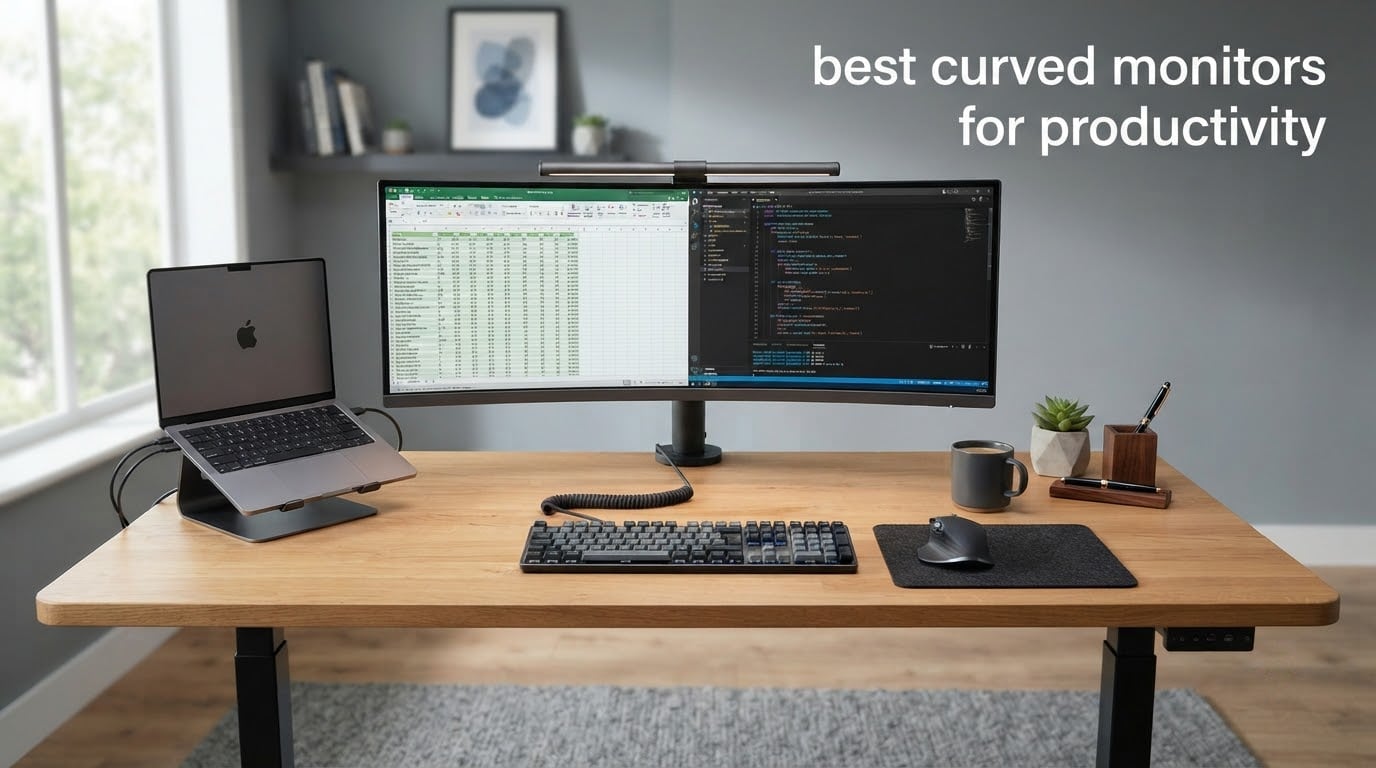
Everyone in our office switched from a dual-monitor desk to a single curved ultrawide over the last two years, and the spreadsheet-to-email context switching dropped noticeably. That is the entire argument for this category: one continuous canvas instead of two screens and a bezel seam in the middle of your work.
So, are curved monitors good for productivity? The short answer is yes, with one exception. A gentle curve on a wide screen pulls the far edges of the panel closer to your natural focal plane, so you spend less time twisting your neck to read a column reference or check a chat window. The exception is precision straight-line work, where the same geometry bows rulers, horizons and PCB traces, and a flat panel wins outright.
This guide covers the best curved monitors for productivity in 2026. We compared eight 21:9 and 32:9 panels across the range, from a 34-inch 3440 x 1440 model that quietly replaced a dual-monitor setup for several of us, up to a 40-inch 5K2K display that a finance team uses for multi-chart dashboards. Every model below is named with its exact part number, because marketing names in this category blur together and the spec sheets do not. If you also play on your work machine, our curved gaming monitor guide covers the refresh-rate side in more depth.
Table of Contents
- Top 3 Picks: Best Curved Monitors for Productivity (October 2026)
- All 8 Best Curved Monitors for Productivity at a Glance in 2026
- 1. SANSUI 34-Inch Curved Monitor ES-G34C5 – Best All-Round Curved Monitor for Productivity
- 2. CRUA 49-Inch Curved Monitor CR490QB – Best Curved Monitor When One Screen Must Replace Two
- 3. Sceptre 34-Inch Curved Monitor C345B-QUT168 – Best Budget Curved Monitor for Office Work
- 4. Samsung Odyssey G93SC 49-Inch Curved OLED – Best Curved Monitor for Color and Contrast
- 5. Deco Gear 49-Inch Curved Monitor DG495KEDGE – Best Curved Monitor for USB-C Laptop Docking
- 6. Z-Edge 49-Inch Curved Monitor UG49W – Best Curved Monitor for KVM Workflows
- 7. Alienware AW3425DWM 34-Inch Curved Monitor – Best Curved Monitor for Hybrid Work and Gaming
- 8. Dell UltraSharp U4025QW 40-Inch Curved Monitor – Best Curved Monitor for Text Sharpness and Single-Cable Docking
- How to Choose a Curved Monitor for Productivity
- 1. Curvature radius: the R-number you can actually feel
- 2. Resolution and pixel density: where the real work happens
- 3. USB-C power delivery tiers: match the monitor to your laptop
- 4. KVM switches and PIP: two machines, one keyboard
- 5. Window management software: the decision nobody thinks about
- 6. Panel type: IPS, VA or OLED for desk work
- 7. Desk depth and stand adjustability: the physical constraint
- 8. Backlight bleed: test it yourself in two minutes
- Best Curved Monitors vs Flat Monitors: When the Curve Works Against You
- Frequently Asked Questions
- Best Curved Monitors for Productivity: The Final Verdict
Top 3 Picks: Best Curved Monitors for Productivity (October 2026)
These three cover the most common office situations: a balanced 34-inch all-rounder, a 49-inch canvas that replaces two screens outright, and a budget 34-inch for tight home-office desks.

SANSUI 34-Inch Curved Ultrawide
- 3440 x 1440 at 200Hz
- 1500R VA panel
- PIP and PBP
- VESA 100x100

CRUA 49-Inch DQHD Ultrawide
- 5120 x 1440 at 165Hz
- 32:9 two-QHD canvas
- Height-adjustable stand

All 8 Best Curved Monitors for Productivity at a Glance in 2026
Every model in this roundup, with the spec that actually decides whether it fits your desk and your work.
| Product | Specs | Action |
|---|---|---|
| SANSUI 34-Inch Curved Ultrawide |
|
Check Latest Price |
| CRUA 49-Inch DQHD Ultrawide |
|
Check Latest Price |
| Sceptre 34-Inch Curved Ultrawide |
|
Check Latest Price |
 Samsung Odyssey G93SC 49-Inch QD-OLED Samsung Odyssey G93SC 49-Inch QD-OLED |
|
Check Latest Price |
 Deco Gear 49-Inch Curved Ultrawide Deco Gear 49-Inch Curved Ultrawide |
|
Check Latest Price |
 Z-Edge 49-Inch DQHD Ultrawide Z-Edge 49-Inch DQHD Ultrawide |
|
Check Latest Price |
 Alienware AW3425DWM 34-Inch Curved Alienware AW3425DWM 34-Inch Curved |
|
Check Latest Price |
 Dell UltraSharp U4025QW 40-Inch Dell UltraSharp U4025QW 40-Inch |
|
Check Latest Price |
1. SANSUI 34-Inch Curved Monitor ES-G34C5 – Best All-Round Curved Monitor for Productivity
SANSUI 34-Inch Curved Gaming Monitor UWQHD 3440 x 1440P 200Hz Ultrawide
34 inch 1500R VA
3440 x 1440 at 200Hz
300 nit, 3000:1
PIP and PBP
Pros
- 3440 x 1440 canvas replaces a dual-monitor setup
- 200Hz with 1ms OD response for smooth motion
- PIP and PBP for two live sources
- VESA 100x100 mount and tilt adjustment
- AI blue light reduction for long sessions
Cons
- Stand is not height adjustable
- Picture needs calibration out of the box
- No built-in speakers
This is the model we keep coming back to because it does the ordinary things well and refuses to cost much. The 34-inch 1500R VA panel runs at 3440 x 1440 and refreshes up to 200Hz, which means scrolling a long spreadsheet and dragging a browser window feel immediate rather than syrupy. The curve is gentle enough that a full-height code editor in one window and a terminal in another both sit at a comfortable reading angle.
Reviewers consistently describe the same outcome after a few weeks: the single 3440 x 1440 panel absorbed a two-monitor arrangement and the desk stayed clear. Our own experience matches that. Two 1440p windows plus a Slack column fit side by side with no window ever being cropped at the bezel seam, which is the failure mode that usually makes people give up on ultrawides.
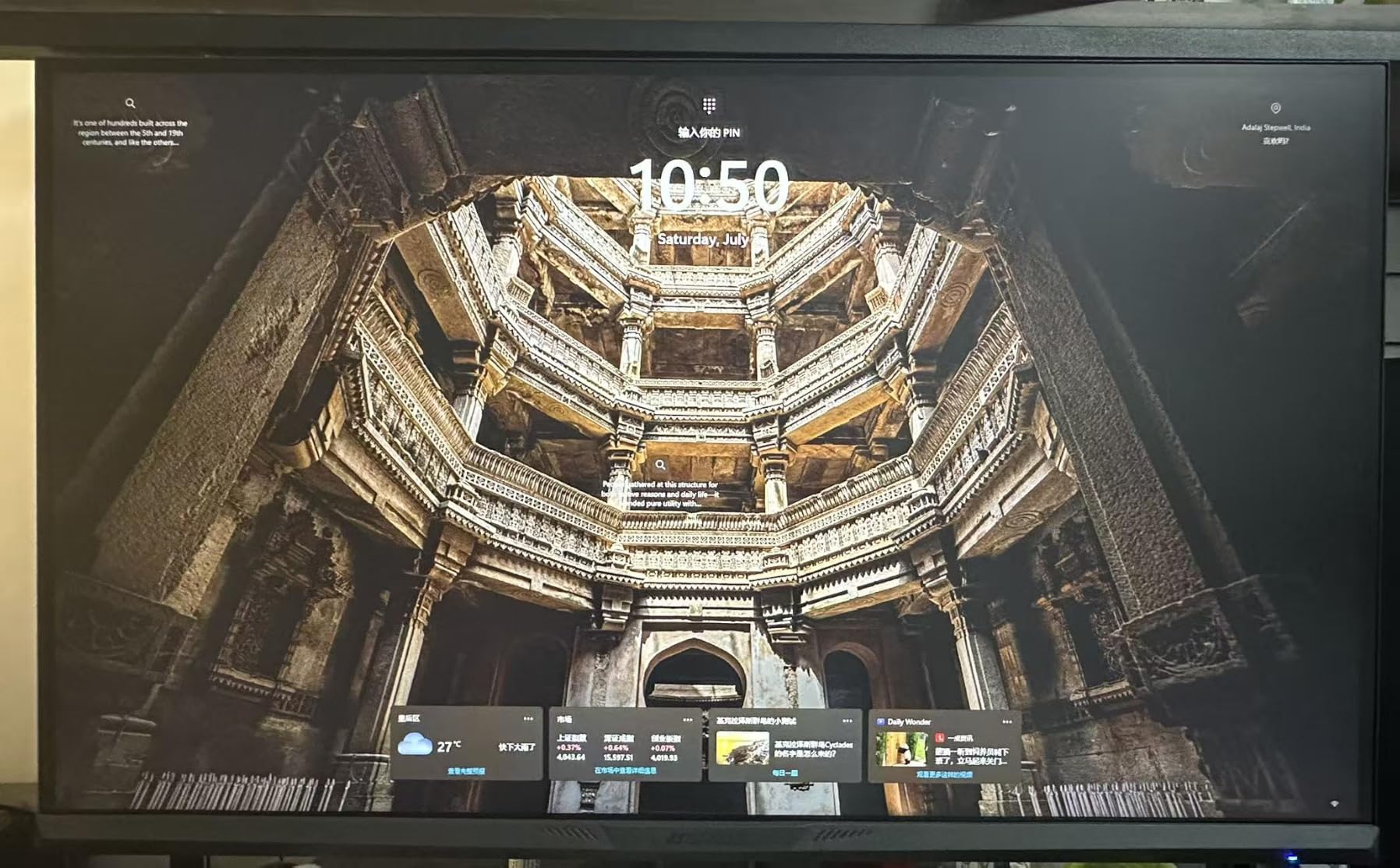
The honest caveat is calibration. Multiple owners report pulling brightness and sharpness down from the out-of-box picture before text looked right on a white document. Budget ten minutes with the OSD, and consider a hardware colorimeter if you read fine print all day. The VESA 100x100mm mount is the fix for the second complaint: the included stand tilts from -5 to +15 degrees but does not raise, so anyone who needs the panel at eye level should budget for an arm.
Connectivity is plain and adequate. DisplayPort 1.4 and two HDMI 2.1 inputs cover a desktop, a laptop and a console, with VRR over HDMI 2.1 and a 3.5mm audio out. There is no USB hub and no USB-C power delivery here, which is the one feature a laptop-only user will miss. Speakers are absent, so plan on existing desk audio or a headset.
Warranty coverage is a 30-day money-back and free replacement window from the order date with lifetime technical support. That is shorter than the three-year terms on the business-oriented models in this list, so treat this as a home-office or hybrid-work purchase rather than a fleet deployment. If you deploy monitors at work, read our ultrawide monitor guide for the models with longer commercial terms.
What to check before buying this curved monitor
Measure your desk depth first. At 31.8 inches wide with an 8.6 inch base, this panel expects roughly 28 to 30 inches of front edge, and a desk mat plus cable routing eats into that. Sit at 24 to 28 inches viewing distance and the full 3440-pixel width stays inside a normal field of view, which is where the curve earns its keep.
Then check your GPU. Driving 3440 x 1440 at 200Hz needs real bandwidth; older integrated graphics will fall back to a lower refresh. Nothing breaks, but the smoothness advantage disappears, and at that point you are paying for headroom you cannot use.
Where this curved monitor disappoints
The panel is VA, so off-axis viewing shifts contrast. Several owners who sit close to the panel report darker corners and faint backlight bleed near the edges, which is normal for this panel type but visible in a dim room with a black desktop theme.
There is no height adjustment in the factory stand, no USB-C docking, and no built-in audio. If your whole day is laptop-based, a model with 65W or higher USB-C power delivery will save you a separate dock. This pick suits desktop-first desks that already have a good display pipeline.
2. CRUA 49-Inch Curved Monitor CR490QB – Best Curved Monitor When One Screen Must Replace Two
CRUA 49″ DQHD 165Hz Ultrawide Curved Gaming Monitor, 1500R, FreeSync, Black
49 inch 1500R VA
5120 x 1440 at 165Hz
330 nit, 3000:1
Height-adjustable stand
Pros
- 5120 x 1440 canvas replaces two QHD screens
- 165Hz with FreeSync and 1ms response
- 120% sRGB suits design and video work
- Height-adjustable stand plus VESA mounting
- HDMI 2.1 and DisplayPort 1.4 with audio out
Cons
- Wide stand feet eat desk depth
- No built-in speakers
- On-screen menu feels unintuitive
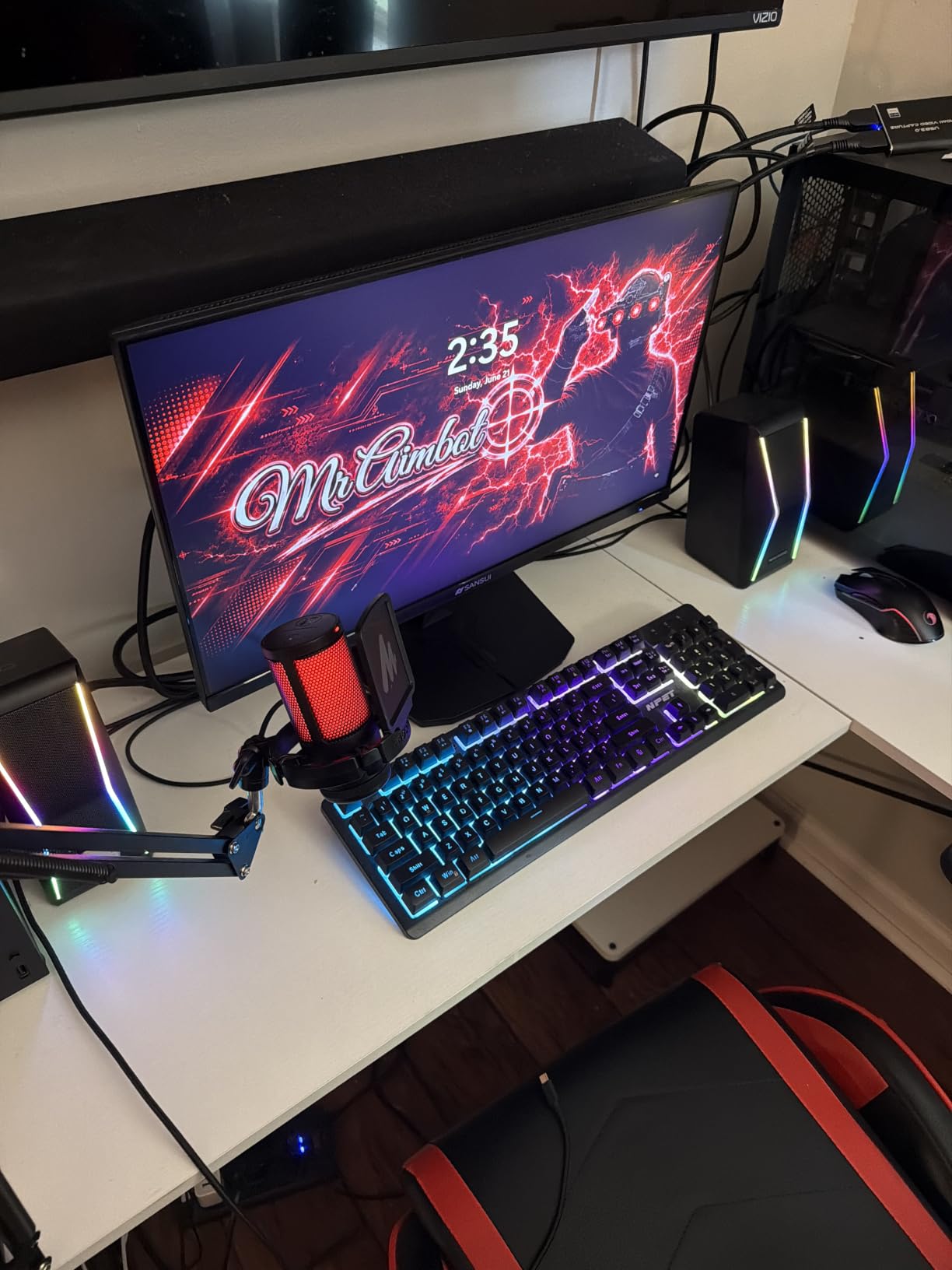
A 5120 x 1440 DQHD panel is, by construction, two 2560 x 1440 screens with the bezel removed. For a finance analyst with four charts open, or a video editor with a bin, a preview and a timeline, that geometry is the whole argument. This 49-inch 1500R VA panel delivers it at up to 165Hz with AMD FreeSync and 1ms response.
In practice, the 32:9 format is the difference between constant window juggling and a clean three-pane layout. Split the screen with Windows snapping or PowerToys FancyZones and you get a 2560-wide working area on one side and a second identical area on the other, with no gap and no bezel shadow crossing a spreadsheet. The curve is what keeps the outer thirds of that canvas readable instead of forcing you to lean around the panel.
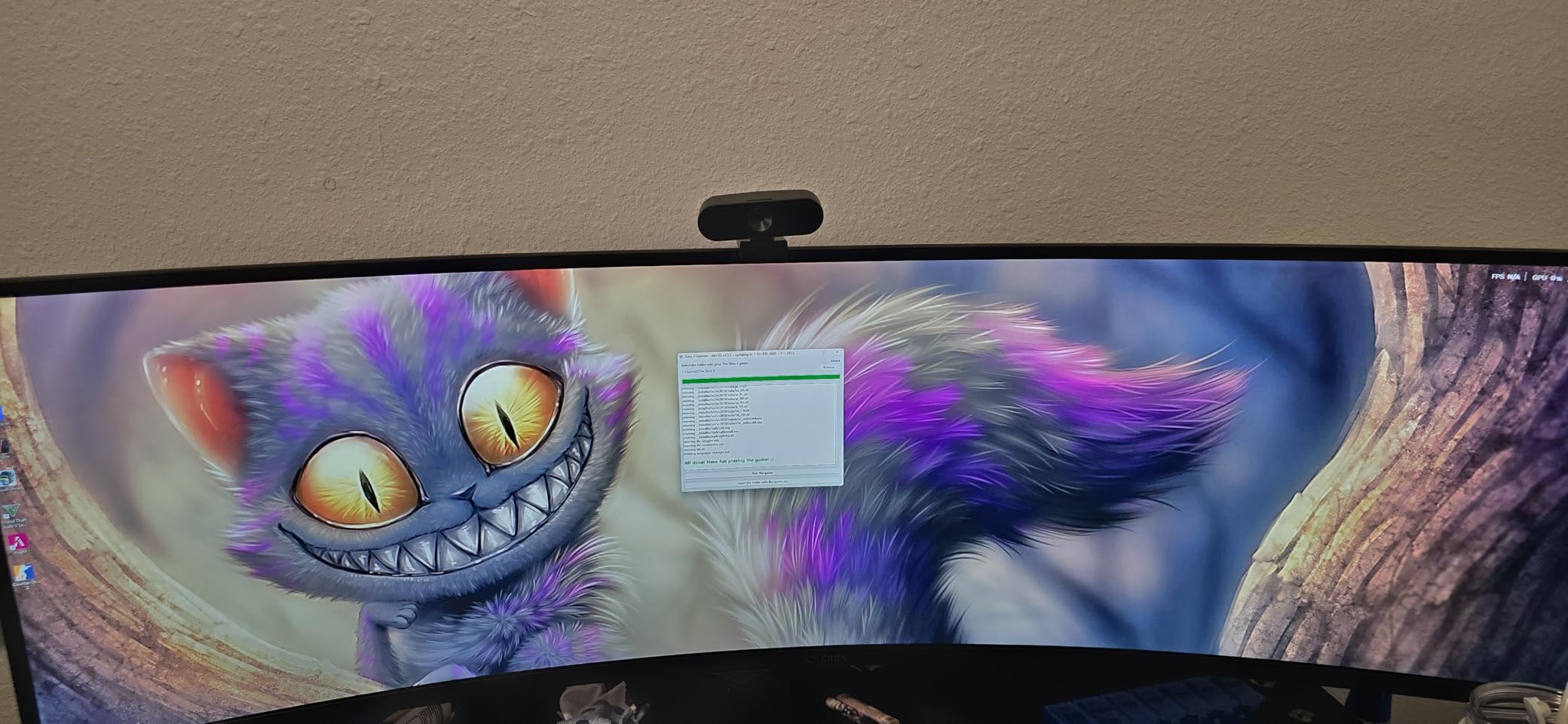
Color performance draws a positive mention more often than the speed figures do. Owners cite 120% sRGB coverage, 330 cd/m2 brightness and 3000:1 contrast as good enough for graphic design and video work without a calibration step, and the matte finish keeps reflections manageable in a lit room. Brightness usually still needs a nudge downward on arrival for long document reading.
Desk depth is the real constraint. The panel measures 46 inches wide with a 1.9 inch base, and the included stand is short with broad feet that eat front-to-back space. The most repeated advice from owners is to plan on a monitor arm rather than the supplied stand. A few buyers also report DisplayPort handshake quirks or backlight burn-in on early production runs, so check the picture carefully during the return window.
What makes this 32:9 curved monitor work
Set the refresh rate to 165Hz only if your GPU can hold it, and pair the 1ms response with FreeSync so scrolling a long sheet of rows never tears. If your graphics card is a mid-range part, run at 120Hz and bank the smoothness headroom for video scrubbing instead.
Use a monitor arm. The height-adjustable stand helps, but a proper arm clears the wide feet, lifts the panel to eye height and gives back desk depth you will want for a keyboard. The VESA pattern is 75x75mm, and some units need standoffs to clear the rear housing.
Where this curved monitor falls short
There are no built-in speakers, and the on-screen menu is one of the more awkward we have used, with controls that reviewers describe as reversed or unintuitive. Budget time to set inputs, brightness and FreeSync properly or the first impression will not match the spec sheet.
At 46 inches wide, this is not a monitor for a small desk or a shared hot-desking bay. Two curved panels side by side is also impractical because the bezels and curvature prevent them sitting flush, so this should be your only display rather than half of a pair.
3. Sceptre 34-Inch Curved Monitor C345B-QUT168 – Best Budget Curved Monitor for Office Work
Sceptre 34-inch Curved ultrawide WQHD Monitor (3440 × 1440), R1500, up to 180Hz/165Hz, DisplayPort x2, 99% sRGB, 1ms, Built-in Speakers, Machine Black, 2025 (C345B-QUT168)
34 inch R1500 LED
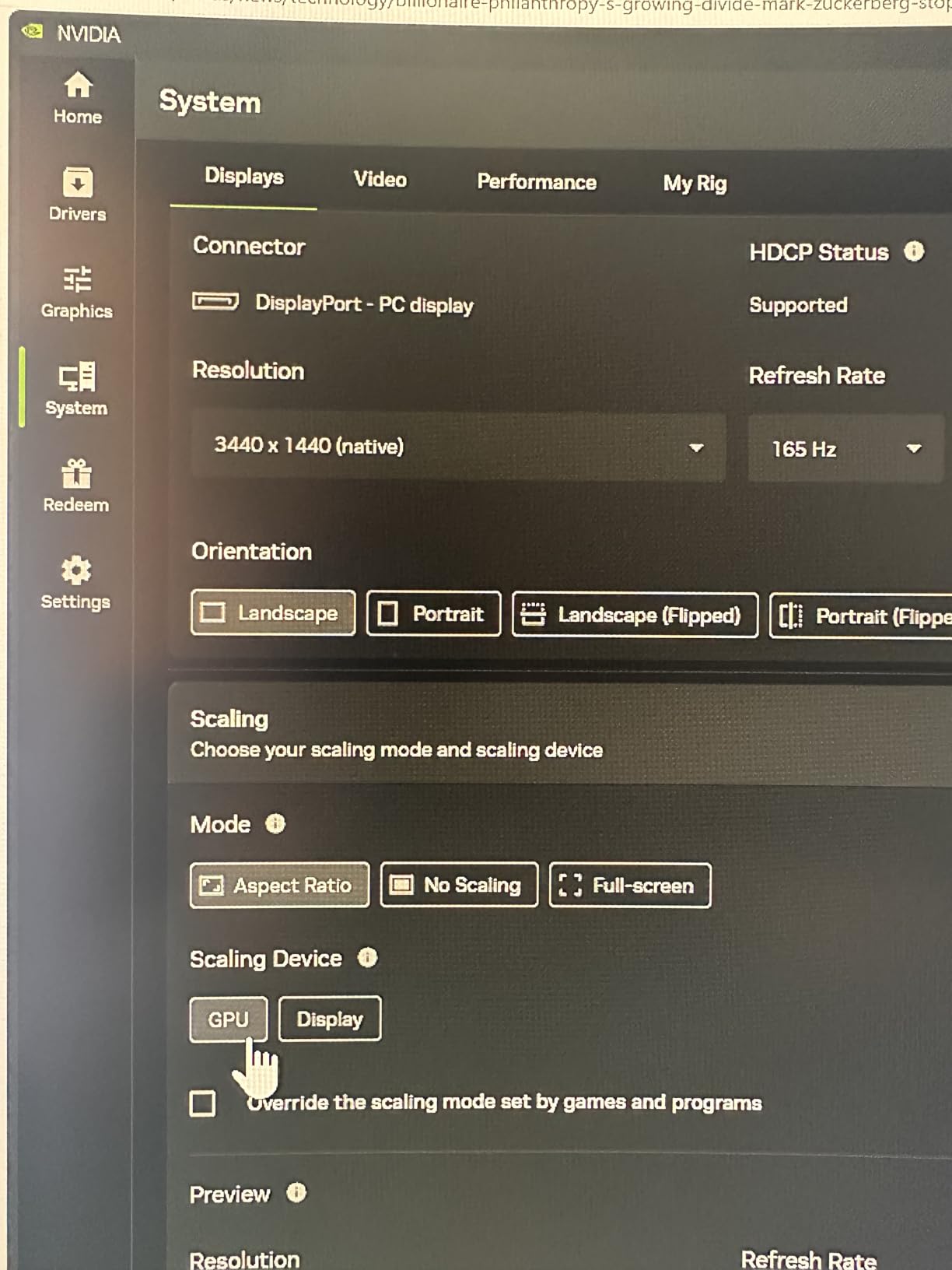
3440 x 1440 up to 180Hz
1ms MPRT
Built-in speakers
Pros
- 3440 x 1440 canvas consolidates a two-monitor desk
- Up to 180Hz with 1ms MPRT and FreeSync Premium
- R1500 curve brings edges into view
- LED back cover lighting
- Two-plus years of reliable operation reported
Cons
- Built-in speakers are weak
- Single bottom-mounted control button
- Some units show backlight bleed and horizontal lines
Every roundup in this category starts well above the budget tier, which leaves home-office buyers with two mediocre 27-inch panels. This Sceptre 34-inch R1500 display at 3440 x 1440 is the counter-argument, and it holds up: roughly 30% more screen area than a 16:9 panel at the same desk.
It refreshes up to 180Hz depending on the mode you select, with 1ms MPRT and AMD FreeSync Premium. For pure document work the refresh figure is not the point. The point is that a code editor, a browser with six tabs and an email client all fit on one panel without a single window being shrunk into illegibility.
Long-term ownership reports are unusually good for a monitor at this level. Several owners describe two-plus years of operation with no faults, and Sceptre technical support draws specific praise. That matters more for a work display than a spec-sheet peak, because a panel that dies in month four costs a morning of setup and a recalibration.
The 99% sRGB coverage and 280 cd/m2 brightness are adequate for office work and light photo viewing, though not for color-critical grading. The panel is LED rather than a specified VA or IPS type, and a minority of owners report faint horizontal lines and corner backlight bleed when seated very close to the screen. Sit at normal distance and back off brightness to 60 to 70% and the effect mostly disappears.
What to verify on this budget curved monitor
Check the box contents. Depending on the variant, cables may or may not be included, and a 3440 x 1440 signal over HDMI can require a specific cable generation. Verify the model number on the listing matches C345B-QUT168, since the refresh ceiling changes by mode.
Test for panel uniformity during the return window. Display a dark gray desktop in a dim room and look at all four corners. That takes two minutes and is the fastest way to avoid the backlight bleed minority that owners report.
Where this curved monitor is the wrong choice
The built-in speakers are weak, so they are fine for system beeps and nothing more. Audio goes through HDMI or the 3.5mm output to whatever speakers you already own.
The single bottom-mounted all-in-one button for power and menu navigation is genuinely awkward, and the joystick-style control reviewers praise is not present on every variant. The stated 1,000,000:1 contrast figure is a dynamic marketing number, so judge the panel on real image quality rather than the spec. If your work involves wide color or high-end photo editing, step up to a panel with verified gamut coverage.
4. Samsung Odyssey G93SC 49-Inch Curved OLED – Best Curved Monitor for Color and Contrast
Samsung 49″ Odyssey (G93SC) Series QD-OLED Curved Gaming Monitor
49 inch QD-OLED 1800R
5120 x 1440 at 240Hz
True Black 400 HDR
0.03ms GTG
Pros
- QD-OLED panel delivers true blacks and 1000000:1 contrast
- 5120 x 1440 at 240Hz for work and play
- PBP runs two inputs at native resolution
- Auto Source Switch and three-port USB hub
- 4.5mm metal chassis with height adjustment
Cons
- 250 nit brightness is modest in bright rooms
- OLED is sensitive to static desktop content
- Large footprint needs careful desk planning
This is the only QD-OLED panel in the group, and the difference shows up immediately in a dark room. True blacks, an effective 1,000,000:1 contrast ratio and DisplayHDR True Black 400 certification make dark-mode coding environments and video reference work look better than any VA panel here. The 1800R curve is gentle, which keeps the geometry honest while still wrapping the edges toward you.
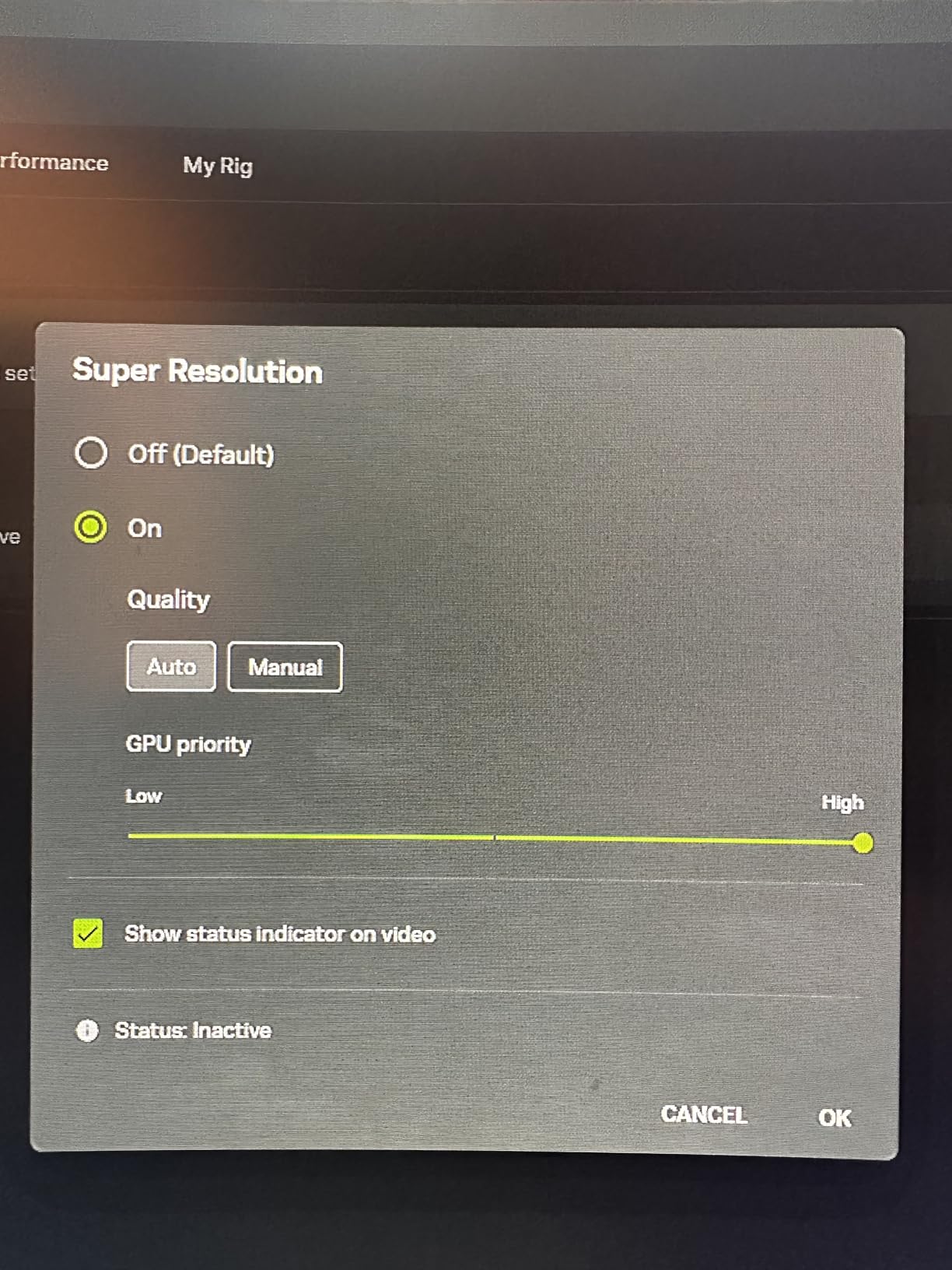
At 5120 x 1440 and 240Hz with 0.03ms GTG response, it doubles as a gaming display without compromise. For productivity, the standout feature is Picture-by-Picture, which splits the screen into two halves at native resolution from two inputs. Owners running a work laptop and a personal machine call it straightforward dual-machine productivity without a second panel.
Auto Source Switch is the sleeper feature. It detects a newly powered-on device and changes input automatically, so a meeting that starts with someone plugging into a cable does not require you to reach for the joystick. Connectivity covers HDMI 2.1, DisplayPort and a three-port USB hub, and the 4.5mm metal chassis looks and feels like a premium display rather than a gaming panel.
Brightness is the tradeoff, and it is a real one. At 250 cd rated, this screen struggles in a glare-heavy office and reviewers mention that directly. It also sits in a glossy-matte category where a bright window opposite your desk will show. If you work in a sunlit room all day, an LED alternative handles the light better.
How to use this OLED curved monitor day to day
Run the panel at a moderate brightness and leave the taskbar and any docked IDE panels in a position that does not leave a static toolbar burned into the same pixels for years. OLED burn-in is a long-term management task, not an instant failure, and most owners running mixed work and play report no issues.
Use Picture-by-Picture instead of tiling windows when you need two full-width applications. A browser and a mail client each get a genuine 2560 x 1440 half of the panel at native resolution, which beats any virtual desktop split you can force from software.
Where this curved monitor disappoints
Static productivity interfaces are exactly what OLED panels are least suited to. A permanently docked taskbar, an always-visible chat sidebar and a spreadsheet with frozen header rows all sit in the same place for eight hours a day, which is the workload that produces burn-in over years rather than months.
The 27.8-pound chassis and 47-inch width need desk planning, and 250 cd brightness is the weakest of the group for a well-lit office. If your day is documents and spreadsheets in a bright room, one of the 400-nit LED or VA panels serves you better and costs less.
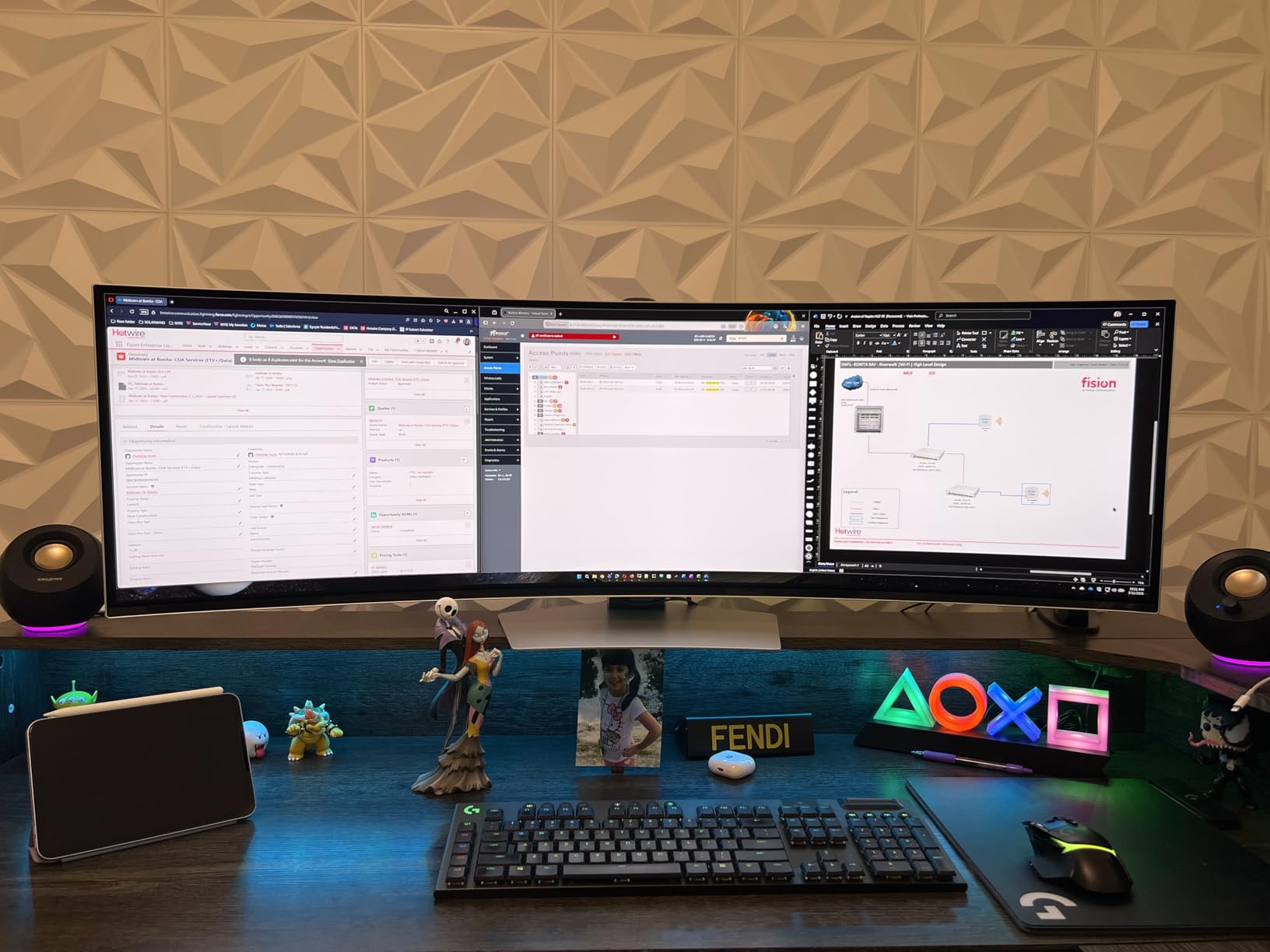
5. Deco Gear 49-Inch Curved Monitor DG495KEDGE – Best Curved Monitor for USB-C Laptop Docking
Deco Gear 49 Inch Curved Ultrawide Monitor, 5120×1440 Dual QHD 32:9 1500R VA Display, HDR400, 120Hz, Adaptive Sync, 1ms MPRT, USB-C 65W PD, KVM, PIP/PBP, Gaming & Workstation Setup, for PC & Laptop
49 inch 1500R VA
5120 x 1440 at 120Hz
USB-C 65W PD
KVM switch
Pros
- USB-C 65W power delivery for single-cable laptop setup
- Built-in KVM switch for two machines
- 5120 x 1440 canvas replaces a dual-monitor desk
- 400 cd/m2 brightness suits a lit room
- Height
- tilt and swivel adjustable stand
Cons
- No built-in speakers
- 120Hz is conservative against faster 49-inch panels
- VA panel shows darker corners
This is the pick for a laptop-only desk. The USB-C input carries video and up to 65W of power delivery, so one cable connects a notebook, charges it and feeds the display. For a machine that draws under 65W under load, the charging cable can disappear into the monitor and the desk stays visually clean.
The built-in KVM switch is the second productivity feature. Connect a work laptop and a personal desktop, and one keyboard and mouse pair moves between them at the press of a button. Owners running a two-machine setup rate this above software-based KVM solutions because the switch happens at the hardware level, before the desktop even finishes loading.
Picture quality is more serious than the price suggests. The VA panel is rated at 400 cd/m2 with 3000:1 contrast, 100% sRGB and HDR400 support, which makes it one of the brighter options in the 49-inch class. In practice reviewers describe it as good for productivity and creative work rather than merely functional, which is a fair characterisation of a 400-nit panel in a normal office.
PIP and PBP handle a third source if you need it, and the stand adjusts for height, tilt and swivel, which matters more than usual at this width. Connectivity runs to HDMI, DisplayPort, USB-C, USB-A, USB-B and audio out. There are no built-in speakers, so external audio is required.
What 65W USB-C power delivery means for your laptop
65W is the entry tier. It comfortably covers ultraportables, thin Windows laptops, Chromebooks and most MacBook Air configurations. It will not charge a large workstation or a 16-inch MacBook Pro at full speed, and those machines will draw from their own power adapter while the monitor still handles video and peripherals.
Check your machine’s charger wattage before you commit. If your laptop ships with a 96W or 140W adapter, treat the 65W as convenience rather than replacement, and keep the charger in the bag.
Where this curved monitor falls short
120Hz is the slowest refresh rate among the 49-inch panels here, and buyers moving from a 144Hz or 165Hz screen notice it immediately in fast motion. For spreadsheets and documents you will not care. For a hybrid work-and-play desk you probably will.
VA panels on wide curved surfaces show darker corners and slower black transitions than IPS or OLED alternatives, which is visible in a dim room with dark UI themes. And with 522 reviews, the long-term ownership record here is shorter than the other picks, so test the panel early.
6. Z-Edge 49-Inch Curved Monitor UG49W – Best Curved Monitor for KVM Workflows
Z-Edge 49 inch Ultrawide Curved Computer Monitor, DQHD 5120×1440, 165Hz
49 inch 1500R LED VA
5120 x 1440 at 165Hz
350 cd, 3000:1
Built-in KVM
Pros
- 5120 x 1440 Dual QHD with no bezel seam
- Built-in KVM plus USB Type-B and Type-C
- Up to 165Hz with FreeSync and 1ms MPRT
- Integrated dual speakers
- Height and tilt adjustable stand with VESA mount
Cons
- Menu and button layout is confusing at first
- Color needs adjustment out of the box
- Tiny stand assembly screws need a precision driver
The Z-Edge pairs a 5120 x 1440 Dual QHD canvas with a hardware KVM switch and integrated dual speakers, and it does both at 165Hz. That combination is rare in the 49-inch class: most rivals offer either fast refresh or a KVM, and this one covers both at up to 1ms MPRT with FreeSync.
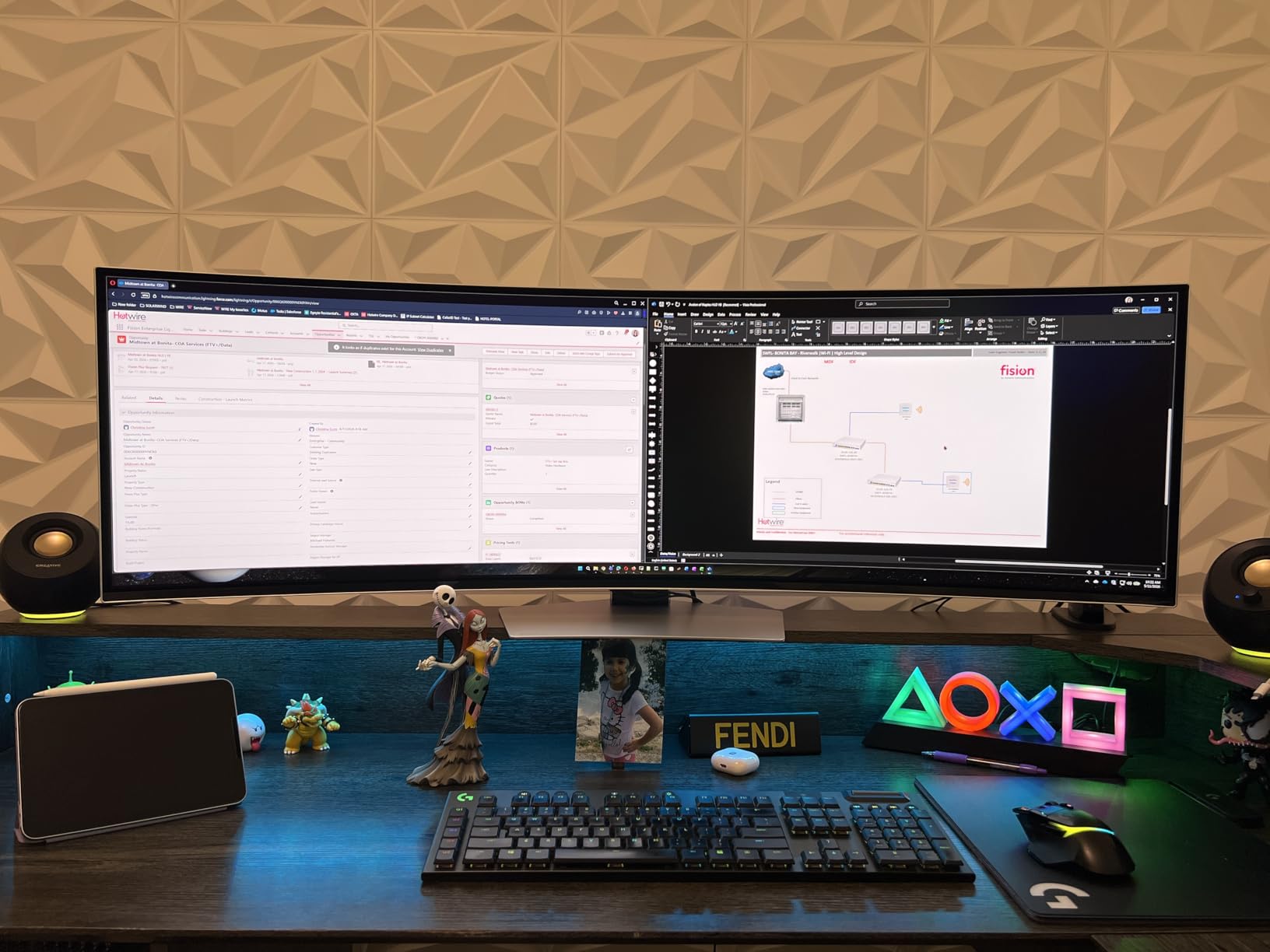
Owners describe the upgrade from a single smaller display as dramatic, and the practical reason is straightforward. A 5120-pixel-wide canvas lets you keep a multi-column spreadsheet, a BI dashboard and a terminal in view at native scale with no window resizing. Owners running trading dashboards get the same benefit, with a wide chart and a news feed side by side without shrinking either one.
The USB Type-B and Type-C inputs support the KVM chain directly, so no extra hardware switch box is needed on the desk. PIP and PBP cover the case where you want a small inset from a second machine rather than a clean split. A box, DP cable, power adapter, stand and USB A-B cable are included, which is a better box contents list than several rivals manage.
Integrated dual speakers are worth a note. They are not hi-fi, but for call notifications and quick review they remove the need for a separate desktop speaker pair on a desk that is already 46 inches wide. Brightness is rated at 350 cd with 3000:1 contrast, mid-pack for the class and adequate for a normally lit room.
How to set up the KVM workflow on this curved monitor
Connect each machine with its own USB Type-B upstream cable alongside its display input, then select the KVM source from the on-screen menu. Switching becomes a button press rather than a cable swap, and peripherals follow the computer. This is the single biggest daily time-saver for anyone running a work laptop alongside a desktop.
Use PowerToys FancyZones or Windows snapping to divide the 32:9 canvas into two 2560 x 1440 regions. Owners who do this report a setup that behaves like a dual-monitor desk with no bezel gap in the middle, which is the entire appeal of a super-ultrawide.
Where this curved monitor frustrates buyers
The physical controls are the weak point. Owners report that the on-screen menu and button layout are confusing for first-time users, that the power button is not obvious, and that the setup instructions are unclear. Allow yourself time in the OSD on day one.
Color settings also need adjustment out of the box before the picture is convincing. The stand assembly screws are very small and no suitable tool is included, so have a precision driver handy. A few buyers report difficulty with warranty service handling, so keep the packaging until you are settled.
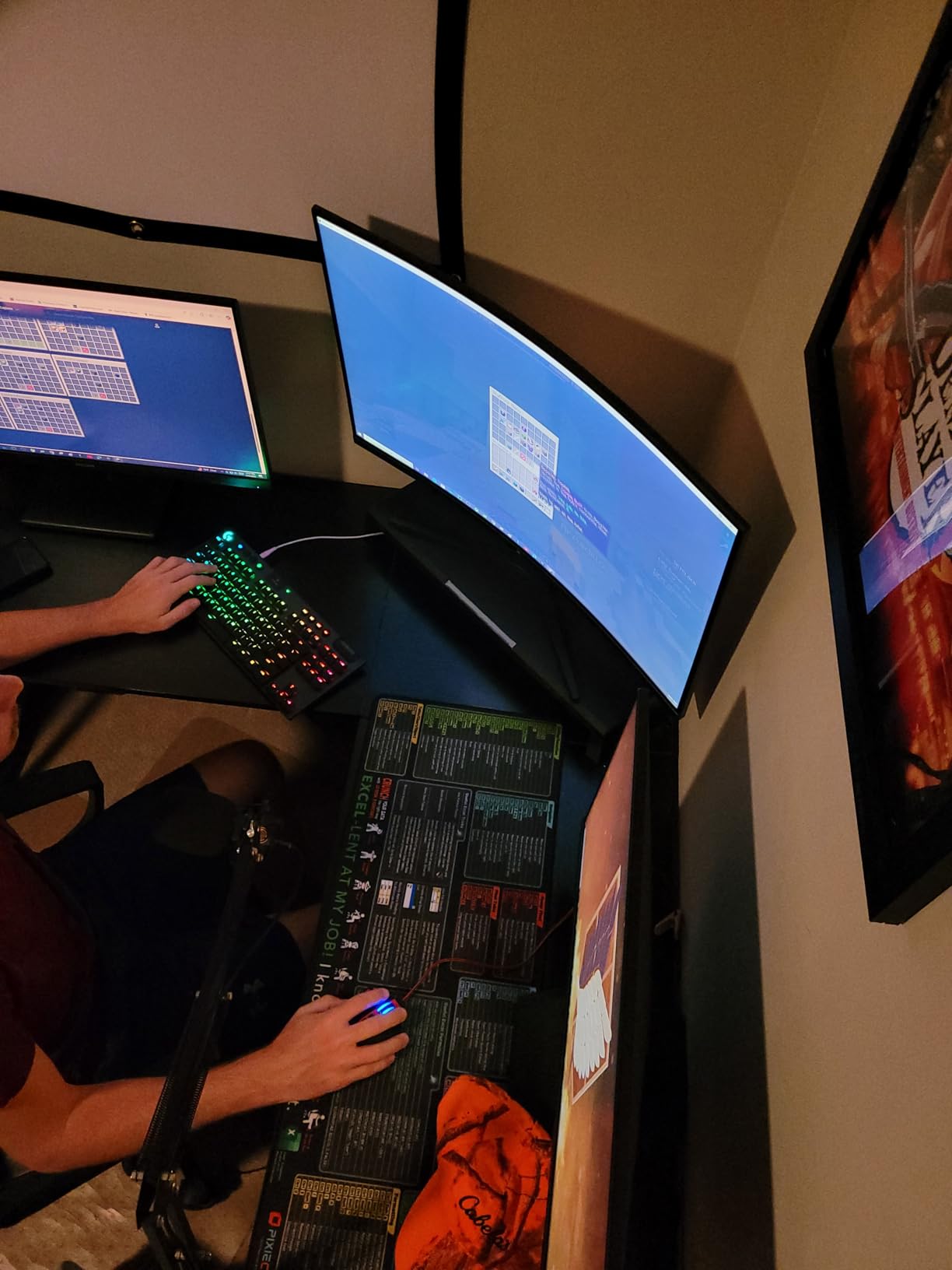
7. Alienware AW3425DWM 34-Inch Curved Monitor – Best Curved Monitor for Hybrid Work and Gaming
Alienware 34 Curved Gaming Monitor – AW3425DWM – 34-inch WQHD 180Hz 1ms Display, 1500R, AMD FreeSync Premium, VESA AdaptiveSync.
34 inch 1500R LED
3440 x 1440 at 180Hz
400 nit, 3000:1
DCI-P3 95%
Pros
- Sharp 3440 x 1440 picture with 400 nit brightness
- 180Hz with 1ms GtG and FreeSync Premium
- DisplayHDR 400 and DCI-P3 95% for mixed content
- Height
- tilt and swivel adjustments
- Three-year manufacturer warranty
Cons
- Heavier than competing 34-inch panels
- 34-inch footprint needs a deep desk
- No USB-C docking for laptops
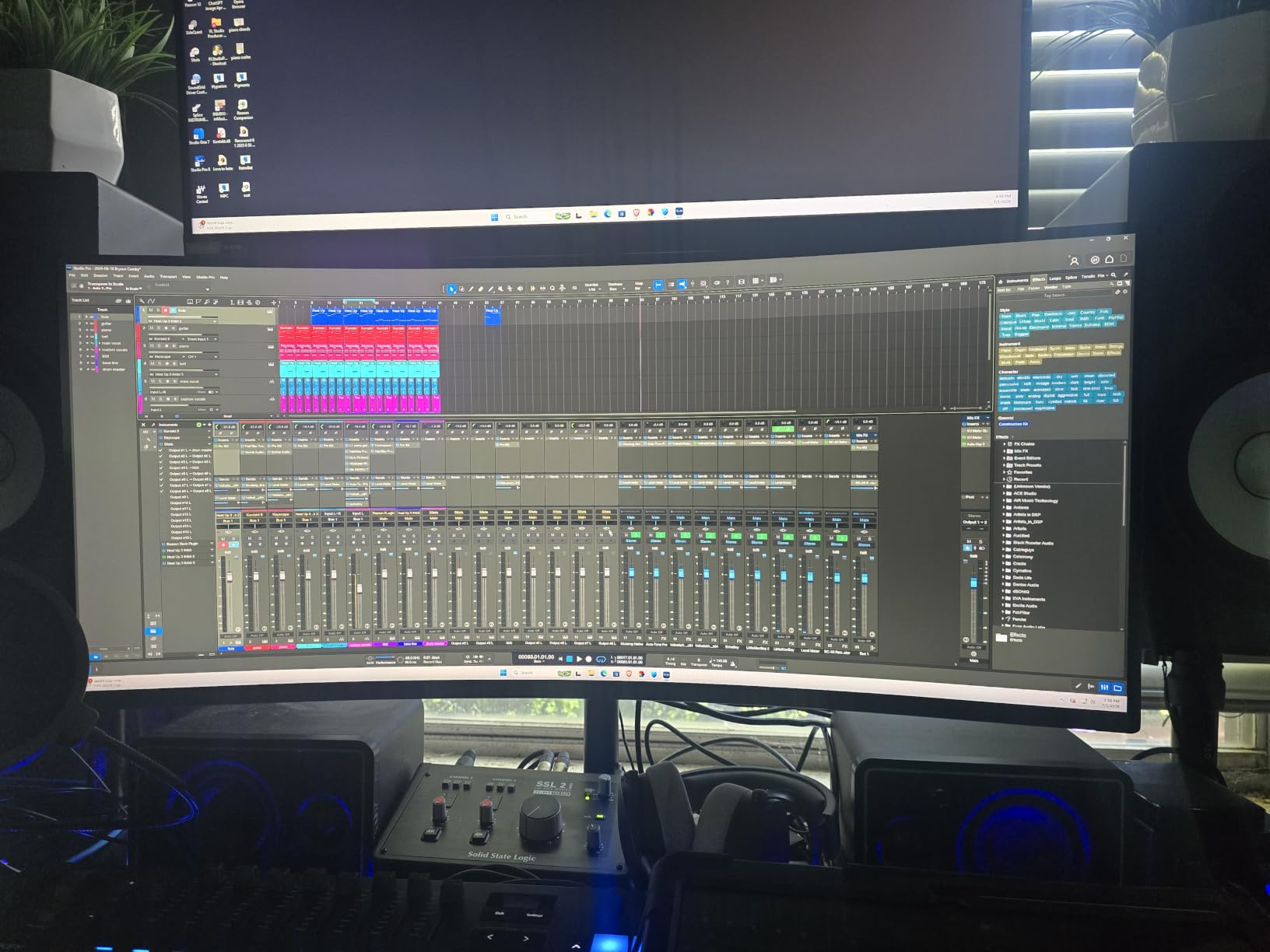
The AW3425DWM is the highest-rated panel in this group at 4.6, and the reason is that nothing on the spec sheet gives. A 34-inch 1500R LED panel at 3440 x 1440, 180Hz with 1ms gray-to-gray response, 400 nits and 3000:1 contrast covers a working day and a gaming night on one screen.
Owners consistently single out sharpness and color accuracy alongside smooth 180Hz performance. For productivity that means a 400-nit panel that holds up in a lit office, DCI-P3 95% coverage for mixed content work, and VESA DisplayHDR 400 certification. A dedicated console mode and a hardware-based low blue light solution handle evening use without digging through the OSD.
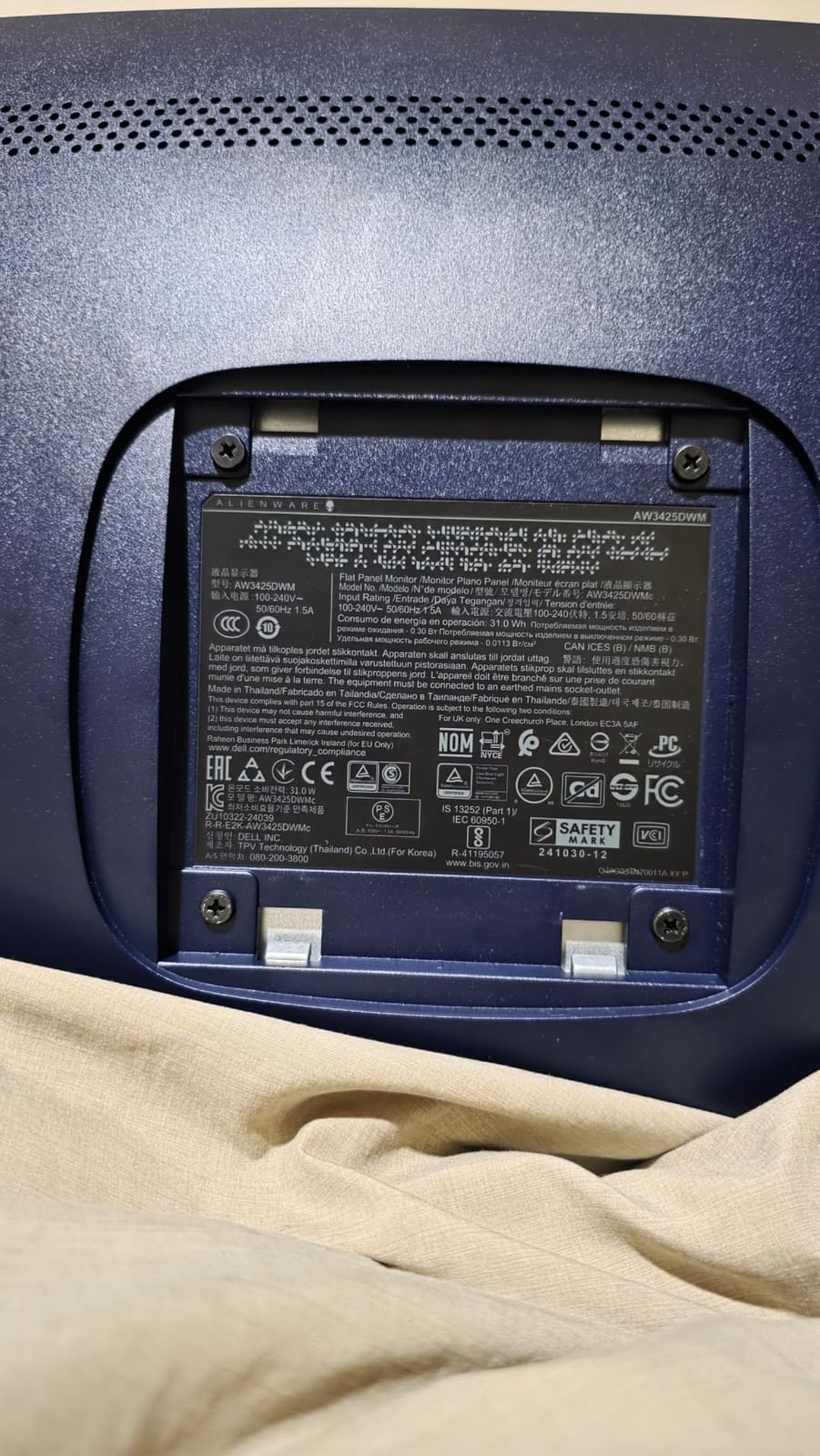
Three USB ports, HDMI and DisplayPort cover peripherals, and the stand adjusts for height, tilt and swivel. That matters for long sessions, and reviewers list comfortable ergonomics as a consistent strength. The three-year manufacturer warranty is the longest alongside the Dell panel, which makes this the pick for a company deployment.
The limitations here are physical rather than electronic, which is a good problem to have. At 21 pounds it is heavier than most 34-inch ultrawides, and some monitor arms need a stronger head. The wide 21:9 footprint also wants a deep desk for full productivity use rather than a compact home-office surface.
Why this curved monitor suits a hybrid desk
It is one screen for two jobs. At 3440 x 1440 you can run a code editor, a server terminal and a browser with real estate to spare during the day, then switch inputs to a console for the evening without rearranging anything. FreeSync Premium plus VESA Adaptive Sync keeps the desktop smooth and the games tear-free.
Adjust the height once and leave it. Owners report the combination of tilt, swivel and height adjustment plus a matte finish as a comfortable setup for a full working day, which is exactly the workload the panel is tuned for.
Where this curved monitor is the wrong tool
It is not a USB-C docking display. A laptop user still needs a separate hub for power, network and peripherals, or a dedicated dock on the desk. If your whole setup is one notebook, the Deco Gear 49-inch or the Dell UltraSharp handles the single-cable requirement and this panel does not.
Also check your arm. At 21 pounds, a lightweight monitor arm can dip over time, and the 21:9 width means the desk needs real front edge. If your desk is compact or shared, a flat 27-inch or a smaller 34-inch option is the calmer choice.
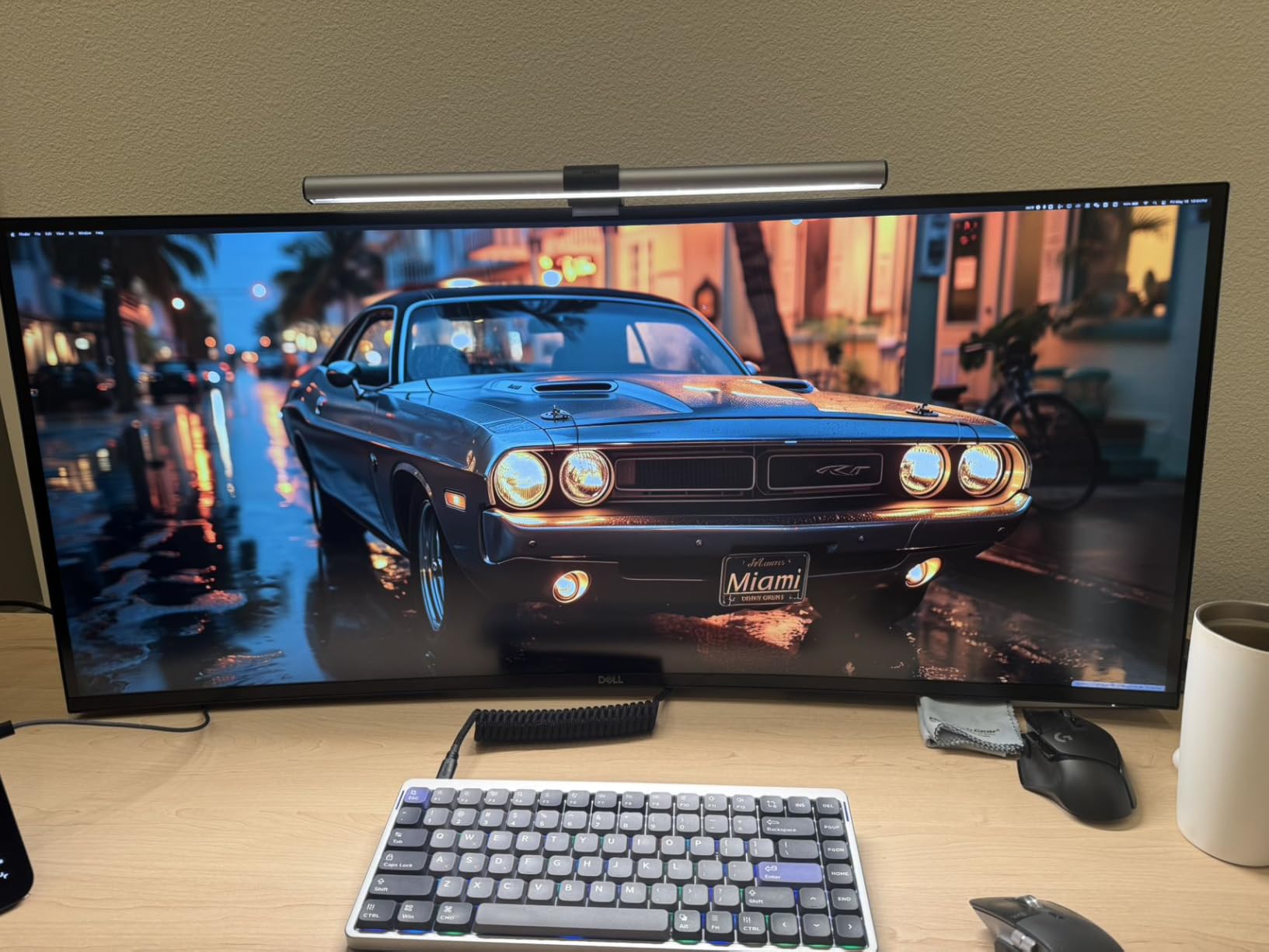
8. Dell UltraSharp U4025QW 40-Inch Curved Monitor – Best Curved Monitor for Text Sharpness and Single-Cable Docking
Dell UltraSharp U4025QW 40″ Class 5K2K WUHD Curved Screen LED Monitor – 21:9
39.7 inch curved 21:9
5120 x 2160 5K2K
600 nit, 2000:1
8 USB ports and RJ45
Pros
- 5K2K 5120 x 2160 across 39.7 inches for exceptional text detail
- USB-C and Thunderbolt hub with eight USB ports
- Integrated RJ45 Ethernet for a wired connection
- 600 nit brightness works in well-lit rooms
- Height
- swivel and tilt adjustment with VESA mount
Cons
- Very heavy at nearly 42 pounds
- Premium single-monitor cost
- 5ms response and 120Hz trail gaming panels
Pixel density is the argument here. A 5120 x 2160 5K2K WUHD panel spread across a 39.7-inch 21:9 curve puts enough pixels on screen that code, contracts and small interface text render crisply at 100% scaling with no operating system interpolation. Owners describe it as a professional productivity display rather than a gaming panel, and that framing is accurate.
The docking is the second headline. USB-C with Thunderbolt-class bandwidth feeds the display, eight USB ports handle peripherals, and an integrated RJ45 port turns the monitor into a wired network connection. That means a single cable from a laptop can carry video, data, power and network, which eliminates a dock, a dongle and a network cable from the desk.
600 nits of brightness is the highest figure in the group and it is not marketing padding. Owners working in well-lit rooms single this out as the reason the display is usable in daylight, where the 250-nit OLED and the 280-nit Sceptre are not. The 2000:1 contrast ratio is modest next to an OLED but holds up well for documents and code against a 99% sRGB matte panel that resists glare.
Two things temper the recommendation. The panel weighs nearly 42 pounds, so a strong arm or a capable stand is required rather than optional. And at 120Hz with 5ms response, it trails every gaming-focused panel here, which is a fair trade for a workstation display.
How to get the sharpest text from this curved monitor
Run the panel at native 5120 x 2160 with 100% scaling. At that pixel density, the text is already small enough that scaling above 100% wastes the extra space, and the four extra vertical lines over a 1440p-tall panel go to a taller document view or an extra code pane.
Use the integrated Ethernet for a wired connection if your desk has a network port within reach. Over a single USB-C cable you get a stable connection for large data transfers, which is more useful for a developer or analyst than the extra two USB ports.
Where this curved monitor falls short
Weight is the practical problem. Nearly 42 pounds means a two-person lift out of the box, and a monitor arm rated for a 34-inch panel will not do. Plan the arm purchase before the monitor arrives.
For media and gaming work, 120Hz and 5ms response time are modest, and the OLED panel in this roundup handles motion and contrast far better. This is a display built around text, spreadsheets and code, and it is the most expensive single monitor here by a wide margin.
How to Choose a Curved Monitor for Productivity
Eight monitors, three panel types and four aspect ratios make the category look harder than it is. These seven factors decide almost every purchase, in the order that matters for desk work.
1. Curvature radius: the R-number you can actually feel
A curvature figure like 1800R describes the radius of the circle the panel is cut from. Put enough 1800R monitors side by side and they would form a circle with an 1800mm radius. For office work the useful range sits between 1500R and 1800R: gentle enough that straight edges and text stay honest, tight enough that the far corners of a wide panel stay inside your field of view.
Tighter curves at 1000R prioritise immersion and are common on smaller panels. On a 34-inch or larger productivity display they start bowing the outer thirds of the screen enough to make an inclined ruler or a horizon line look wrong. Most buyers who move from a tight curve to a gentle one report noticing the difference in the first hour and preferring the gentle curve for work.
2. Resolution and pixel density: where the real work happens
Resolution determines how many things you can see at once without shrinking them. A 3440 x 1440 21:9 panel is about 30% wider than a 16:9 monitor of the same height. A 5120 x 1440 32:9 panel is two 2560 x 1440 screens with the bezel removed, and a 5120 x 2160 5K2K panel adds 720 vertical lines on top of that for text and code sharpness.
Pixel density matters more than raw resolution for long reading sessions. A 34-inch 3440 x 1440 panel lands near the pixel density of a 27-inch 1440p display. The Dell U4025QW spreads 5120 x 2160 across a 39.7-inch panel, which is dense enough that text renders crisply at 100% scaling with no operating system interpolation, and that is why it does not need scaling where the 34-inch models often do.
3. USB-C power delivery tiers: match the monitor to your laptop
USB-C power delivery on a monitor is what turns it into a docking station, and the wattage tiers decide whether it actually replaces your laptop charger. The 65W tier covers ultraportables and thin Windows laptops. The 90W to 96W tier covers most performance laptops and MacBook Pro 14-inch configurations. The 140W tier is what a 16-inch MacBook Pro or a mobile workstation expects under sustained load.
Only one model in this roundup has USB-C power delivery: the Deco Gear 49-inch at 65W. That is a real gap in the category, and it is worth checking before you buy a curved ultrawide for a laptop-only desk. If your laptop ships with a 96W or larger adapter, treat any lower monitor wattage as convenience rather than a charger replacement.
4. KVM switches and PIP: two machines, one keyboard
If you run a work laptop and a personal desktop, a hardware KVM switch is the most useful feature nobody researches in advance. The Deco Gear 49-inch and the Z-Edge 49-inch both include one, and both let a single keyboard and mouse move between machines with a button press.
PIP and PBP serve a different purpose. PIP places a second source in a corner window for a chat or a security camera feed. PBP splits the panel into two equal halves at native resolution, which on a 5120 x 1440 screen gives you two genuine 2560 x 1440 workspaces with no bezel between them. The SANSUI 34-inch and the Samsung Odyssey G93SC both support these modes.
5. Window management software: the decision nobody thinks about
An ultrawide is only as good as your ability to arrange windows on it. Windows snapping layouts handle the basics, and PowerToys FancyZones is the standard answer for dividing a 32:9 panel into zones that persist between sessions. Set up a 60/40 split for document and reference work, or a three-zone layout for terminal, editor and browser.
This is a software problem with a software solution, and no monitor solves it for you. If you switch between Windows and macOS, expect some friction: full-screen mode in Word, Google Docs and video players tends to center on a single screen rather than fill the whole panel, so full-screen simply means oversized. Using windowed mode with maximized layout snaps avoids the problem entirely.
6. Panel type: IPS, VA or OLED for desk work
VA panels dominate the 49-inch and budget 34-inch class. They deliver high contrast, deep blacks for the money and high brightness, but they show darker corners and slower black transitions than IPS, and colors shift when you view from an angle. On a wide curved panel where you are constantly looking at the outer thirds, that shift is more visible than on a flat display.
OLED panels, represented here by the Samsung Odyssey G93SC, deliver the best contrast and response time in the group with true blacks, at the cost of static-content sensitivity and lower brightness. IPS sits in between with better viewing angles and text clarity, though none of the IPS models here reach the 49-inch class.
For text-heavy work at 5120 x 2160, panel type matters less than pixel density. The highest-density panel in this roundup is an LED model, and its text sharpness comes from resolution rather than panel technology.
7. Desk depth and stand adjustability: the physical constraint
Curved monitors need more desk depth than flat ones because the panel curves toward you. A 34-inch model wants roughly 28 to 30 inches of front edge. A 49-inch model measures around 46 inches wide and needs 30 inches or more of depth, and the wide stand feet that ship with them consume exactly that depth. Plan on a monitor arm for any 49-inch panel.
Height adjustment is the stand feature people notice late. The SANSUI 34-inch tilts but does not raise, which is a problem if your desk is a standard height and your eyes sit well below the final position. The CRUA, Deco Gear, Z-Edge and Alienware panels all adjust for height, tilt and swivel, and every 49-inch and 40-inch model here offers VESA mounting.
8. Backlight bleed: test it yourself in two minutes
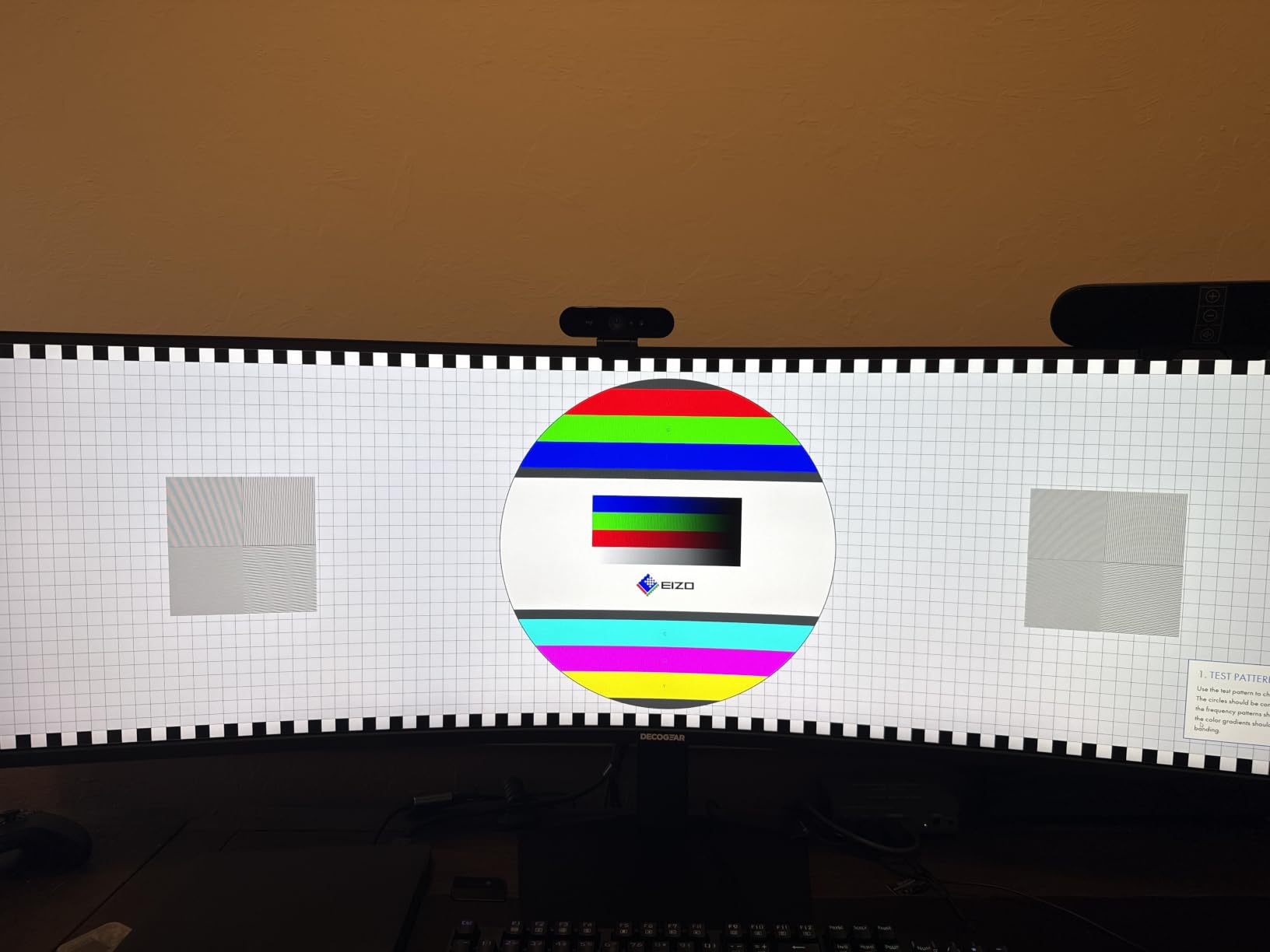
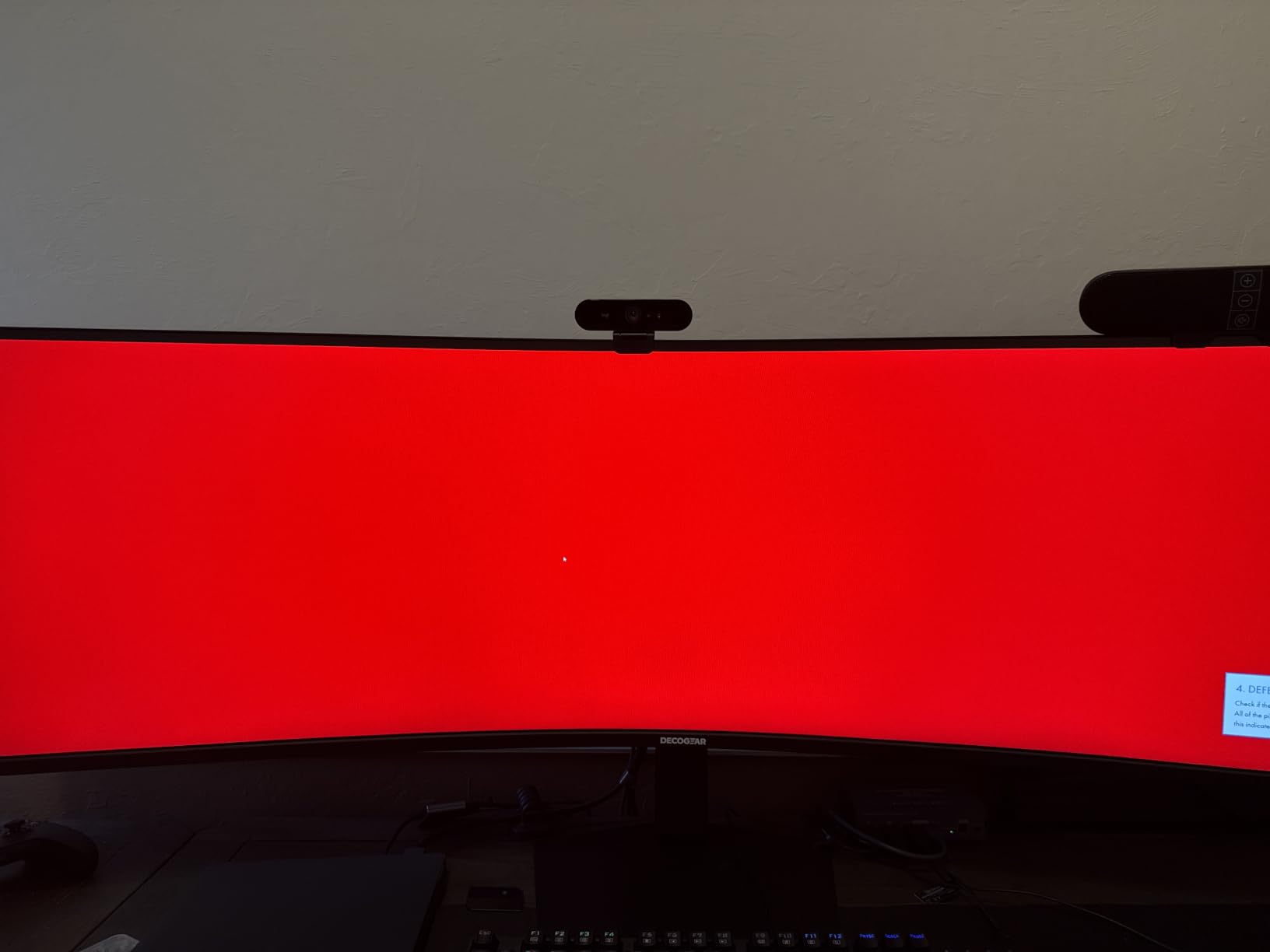
Corner backlight bleed is the most common complaint in this category and the least discussed. Wide panels of any type can show uneven corner brightness, and it is more visible on a dark room with a dark UI theme. Nobody can check this for you at purchase time, so do it yourself during the return window.
First, set the monitor to its highest brightness in a dim room and display a dark gray or near-black screen. Then view the panel head-on from arm’s length and look at all four corners for glow. Finally, sit close to the panel, because bleed that is invisible at distance can show when you lean in close to read small text. A faint glow is normal. Visible bright patches are a return candidate.
Best Curved Monitors vs Flat Monitors: When the Curve Works Against You
Curved monitors help with wide multi-window work and hurt with precision straight-line work. That is the whole decision, and it comes down to what you do on the screen rather than how curved you like the picture.
Choose a flat 4K display if you do CAD, PCB layout, architectural drafting, photo compositing or any work where you align elements to a straight line. A curved panel bows horizontal and vertical rules away from true, which your eye catches even when measurements look close. Wide flat monitors in 21:9 exist and cost more, but the geometry is correct for that work.
Also consider flat if you plan to add a second curved monitor later. Two curved panels cannot sit flush side by side because of their curvature and bezels, so the pair will always leave a visible wedge between them. Two flat monitors tile cleanly, and many buyers who regret a curved purchase regret it for that reason rather than the image quality.
Stay with curved for spreadsheets, code, dashboards, video timelines and trading layouts. Anywhere the value of the display is horizontal span, the curve keeps the outer edges readable and removes the constant neck twisting that a flat ultrawide causes. Our portable monitor guide covers the opposite end of the size spectrum for travel setups, and our arcade monitor picks suit short-throw display setups instead.
Frequently Asked Questions
Are curved monitors good for productivity?
Yes, for most office work. A gentle curve between 1500R and 1800R keeps the far edges of a wide panel closer to your natural focal plane, so you spend less time twisting your neck to read a spreadsheet column or check a chat window. The benefit diminishes on panels under 34 inches and reverses for precision straight-line work such as CAD or photo compositing, where a flat display is the correct choice.
Which curved monitor is best for office work?
It depends on your desk and laptop rather than on the panel. Match the size to depth: a 34-inch 3440 x 1440 model suits a standard desk, a 49-inch 5120 x 1440 panel needs roughly 30 inches of depth and a monitor arm, and a 40-inch 5K2K display needs a strong arm because of its weight. If your setup is laptop-only, verify USB-C power delivery wattage before buying, because most models in this category have none.
Is there a downside to curved monitors?
There are four real ones. Straight lines appear bowed, which is a problem for CAD, PCB layout and photo compositing. Two curved monitors cannot sit flush side by side. Corner backlight bleed is easier to see on very wide panels in a dark room. And VA panels shift color and contrast at the outer edges of a wide curve, so the far thirds of the screen can look different from the center.
Do curved monitors reduce eye strain?
They can help, indirectly rather than magically. Because the curve equalizes viewing distance across the width, you do not have to repeatedly turn your head or refocus on distant corners, which is a common source of neck and eye fatigue on flat wide panels. A curve does not correct problems caused by low brightness, glare, flicker or an incorrect viewing distance, and it cannot make a badly positioned monitor comfortable.
What curvature is best for productivity?
Between 1500R and 1800R for desk work. That range is gentle enough that text and straight edges stay visually honest while still pulling the outer thirds of a 34-inch or larger panel into your field of view. Tighter curves at 1000R are built for immersion rather than document work and are more common on smaller panels, where the curve does not need to be gentle to work.
Best Curved Monitors for Productivity: The Final Verdict
The SANSUI 34-inch ES-G34C5 is our pick for the best curved monitors for productivity because it balances a 3440 x 1440 canvas, a gentle 1500R curve and a 200Hz refresh rate on a stand that fits a normal desk. The CRUA 49-inch takes the win when you need one panel to do the work of two screens, and the Sceptre 34-inch is the honest budget answer that most roundups skip entirely.
Beyond those three, the Samsung Odyssey G93SC wins on contrast and motion, the Deco Gear and Z-Edge 49-inch panels win on KVM and multi-machine setups, the Alienware AW3425DWM wins on rated picture quality and warranty, and the Dell UltraSharp U4025QW wins on text sharpness above everything else. Whichever you pick, check your desk depth and test the corners during the return window before you settle in.