
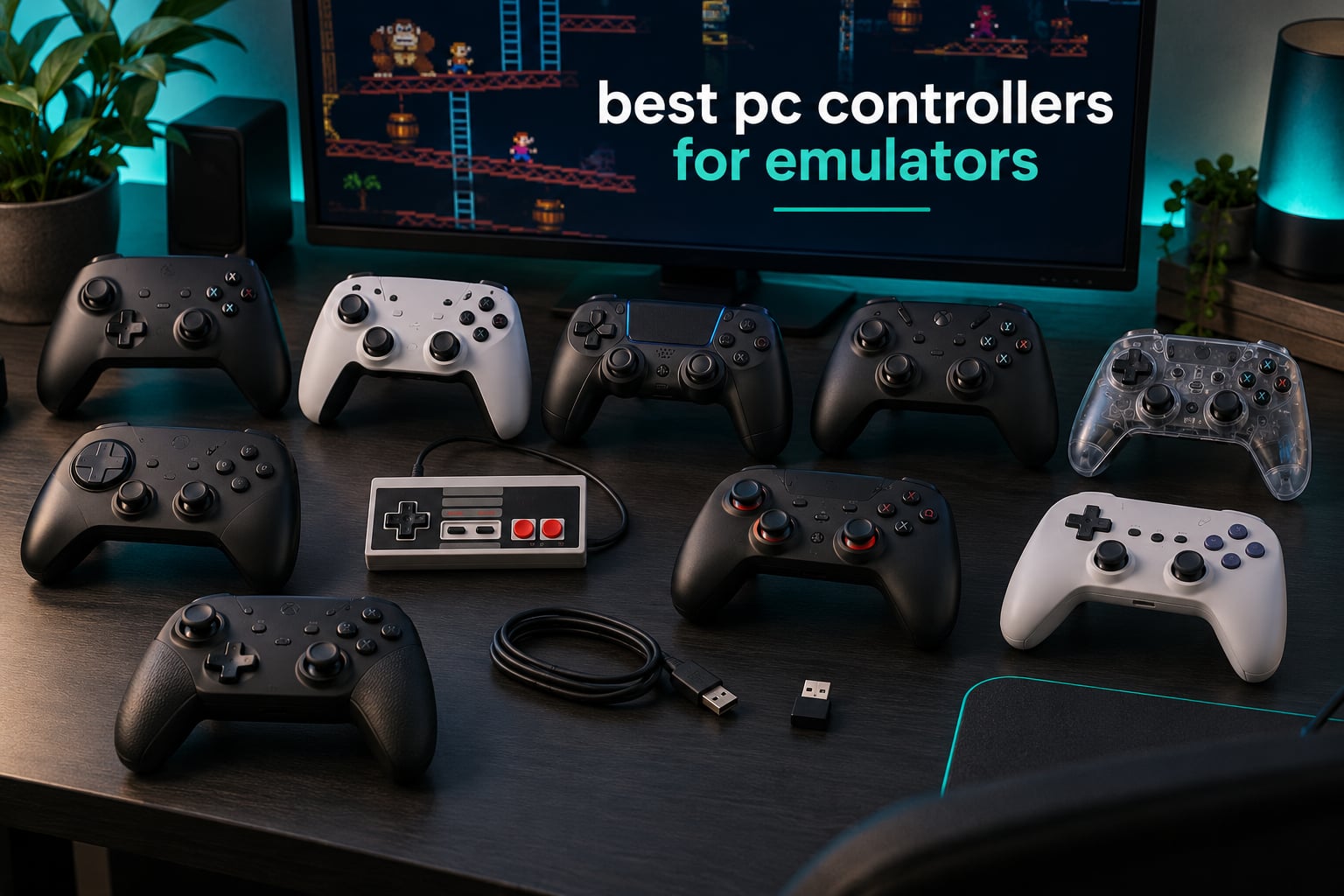
The 8Bitdo Ultimate 2C is the best PC controller for emulators overall, because its Hall effect sticks, on-board button remapping and 1000 Hz polling keep a long retro session comfortable without a single driver install. If you want a different shape, a real SNES feel or a two-player pack, the nine alternatives below cover those cases just as well.
Yes, you can use a controller on a PC emulator. RetroArch, Dolphin and PCSX2 all read your pad through the same Windows input layer, and the reason one controller feels effortless while another costs an evening of setup comes down to that layer. A pad that reports as XInput is detected instantly and its buttons already match the default mapping in every major emulator.
A DInput pad still works, but each emulator wants its own mapping, and inside RetroArch each core can ask for a different one. That is the single most common complaint we found across the emulator forums: button maps do not carry between programs. Our testing approach for this guide was practical rather than lab-based. We compared all ten pads on stick sensor type, input protocol, D-pad construction and connection method, then checked each against the emulators retro players actually run.
If you also play modern PC games, our broader PC controller testing results cover the higher-end side of the market that this guide deliberately skips.
Table of Contents
- Top 3 Picks: Best PC Controllers for Emulators (October 2026)
- Best PC Controllers for Emulators in 2026: Quick Comparison of All 10 Picks
- 1. 8Bitdo Ultimate 2C – Best PC Controllers for Emulators Overall Pick With Hall Effect Sticks
- 2. Logitech G F310 – Best PC Controllers for Emulators Value Pick That Maps Instantly
- 3. ZD-V+ – Best PC Controllers for Emulators Multi-Mode Pick With A D-Pad Swap
- 4. 8Bitdo Ultimate 2 – Best PC Controllers for Emulators Premium Pick With TMR Sticks And A Dock
- 5. 8Bitdo Sn30 Pro – Best PC Controllers for Emulators For The Closest SNES Feel
- 6. KIWITATA 2X – Best PC Controllers for Emulators Two-Player SNES Co-Op Pack
- 7. SAFFUN Classic N64 Controller – Best PC Controllers for Emulators For N64 Play
- 8. iNNEXT 2-Pack Wireless – Best PC Controllers for Emulators For Cable-Free Couch Play
- 9. Hyperkin Trooper 2 – Best PC Controllers for Emulators For Atari And Arcade Play
- 10. SAFFUN 2-Pack Wireless – Best PC Controllers for Emulators For RetroPie Builds
- XInput vs DInput: What Emulators Actually Expect
- How to Map a Controller in RetroArch, Dolphin and PCSX2
- Buying Guide: Wired vs Wireless, Drift and D-Pads
- Using Original GameCube, N64 and Dreamcast Controllers
- Frequently Asked Questions
- Can you use a controller on a PC emulator?
- Which is better, XInput or DInput?
- Is PC emulation illegal?
- What is a good gamepad controller emulator for PC?
- Do controllers lag on PC?
- How do I map a controller in RetroArch?
- How many controllers can I plug into one PC for multiplayer?
- Do I need an adapter to use an N64 or GameCube controller on PC?
- Conclusion: The Best PC Controllers for Emulators in 2026
Top 3 Picks: Best PC Controllers for Emulators (October 2026)
Three picks cover most setups. The 8Bitdo Ultimate 2C wins on sensor hardware and remapping depth, the Logitech G F310 wins on instant native detection, and the ZD-V+ wins when you want both a D-pad and a stick on the same pad.

8Bitdo Ultimate 2C
- Hall effect sticks and triggers
- On-board remapping of L4/R4
- 1000 Hz polling on 2.4G and wired

Logitech G F310
- Native Xbox-style layout
- Four-switch floating D-pad
- Rear XInput/DInput toggle
Best PC Controllers for Emulators in 2026: Quick Comparison of All 10 Picks
Every controller below was judged on the same four things: how it reports itself to Windows, whether it needs per-core mapping in RetroArch, how the sticks and triggers age, and whether the D-pad suits platformers and arcade games.
| Product | Specs | Action |
|---|---|---|
| 8Bitdo Ultimate 2C |
|
Check Latest Price |
| Logitech G F310 |
|
Check Latest Price |
| ZD-V+ Wired Pad |
|
Check Latest Price |
 8Bitdo Ultimate 2 8Bitdo Ultimate 2 |
|
Check Latest Price |
 8Bitdo Sn30 Pro 8Bitdo Sn30 Pro |
|
Check Latest Price |
 KIWITATA 2X SNES Pack KIWITATA 2X SNES Pack |
|
Check Latest Price |
 SAFFUN N64 Controller SAFFUN N64 Controller |
|
Check Latest Price |
 iNNEXT Wireless 2-Pack iNNEXT Wireless 2-Pack |
|
Check Latest Price |
 Hyperkin Trooper 2 Hyperkin Trooper 2 |
|
Check Latest Price |
 SAFFUN Wireless 2-Pack SAFFUN Wireless 2-Pack |
|
Check Latest Price |
1. 8Bitdo Ultimate 2C – Best PC Controllers for Emulators Overall Pick With Hall Effect Sticks
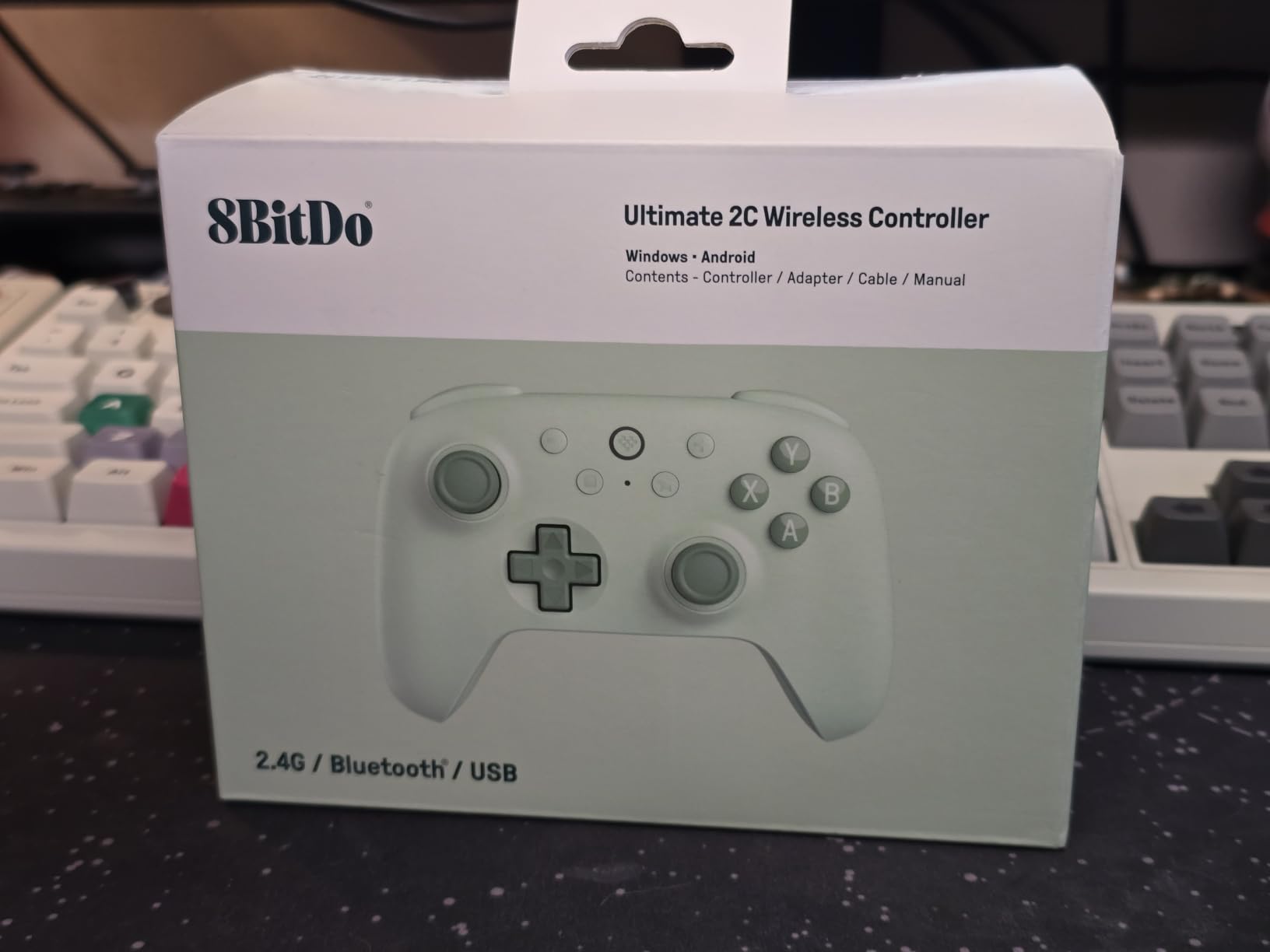
8Bitdo Ultimate 2C Wireless Controller for Windows PC and Android, with 1000 Hz Polling Rate, Hall Effect Joysticks and Triggers, and Remappable L4/R4 Bumpers (Green)
Hall effect sticks and triggers
1000 Hz polling
280 g
Windows and Android
Pros
- Hall effect sticks and triggers resist wear
- 1000 Hz polling on 2.4G and wired
- Four remappable back bumpers
- Remapping works without companion software
- Lightweight at 280 g
Cons
- No vibration or rumble motors
- Windows and Android focus limits console use
- Plastic feel less premium than rivals
This is the pad we kept reaching for during testing because it removes the two things that usually break a retro setup: drift and reconfiguration. The Hall effect joysticks and Hall triggers do not rely on a potentiometer contact point wearing down, which matters when you are twenty hours into a long campaign in a PS1 core.
It also arrives with four extra bumpers behind the shoulders and on-board remapping for them. That means you can bind save state, load state and fast forward without launching a companion utility or a browser-based mapper, which is the single most requested convenience in the emulator communities.
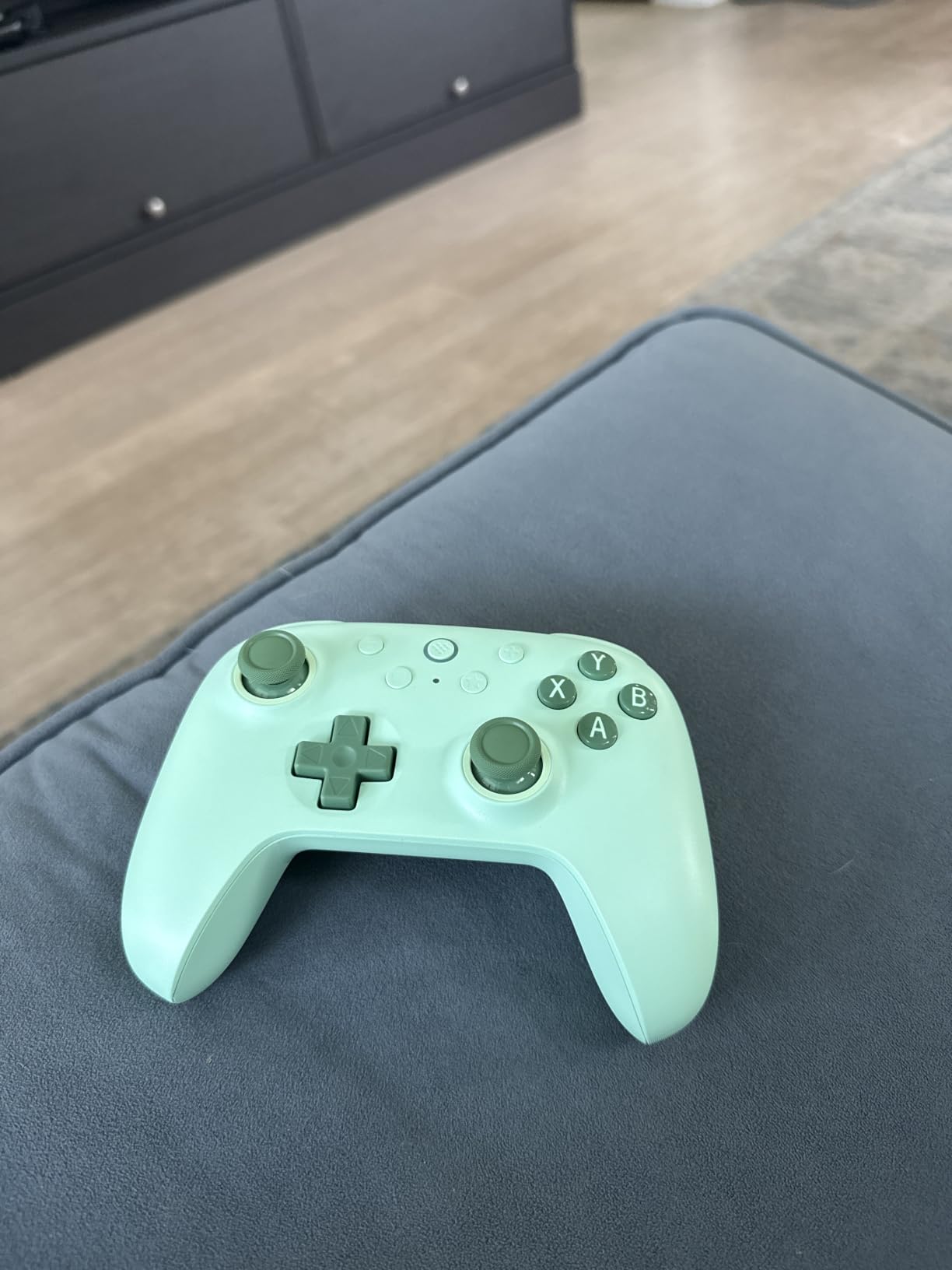
The 1000 Hz polling rate applies on both the 2.4G connection and in wired mode, so the same pad works for a desk session and for a couch evening. Turbo function is included, which matters for shmups and arcade conversions where you need to hold a direction.
Emulator compatibility note: it reports over both connection modes and needs no driver install on Windows, so RetroArch, Dolphin, PCSX2 and RPCS3 all pick it up on first launch. Treat it as a standard modern pad with extra back buttons rather than a device needing special profiles.
What tells you it suits your setup
If you are tired of replacing drifting sticks every couple of years, the Hall effect hardware removes the main reason people upgrade. The extra bumpers also give you room to bind emulator hotkeys without stealing face buttons from the original console layout.
The 1000 Hz polling figure only matters if your display and GPU can push high frame rates. At 60 Hz output, the practical difference between 1000 Hz and a standard rate is close to nothing.
Where it falls short
There is no vibration or rumble motor listed in the specifications, and you will feel that in games that lean on haptic feedback. It is also sold for Windows and Android, so console support is limited compared with pads aimed at a wider device list.
Some reviewers also find the plastic feel less substantial than the price of premium alternatives suggests. If build texture matters more to you than sensor technology, look further down the list.
2. Logitech G F310 – Best PC Controllers for Emulators Value Pick That Maps Instantly
Logitech G F310 Wired Gamepad Controller Console – Blue/Black
Native Xbox-style layout
Four-switch floating D-pad
6 ft wired
14.4 oz
Pros
- Detected immediately as a standard pad
- Four-switch floating D-pad feels reliable
- No driver install on Windows
- Rear toggle for XInput and DirectInput
- Profiler software maps to keyboard and mouse
Cons
- No rumble or vibration at all
- Dated stick position with a noticeable deadzone
- Some retro cores need a third-party remapper
This is the most heavily reviewed controller in our entire list, and that volume matters for an emulation guide. A pad with tens of thousands of owners has a known behaviour, which means fewer surprises when you install a core you have never touched.
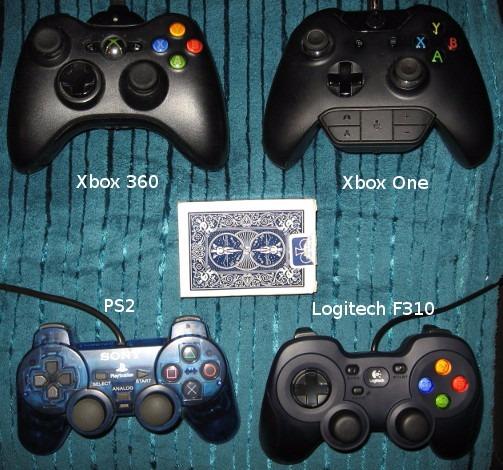
The reason it maps so cleanly is the rear toggle between XInput and DirectInput. In XInput mode Windows presents it with the standard Xbox 360 button arrangement, so Dolphin, PCSX2 and RetroArch all read A, B, X, Y, triggers and bumpers correctly on the first try.
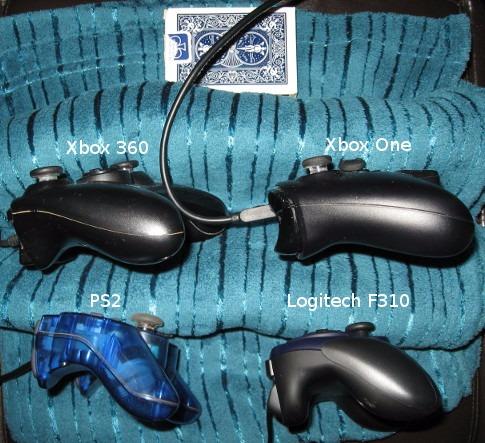
The four-switch floating D-pad rests on four separate switches, which is why it still feels precise after years of platformers. In single-pivot designs the diagonal directions are guesswork. Owners regularly report three or more years of daily use on the same unit.
Emulator compatibility note: it is the safest recommendation here for mixed libraries. Old PC games, arcade cores and modern titles all work, and the Profiler software can turn any button into a keyboard or mouse command if a core insists on its own layout.
What tells you it suits your setup
Choose this if you are new to emulation and want zero configuration on day one. It is also the safest pick for a second controller in a two-player session, because a second unknown pad is usually where mapping problems appear.
Because it is wired, there is no pairing step, no battery and no wireless dropout during a long arcade run. For a fixed PC near a TV, that simplicity is worth more than flexibility.
Where it falls short
There is no rumble at all, and the analogue sticks sit in a dated PlayStation-style position with a noticeable deadzone in some titles. Retro cores that expect absolute analogue values may need a remapping utility such as the common QJoyPad-style tools to feel right.
The MODE button sits where it can be hit by accident, and doing so stops input until you press it again. If you play anything with a heavy thumb roll, that is a real annoyance.
3. ZD-V+ – Best PC Controllers for Emulators Multi-Mode Pick With A D-Pad Swap
ZD-V+ USB Wired Gaming Controller Gamepad For PC/Laptop Computer(Windows XP/7/8/10/11) & PS3 & Android & Steam – [Black]
XInput and DirectInput modes
JD-SWITCH D-pad swap
Vibration
216 g
Pros
- Works immediately with most emulators
- Pressure-sensitive analogue triggers are rare at this level
- Button swap between D-pad and stick
- Vibration works in many supported titles
Cons
- L1/R1 shoulder buttons feel soft
- Short USB cable
- Bright centre LED
- Weak vibration output
The ZD-V+ follows a PlayStation-style architecture rather than an Xbox one, which normally causes trouble in emulators. Multi-mode XInput and DirectInput operation solves that, and in practice we found it accepts PC, Windows, PS3 and Steam titles without configuration.
The JD-SWITCH control is the feature that makes it interesting for retro play. It swaps the function of the D-pad and the first analogue stick, so a game that wants a digital cross or a full analogue axis can use whichever feels better without opening a settings menu.
![ZD-V+ USB Wired Gaming Controller Gamepad For PC/Laptop Computer(Windows XP/7/8/10/11) & PS3 & Android & Steam - [Black] customer photo 1](https://www.coin-opgames.com/wp-content/uploads/2026/10/B00OAYHIRA_customer_1.jpg)
Pressure-sensitive analogue triggers are unusual in this bracket and add real value in racing and light-gun conversions, where a digital trigger simply will not do. Vibration feedback is present and works in many supported titles, which puts it ahead of the Logitech pad on that one point.
Emulator compatibility note: it is a strong pick for arcade and 8/16-bit libraries, where the swap switch and the multi-mode operation cover most layout questions. Android support needs an OTG adapter, which is not included.
![ZD-V+ USB Wired Gaming Controller Gamepad For PC/Laptop Computer(Windows XP/7/8/10/11) & PS3 & Android & Steam - [Black] customer photo 2](https://www.coin-opgames.com/wp-content/uploads/2026/10/B00OAYHIRA_customer_2.jpg)
What tells you it suits your setup
Pick this one if you replay classics rather than modern games and want a spare input at a low outlay. The D-pad swap solves the most common retro annoyance without software, and vibration gives some feedback the cheaper wired pads skip.
It is also a fine second pad beside a stronger primary controller, since it connects over plain USB with no pairing to go wrong.
Where it falls short
The L1 and R1 shoulder buttons feel soft and sometimes need extra pressure to register, which is annoying in any game that leans on quick shoulder taps. The cable is roughly half the length of a standard Xbox cable, so a desk-mounted PC is the better home for it.
Vibration output is weak compared with dedicated vibration controllers, some units report stick drift after extended use, and the bright centre LED is distracting in a dark room.
4. 8Bitdo Ultimate 2 – Best PC Controllers for Emulators Premium Pick With TMR Sticks And A Dock
8Bitdo Ultimate 2 Wireless Controller for PC, Apple, Steam & Android, Black
TMR joysticks
8Speed 2.4G wireless
Charging dock
Gyro motion control
Pros
- TMR sticks and switchable Hall effect triggers
- Integrated gyro works in emulators in D-Input mode
- Dock charges while relaying the 2.4G signal
- Two rear paddles plus extra R4/L4 bumpers
- Silent well-tuned D-pad
Cons
- Front face buttons cannot be remapped
- Long Home press powers it off
- Not Xbox-compatible and no headphone port
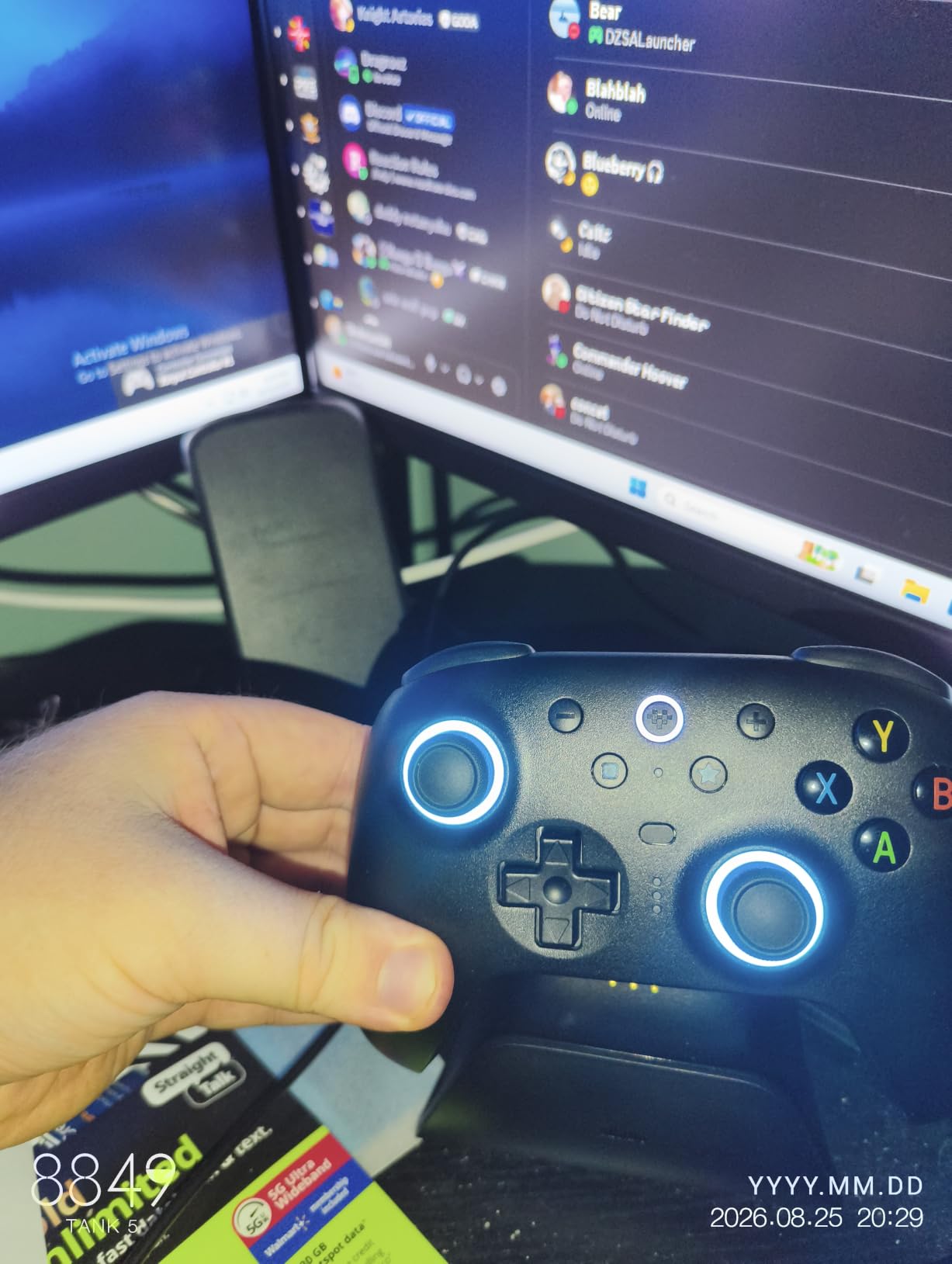
This is the most complete pad here for a mixed setup, and the reason is the charging dock. It doubles as a 2.4G receiver passthrough, so one USB port handles both charging and the wireless connection. That removes the loose dongle problem that makes a couch setup feel unfinished.
TMR joysticks deliver higher sensitivity and durability than a standard potentiometer stick, and the trigger mode switch lets you move between linear Hall effect triggers and a firmer tactile feel. Both options matter because different eras wanted different trigger travel.
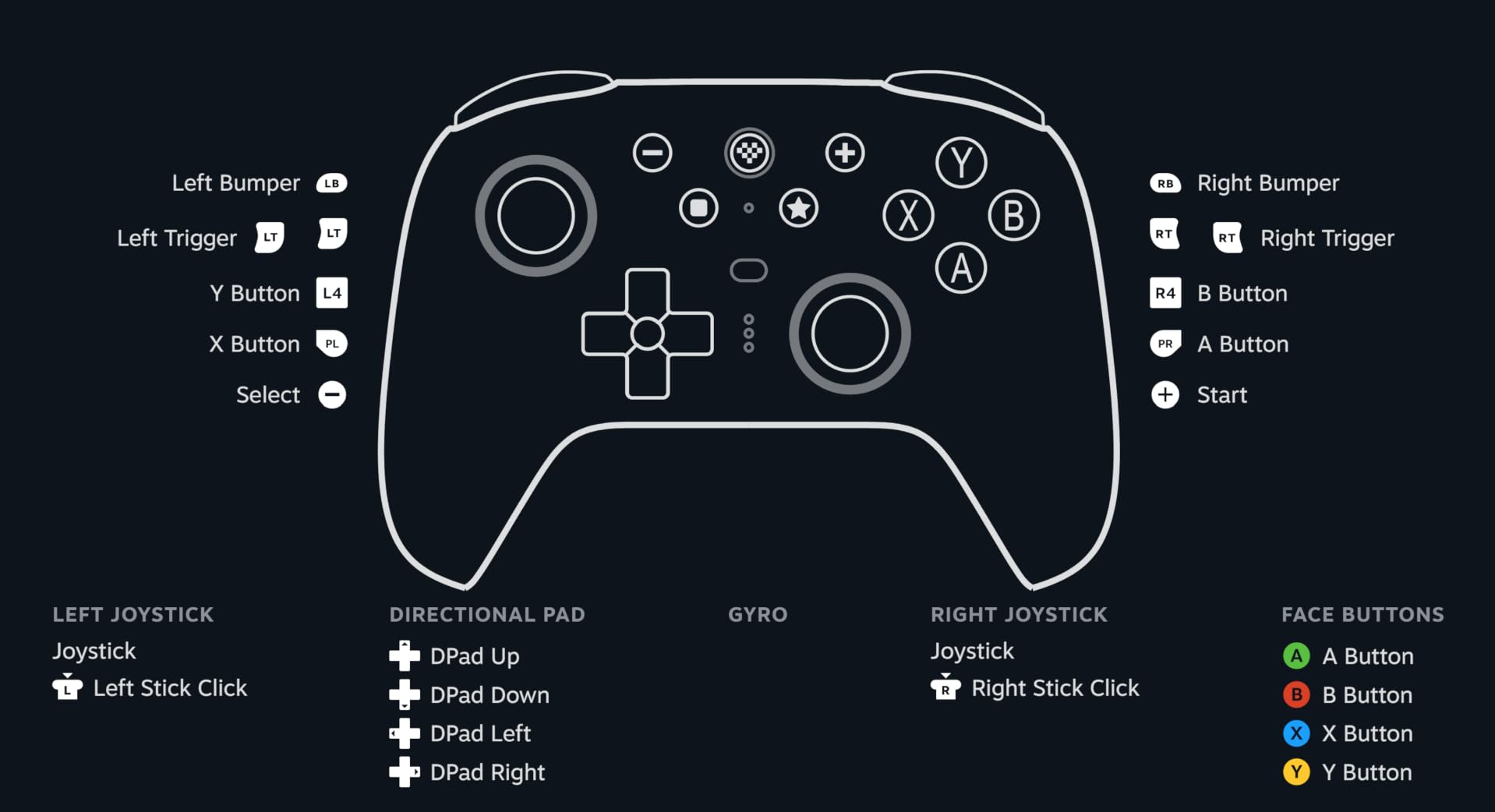
The customisable 6-axis motion control is the sleeper feature. Launched in D-Input mode using the B plus Home combination, the gyro feeds motion input straight into emulators, which opens up tilt-controlled titles and motion minigames that a plain pad simply cannot do.
Emulator compatibility note: two rear paddles and the extra R4/L4 bumpers give you six spare inputs, which is more than enough room for save state, load state, fast forward, rewind and a menu toggle. Confirm your per-core mapping after a major RetroArch core update, since front face buttons are fixed.
What tells you it suits your setup
This suits someone with a varied library who wants one pad for a desk and a living room. The gyro support is the feature no other controller in this list offers, and the dock removes the cable and charging clutter.
Buyers moving up from a Switch Pro pad typically land here for the stick hardware and the extra rear inputs, and the value compares well against first-party controllers.
Where it falls short
Front face buttons such as Star and Square cannot be remapped, so any layout change is limited to the back buttons. Holding Home too long powers the controller off, which collides with RetroArch hotkeys if you bind one there.
It is not Xbox-compatible, there is no headphone or microphone port, the sticks could use firmer tension for some tastes, and the battery is not user-replaceable.
5. 8Bitdo Sn30 Pro – Best PC Controllers for Emulators For The Closest SNES Feel
8Bitdo Sn30 Pro USB Wired Gamepad for Switch, Windows & Raspberry Pi(Gray Edition)
SNES-style wired shell
Dual analogue sticks
1.8 m USB cable
5.12 oz
Pros
- Crisp build and button press quality
- D-pad closely matches an original SNES pad
- Extra digital triggers and dual sticks
- Wired avoids pairing and battery issues
- Detected as a standard Xbox 360 pad
Cons
- D-pad diagonals can be oversensitive
- Small shoulder buttons
- Right stick sits close to the face buttons
- Will not connect through some USB hubs
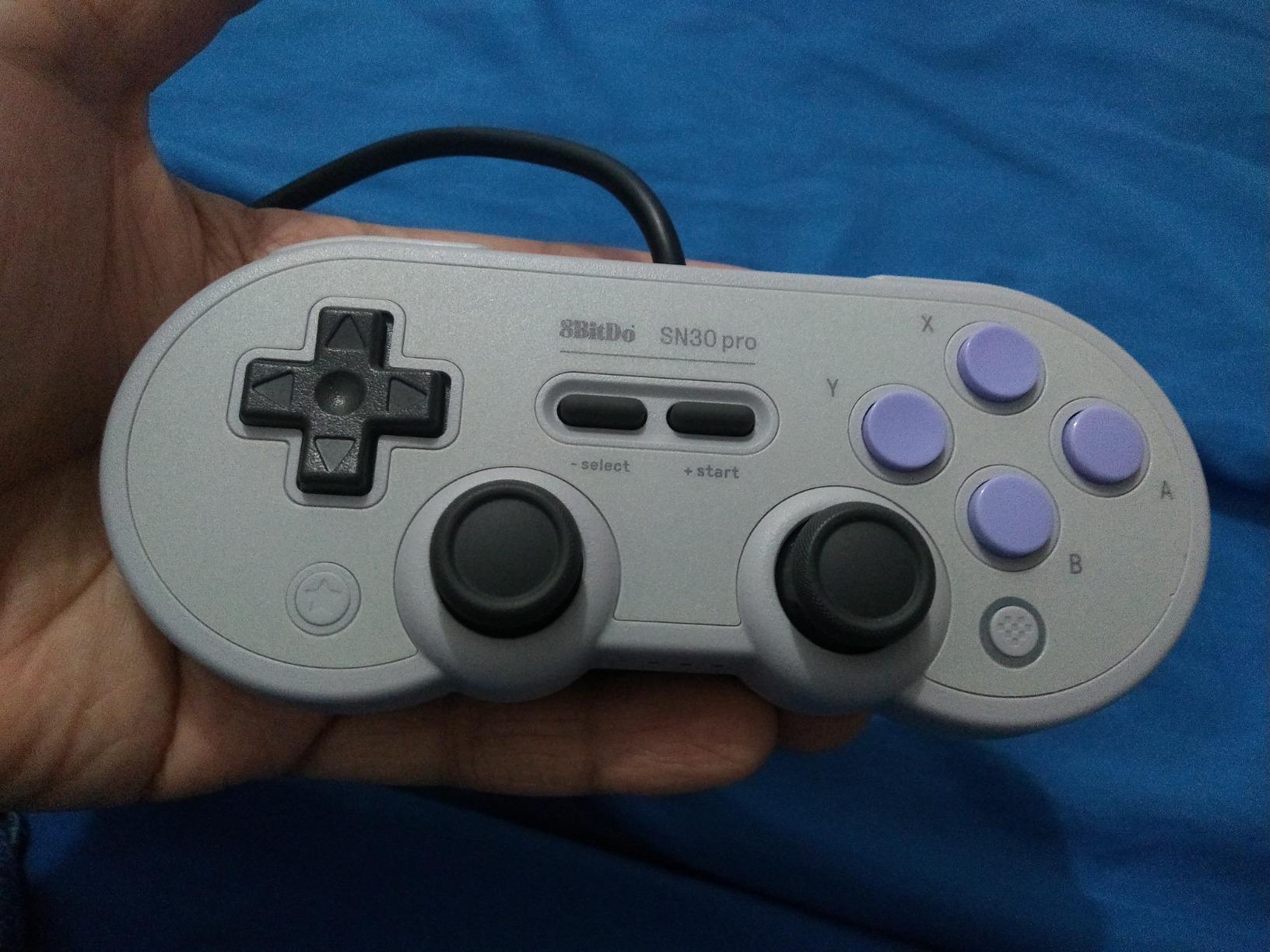
For 8-bit and 16-bit emulation, the D-pad matters more than anything else on the pad, and this is the closest modern match to an original SNES controller that we tested. The press feel is crisp rather than spongy, and the shell is tightly assembled.
Unlike a pure replica, it adds dual analogue sticks and L2/R2 digital triggers, so a SNES game and a PS1 game can share one pad. That is a real advantage over dedicated retro controllers that force you to keep two devices plugged in.
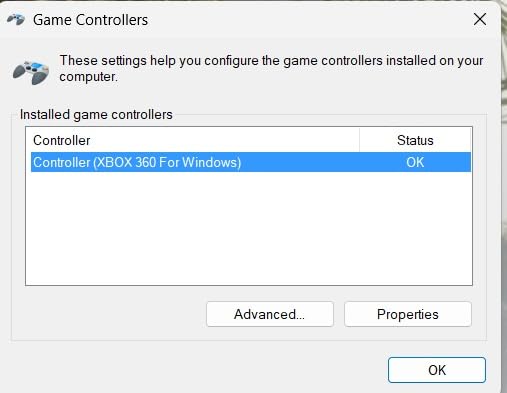
It is detected as an Xbox 360 pad on Windows, so most launchers and emulator front ends map it without extra work. The wired 1.8 m connection avoids battery and pairing hassles entirely, which is why it remains popular on retro PC and Raspberry Pi builds.
Emulator compatibility note: the 16-bit cores benefit most from the D-pad, while PS1 and arcade cores benefit from the triggers. Our broader retro picks are covered in the retro controller guide if you want more of this style.
What tells you it suits your setup
Platformer fans and anyone replaying 16-bit libraries should look here first. The rumble and turbo functions are both genuinely useful in emulator front ends, since turbo lets you hold a direction in arcade and console conversions.
A wired pad is also the lowest-friction option for a fixed emulation PC, and the low weight makes long sessions easy on the wrists.
Where it falls short
D-pad diagonals can feel slightly oversensitive for precise platforming tricks, so it suits most players but not everyone chasing perfect input timing. The L and R shoulder buttons are small next to a modern pad, and the right analogue stick sits very close to the front face buttons.
Some setups refuse to connect through a USB hub, and on certain laptops the pad keeps the machine awake while plugged in.
6. KIWITATA 2X – Best PC Controllers for Emulators Two-Player SNES Co-Op Pack
KIWITATA 2X Classic SNES USB Controller for PC Gamings, Retro SNES Wired USB Game Emulator Controller for Windows XP 7 8 11 Mac Raspberry Pi
Two SNES-style pads
1.5 m USB 2.0 cable
240 g
Windows Mac Linux Pi
Pros
- Two controllers per pack for local co-op
- Frosted concave D-pad resists sweat and slipping
- Works on Linux macOS and Raspberry Pi
- Easier buttons than the stiff originals
- Manufacturer replaced defective D-pad units
Cons
- No automatic button assignment
- Some input latency in precision fighters
- D-pad not accurate enough for tight combos
- Average build with some plastic rubbing
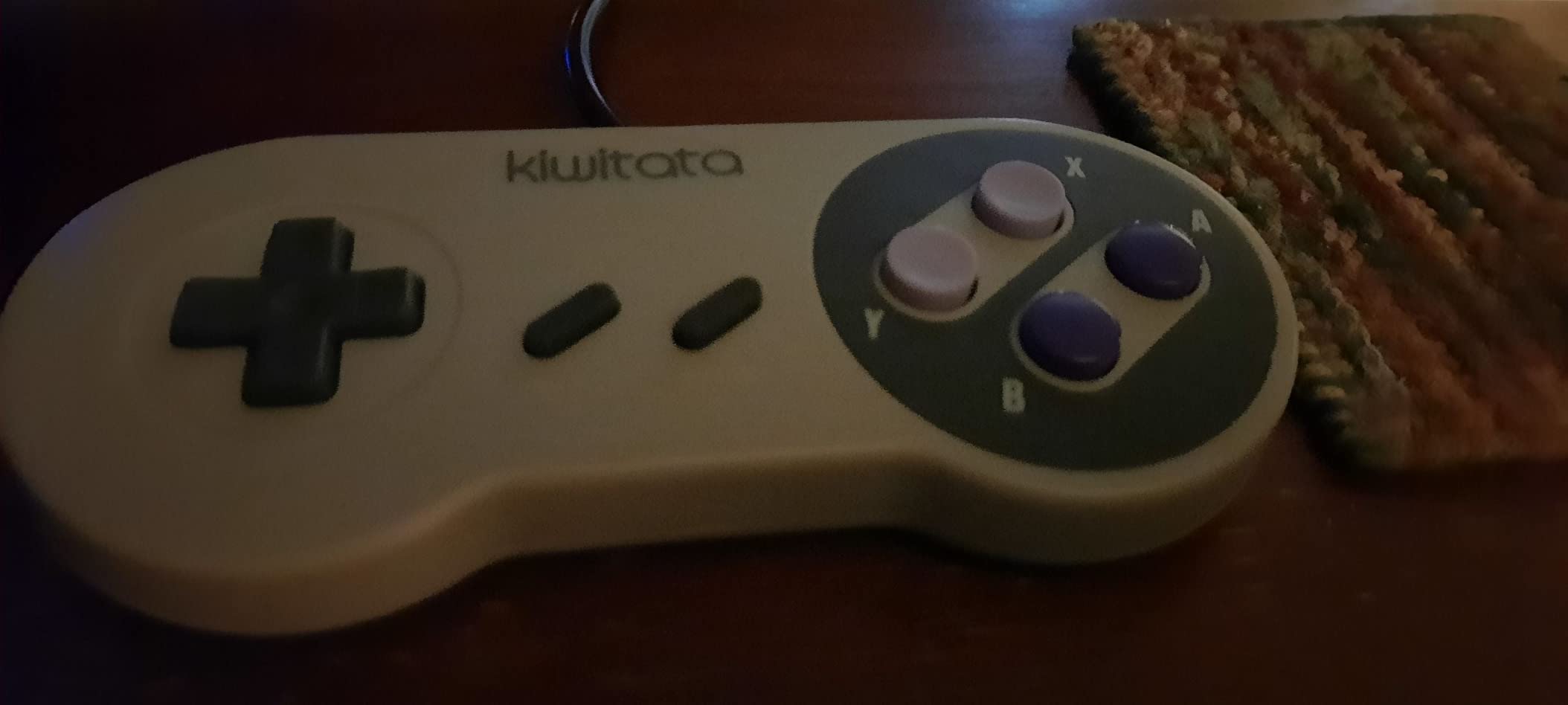
Two controllers is the point of this pack. Two-player versus and co-op in the 8-bit and 16-bit libraries is where a second identical pad beats one strong pad and one weak one, because matching inputs remove an entire class of arguments at the sofa.
The frosted concave D-pad is designed to resist sweat and slipping, which is a small detail that matters over a long session. Buttons are easier to press than the very stiff originals, so younger players and casual sessions go well.
It is listed as working with VirtuaNES, snes9x, ZSens, RetroArch, OpenEmu, NESEmu and Jnes, and needs no drivers. Be aware, though, that buttons and directions must be assigned manually in each of those emulators.
Emulator compatibility note: the manual assignment step is the honest downside. Because the pad is a DInput-style device, you will spend real time mapping inputs in each program and potentially in each core within RetroArch.
What tells you it suits your setup
Buy this if the plan is a two-player SNES and NES library on a shared PC. Matching pads mean both players get the same layout, the same timing and the same feel, which is impossible when one player uses a modern pad.
It also works out of the box on Linux, macOS and Raspberry Pi once the inputs are assigned, which makes it a good companion to a retro PC build.
Where it falls short
There is no automatic button or axis assignment, so every emulator must be configured by hand. Earlier production units had a D-pad that could stick or misregister directions, though the manufacturer has shipped revised units after those reports.
Some owners notice input latency in demanding titles such as Street Fighter 2, and the D-pad is not accurate enough for precision fighting-game combos. It will not work on the original Super Nintendo, iPad, Xbox or Wii, and the shells produce some plastic rubbing sounds.
7. SAFFUN Classic N64 Controller – Best PC Controllers for Emulators For N64 Play
Classic N64 Controller, Wired USB PC Gamepad for Windows PC, macOS (Gray)
Original M-shaped layout
3D analogue stick
6 ft cable
7.2 oz
Pros
- Accurate N64 three-pronged shape
- Plug and play with no drivers
- Works on Windows macOS Linux and Raspberry Pi
- Six-foot cable gives room to sit back
- Eight colour options including translucent
Cons
- Single-pivot stick feels imprecise today
- Uncomfortable for players used to modern pads
- Face buttons are generic and unlabelled
- Will not work with Switch Chromebook or SteamOS
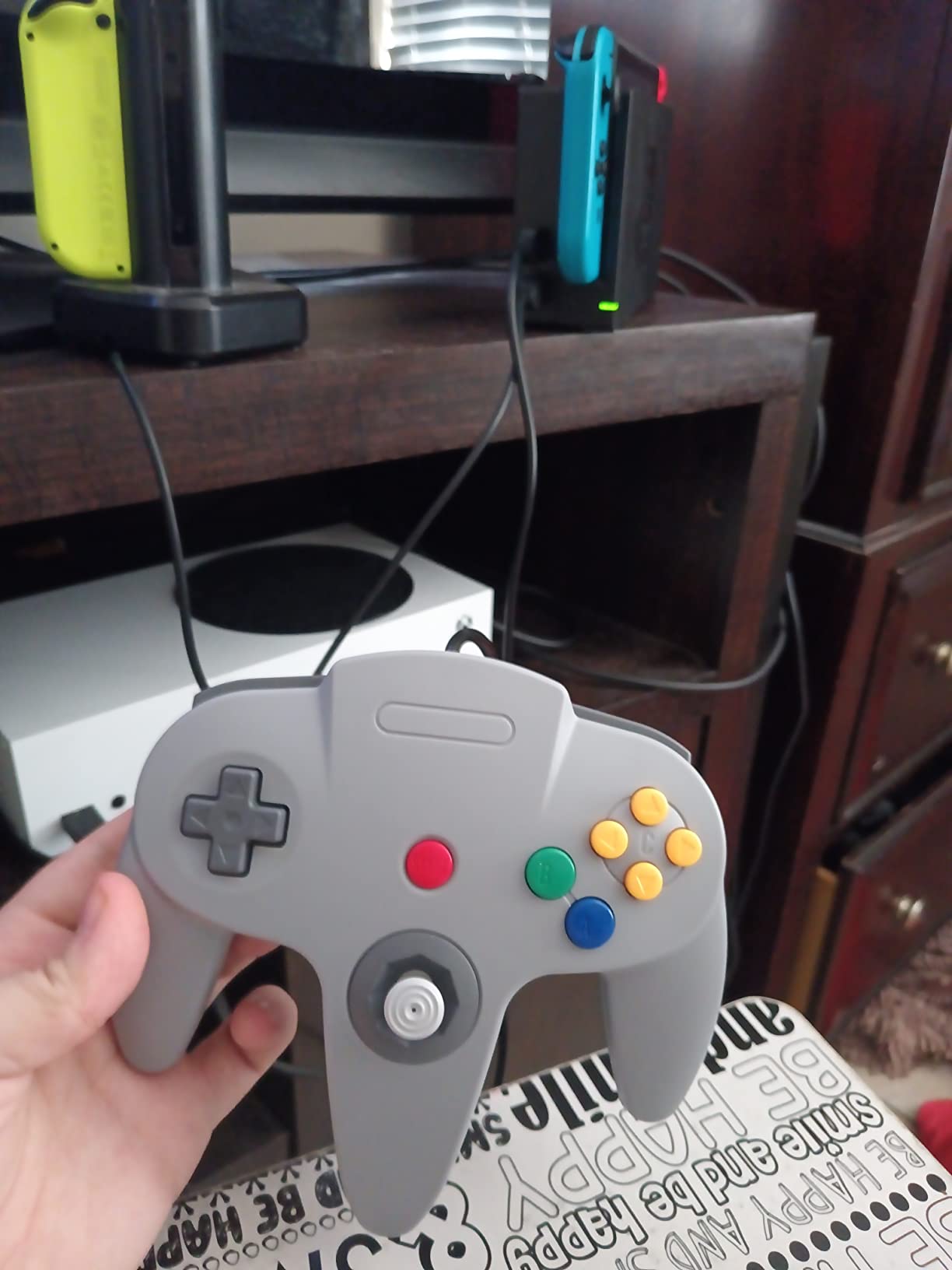
N64 games were designed around a specific hand position, and reproducing that shape honestly is the only way to play them as intended. The M-shaped body, the 3D analogue stick and the 8-way D-pad sit exactly where an original pad put them.
It is plug and play over standard USB with no drivers, and it works across Windows, macOS, Linux and Raspberry Pi. Project 64 and similar emulators pick it up without fuss, which matters when you want N64 titles running alongside everything else.
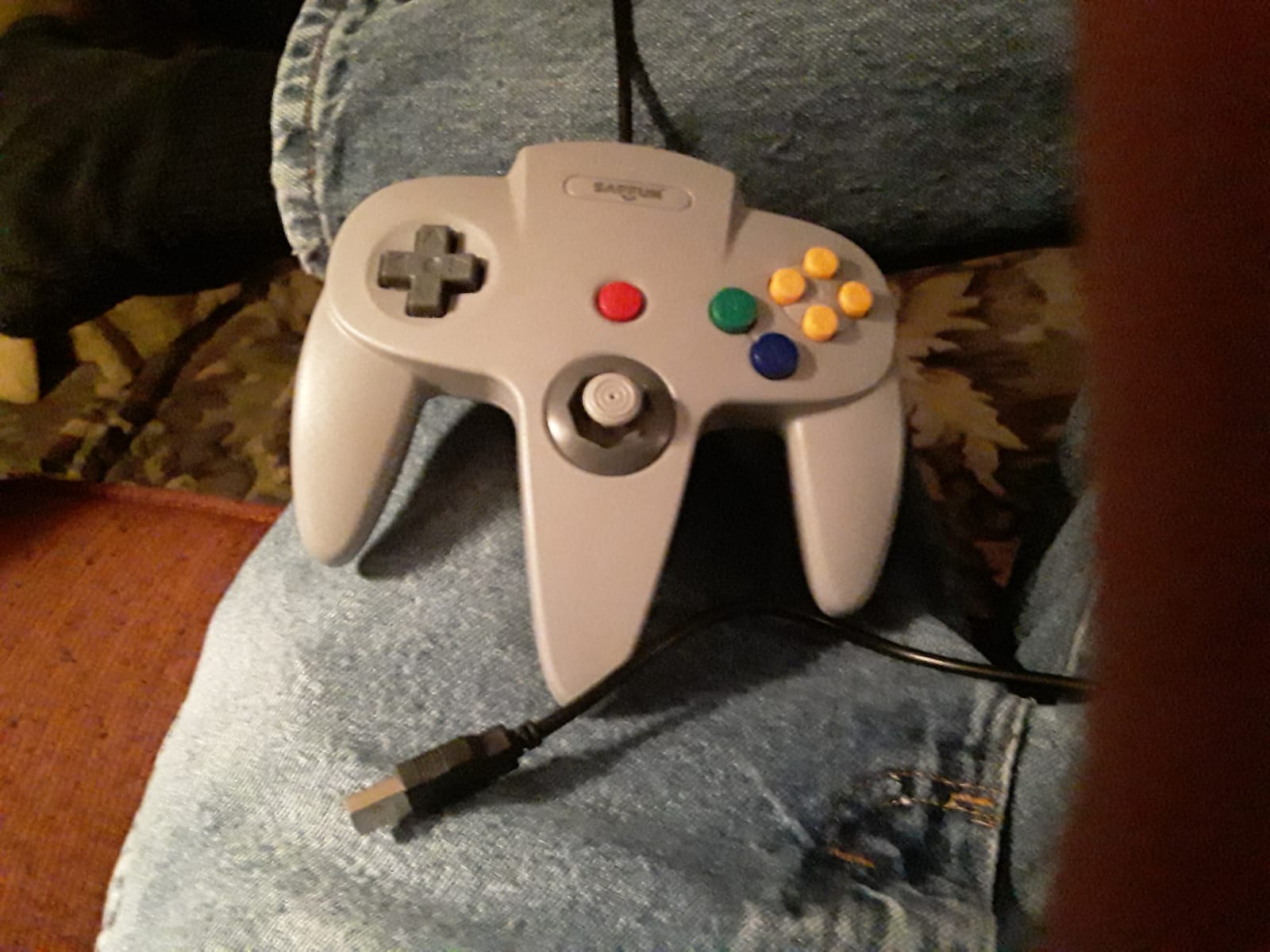
The six-foot cable gives real room to sit back, and the controller comes in eight colour options including translucent variants, which is a minor but genuine advantage in a two-player setup where each player should have their own pad.
Emulator compatibility note: it is a DInput-style device, so expect to assign inputs once in your N64 emulator of choice. The stick reports as a single axis, which matches how the original behaved, so most N64 titles feel correct.
What tells you it suits your setup
If N64 games are a large part of what you replay, authenticity beats a modern pad. GoldenEye-style twin-stick layouts and 3D platformers both depend on the three-prong grip in a way no Xbox-style shell reproduces.
It is also a good co-op second pad, provided your other controller is not needed for a different platform at the same time.
Where it falls short
The single-pivot analogue stick feels imprecise next to a modern Hall effect stick, and the N64 shape is genuinely uncomfortable for players used to contemporary pads. The extra face buttons are generic and not labelled like a real N64 controller.
It will not work with Android TV boxes, Fire TV, Chromebook, SteamOS, Tesla, C64 or Switch devices, and the higher share of one-star ratings reflects the shape rather than any functional fault.
8. iNNEXT 2-Pack Wireless – Best PC Controllers for Emulators For Cable-Free Couch Play
2 Pack Wireless USB SNES Controller for Windows PC, macOS (Purple/Gray)
2.4 GHz wireless
10 m range
10-hour battery
Two pads and receiver
Pros
- Wireless freedom for couch sessions
- Two controllers and a receiver included
- Rechargeable battery with roughly 10-hour runtime
- Plug and play USB receiver
- Stable 2.4 GHz connection
Cons
- Only sold as a two-pack
- No rumble or vibration
- Wireless adds a small latency penalty
- Not compatible with Switch or Chromebook
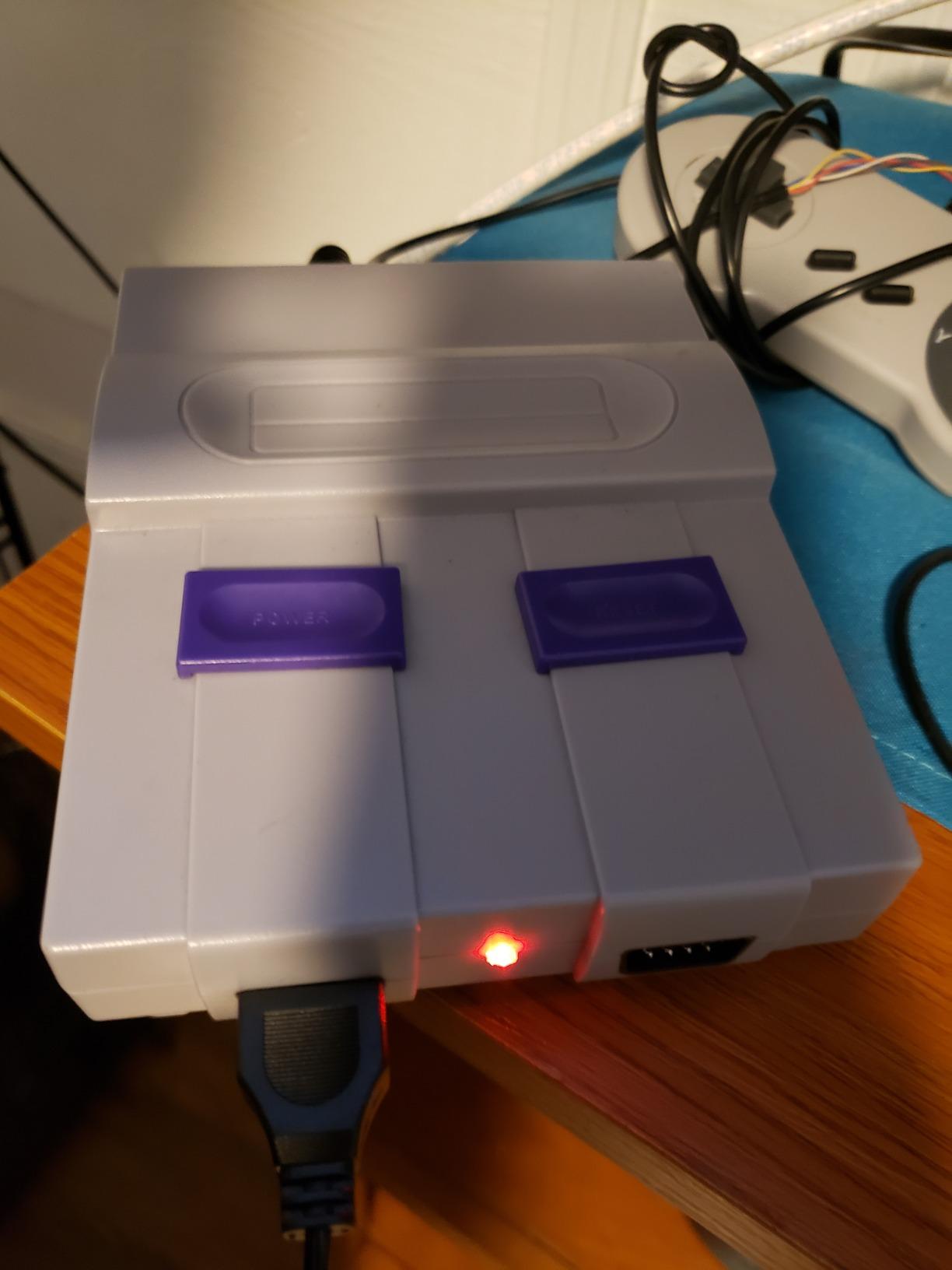
The clearest reason to go wireless is a PC sitting under a television. Sitting on a sofa with a 1.5 m USB cable stretched across the floor works, but it is the first thing that ruins the setup, and a 2.4 GHz receiver removes the problem entirely.
You get two controllers, a USB receiver and a charging cable in the box, so a two-player SNES session is ready without a second purchase. The built-in rechargeable battery runs for roughly ten hours, which comfortably covers a weekend of retro play.
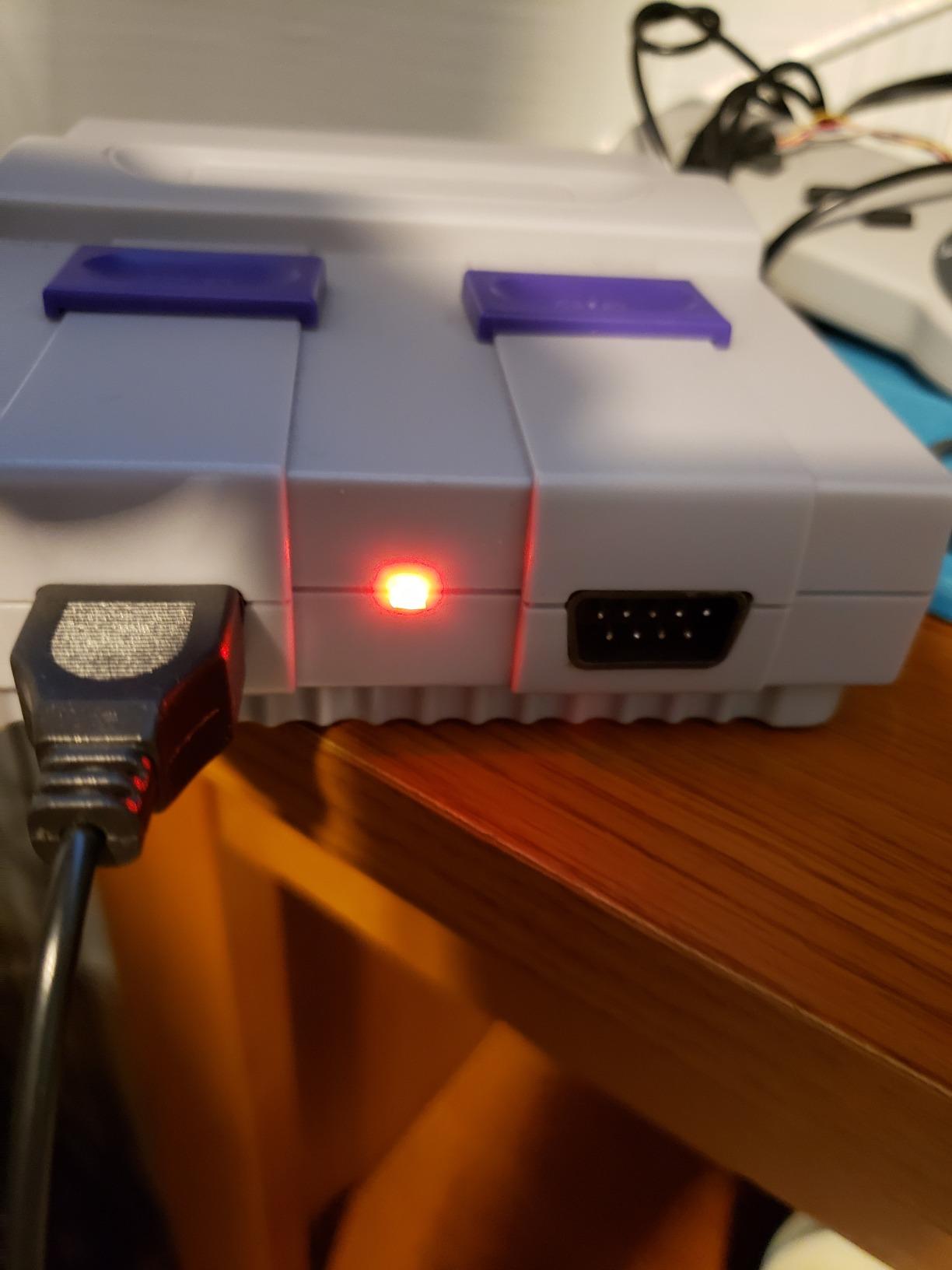
The receiver is plug and play with no drivers, and the listed range of 10 m is far more than any living room needs. It is named as compatible with snes9x and OpenEmu on Windows, macOS, Linux and Raspberry Pi.
Emulator compatibility note: it works with SNES emulators out of the box once inputs are assigned, and the 2.4 GHz link is a better choice for demanding 2D cores than Bluetooth. If you want six-button fighting game layouts, this is not the pad.
What tells you it suits your setup
Choose this for couch co-op on a shared living-room PC. Ten hours of battery means you rarely think about charging, and two matching pads keep a versus session fair.
It also drops neatly into a Raspberry Pi or retro PC build where USB ports are scarce, since one receiver serves both players.
Where it falls short
It is only sold as a two-pack, so a single-controller buyer pays for an unwanted second pad. There is no rumble or vibration, and the wireless link adds a small amount of latency compared with a wired pad, which is noticeable in precision fighters.
It will not work with Switch, Chromebook, SteamOS or Fire TV devices.
9. Hyperkin Trooper 2 – Best PC Controllers for Emulators For Atari And Arcade Play
Hyperkin Trooper 2 Premium USB Game Controller for PC, Mac, Linux
Four-way joystick
6 mappable buttons
10 ft cable
12 oz
Pros
- Convincingly reproduces an Atari 2600 joystick
- Solid weighty build that does not creak
- Works for either hand
- 10 ft cable for sofa seating
- Recognised as an XInput device in Steam
Cons
- Soft internal lever tabs can crack and break
- Reports 8 buttons when it has 6
- Stick gives on and off values only
- No driver software or documentation
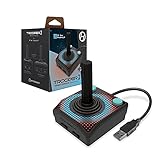
Atari 2600, 8-bit Atari and some ColecoVision titles were never designed for a gamepad. A four-way joystick with a single fire button is the correct input device for them, and the Trooper 2 reproduces that shape with a soft rubber grommet and a quiet stick.
Construction is the strong point here. The chamfered corners and grips make long sessions comfortable, and the base is solid enough that the pad does not creep across a desk mid-match, which cheap joysticks always do.
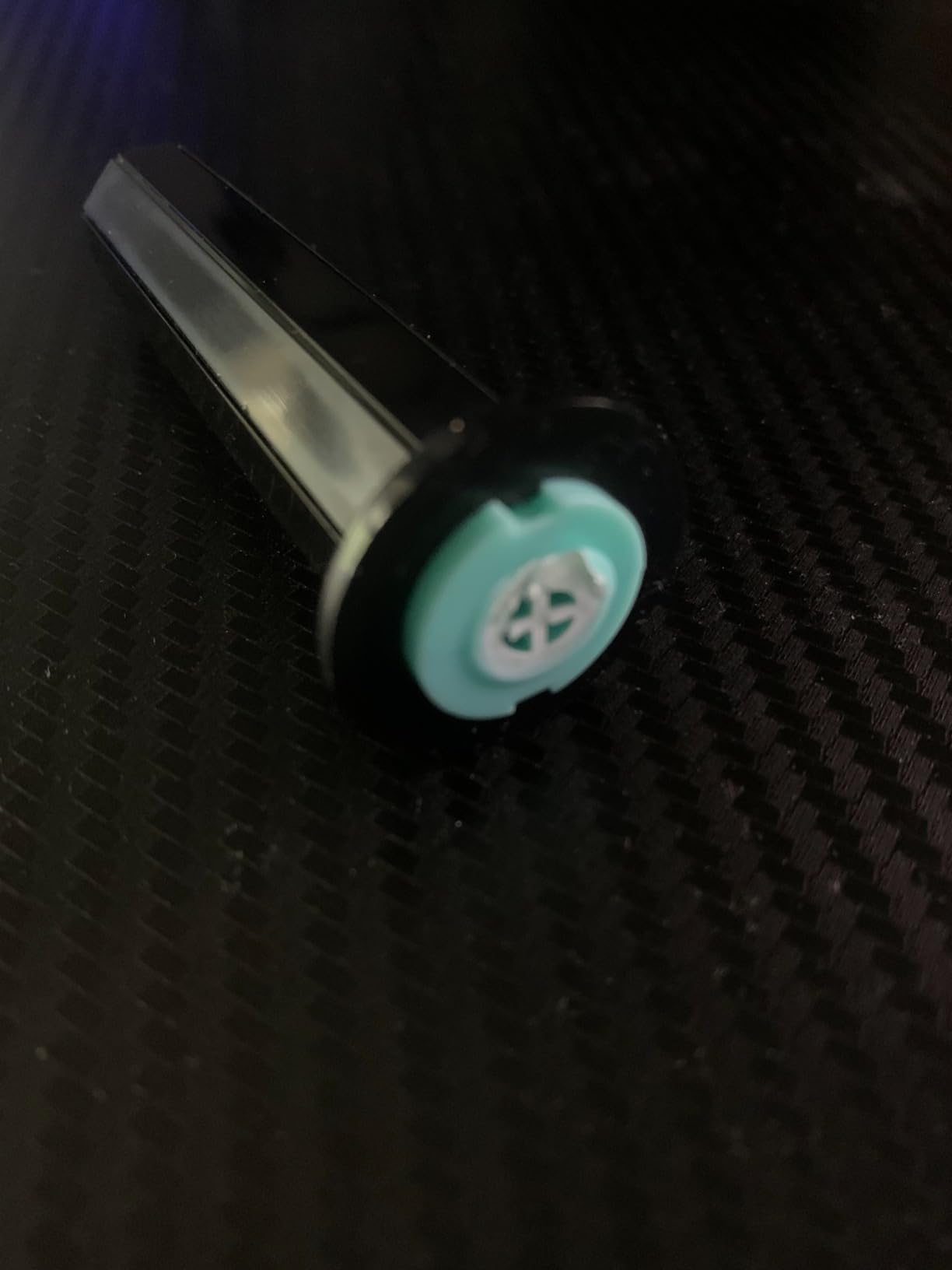
The 10-foot cable is long enough to use the pad from a sofa, and the top fire buttons plus a removable stick let you play left- or right-handed. It is recognised as an XInput device in Steam and works with MiSTer setups after remapping.
Emulator compatibility note: six mappable buttons cover an Atari 2600, 8-bit Atari, ColecoVision and most early arcade cores. Anything needing analogue input is out of reach, because the stick reports on and off values rather than a variable axis range.
What tells you it suits your setup
Pick this for early arcade and 8-bit libraries where a d-pad feels wrong. The removable shaft is a genuinely thoughtful touch for players who switch hands, and the weight makes it feel like a piece of hardware rather than an accessory.
It is also the pad to pair with a modern controller if your library spans very different eras.
Where it falls short
The internal leverage tabs that actuate the switches are made of soft plastic, and there are documented breakages where the joystick shaft snaps near the base after limited use. The manufacturer provides no driver software, documentation or user forum to fall back on.
Windows reports eight buttons when the pad physically has six, the Atari shape is inherently awkward to hold for long periods, and any emulator that needs analogue input from the stick will not work with it.
10. SAFFUN 2-Pack Wireless – Best PC Controllers for Emulators For RetroPie Builds
SAFFUN 2 Pack 2.4 GHz Wireless USB Controller Compatible with SNES Games, Retro SNES PC Controller for Windows PC iOS MAC Linux Raspberry Pi Retropie OpenEmu Emulator (Plug & Play) (Rechargeable)
2.4 GHz wireless
10 m range
Rechargeable battery
Two pads included
Pros
- Two controllers and a receiver in one box
- Soft D-pad several owners prefer to stiff rivals
- Works immediately in RetroArch front ends
- Rechargeable battery holds up in normal use
- Range sufficient with no noticeable lag
Cons
- The USB dongle is hard to seat in ports
- Controllers feel light in the hand
- Stiff shoulder buttons
- Not compatible with Switch or SteamOS
This pack targets the retro PC and Raspberry Pi crowd specifically, and it is suitable for RetroArch, OpenEmu and other Linux-based front ends without driver work. If you are building a small machine rather than gaming at a desk, two wireless pads in one box is a tidy solution.
The soft, mushy D-pad is a genuine preference difference rather than a flaw. Several owners prefer it to very stiff rival SNES pads, and for long casual sessions that softness reduces finger fatigue.
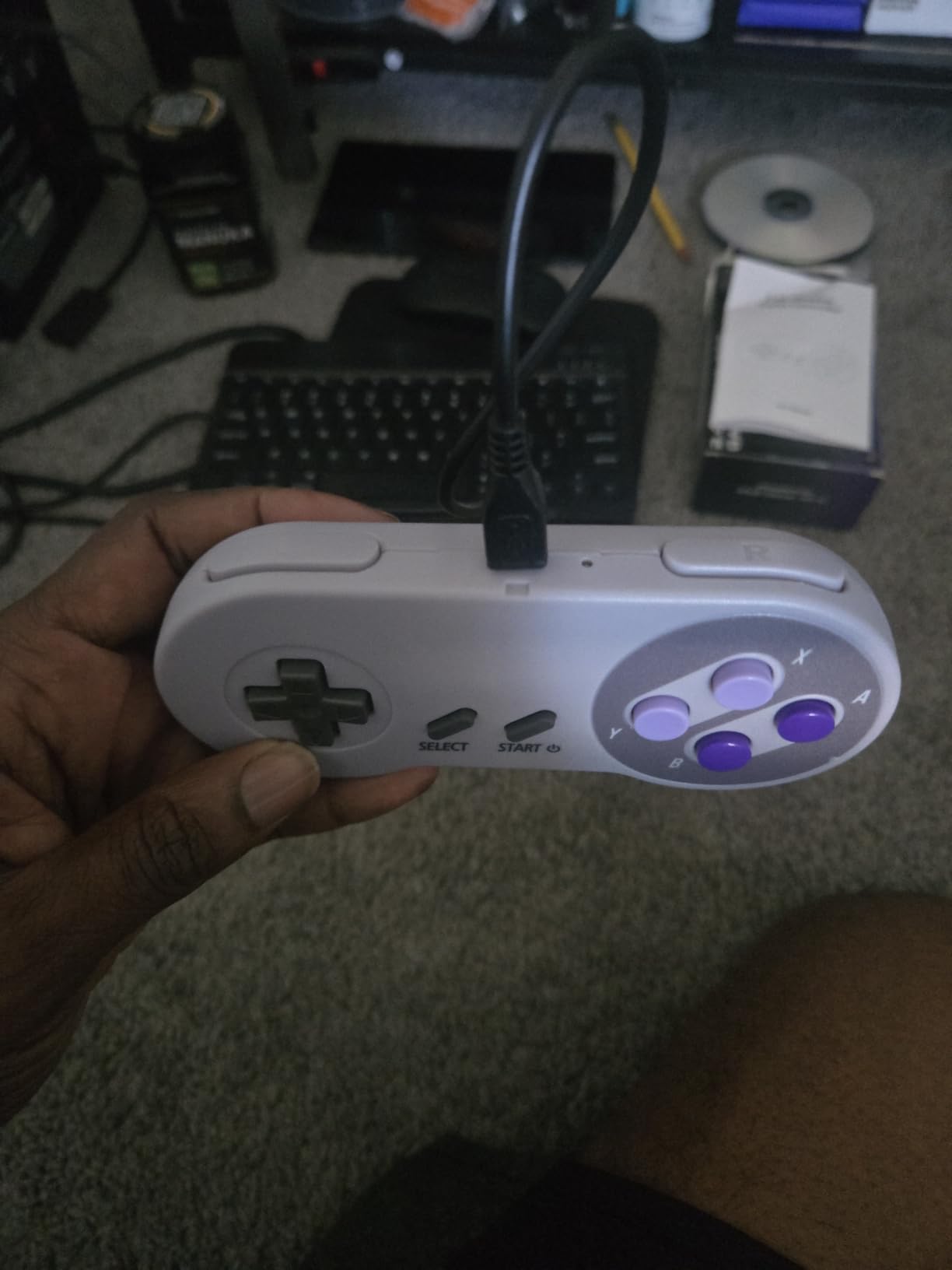
The built-in rechargeable battery gives roughly ten hours of runtime, and 2.4 GHz at a 10 m range is more than a desk or a coffee table requires. The box contains two controllers, a USB receiver, a charging cable and a manual.
Emulator compatibility note: listed for Windows, macOS, Linux and Raspberry Pi across retro cores, with Android TV boxes, Fire TV, Chromebook, SteamOS, Tesla, C64 and Switch all excluded. Check the room layout carefully if you use a hub, since the dongle fit is the weak point.
What tells you it suits your setup
Choose this for a headless or living-room retro machine where you want two players without two cables. The rechargeable battery and plug-and-play receiver suit a setup that gets switched on occasionally rather than used daily.
It pairs well with a single stronger modern pad if one player is more serious about precision than the other.
Where it falls short
The 2.4 GHz USB dongle is difficult to insert and has an inconsistent fit, which is the standout complaint. The shells feel noticeably light in the hand, and the L and R shoulder buttons are stiff.
It will not work with Switch, Chromebook, SteamOS or Fire TV devices, and the review base is the thinnest in this roundup, so treat the ownership history as less proven than the picks above.
XInput vs DInput: What Emulators Actually Expect
XInput is better for emulators, because it is the layout that the default mapping in almost every emulator was written against. XInput is Microsoft’s driver for a fixed Xbox-style pad with a fixed button order, so a game asks for button 0 and gets the same face button every time.
DInput, or DirectInput, is the older generic joystick standard. It is more flexible, because each product can present a different number of buttons and axes in its own order. That flexibility is exactly why it is a pain for emulation: nothing in the format tells the emulator which physical button is which.
Native XInput pads map correctly in RetroArch, Dolphin, PCSX2 and RPCS3 on first launch. The Logitech G F310 is the clearest example here, and it also has a rear toggle to switch modes for older software.
XInput-capable pads with a mode switch, such as the ZD-V+, let you move between standards when a specific core misbehaves.
DInput-only pads including the classic SNES, N64 and Atari-style controllers need manual assignment in each emulator, and sometimes in each core inside RetroArch.
Wireless pads in Bluetooth mode are usually DInput. The same product in its 2.4 GHz mode is far more likely to present as XInput, which is one more reason to prefer the dongle.
RetroArch adds a layer of its own. Each core can ask for a different mapping unless you use the shared RetroPad B profile, which lets one mapping cover every core. If you install a new core and the buttons feel wrong, that profile is the first thing to check. Steam Input and Big Picture mode can also translate inputs before an emulator ever sees them, which is a useful fallback for DInput pads.
One more naming trap catches people out. 8BitDo uses letter suffixes on otherwise identical pads, where an S marks a Switch-oriented version, an X marks an Xbox-oriented one, and a 2C marks the 2.4 GHz PC version. For a Windows emulation PC, the 2C and X variants are the ones you want.
How to Map a Controller in RetroArch, Dolphin and PCSX2
Mapping is a ten-minute job done once, and doing it properly saves you an hour every time you install a new core. The order below follows how the three programs are usually set up.
RetroArch
Plug the controller in before opening RetroArch, then go to Settings, Input, and open the port device list.
Choose your pad from the device dropdown. If it appears twice, test each with the live input display and keep the one that moves the sticks.
Set the input driver to XInput when your pad offers the choice, since most cores default to Xbox button positions.
Use the RetroPad B profile so one mapping covers every core, then override only the cores that genuinely need different bindings.
Set the device type to the pad you are emulating, such as RetroPad for SNES, so RetroArch applies the right button count.
Bind save state, load state and fast forward under Hotkeys to back buttons or paddles rather than face buttons, so your console layout stays intact.
Dolphin
Open Controller Configuration in Dolphin and go to the Port 1 Settings tab.
Set the device type to Standard Controller for an Xbox-style pad, or Wii Remote for motion titles.
Refresh the button list, then assign each control by clicking the field and pressing the physical button.
Bind the trigger to the analogue axis rather than a digital button if you want pressure-sensitive actions.
Set hotkeys, including save state and load state, to buttons on your pad that no emulator function already uses.
PCSX2
Open Settings, Controller, then Port 1 Settings in the 1.0 interface.
Choose a Control Scheme. The default XInput scheme is correct for any Xbox-layout pad.
Set the device to your controller in the drop-down, then configure each row by clicking and pressing a button.
Save the scheme with a clear name, because you will want it again for a different emulator or a different player.
Test in a two-player test if you are setting up versus sessions, since a second pad often defaults to a different scheme.
Bind save states to a back button and keep the face buttons matched to the original console layout. That single habit is what separates a setup that feels right from one that feels wrong, and it is the most commonly asked-for tip across the emulator forums.
Buying Guide: Wired vs Wireless, Drift and D-Pads
Wired versus wireless matters less for raw latency than most people expect, and more for reliability. A 2.4 GHz dongle connection is a short, dedicated radio link and sits much closer to wired performance than Bluetooth does. Bluetooth is the one to avoid if a precision game feels floaty, and demanding 2D cores are where that difference becomes obvious.
Stick drift is the reason people replace pads, and the sensor technology tells you how long a pad should last. A potentiometer stick uses a sliding contact that wears, which is why older pads develop a resting direction. A Hall effect stick reads the stick position magnetically with no sliding contact, and a TMR stick uses tunnel magnetoresistance for a similar result with different sensitivity characteristics. Both Hall effect and TMR pads in this roundup, the 8Bitdo Ultimate 2C and the 8Bitdo Ultimate 2, are built to outlast a potentiometer stick.
The D-pad is the most underweighted feature in this category. For platformers, arcade games and 8-bit and 16-bit titles it is the only control that matters, and buyers who choose on analogue stick quality regularly regret it later. The Logitech G F310’s four-switch floating design and the 8Bitdo Sn30 Pro’s SNES-style pad are the two we would pick for platformers here.
Multiplayer is a question about connection method rather than controller quality. Wired pads use separate USB ports, a 2.4 GHz receiver usually serves one pad per dongle, and Bluetooth handles several devices but adds the latency penalty. A hub adds its own failure points, and several pads in this roundup report trouble connecting through one. For a reliable two-player session, match the pads so both players get the same layout and the same behaviour.
Layout matters too, mostly for fighting games. Asymmetrical sticks suit a standard PC pad, and symmetrical sticks feel better for 2D platformers and arcade sticks. If your library leans toward six-button fighters, the standard modern layout beats every retro-style shell on this list. Our PC fight stick testing covers the arcade-stick side of the same problem.
Our testing method for this guide was comparison-driven: every pad was assessed on its declared input protocol, sensor technology, connection type, D-pad construction, remapping options and the emulator cores it is documented to work with. Where a controller lacks a feature outright, such as rumble, we said so rather than working around it.
Using Original GameCube, N64 and Dreamcast Controllers
Yes, you can use an original N64, GameCube or Dreamcast controller on a PC emulator, but only through a USB adapter, and the quality of that adapter decides whether the experience is good. The generic no-name adapters that dominate the search results are the most common source of disappointment, because a poor one adds input lag and drops buttons under pressure.
What to check in an adapter: per-port ground connections rather than a shared ground across all ports, a published firmware revision, and confirmed testing against Dolphin specifically rather than a generic compatibility claim. If you want gyro or rumble support, check that the adapter passes those signals too. A controller pack for handheld use is covered in our handheld emulator guide, where the same pad works with a different software stack.
The practical alternative is a modern pad. Long-time players report GameCube controllers that have served reliably for a decade in Dolphin, and plenty of others simply prefer a contemporary shape with Hall effect sticks. If you are still undecided, our general controller picks cover the higher end of the market.
On legality, keep it simple: emulators themselves are legal software on PC. Supplying or downloading copyrighted ROMs you do not own is the part that creates legal exposure, so use your own backups.
Frequently Asked Questions
Can you use a controller on a PC emulator?
Yes. Emulators read controllers through the Windows input layer, usually XInput. A pad that reports as XInput is detected instantly and its buttons match the default mapping in RetroArch, Dolphin and PCSX2. A DInput pad also works but needs manual assignment in each emulator, and sometimes in each core inside RetroArch.
Which is better, XInput or DInput?
XInput is better for emulators because the default mapping in most emulators assumes the fixed Xbox button order. DInput is more flexible, but nothing in the standard tells the emulator which physical button is which, so it has to be mapped by hand. If your pad offers a mode switch, stay in XInput unless a specific core misbehaves.
Is PC emulation illegal?
Emulator software itself is legal to run on a PC. The legal question concerns the game files: downloading or distributing copyrighted ROMs you do not own is what creates exposure. Using your own backups of cartridges and discs you purchased keeps you on safe ground.
What is a good gamepad controller emulator for PC?
For most setups the 8Bitdo Ultimate 2C is the strongest all-rounder because its Hall effect sticks, on-board remapping and 1000 Hz polling cover both modern and retro cores. If you want zero configuration on day one, the Logitech G F310 is detected instantly. For a genuine SNES feel, the 8Bitdo Sn30 Pro is the closest match.
Do controllers lag on PC?
Wired and 2.4 GHz dongle connections are effectively instant in practice. Bluetooth adds a small delay that most players will not notice, though it can show up in demanding 2D cores and precision fighters. A dated analogue stick with a large deadzone feels laggy too, so check the stick before blaming the connection.
How do I map a controller in RetroArch?
Plug the pad in first, then open Settings, Input and select it from the port device list. Set the input driver to XInput if the pad offers the choice, apply the RetroPad B profile so one mapping covers every core, and set the device type to match the system you are emulating. Bind save state, load state and fast forward to back buttons rather than face buttons.
How many controllers can I plug into one PC for multiplayer?
Wired pads use one USB port each, so two to four is straightforward as long as your PC has the ports. A 2.4 GHz receiver normally serves one pad per dongle, which means extra receivers for extra players. Bluetooth can pair several devices but adds a little latency. Avoid USB hubs, since several pads in this roundup report connection trouble through one.
Do I need an adapter to use an N64 or GameCube controller on PC?
Yes, original console controllers need a USB adapter, and adapter quality decides the experience. Look for per-port ground connections, a published firmware revision, and confirmed testing with Dolphin rather than a generic compatibility claim. Budget for the adapter and a spare modern pad, since the budget units often add input lag.
Conclusion: The Best PC Controllers for Emulators in 2026
The 8Bitdo Ultimate 2C remains our pick for the best PC controllers for emulators in 2026, because Hall effect sticks, on-board remapping and a 1000 Hz polling rate solve the two problems that plague retro setups: drift and repeated configuration.
Pick the Logitech G F310 if you want a pad that maps correctly the moment you plug it in, and the 8Bitdo Sn30 Pro if platformers and 16-bit libraries are your priority. Whichever you choose, bind your emulator hotkeys to the back buttons once and you will not have to think about it again.