
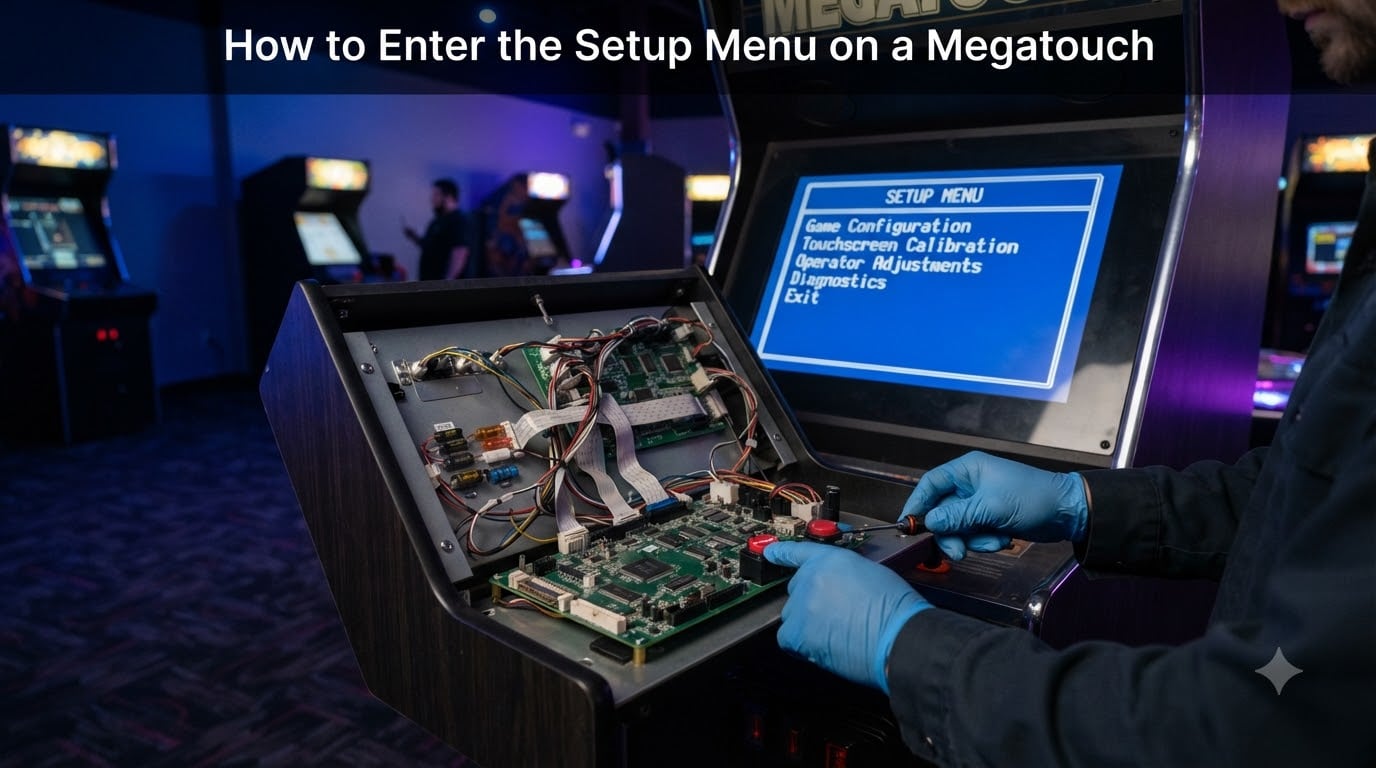
If you own or service a Megatouch arcade machine, you will eventually need to get into the setup menu to change pricing, pick games, or fix a misaligned touchscreen. The problem is that Merit Industries split their documentation across decades of PDF manuals, and every model generation moved the buttons around. Our team has pulled together the scattered operator manuals, forum threads, and service PDFs into one consolidated walkthrough. This guide covers how to enter the setup menu on a Megatouch, where to find the physical SETUP and CALIBRATE buttons on every major model, and how to handle the most common configuration tasks once you are inside.
Whether you are running an original 1995-era Pit Boss Megatouch, a Megatouch XL, or a newer FORCE, ION, or EVO cabinet, the process shares the same core idea. You open the cabinet, find a small physical button on the control board, press it while the machine is powered on, and the main setup screen appears on the touchscreen. From there you can adjust the coin-to-credit ratio, choose which games appear in the menu, view bookkeeping totals, and run diagnostics.
We will also cover what to do if you lost your security key, how the Six Stars operator feature works on the XL, and the difference between physical DIP switches and soft DIP switches. By the end, you will be able to confidently access and navigate the operator menu on any Megatouch in your arcade.
Table of Contents
- Quick Answer: Where Is the SETUP Button on a Megatouch?
- What Is the Megatouch Setup Menu?
- Tools and Preparations Before You Start
- How to Enter the Setup Menu on a Megatouch: Step-by-Step
- Setup Screen Overview: What You See After Pressing SETUP
- Calibrating the Touchscreen Using the CALIBRATE Button
- Configuring Coin and Credit Settings
- Model-Specific Differences: Original, XL, FORCE, ION, EVO
- Troubleshooting Common Setup Menu Problems
- Frequently Asked Questions
- How do I put my Megatouch in service mode?
- How do I reset my Megatouch?
- What is the operator menu on a Megatouch?
- How do you calibrate a Megatouch screen?
- Where is the SETUP button on a Megatouch?
- How do I access the coin/credit settings on a Megatouch?
- Can I access the setup menu from the touchscreen alone?
- What do I do if I lost my Megatouch security key?
- Conclusion
Quick Answer: Where Is the SETUP Button on a Megatouch?
The SETUP button on a Megatouch is a small physical momentary switch mounted on the control board inside the cabinet. On the original Megatouch and most FORCE models, you will find it on the control board attached to the front of the bezel, near the coin mech area. On the EVO generation, the SETUP button sits on the control board inside the CPU section, close to the hinge of the CPU section door. On the Megatouch XL, the setup controls are accessed through the coin mech area and the Main Menu appears after pressing the SETUP button on the control board.
To enter the setup menu, power the machine on, unlock and open the cabinet door (or coin mech access panel), locate the SETUP button on the control board, and press it once. The main setup screen replaces the attract-mode display. That is the short version. The rest of this guide walks through each step with model-specific details, safety notes, and troubleshooting.
What Is the Megatouch Setup Menu?
The Megatouch setup menu is the operator control panel where you configure coin and credit settings, select which games appear on the machine, view bookkeeping statistics (called display books), and adjust system-wide options. Think of it as the administrator settings for the entire arcade cabinet. Without accessing it, you cannot change pricing, swap out games, clear high scores, or recalibrate the touchscreen.
On most models the setup menu is also called the operator menu, and the broader mode is sometimes referred to as service mode. These terms are used interchangeably across Merit manuals. The setup screen typically shows a main menu with options like Coin-In, Game Menu, Display Books, System Settings, and sometimes a dedicated calibration or diagnostics entry.
The setup menu is different from the attract-mode game selection screen that players see. Players never interact with the setup menu directly. It is protected behind the physical cabinet lock and, on some models, a security key on the control board. This keeps pricing and game configuration safe from tampering on the floor.
Tools and Preparations Before You Start
Before you open the cabinet and press anything, gather what you need. Most operators already have these on hand, but it is worth checking so you do not get stuck halfway through. Here is what to prepare.
Cabinet key or coin door key – You need physical access to the inside of the machine. On most Megatouch cabinets this means unlocking the main cabinet door or the coin mech access panel. Without the key you cannot reach the control board where the SETUP button lives.
Security key (if applicable) – Some models, especially the EVO, have a security key on the control board right next to the SETUP and CALIBRATE switches. You may need to turn this key to enable certain protected functions inside the setup menu.
Flashlight – The control board is tucked inside the cabinet and the lighting is poor. A small flashlight makes finding the SETUP and CALIBRATE buttons much faster.
Stylus or soft-tipped pointer – Touchscreen calibration requires precise taps on small targets. A stylus helps if your fingertip is too large for the calibration crosshairs.
Power safety awareness – The Megatouch runs on standard wall power and internal components carry live voltage even in service mode. Keep the machine plugged in so you can see the setup screen, but do not touch any exposed wiring, power supply boards, or the CRT monitor chassis. If your machine has a CRT monitor, the flyback transformer holds a dangerous charge even after power is removed.
How to Enter the Setup Menu on a Megatouch: Step-by-Step
This is the universal procedure that works across the original Megatouch, XL, FORCE, ION, and EVO with only minor location differences. Follow these steps in order. Model-specific button locations are covered in the next section.
Step 1: Power the machine on. Let it boot fully into attract mode. You should see the normal game selection screen cycling through titles. The setup menu only loads correctly from a fully booted machine.
Step 2: Unlock and open the cabinet door. On the original Megatouch and FORCE models, open the main front cabinet door to expose the bezel and control board area. On the EVO, open the CPU section door located near the hinge on the side or rear of the cabinet. On the XL, open the coin mech access panel at the front lower section.
Step 3: Locate the control board. The control board is a printed circuit board (PCB) mounted inside the cabinet. On original and FORCE models it is attached to the front of the bezel. On the EVO it is inside the CPU section. On the XL it is behind the coin mech area.
Step 4: Find the SETUP button. Look for a small momentary push-button switch labeled SETUP on or near the control board. It is usually black or red and sits next to a second button labeled CALIBRATE. On the EVO, both switches are clearly labeled and may be accompanied by the security key socket.
Step 5: Press the SETUP button once. A single press is all it takes. The attract-mode display immediately switches to the main setup screen. You will see a menu with options like Coin-In, Game Menu, Display Books, and System Settings.
Step 6: Navigate the setup screen using the touchscreen. Once the main setup screen is visible, all navigation happens through touch. Tap the menu option you want to open. Sub-menus work the same way. There is typically an Exit or Return option to go back to the previous screen.
Step 7: Exit the setup menu. When you are done, select Exit or Main Menu return on the setup screen. The machine returns to attract mode. Close and lock the cabinet door. Your changes are saved automatically on most models.
One important note from the forums: pressing SETUP and CALIBRATE do different things. SETUP opens the operator configuration menu. CALIBRATE launches the touchscreen calibration routine. Operators frequently confuse the two, especially on first attempts. If you press CALIBRATE by mistake, you will see a crosshair or target on screen instead of the setup menu. Simply complete the calibration or power-cycle the machine to exit.
Setup Screen Overview: What You See After Pressing SETUP
Once you press the SETUP button, the main setup screen takes over the touchscreen. The exact layout varies by model and software version, but the core menu options are consistent across nearly all Megatouch generations. Here is what each section does.
Coin-In Menu – This is where you configure how many credits a coin or bill generates. You can set the coin-to-credit ratio, configure pricing for different bill denominations, and set up free play mode. This is the most-used section for operators who want to adjust pricing.
Game Menu (Game Menu Selection) – This section lets you choose which games appear on the player-facing selection screen. You can toggle individual titles on or off, rearrange the order, and on some models set game-specific pricing. This is also where you access game select mode.
Display Books – Display Books is the bookkeeping section. It shows lifetime coin counts, earnings per game, total plays, and other statistics that help you track which games are earning and which are not. Operators use this data to decide which titles to keep or rotate out.
System Settings – System Settings covers volume control, attract-mode behavior, idle mode timing, date and time, and on the XL model the Video Billboard advertising screens. You can also find factory reset and diagnostic options here on some models.
Diagnostics (where available) – Newer models like the FORCE, ION, and EVO include a diagnostics section that tests the touchscreen, audio, coin mech, and bill validator. Running diagnostics is a good first step when something is not working right.
Calibrating the Touchscreen Using the CALIBRATE Button
The CALIBRATE button is the second physical switch on the control board, sitting right next to the SETUP button. It exists specifically for touchscreen calibration. If your Megatouch touchscreen is registering taps in the wrong spot or not responding at all, this is the fix.
The CALIBRATE button is in the same location as the SETUP button on every model. On the original and FORCE it is on the control board at the front of the bezel. On the EVO it is on the control board in the CPU section. On the XL it is behind the coin mech area. The Merit XL manual specifically notes finding the CALIBRATE button behind the coin mech to enter screen calibration mode.
Here are the calibration steps.
Step 1: Power the machine on and let it reach attract mode.
Step 2: Open the cabinet to access the control board.
Step 3: Press the CALIBRATE button once. The screen switches to calibration mode and displays a target, usually a crosshair or small circle.
Step 4: Touch the center of the circle or crosshair precisely. Use a stylus if your finger is too large.
Step 5: The target moves to a new position (typically a corner). Touch the center of the new target.
Step 6: Repeat for each target position. Most calibration routines use three to five points across the screen.
Step 7: When calibration completes, the machine returns to attract mode automatically. Test the touchscreen accuracy by navigating the game selection screen before closing the cabinet.
If calibration does not hold or the touchscreen still registers touches incorrectly, the issue may be hardware-related. A failing touchscreen controller, damaged ribbon cable, or degraded touch overlay can all mimic a calibration problem. In those cases calibration will not help and you need replacement parts.
Configuring Coin and Credit Settings
The Coin-In Menu is where most operators spend their time inside the setup menu. This is how you set pricing on a Megatouch. The coin-to-credit ratio determines how many coins or bills a player must insert to earn one credit of play time.
To configure coin settings, press SETUP to enter the setup menu, then tap Coin-In on the main setup screen. You will see options for the coin-to-credit ratio, free play toggle, bill validator settings, and on some models electronic coin mech configuration. Use the on-screen arrows or number pad to adjust the ratio to your preferred pricing.
The Megatouch supports both mechanical coin mechs and electronic coin mechs. Mechanical mechs require physical coin size matching and are configured by swapping the mech or its coin acceptor. Electronic mechs can be programmed through the setup menu to accept different coin values and even tokens. The XL and later models commonly use electronic mechs that report coin events to the CPU.
For free play mode, look for a Free Play toggle inside the Coin-In Menu. When enabled, the machine grants credits without requiring coins. This is useful for home use, trade shows, or charity events. Remember that free play mode disables earnings tracking in Display Books since no coins are being counted.
Model-Specific Differences: Original, XL, FORCE, ION, EVO
One of the biggest sources of confusion, according to forum operators, is that different Megatouch generations put the SETUP button in different places. Here is a model-by-model breakdown so you know exactly where to look.
Original Megatouch (Pit Boss era, circa 1995) – The SETUP and CALIBRATE buttons are on the control board attached to the front of the bezel. This is the configuration documented in the Merit operation manual (PM8923). The control board is accessible by opening the main front cabinet door. Physical DIP switches on the control board handle some hardware-level settings, and the setup screen handles software-level configuration including coin-to-credit ratio and game menu selection.
Megatouch XL (circa 1997) – The XL moves some controls behind the coin mech area. The CALIBRATE button is located behind the coin mech, as documented in the XL Owner’s Manual (PM0109-0D). The XL also introduces the Six Stars operator feature, which allows access to certain operator functions directly from the touchscreen without opening the coin box. This is a major convenience upgrade over the original. The XL uses soft DIP switches instead of physical DIP switches, meaning configuration changes happen through the setup screen rather than by flipping hardware switches on the board.
Megatouch FORCE (including FORCE EDGE) – FORCE models return to the control-board-on-the-bezel layout for SETUP and CALIBRATE. The FORCE 2008 software generation added expanded game management, diagnostics, and licensing options within the setup menu. The FORCE EDGE operator menu is the one featured in the available YouTube tutorial, which shows the cabinet-opening caution and button location. FORCE models also support the electronic coin mech more prominently.
Megatouch ION (2008 generation) – The ION shares the FORCE 2008 software platform, so the setup menu structure is nearly identical. SETUP and CALIBRATE button locations follow the FORCE layout on the bezel control board. The ION hardware is a different platform from FORCE but the operator experience inside the setup menu feels the same.
Megatouch EVO (post-2008 generation) – The EVO is where the layout changes significantly. According to the EVO service manual from Betson, the SETUP and CALIBRATE switches are on the control board inside the CPU section, near the hinge of the CPU section door. This is different from all earlier models that put the buttons at the front bezel. The EVO also includes the security key on the control board alongside the two switches. When servicing an EVO for the first time, look in the CPU section rather than the coin mech area.
Six Stars Operator Feature (XL and Later)
Six Stars is an operator convenience feature introduced on the Megatouch XL. It allows access to certain operator functions from the touchscreen without opening the coin box or cabinet door. Forum operators report using the touchscreen Six Stars trick on the XL to reach operator features quickly during routine checks.
Six Stars is not a full replacement for the physical SETUP button. It provides access to a subset of operator controls, typically game selection and basic settings. For full configuration including coin-to-credit changes and bookkeeping, you still need to open the cabinet and press the SETUP button on the control board.
Soft DIP Switches vs Physical DIP Switches
The original Megatouch uses physical DIP switches on the control board for certain hardware-level settings. These are small toggle switches you flip manually with a pen tip or small tool. They control things like region settings, hardware test modes, and base configuration that does not change often.
The XL and later models replaced physical DIP switches with soft DIP switches. Soft DIP switches are software settings stored in memory and configured through the setup screen rather than physical toggles. The advantage is that you can change them without opening the cabinet. The trade-off is that they only persist while the machine has power and working memory, so a dead battery or power loss can reset them to defaults.
If your Megatouch keeps losing settings after power cycles, a failing backup battery on the CPU board is the likely culprit. Check the battery and replace it if needed before reconfiguring soft DIP switches.
Troubleshooting Common Setup Menu Problems
Even when you know where the SETUP button is, things can go wrong. Here are the most common problems operators report and how to fix them.
The SETUP button does nothing when pressed. First, confirm the machine is fully booted into attract mode. If the machine is mid-boot or showing an error screen, the setup menu may not respond. Power-cycle the machine and try again. If the button still does nothing, the switch itself may be faulty or the wiring between the button and the control board may be disconnected. Test the button with a multimeter for continuity.
The touchscreen does not respond inside the setup menu. If the touchscreen works in attract mode but not in the setup menu, the calibration may be off for the setup screen layout. Run the CALIBRATE routine. If the touchscreen does not respond at all in any mode, check the touchscreen controller board, ribbon cable connections, and power to the touch overlay.
The setup menu asks for a security key you do not have. On EVO and some FORCE models, protected functions inside the setup menu require the security key on the control board to be turned to the enable position. If you lost the physical security key, see the FAQ section below for replacement options. You can still access basic setup functions without the key on most models, but advanced settings remain locked.
The machine loses settings after being powered off. This points to a dead or weak backup battery on the CPU board. The battery preserves soft DIP switches, bookkeeping totals, and configuration when the machine is unplugged. Replace the battery (typically a standard coin-cell type) and reconfigure your settings.
Display Books show zero or reset unexpectedly. Bookkeeping data is stored in battery-backed memory. If the battery dies, Display Books reset to zero. This is the same root cause as losing settings. Replace the battery and start tracking fresh. Unfortunately, historical earnings data lost to a dead battery cannot be recovered.
The coin mech is not registering coins. Enter the setup menu and check the Coin-In configuration. Confirm the coin-to-credit ratio is set correctly and the mech type matches your hardware (mechanical vs electronic). For electronic mechs, verify the mech is wired to the correct input on the control board. Run diagnostics if your model supports it.
You cannot tell which model you have. Look for a model label on the back or inside the cabinet door. The label typically shows the model name (XL, FORCE, ION, EVO) and a part number like PM0109 or PM8923. If the label is missing, the software version shown on the setup screen or attract-mode boot screen can help identify the generation.
Frequently Asked Questions
How do I put my Megatouch in service mode?
Service mode on a Megatouch is the same as the setup menu. Power the machine on, open the cabinet door to access the control board, and press the SETUP button once. The main setup screen appears on the touchscreen with options like Coin-In, Game Menu, Display Books, and System Settings.
How do I reset my Megatouch?
To reset a Megatouch to factory settings, enter the setup menu by pressing SETUP, navigate to System Settings, and look for a Factory Reset or Restore Defaults option. On models with soft DIP switches, resetting also clears your custom configuration. For a hard reset of bookkeeping data, use the Clear option in Display Books. Always replace the CPU backup battery before resetting, because a weak battery can cause settings to revert again after power loss.
What is the operator menu on a Megatouch?
The operator menu on a Megatouch is the setup menu accessed by pressing the SETUP button on the control board. It is the administrator interface where operators configure coin-to-credit pricing, select which games appear on the machine, view earnings in Display Books, adjust system settings, and run diagnostics. Players never see or interact with the operator menu.
How do you calibrate a Megatouch screen?
Open the cabinet, locate the CALIBRATE button on the control board next to the SETUP button, and press it once. The screen displays a target such as a crosshair or small circle. Touch the center of the target precisely, then repeat for each new position the target moves to (usually three to five points). When calibration finishes, the machine returns to attract mode automatically.
Where is the SETUP button on a Megatouch?
On the original Megatouch and FORCE models, the SETUP button is on the control board attached to the front of the bezel. On the Megatouch XL, it is behind the coin mech access area. On the EVO, it is on the control board inside the CPU section near the hinge of the CPU section door. It is always a small physical momentary push-button switch labeled SETUP, typically sitting next to the CALIBRATE button.
How do I access the coin/credit settings on a Megatouch?
Press the SETUP button to enter the setup menu, then tap Coin-In on the main setup screen. From there you can set the coin-to-credit ratio, toggle free play mode, configure bill validator settings, and adjust electronic coin mech parameters. Changes save automatically when you exit the menu.
Can I access the setup menu from the touchscreen alone?
On most Megatouch models, no. You must press the physical SETUP button on the control board inside the cabinet to enter the full setup menu. However, the Six Stars operator feature on the XL and later models allows access to a limited subset of operator functions from the touchscreen without opening the cabinet. For full configuration you still need the physical SETUP button.
What do I do if I lost my Megatouch security key?
If you lost the security key on the control board, you can still access basic setup functions on most models but advanced protected settings remain locked. Contact Merit Industries customer service or an arcade parts distributor like Betson for a replacement key matched to your model. Some operators report that locksmiths can fabricate a replacement from the lock cylinder, but using the correct OEM key is the safest option to avoid damaging the control board.
Conclusion
Knowing how to enter the setup menu on a Megatouch gives you full control over pricing, game selection, bookkeeping, and maintenance on your arcade machine. The process is the same across all models in principle: open the cabinet, find the SETUP button on the control board, and press it to load the main setup screen. The only thing that changes between generations is where exactly that button sits.
Remember the key distinctions covered in this guide. SETUP opens the configuration menu and CALIBRATE runs the touchscreen alignment routine, and they are two separate buttons. Soft DIP switches on the XL and later are configured through the setup screen, not flipped manually. The EVO moved the control board into the CPU section, so look there instead of the bezel if you are servicing a newer machine.
If you hit a wall, check the CPU backup battery first, since a dead battery causes the majority of lost-settings problems. For replacement parts, security keys, or model-specific manuals, reach out to Merit Industries customer service at 1-800-445-9353 or an arcade parts distributor. With this walkthrough and your cabinet key in hand, you have everything you need to configure any Megatouch on your floor.