
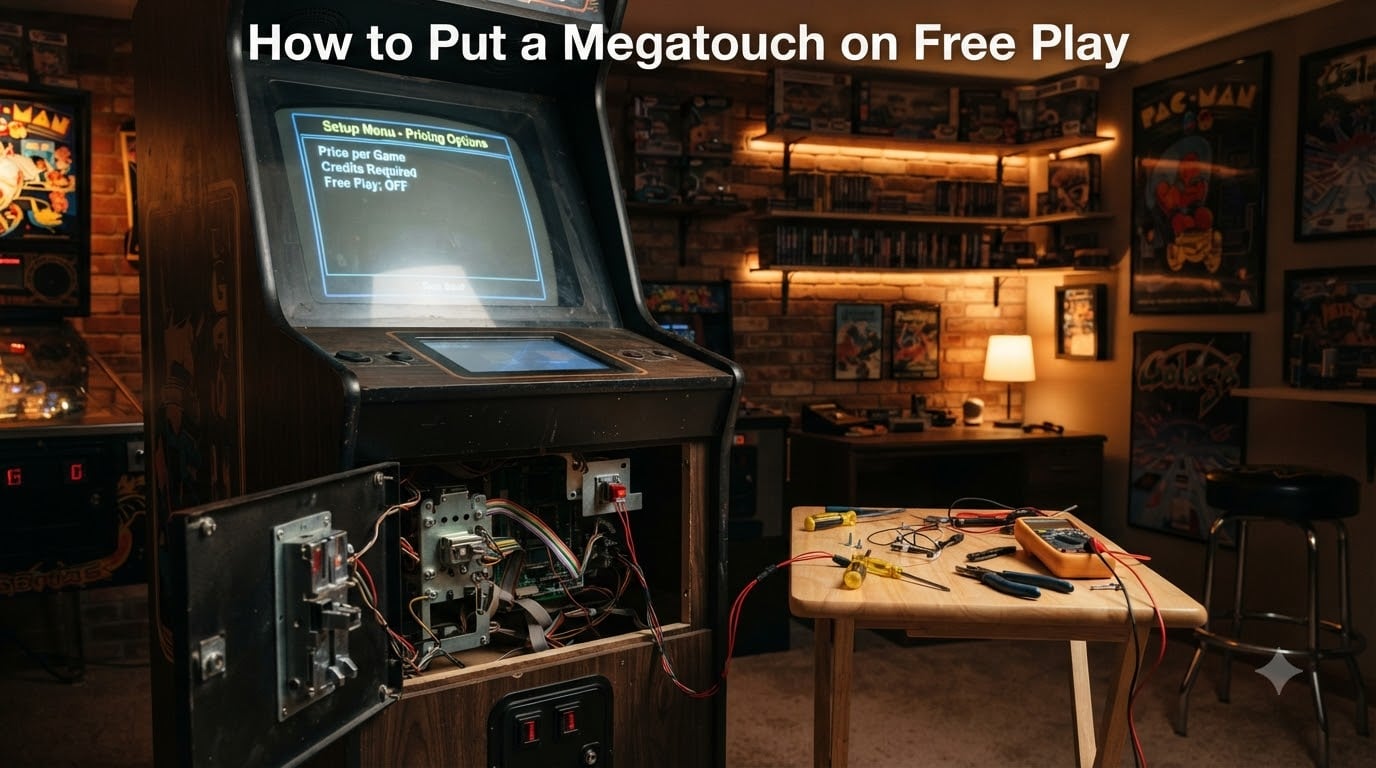
If you own a Merit Megatouch, chances are you want to know how to put a Megatouch on free play so you can use it at home without feeding it quarters. The good news is that most Megatouch models, from the older Megatouch 6 to the later Ion and Force series, can be set to free play in just a few minutes. The catch is that the exact steps change depending on which generation you own, and the setup button hides in a different spot on every cabinet.
Our team has spent years working on Merit Megatouch machines in home arcades, bars, and event setups. We have pulled apart tube cabinets, navigated the pricing menus on flatscreen units, and wired external credit buttons for models that refuse to cooperate. This guide brings all of that hands-on experience into one place.
By the end, you will know exactly where your setup button is, how to enter service mode, and the specific free play steps for your model. We also cover the 99-credits workaround, the hardware free credit button mod, RetroFE homebrew builds, and how to keep your screen safe from burn-in once the machine no longer needs coins.
Table of Contents
- How to Put a Megatouch on Free Play: Quick Overview
- Understanding Megatouch Free Play Options
- Understanding Megatouch Models and Their Free Play Support
- How to Access Megatouch Service Mode?
- How to Set Megatouch Ion to Free Play (Step by Step)
- How to Set Megatouch Force to Free Play (Step by Step)
- Setting Free Play on Other Megatouch Models
- Workarounds for Megatouch Models Without Native Free Play
- How to Add a Hardware Free Credit Button to a Megatouch?
- Configuring Free Play on a RetroFE Megatouch Build
- Megatouch Free Play Troubleshooting Common Issues
- FAQs
- Conclusion: How to Put a Megatouch on Free Play
How to Put a Megatouch on Free Play: Quick Overview
Here is the short version. To put a Megatouch on free play, open the coin door, find the physical setup button, press it to enter service mode, then navigate to the pricing or home use menu and switch the coin requirement off. Most Megatouch Ion and Force models have a native free play or home use setting in the menu. Older models like the Megatouch 6 do not have a free play toggle, so you use the 99-credits workaround or wire an external credit button instead.
The table below summarizes which method works for each major Megatouch generation. Use it to jump straight to the section that matches your cabinet.
| Megatouch Model | Native Free Play? | Best Method |
|---|---|---|
| Megatouch Ion (Aurora, EGO, Rave) | Yes | Pricing menu in service mode |
| Megatouch Force (2003-2007) | Yes | Home use mode in service menu |
| Megatouch Maxx | Yes | Pricing menu in service mode |
| Megatouch XL / Vibe | Sometimes | Pricing or home use menu |
| Megatouch 6 (and earlier) | No | 99 credits workaround or external button |
| G20 Aurora | Limited | Check pricing menu or use credits |
| RetroFE homebrew build | Always | Frontend configures free play |
Understanding Megatouch Free Play Options
Free play on a Megatouch simply means the machine starts games without requiring a coin. Instead of dropping a quarter or token, the player taps the screen and the game begins. This is what most home arcade owners want, and it is the default state for machines placed in bars where the operator would rather sell drinks than charge per game.
Merit built two different approaches into its software over the years. The first is a true free play toggle that removes the coin requirement entirely. The second is called home use mode, which does the same thing but also turns off the earnings reports and attract mode cycles that a commercial operator would normally want. Home use mode is the cleaner choice for a private garage or game room.
Not every model got both options. The later Ion, Force, and Maxx generations almost always include one or the other in the pricing menu. Older hardware like the Megatouch 6 and earlier was designed for coin operation only, so Merit never added a free play toggle. For those cabinets you use a workaround that we cover later in this guide.
The term credits matters here too. Megatouch software tracks an internal credit balance, and each game deducts from it. Free play effectively sets that balance to unlimited, while the 99-credits trick sets it high enough that you rarely run out. Knowing the difference helps you pick the right approach for your model.
Understanding Megatouch Models and Their Free Play Support
Merit produced the Megatouch line for roughly two decades, and the hardware changed substantially over that time. Knowing your exact generation is the single most important step before touching the service menu, because the menu structure and the button location both shift between models.
The Megatouch 4 and Megatouch 6 are the oldest commonly encountered units. These are tube monitor cabinets with simple control boards, and they were designed purely for coin operation. There is no native free play setting in the software. Owners of these machines rely on the 99-credits method or an external credit button wired to the service circuit.
The Megatouch XL and Megatouch Vibe sit in the middle of the timeline. Some XL firmware versions include a home use or pricing option that effectively gives free play, while others do not. The Vibe generally inherits the same menu structure as the XL. If your pricing menu shows a coin amount but lets you set it to zero, you have native free play.
The Megatouch Maxx was the first major redesign with faster hardware and a more detailed service menu. Most Maxx units include a pricing screen where you can set the game cost to free. The setup button on a Maxx is typically inside the coin door, behind the coin box.
The Megatouch Force series, including the Force 2003, 2005, and 2007, is one of the most popular home arcade machines because it combines a flatscreen monitor with a well-documented service menu. Force models have a clear home use mode that disables coin requirements and is well supported by the community.
The Megatouch Ion is the final generation Merit produced, including the Ion Aurora, Ion EGO, and Ion Rave. These run on more modern PC-style hardware with a security key and USB I/O board. Most Ion units support free play through the pricing menu, though the G20 Aurora variant has caused confusion because some firmware versions only show fixed pricing options. We address that specific issue in the troubleshooting section.
How to Access Megatouch Service Mode?
Every free play method starts the same way. You need to enter the Megatouch service mode, sometimes called the setup menu or diagnostics menu. The door into that menu is a physical button somewhere on the cabinet, not an on-screen option.
Finding that button is the most common stumbling block. On tube model Megatouch machines, the setup button sits behind the coin box inside the lower coin door. Open the door, slide the coin box out, and look for a small momentary pushbutton mounted to the metal frame or the control board cluster nearby. On flatscreen models like the Force and Ion, the button is often on the control board itself, sometimes accessible through the coin door without removing anything.
Here is the general procedure that works across most models.
Step 1: Power the machine on and let it boot to the main attract screen. Do not insert any coins.
Step 2: Open the coin door and locate the setup button. If you do not see it immediately, slide out the coin box and look deeper into the cabinet near the control board.
Step 3: Press the setup button once. On most models this drops you into the service menu on the touchscreen. Some models require you to hold the button for two to three seconds.
Step 4: If the button does nothing, some Ion and Force units need a PS2 or USB keyboard plugged into the back of the computer to unlock the full menu. Check the port on the rear of the cabinet.
Step 5: Once the service menu appears, use the touchscreen to navigate. You are now ready to configure free play for your specific model.
How to Set Megatouch Ion to Free Play (Step by Step)
The Megatouch Ion is the model we get asked about most often, and the good news is that it almost always supports native free play. Here is the exact step sequence that works on the Ion Aurora, Ion EGO, and Ion Rave.
Step 1: Power on the Ion and wait for the main menu attract screen to appear.
Step 2: Open the coin door and locate the setup button on the control board or frame inside. On most Ion cabinets it is a small black or red pushbutton near the USB I/O board.
Step 3: Press the setup button to enter service mode. The touchscreen will switch to the service menu.
Step 4: Tap on Pricing or Game Pricing in the menu. The exact label varies slightly by firmware version.
Step 5: Look for an option labeled Free Play, Home Use, or a price field you can set to zero. Tap it and set the game cost to free or zero.
Step 6: Save and exit. Most Ion firmware prompts you to confirm the change before returning to the main screen.
Step 7: Test by starting a game from the main menu without inserting a coin. If the game launches, free play is active.
One note on the G20 Aurora variant. Some owners report that the pricing menu only shows fixed dollar amounts like $0.50 or $1.00 with no way to change them. This is a firmware limitation on certain software versions. If you run into it, skip to the troubleshooting section where we cover the workaround.
How to Set Megatouch Force to Free Play (Step by Step)
The Megatouch Force series is one of the easiest generations to convert because Merit included a dedicated home use mode. This mode does exactly what home arcade owners want, and forum owners have documented it for years.
Step 1: Turn the Force on and let it reach the attract screen.
Step 2: Open the coin door. On the Force 2003 the setup button is behind the coin box. On the Force 2005 and 2007 it is often visible without removing the box.
Step 3: Press the setup button to enter service mode.
Step 4: Navigate to the Home Use or Pricing section of the menu.
Step 5: Toggle Home Use Mode to On. On some firmware this also turns off the coin requirement. On others you then set the price per game to free within the same screen.
Step 6: Save and exit back to the main screen.
Step 7: Confirm by starting a game without a coin. The Force should now run entirely on free play.
If the Force asks for a coin after you enable home use mode, re-enter the pricing menu and check whether the price field is actually set to zero. Sometimes the home use toggle and the pricing field are separate settings that both need adjusting.
Setting Free Play on Other Megatouch Models
The Maxx, XL, and Vibe follow the same general pattern as the Ion and Force, with small menu differences. On the Megatouch Maxx, enter service mode with the coin door button, then look for the pricing screen. Most Maxx firmware lets you set the game price to free or zero directly.
On the Megatouch XL and Vibe, the availability of free play depends on the firmware version. If your pricing menu shows a coin amount that you can edit down to zero, native free play is supported. If the price is locked or the field is missing, your unit falls into the no-native-free-play category and you should use the workarounds in the next section.
The Megatouch 4 and Megatouch 6 are the two generations that almost never have a free play toggle. Merit designed these for coin operation only. Skip ahead to the workarounds section, because no amount of menu hunting will find an option that does not exist in the software.
Workarounds for Megatouch Models Without Native Free Play
If your Megatouch has no free play setting in the menu, you are not stuck feeding it quarters forever. Two reliable workarounds have been used by the arcade community for years.
The first and most popular is the 99 credits trick. Megatouch software stores up to 99 credits internally. If you fill the credit counter to the maximum, the machine effectively runs on free play for a very long time. When credits eventually drop, you top it back up. Here is how it works.
Step 1: Open the coin door and find the free credit button. On most Megatouch 6 cabinets this is a small button on the right side of the coin mech area, separate from the main setup button.
Step 2: With the machine powered on, rapidly tap the free credit button. Forum owners call this the drum roll method because you use two fingers to tap quickly.
Step 3: Watch the credit counter on screen climb. In a few seconds of rapid tapping you can push it to 99, the maximum storage value.
Step 4: Close the coin door and play. The machine deducts one credit per game, but with 99 stored you will not run out during a normal session.
Step 5: Repeat the drum roll whenever credits get low.
The second workaround is simpler but less elegant. Some owners just keep a cup of tokens or quarters next to the machine and let players self-regulate. This avoids any menu work but does mean the coin mech still has to function.
How to Add a Hardware Free Credit Button to a Megatouch?
For owners who do not want to repeatedly tap the internal free credit button, the community-developed solution is to wire an external pushbutton that does the same thing from outside the cabinet. This is a straightforward mod that costs only a few dollars in parts.
You need a momentary pushbutton, the kind sold at any electronics store. Arcade hobbyists have used basic RadioShack pushbuttons for years. You also need a couple of feet of wire and a way to mount the button on the outside of the cabinet.
Step 1: Open the coin door and locate the two terminals on the internal free credit button.
Step 2: Solder or splice a wire to each terminal. You are tapping into the existing circuit in parallel.
Step 3: Run the two wires out of the coin door area to wherever you want the external button mounted. The front of the cabinet near the coin slot is the most common spot.
Step 4: Drill a small hole and mount the external pushbutton.
Step 5: Connect the two wires to the terminals on the external button.
Step 6: Test by pressing the external button. The credit counter on screen should climb by one each press. Hold it or tap rapidly to fill to 99.
This mod does not alter the game software at all. It simply duplicates the internal credit button so you can add credits without opening the coin door. It is the cleanest permanent solution for Megatouch 6 and earlier models that lack native free play.
Configuring Free Play on a RetroFE Megatouch Build
A growing number of Megatouch fans are building their own machines from scratch using a Windows PC, a touchscreen monitor, and the RetroFE frontend loaded with Megatouch game files. If you are running one of these homebrew builds, free play is built in by design.
RetroFE is a frontend, not a coin-operated system, so there is no coin mech and no credit counter to worry about. Games launch directly from the menu when tapped. The frontend itself does need a keyboard connected during initial setup, but once configured the touchscreen handles everything.
The main thing to know is that free play on a RetroFE build is the default state. You do not need to change a pricing menu or add credits. If your build also includes MAME, Photo Play, or Touch Master game packs, those run the same way, launching on tap with no coin requirement.
The one thing to watch is the attract mode. Because RetroFE does not have a commercial attract cycle, the screen can sit static for long periods. Use a screensaver or power management setting in Windows to avoid image retention on your touchscreen, especially if it is a plasma or older LCD panel.
Megatouch Free Play Troubleshooting Common Issues
Even when you follow the right steps, things can go wrong. Here are the problems we see most often and how to fix them.
If your G20 Aurora shows only fixed pricing options in the service menu with no way to change them, you are hitting a known firmware limitation. Some software versions on the G20 locked the pricing field. Your options are to find and apply a firmware update that unlocks the pricing menu, or to fall back on the 99-credits workaround using the internal free credit button.
If you press the setup button and nothing happens, check whether your model needs a keyboard plugged in. Ion and Force units sometimes require a PS2 or USB keyboard connected to the rear computer port to unlock the full service menu. Plug one in and try the button again.
If you cannot find the setup button at all, remember that location varies by model. Tube models hide it behind the coin box. Flatscreen Force and Ion models mount it on or near the control board inside the coin door. Slide the coin box completely out and use a flashlight if needed.
If free play works but the screen stays on attract mode between games for long stretches, you should address screen burn risk. Tube monitors are especially vulnerable. Enable home use mode if your model supports it, since that often shortens or disables the attract cycle. Alternatively, turn the monitor off when the machine is not in use.
If credits keep disappearing on a Megatouch 6 after you fill them to 99, the internal battery on the control board may be failing. When the battery dies, the machine forgets stored credits and settings after power loss. Replacing the coin cell battery on the board stabilizes stored credits and prevents resets.
If you are unsure which model you own, check the label on the back of the cabinet or the boot screen when the machine powers on. Community members on the Arcade Museum forum can help identify exact generations from photos if you are still stuck.
FAQs
How do I put my Megatouch on free play?
Open the coin door, press the setup button to enter service mode, navigate to the pricing or home use menu, and set the game cost to free or zero. Most Megatouch Ion, Force, and Maxx models support native free play. Older models like the Megatouch 6 require the 99-credits workaround or an external credit button.
Where is the setup button on a Megatouch?
On tube model Megatouch machines the setup button is behind the coin box inside the lower coin door. On flatscreen models like the Force and Ion it is usually mounted on or near the control board inside the coin door. Slide the coin box out and use a flashlight if you cannot spot it immediately.
Does Megatouch 6 have a free play option?
No. The Megatouch 6 has no native free play toggle in its software. Owners use the 99-credits workaround by rapidly tapping the internal free credit button, or they wire an external pushbutton to the same circuit so credits can be added without opening the coin door.
How do I add credits to a Megatouch?
Open the coin door, locate the free credit button, and rapidly tap it using two fingers in a drum roll motion. The on-screen credit counter climbs one at a time until it reaches the maximum of 99. You can also wire an external button to the same terminals so you do not need to open the door each time.
What is home use mode on a Megatouch?
Home use mode is a setting on Megatouch Force and some later models that disables the coin requirement and turns off commercial features like earnings reports and attract mode cycles. It is the cleanest free play option for a private game room because it is designed specifically for non-commercial use.
Why does my G20 Aurora not have a free play option?
Some G20 Aurora firmware versions locked the pricing menu so it only shows fixed dollar amounts. You can either find a firmware update that unlocks the pricing field or fall back on the 99-credits workaround using the internal free credit button inside the coin door.
Conclusion: How to Put a Megatouch on Free Play
Learning how to put a Megatouch on free play comes down to knowing your model and finding the right setup button. Ion, Force, and Maxx owners have native free play or home use mode waiting in the service menu. Megatouch 6 and earlier owners get the same result with the 99-credits drum roll or a simple external button mod. RetroFE homebrew builders are already there by default. Whichever cabinet you own, the steps in this guide will get you playing without quarters before your next game night.