
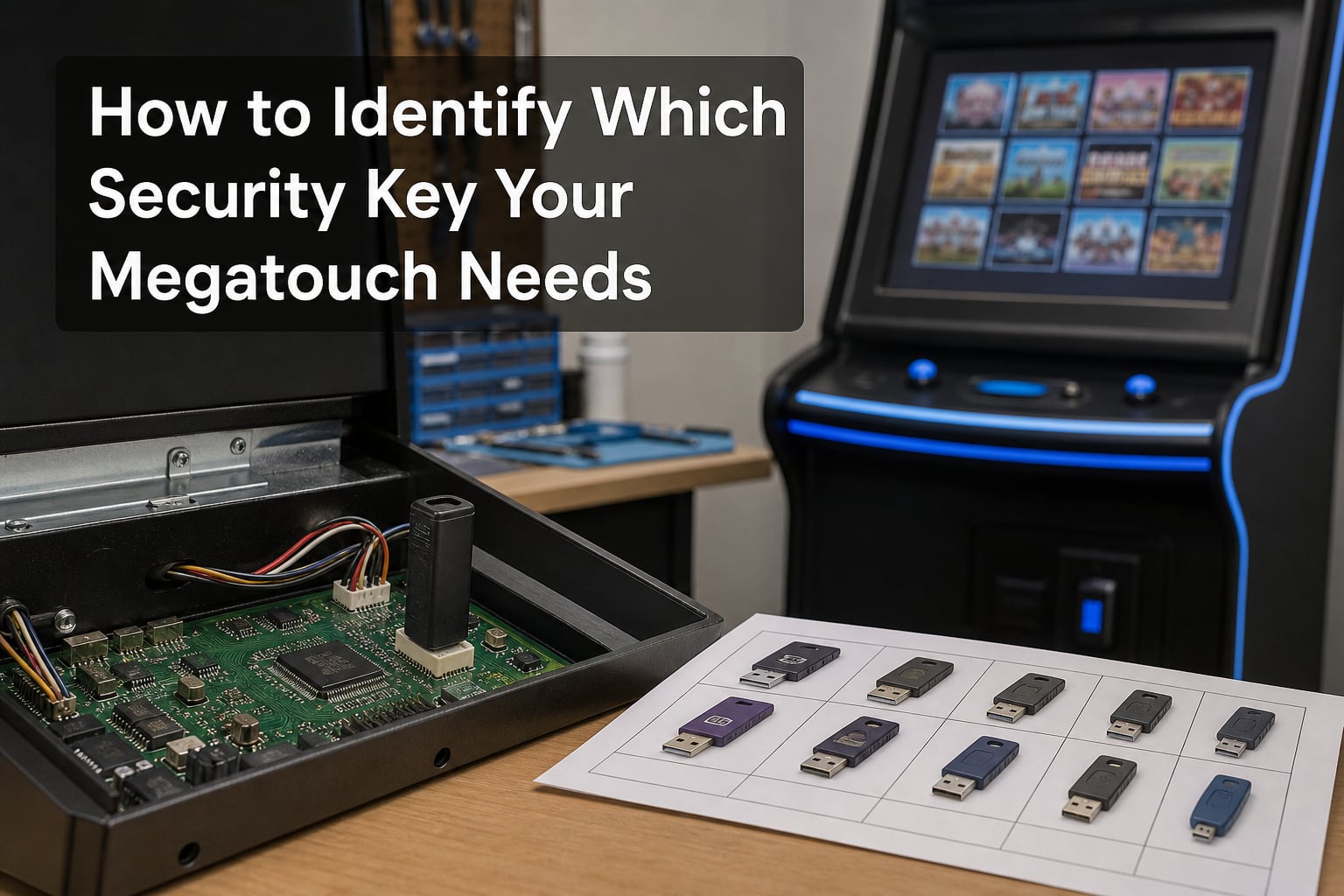
Figuring out which Megatouch security key your machine needs comes down to three things: your platform, your software release version, and the part number printed on the key. Once you know those three, you can match them against a reference table to confirm you have the right hardware lock. This guide walks you through the whole identification process, plus the reference data you need to confirm your match.
If you have inherited a cabinet, bought a machine sight-unseen, or you just found a bag of mystery keys in a drawer, you are in the right place. I have spent years around Megatouch machines and these security keys are the single most common reason a perfectly good cabinet refuses to boot. I will show you exactly how to figure out which one you have, and which one you need.
Table of Contents
What Is a Megatouch Security Key?
A Megatouch security key is a hardware dongle that authenticates the software on a Megatouch touchscreen arcade machine. Each key is tied to a specific platform (XL, Maxx, Force, or Ion) and a specific software release version, and the machine refuses to boot without a valid key. Without the right key, even a fully restored cabinet will sit at a blank screen or display an “Invalid Security Key” error.
How Megatouch Security Keys Work
The security key contains encrypted data that matches the software version installed on the machine’s hard drive or CD-ROM. When the system boots, it checks for a matching key. If the key is missing, damaged, or mismatched, the machine will not run the game software. Older keys are battery-backed, which means they eventually die and the machine becomes effectively bricked until a replacement is sourced.
Button Keys vs Square Keys: Physical Identification
Megatouch security keys come in two physical shapes that you can identify by eye. The button key is a small round module with a button-shaped top, often used in early XL and Force models. The square key is a flat rectangular PCB, sometimes inside a plastic shell, used in many Maxx and Ion releases. The part number printed on the key is the most reliable way to identify it, but the physical shape is a useful first clue when sorting through a pile of unknown keys.
How to Identify Which Security Key Your Megatouch Needs?
Identifying the correct Megatouch security key is a four-step process. Follow these steps in order and you will land on the exact part number you need. I have used this workflow on dozens of restorations and it has not failed me yet.
Step 1: Identify Your Megatouch Platform
Look at the cabinet itself. The platform name is usually printed on a label on the back or inside the coin door. Common platforms include Megatouch XL, Megatouch Maxx (also written MAXX), Megatouch Force, and Megatouch Ion. The platform determines which table you will reference, so this is the most important first step before you get into part numbers.
Step 2: Check the Software Version
Find the software release version on the CD label, the hard drive label, or on the boot screen when the machine powers up. Version numbers look like “R00”, “R01”, “R02”, and so on, sometimes with a year and month such as “C2002 MII”. Knowing your software release narrows the correct key down to one or two candidates in the reference table.
Step 3: Read the Key Part Number
Every Megatouch security key has a part number printed on it, usually in the format SA####. Look for markings like SA3008, SA3022, SA3050, SA3505, or SA3511. Write down the exact number including any suffix such as -01. The part number is the fastest way to identify what a key is for when you have it in your hand.
Step 4: Cross-Reference the Key Table
Take your platform and software version and find the matching row in the reference tables below. Confirm that the part number printed on your key matches the listed part number for that release. If it does, you have the correct key. If it does not, you either have the wrong key for your software, or your software needs to be updated to match the key you have.
Megatouch Security Key Reference Tables
These tables map the most common Megatouch security key part numbers to their platform and software release. Use them after completing the four identification steps above. All data is sourced from community-maintained references and former Merit technical documentation.
Megatouch XL Security Keys
The XL platform used a mix of button keys and square keys depending on the software release. The XL Gold CD R00 release in particular does not accept the later button key SA3039, which is a common mix-up that owners run into.
XL 6000 CD R00 — Key part number SA3008 (button key)
XL Gold CD R00 — Key part number SA3022 (square key, not interchangeable with button key SA3039)
XL 6000 CD R01 / R02 — Key part number SA3050 (button key)
XL Super CD R03 — Key part number SA3050-01 (button key, updated revision)
Megatouch Maxx Security Keys
The Maxx platform covers a wide range of releases including the Crown series. Maxx keys are most often square keys, though a few early releases used button keys. If you have a Crown release, pay close attention to the suffix on the part number.
Maxx Classic R01 — Key part number SA3050 (button key)
Maxx Beyond R05 — Key part number SA3505 (square key)
Maxx Crown R11 — Key part number SA3511 (square key)
Maxx Crown R12 — Key part number SA3513 (square key, updated)
Megatouch Force Security Keys
The Force platform uses a mix of button and square keys depending on the era. The SA3050-01 R02 C2002 MII marking is a very common Force key that shows up in auctions and estate sales. Force machines are forgiving about minor revision differences but strict about platform.
Force 2002 CD R01 — Key part number SA3050 (button key)
Force 2002 R02 C2002 MII — Key part number SA3050-01 (button key)
Force 2003 CD R03 — Key part number SA3505 (square key)
Force Elite R05 — Key part number SA3505-01 (square key, updated revision)
Megatouch Ion Security Keys
The Ion platform is the most modern of the four and uses exclusively square keys. Ion keys are the hardest to find on the secondhand market because they are the newest and the most in demand from collectors restoring late-era machines.
Ion 2006 R01 — Key part number SA3505 (square key)
Ion 2007 R03 — Key part number SA3511 (square key)
Ion 2008 R05 — Key part number SA3513 (square key)
Ion 2009 R07 — Key part number SA3515 (square key, latest revision)
Troubleshooting Invalid Security Key Errors
An “Invalid Security Key” error does not always mean the key is dead. Before sourcing a replacement, work through these checks in order. I have seen more machines with this error get fixed by reseating a cable than by swapping the key itself.
1. Confirm the key is fully seated. Open the cabinet and unplug the key from the IO board. Wait 30 seconds, then plug it back in firmly. A loose connection is the single most common cause of invalid key errors on otherwise healthy machines.
2. Check the IO board. The IO board is what reads the security key. If you have a known-good key on a known-good machine and you still get the error, the IO board is the next suspect. Borrow a working IO board from another machine to test before ordering a replacement key.
3. Verify the software matches the key. An “Invalid Security Key” message often means the software release on the hard drive or CD does not match the key. If you have a key but no matching software, you need the software release that matches the key code. If you have the software but no key, you need the key code for that release.
4. Look for signs of a dead key. Battery-backed security keys have a limited lifespan. If the key has visible corrosion on the battery, a bulging capacitor, or a faint chemical smell, the key is almost certainly dead. There is no user-serviceable battery on most of these keys, so a dead key means sourcing a replacement.
Warning: If your machine boots to a “No Security Key Detected” message rather than “Invalid Security Key”, the key is completely missing or the IO board has failed. The key itself is likely fine.
Security Key Compatibility Warnings
Keys are not interchangeable across platforms. An XL key will never work on a Force, and a Force key will never work on an Ion. Even within a single platform, the wrong software release means the wrong key. The most common mistake I see is pairing an XL Gold CD R00 square key (SA3022) with a button key SA3039 from a different release, which will silently fail.
Square keys and button keys are not interchangeable either, even if the part number looks similar. The shape and pinout differ, and physically swapping them can damage the IO board. Always match by full part number including any suffix like -01.
Frequently Asked Questions
How do I know which Megatouch security key I need?
You need to know three things: which Megatouch platform you have (XL, Maxx, Force, or Ion), which software release version is installed, and the part number printed on the key. Match your platform and software release to the reference tables in our guide to confirm the correct key.
Are Megatouch security keys interchangeable?
No. Megatouch security keys are tied to a specific platform and software release. An XL key will not work on a Force, and a Force key will not work on an Ion. Square keys and button keys are also not interchangeable, even when the part numbers look similar.
What happens when a Megatouch security key fails?
When a Megatouch security key fails, the machine displays an Invalid Security Key or No Security Key Detected error and refuses to boot. Older keys are battery-backed and have a limited lifespan, so failure is eventually inevitable unless the key is replaced or backed up.
Can I bypass a Megatouch security key?
Bypassing a Megatouch security key is not supported by Merit or any official channel. Community discussions on GitHub and arcade forums describe emulation work, but this is complex, version-specific, and outside the scope of a basic identification guide. For most owners, sourcing a matching replacement key is the practical path.
How do I read a Megatouch security key part number?
Megatouch security key part numbers are printed on the key in the format SA followed by four digits, such as SA3008, SA3022, SA3050, SA3505, SA3511, SA3513, or SA3515. Some keys include a revision suffix like -01 or a release code like R02 C2002 MII. Combine the platform you have with the part number to look up the correct match.
Conclusion
Identifying which Megatouch security key your machine needs boils down to matching your platform, software release, and the part number printed on the key against a reference table. Use the four-step workflow above, then walk through the table for your platform (XL, Maxx, Force, or Ion) to confirm the match. If you are seeing an “Invalid Security Key” error on a working machine, run the troubleshooting checks before assuming the key is dead, and document the part number of any replacement key you source so the next owner of the cabinet has a clear paper trail.