
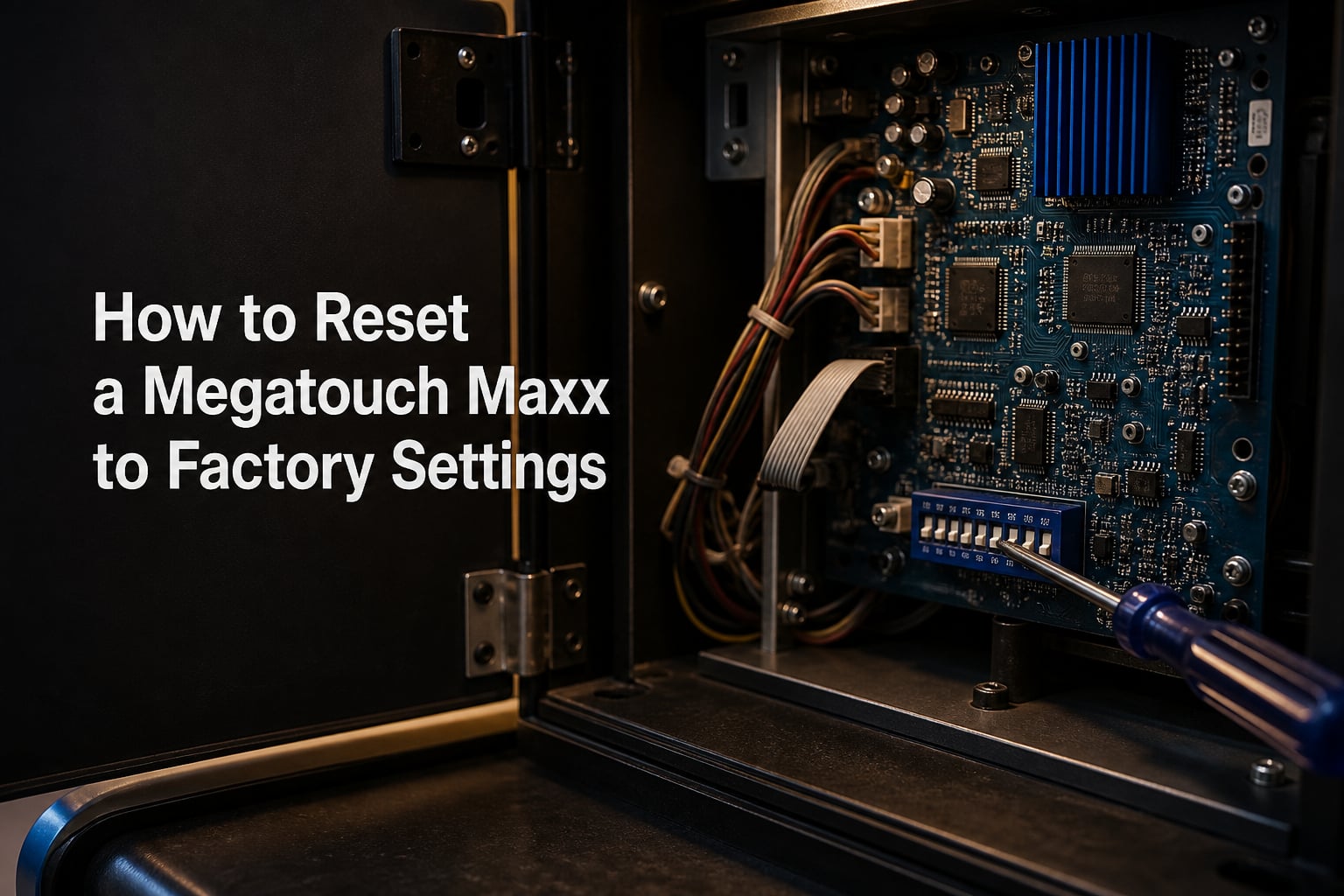
If your Megatouch Maxx is glitching, booting into the wrong screen, or showing a touchscreen that no amount of menu calibration will fix, a factory reset is often the cleanest path forward. I have spent years working on Merit Industries Megatouch cabinets, and the reset procedure is one of the first things every arcade operator and home hobbyist should learn. This guide walks you through exactly how to reset a Megatouch Maxx to factory settings using the dip switch method that Merit Industries built into every system board.
A factory reset restores your Megatouch Maxx to its original manufacturer settings by clearing all game menus, high scores, custom configurations, and reinitializing the system software. Think of it as wiping the slate clean so the cabinet boots fresh, just like the day it left the factory. It is different from a simple reboot or a touchscreen recalibration, and knowing when to use each one can save you hours of frustration.
I will cover the safety precautions you need before opening the cabinet, the exact dip switch settings for every type of reset, the step-by-step factory reset procedure, and what to do afterward so your machine comes back to life correctly. I will also walk you through troubleshooting the most common problems people hit when the reset does not go as planned. Whether you are running a Maxx, Blue Maxx, or Slim Maxx, this guide has you covered.
Table of Contents
- Safety Precautions and Prerequisites
- Understanding Your Megatouch Maxx Model Variant
- Understanding Dip Switch Settings
- How to Reset a Megatouch Maxx to Factory Settings: Step by Step
- Hardware Reset vs Software Reset vs Master Reset
- Post-Reset Configuration: Game Menu, Calibration, and Licensing
- CMOS Battery and Time/Date Issues
- Troubleshooting Failed Resets and Boot Issues
- FAQs
- Wrapping Up
Safety Precautions and Prerequisites
Before you touch anything inside your Megatouch Maxx, you need to disconnect power from the cabinet entirely. Unplug it from the wall outlet, not just the power strip. These machines run live voltage through the power supply, motherboard, and I/O board, and working inside a powered cabinet is dangerous. Wait at least 30 seconds after unplugging to let the capacitors drain.
You also need to understand one hard truth: a factory reset will erase data. All high scores, custom game menu settings, pricing configurations, and operator adjustments will be gone. If you have specific settings you want to preserve, write them down or photograph the game menu screens before you begin. There is no undo button once the reset completes.
Here is what you should have ready before starting:
Phillips screwdriver (for cabinet back panel access)
Small flathead screwdriver or a pick tool (for flipping dip switches)
Pen and paper or a phone (to photograph current settings)
Flashlight (the cabinet interior is dark)
Antistatic wrist strap (recommended, not mandatory)
Your Megatouch Maxx technical service manual for reference if available
Identify your model variant before proceeding. The most common versions are the original Megatouch Maxx (sometimes called Full Maxx), Blue Maxx, and Slim Maxx. The reset procedure is nearly identical across all three, but the physical layout of components inside the cabinet differs. The original Maxx has a larger chassis with the I/O board mounted separately, while the Slim Maxx packs everything into a more compact housing. Blue Maxx sits in between and uses a slightly different color-coded wiring scheme.
Understanding Your Megatouch Maxx Model Variant
Megatouch Maxx cabinets were manufactured by Merit Industries across several years and revisions, and while the core system architecture stayed consistent, the physical layout evolved. The original Full Maxx is the most common in bar and restaurant settings. It uses a standard ATX-style motherboard paired with a Merit I/O board that handles the touchscreen controller and coin mechanisms.
Blue Maxx introduced cosmetic updates and some firmware refinements, but the dip switch layout on the system board remained the same. Slim Maxx reduced the cabinet footprint, which means the motherboard and I/O board are packed more tightly and you may need to remove a panel to access the dip switch bank. No matter which variant you own, the dip switches are located on the main system board, typically in a row of eight small rocker switches.
If you are unsure which model you have, check the serial number plate on the back of the cabinet or look for model markings on the I/O board. The Arcade Doctor at meritgames.com hosts an extensive library of 569 Megatouch manuals, service bulletins, and parts diagrams that can help you confirm your exact model and find model-specific documentation.
Understanding Dip Switch Settings
Dip switches are small physical toggle switches on the Megatouch Maxx system board that control low-level hardware behavior. Unlike software settings that you change through the game menu, dip switches are hardware-level controls that the system reads during the boot sequence. On a Megatouch Maxx, there is typically a bank of eight dip switches, and different combinations trigger different reset modes.
Here is what each relevant dip switch does on a standard Megatouch Maxx system board:
Dip Switch 6 (Hardware Reset): Resets the hardware layer and reloads the correct drivers without erasing your game data. Use this when you have minor glitches or touchscreen issues but do not want to lose your settings.
Dip Switches 4 and 7 together (Factory Reset): The full factory reset combination. This erases all user data, game menu settings, high scores, and custom configurations, restoring the system to original factory defaults.
Master Reset: A term often used in the Megatouch community to describe flipping two dip switches (4 and 7) and powering on, which resets everything to factory specs. Some users also apply this term to the process of clearing the CMOS by removing the battery.
All switches OFF (Normal Boot): The default operating position. Your Megatouch Maxx should boot normally with all dip switches in the off position.
The confusion between dip switch 6 and dip switches 4 and 7 is one of the most common pain points I see in the arcade forums. People try a dip switch 6 hardware reset when they actually need a full factory reset, and the glitches persist because the software layer was never cleared. The reverse is also true: some operators hit the machine with a 4 and 7 factory reset when a simple dip switch 6 hardware reset would have fixed the problem without wiping their data.
Rule of thumb: try dip switch 6 first if your issue is minor touchscreen glitches or driver problems. Reserve the 4 and 7 factory reset for serious issues like corrupted game menus, boot failures, or calibration that is so far off you cannot complete the in-menu calibration process.
How to Reset a Megatouch Maxx to Factory Settings: Step by Step
This is the core procedure for performing a full factory reset on a Megatouch Maxx using dip switches 4 and 7. Follow these steps in order, and do not skip any of them.
Step 1: Power down and unplug. Turn off the cabinet using the power switch, then unplug it from the wall outlet. Wait at least 30 seconds for the power supply capacitors to discharge fully.
Step 2: Remove the back panel. Use your Phillips screwdriver to remove the screws securing the rear access panel of the cabinet. Set the screws aside in a safe place. Slide or swing the panel open to expose the system board and I/O board.
Step 3: Locate the dip switch bank. Find the row of eight small dip switches on the main system board. On the original Full Maxx, this is usually near the edge of the motherboard. On the Slim Maxx, you may need to look past the I/O board or remove a secondary panel. Use your flashlight if the interior is dark.
Step 4: Set dip switches 4 and 7 to ON. Using your small flathead screwdriver or pick tool, gently flip dip switch 4 to the ON position and dip switch 7 to the ON position. Leave all other switches in their current positions. Double-check that you have the right switches, because flipping the wrong combination can cause unexpected behavior.
Step 5: Close the panel and plug in. You do not need to fully reassemble the back panel, but make sure no wires are pinched and the panel is resting safely. Plug the cabinet back into the wall outlet.
Step 6: Power on and wait. Turn on the cabinet. The system will detect the dip switch configuration and begin the factory reset process automatically. You may see a blank screen, a progress indicator, or diagnostic text. Let it run. This can take anywhere from 30 seconds to several minutes depending on your model and firmware version.
Step 7: Power down and reset the dip switches. Once the reset process completes and the system reaches the normal boot screen (or powers through to the game menu), turn the cabinet off. Unplug it again, open the back panel, and flip dip switches 4 and 7 back to the OFF position. This step is critical. If you leave them on, the system will attempt another factory reset on the next boot.
Step 8: Power on and verify. Plug the cabinet back in and power it on normally. The system should boot into the factory default state. You will likely see the initial setup screen or a prompt to set the time, date, and language. Your high scores and custom game menu settings will be gone, which confirms the reset worked.
Hardware Reset vs Software Reset vs Master Reset
The Megatouch community uses several terms for different reset operations, and the confusion between them causes a lot of failed repairs. Let me break down the three main types so you know exactly which one your situation calls for.
Software Reset (Soft Reset): This is a simple reboot through the game menu or by power cycling the cabinet normally. It does not touch any settings or data. Use this for minor freezes or when a game round glitches. It is the least invasive option and should always be your first attempt.
Hardware Reset (Dip Switch 6): This resets the hardware layer by reloading the correct drivers from the system image. It does not erase your game data, high scores, or custom configurations. Dip switch 6 is ideal for touchscreen glitches, minor driver corruption, or when the system feels sluggish after extended uptime. Power off, flip dip switch 6 to ON, power on, let it cycle, power off, flip dip switch 6 back to OFF, and power on normally.
Factory Reset (Dip Switches 4 and 7): This is the nuclear option. It wipes everything and restores the system to the state it shipped in from Merit Industries. Use this when you have corrupted game menus, persistent boot failures, calibration that cannot be fixed through normal means, or when you are preparing a used cabinet for a new location and want a clean slate.
Master Reset is a term that gets thrown around in the Megatouch community to mean different things. In the arcade museum forums, it typically refers to the full factory reset using dip switches 4 and 7. Some users also use it to describe a CMOS clear, which involves removing the CMOS battery to reset the clock and BIOS settings. When someone tells you to do a master reset, ask them to clarify which procedure they mean before you start flipping switches.
Post-Reset Configuration: Game Menu, Calibration, and Licensing
After a factory reset, your Megatouch Maxx boots into a fresh state and you need to set things up before it is ready for players again. Here is the configuration sequence I follow after every reset.
Set the time and date. The system will prompt you on first boot after a reset. Navigate through the game menu to the time and date settings and enter the correct values. If the system does not hold the time after being powered off, you have a CMOS battery problem, which I cover in the next section.
Recalibrate the touchscreen. This is the step that trips up the most people. After a factory reset, the touchscreen calibration is returned to factory defaults, which may not match your specific monitor and controller combination. Go to the touchscreen calibration screen in the game menu and follow the on-screen prompts. You will touch targets in sequence, and the system maps your touch inputs to the correct screen coordinates. If the calibration is so far off that you cannot even reach the calibration screen, perform a dip switch 6 hardware reset first to reload the touchscreen drivers, then attempt calibration again.
Verify the security key. Megatouch Maxx systems use a physical security key (a USB dongle or a chip on the I/O board) to validate the game license. After a factory reset, the system re-reads the security key during boot. If you get an invalid security key error, power down, reseat the key by removing and reinserting it firmly, and power back on. If the error persists, the key itself may be damaged, and you will need a replacement. The Arcade Doctor at meritgames.com is a trusted source for replacement parts and support documentation.
Reconfigure the game menu. If you had custom pricing, free play settings, volume levels, or game selection preferences, you need to re-enter them through the operator game menu. Access the game menu using the operator key or the menu button inside the cabinet, and step through each category. This is where your pre-reset photos come in handy.
CMOS Battery and Time/Date Issues
One of the most common complaints I see in the Megatouch forums is that the system loses its time and date every time the cabinet is powered off for more than a day. This is almost always a dead or dying CMOS battery. The CMOS battery is a small coin cell (typically a CR2032) mounted on the system board, and it keeps the real-time clock running when the cabinet is unplugged.
When the CMOS battery dies, the system forgets the time and date on every cold boot. This can cause problems with game menus that rely on date stamps for tournament tracking or daily features. It can also trigger prompts on every boot, which gets annoying fast.
Replacing the CMOS battery is straightforward. Power down and unplug the cabinet, locate the coin cell battery on the system board (it is usually in a spring-loaded holder), pop it out, and insert a fresh CR2032 with the positive side facing up. After replacing the battery, boot the system and set the correct time and date in the game menu. The new battery should hold the clock settings for several years.
If the battery is dead and you perform a factory reset without replacing it, you will need to set the time and date manually on every cold boot. I recommend replacing the CMOS battery before or at the same time as your factory reset so you start from a fully healthy baseline.
Troubleshooting Failed Resets and Boot Issues
Sometimes the factory reset does not go smoothly. Here are the most common problems people encounter after attempting a reset, drawn directly from real experiences shared in the arcade museum forums and Megatouch community groups.
Problem: The reset got stuck and the system never reboots. This is the most frequently reported issue. The system powers on with dip switches 4 and 7 set, begins the reset, and then hangs on a blank or frozen screen indefinitely. First, wait at least 10 minutes to rule out a slow reset process. If it is still stuck, power down, flip dip switches 4 and 7 back to OFF, and try booting normally. If the system boots, the reset likely completed but the automatic reboot failed. If it still will not boot, try a dip switch 6 hardware reset to reload the drivers, then attempt the factory reset again from the beginning.
Problem: Touchscreen glitches persist after the factory reset. If you did the full factory reset and the touchscreen is still acting up, the problem may be hardware rather than software. Check the touchscreen controller connections on the I/O board. Reseat the ribbon cable connecting the touchscreen controller to the monitor. If the glitches continue, the touchscreen controller itself may be failing and need replacement.
Problem: Calibration is too far off to complete the calibration screen. This happens when the touchscreen mapping is so misaligned that you cannot touch the calibration targets. Perform a dip switch 6 hardware reset first to reload the touchscreen drivers from the system image. Then attempt calibration again. If that does not work, you may need to access the service menu through the I/O board to perform a controller-level recalibration.
Problem: Invalid security key error after reset. Power down the cabinet completely. Locate the security key on the I/O board or the USB port. Remove it, inspect the contacts for corrosion or damage, clean with a dry cloth if needed, and reseat it firmly. Power on and see if the error clears. If it does not, the security key may be corrupted or physically damaged, and you will need a replacement. Contact the Arcade Doctor at meritgames.com for replacement security keys and support.
Problem: System will not boot at all after the reset. Check your power supply voltages first. The Megatouch Maxx power supply outputs specific voltages to the motherboard and I/O board, and if the supply is failing, the system will not boot regardless of the dip switch settings. Use a multimeter to check the output rails (typically 5V, 12V, and 3.3V). If any rail is significantly out of spec, the power supply needs replacement. Also check the CPU cooling fan under the I/O board; if it has failed, the CPU may be overheating and refusing to boot.
Problem: Boot loops continuously. This can indicate a corrupted system image or a failing storage drive. If the system image on the hard drive or compact flash card is corrupted, no amount of dip switch resetting will fix it. You may need to reimage the storage media from a known-good backup. Community resources and the meritgames.com document library can help you locate the correct firmware image for your model.
When to call a professional: If you have tried the factory reset, the hardware reset, and the troubleshooting steps above and your Megatouch Maxx still will not boot or function correctly, it is time to contact a professional. The Arcade Doctor is the most trusted name in Megatouch repair and offers parts, documentation, and service. Attempting board-level component repair without experience can cause further damage.
FAQs
How do you factory reset a Megatouch Maxx?
Power down and unplug the cabinet, remove the back panel, and locate the dip switch bank on the system board. Flip dip switches 4 and 7 to the ON position, plug the cabinet back in, and power it on. The system runs the factory reset automatically. Once it completes, power off, flip dip switches 4 and 7 back to OFF, and power on to verify the reset.
What dip switches reset a Megatouch Maxx?
Dip switches 4 and 7 together perform a full factory reset that erases all user data and restores factory defaults. Dip switch 6 alone performs a hardware reset that reloads drivers without erasing your game data. All switches should be returned to OFF before normal operation.
How do you calibrate a Megatouch Maxx touchscreen?
After a factory reset, go to the touchscreen calibration screen in the game menu and follow the on-screen prompts to touch targets in sequence. If the calibration is too far off to reach the screen, perform a dip switch 6 hardware reset first to reload the touchscreen drivers, then attempt calibration again.
Why does my Megatouch Maxx need a CMOS battery reset?
When the CMOS battery (a CR2032 coin cell on the system board) dies, the system loses its time and date every time it is powered off. Replacing the battery fixes the recurring time and date reset issue. The CMOS battery should be replaced before or during a factory reset for a clean baseline.
How do you fix a Megatouch Maxx that won’t boot?
First, check that all dip switches are set to OFF for a normal boot. If it still fails, try a dip switch 6 hardware reset to reload drivers. Check power supply voltages with a multimeter (5V, 12V, 3.3V rails). Verify the CPU cooling fan under the I/O board is working. If none of these resolve the issue, the system storage image may be corrupted and need re imaging.
What is a master reset on Megatouch?
A master reset on a Megatouch Maxx typically refers to the full factory reset performed by flipping dip switches 4 and 7 to ON and powering on the cabinet. Some community members also use the term to describe clearing the CMOS by removing the battery. Always clarify which procedure is meant before proceeding.
Wrapping Up
Knowing how to reset a Megatouch Maxx to factory settings is an essential skill for anyone maintaining these classic arcade cabinets. The dip switch method is reliable, well-documented by Merit Industries, and community-tested across thousands of machines over the years. The key is choosing the right reset for your situation: a soft reset for minor freezes, dip switch 6 for driver-level glitches, and the full dip switches 4 and 7 factory reset for serious corruption and boot failures.
Always remember to power down and unplug before opening the cabinet, flip the dip switches back to OFF after any reset procedure, and have your post-reset configuration plan ready before you start. Replacing the CMOS battery at the same time as your reset gives you a clean, healthy baseline that should keep the system stable for years.
If you hit a wall with stuck boots, persistent touchscreen glitches, or invalid security key errors, work through the troubleshooting steps systematically before calling in professional help. And when you do need parts, manuals, or expert service, the Arcade Doctor at meritgames.com is the most trusted resource in the Megatouch community. Take your time, document your settings, and your Megatouch Maxx will be back in working order before you know it.