
A dual-monitor docking station is a desk-bound hub that plugs into one USB-C or Thunderbolt port on your laptop and adds the display outputs, USB-A ports, Ethernet, card readers and charging you need to drive two external monitors and a full set of peripherals over a single cable.
That one-cable promise is the whole reason these devices exist. Most modern laptops ship with two to four ports, none of them HDMI, so without a dock every desk session means plugging in three to six cables and unplugging them again at the end of the day. A dock turns that chore into a single click and adds a second screen, which is still the single biggest productivity gain for laptop-based dual-monitor work.
Below, we cover the best docking stations for dual monitors across ten picks, from a compact aluminium 7-in-1 to a DisplayLink model that delivers true dual 4K without needing Thunderbolt at all. We looked at display outputs, maximum resolution and refresh rate, power delivery wattage, upstream connection type, Ethernet speed, card slots and warranty length for every unit, then matched each one to the desk it actually suits.
If you are still working out the basics, our laptop docking station guide covers single-monitor setups and port basics in more detail. Everything below assumes two screens are the goal.
Table of Contents
- Top 3 Picks: Best Docking Stations for Dual Monitors (October 2026)
- The Best Docking Stations for Dual Monitors: Our Top Picks
- 1. Anker 8-in-1 USB-C Dock: The Best All-Rounder for Dual Monitors
- 2. LIONWEI 13-in-1 USB-C Dock: Thirteen Ports in One Desk Block
- 3. Plugable UD-3900 Universal Dock: The Best Value for Mixed Fleets
- 4. HODO 8-in-1 Quad Display Dock: Best for Three Screens on Windows
- 5. UGREEN 10-in-1 Dock: The Pick for Photo and Media Workflows
- 6. UGREEN 7-in-1 Aluminum Dock: Four 10Gbps Ports and Nothing You Do Not Need
- 7. Anker 11-in-1 Dock: The One with HDMI and DisplayPort Together
- 8. Acer 9-in-1 USB-C Dock: Dual 4K60 Where It Counts Most
- 9. VVB 14-in-1 USB-C Dock: The Windows Video Workstation Option
- 10. Plugable UD-6950Z DisplayLink Dock: True Dual 4K60 Without Thunderbolt
- How to Choose a Docking Station for Two Monitors
- Do You Need a Dock or Just a USB-C Hub?
- MacBook vs Windows: Why macOS Needs DisplayLink for Two Extended Screens
- Thunderbolt 4 vs Thunderbolt 5 vs USB4: Which Do You Actually Need?
- How to Connect Two Monitors to a Dock on Windows and macOS
- Why Is Your Second Monitor Not Detected?
- Do You Need a KVM Docking Station?
- Best Docking Stations for Dual Monitors: Gaming and High Refresh
- Frequently Asked Questions
- Our Verdict on the Best Docking Stations for Dual Monitors
Top 3 Picks: Best Docking Stations for Dual Monitors (October 2026)
If you want the short version, these are the three that cover the widest range of real desks. The Anker 8-in-1 is the one we would put on a shared desk and forget about, the Plugable UD-3900 is the strongest value per port, and the UGREEN 10-in-1 is the pick if your work involves pulling memory cards off a camera every day.

Anker 8-in-1 USB-C Dock
- Dual 4K HDMI
- 85W Power Delivery
- 1Gbps Ethernet
- SD and TF card readers

Plugable UD-3900 Dock
- Dual HDMI via DisplayLink
- Gigabit Ethernet
- 6 USB ports
- 2-year warranty

The Best Docking Stations for Dual Monitors: Our Top Picks
Every dock below drives two external monitors from a single host cable. The differences are in resolution ceilings, how the video is transmitted, whether a driver is needed, and what you give up elsewhere. Here is the full lineup at a glance before we go through each one in detail.
| Product | Specs | Action |
|---|---|---|
| Anker 8-in-1 USB-C Dock |
|
Check Latest Price |
 LIONWEI 13-in-1 USB-C Dock LIONWEI 13-in-1 USB-C Dock |
|
Check Latest Price |
| Plugable UD-3900 Universal Dock |
|
Check Latest Price |
 HODO 8-in-1 Quad Display Dock HODO 8-in-1 Quad Display Dock |
|
Check Latest Price |
| UGREEN 10-in-1 Revodok Dock |
|
Check Latest Price |
 UGREEN 7-in-1 Aluminum Dock UGREEN 7-in-1 Aluminum Dock |
|
Check Latest Price |
 Anker 11-in-1 Dock Anker 11-in-1 Dock |
|
Check Latest Price |
 Acer 9-in-1 USB-C Dock Acer 9-in-1 USB-C Dock |
|
Check Latest Price |
 VVB 14-in-1 USB-C Dock VVB 14-in-1 USB-C Dock |
|
Check Latest Price |
 Plugable UD-6950Z DisplayLink Dock Plugable UD-6950Z DisplayLink Dock |
|
Check Latest Price |
1. Anker 8-in-1 USB-C Dock: The Best All-Rounder for Dual Monitors
Anker Laptop Docking Station Dual Monitor, 8-in-1 USB C Hub with 4K HDMI
Dual 4K HDMI
85W Power Delivery
1Gbps Ethernet
SD and TF readers
3.2 ounce body
Pros
- Dual HDMI drives two extended screens on Windows
- Compact 3.2 ounce body suits travel
- 85W pass-through charging handles most laptops
- No drivers required on Windows and ChromeOS
- 18-month warranty
Cons
- macOS mirrors both external monitors instead of extending them
- Dual output drops to 4K30 on each screen
- Needs a separate 100W charger for full pass-through
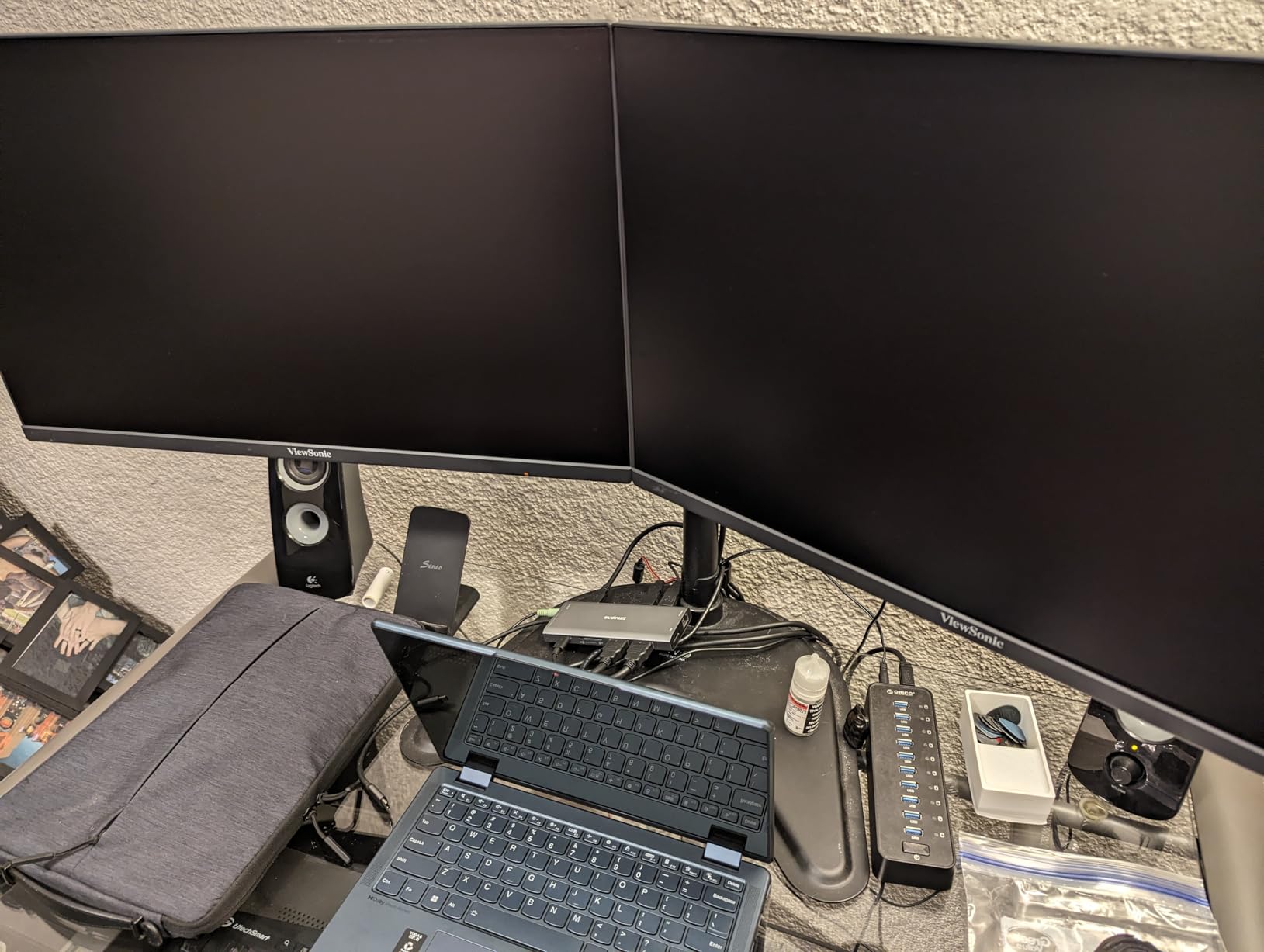
This is the dock we have on our own desk. The Anker 8-in-1 has the largest review base of anything in this roundup, more than 35k ratings, and the consistency across those reviews is the reason it sits at number one. Owners describe the same experience: plug the host cable in, connect two HDMI cables, and both screens light up as extended displays on Windows without installing anything.
The body is 4.65 by 2.01 by 0.69 inches and weighs 3.2 ounces, so it slides into a laptop sleeve without a second bag. Reviewers who travel with it say the single-cable approach turns a coffee-shop session into a two-minute setup rather than a port-hunting exercise.
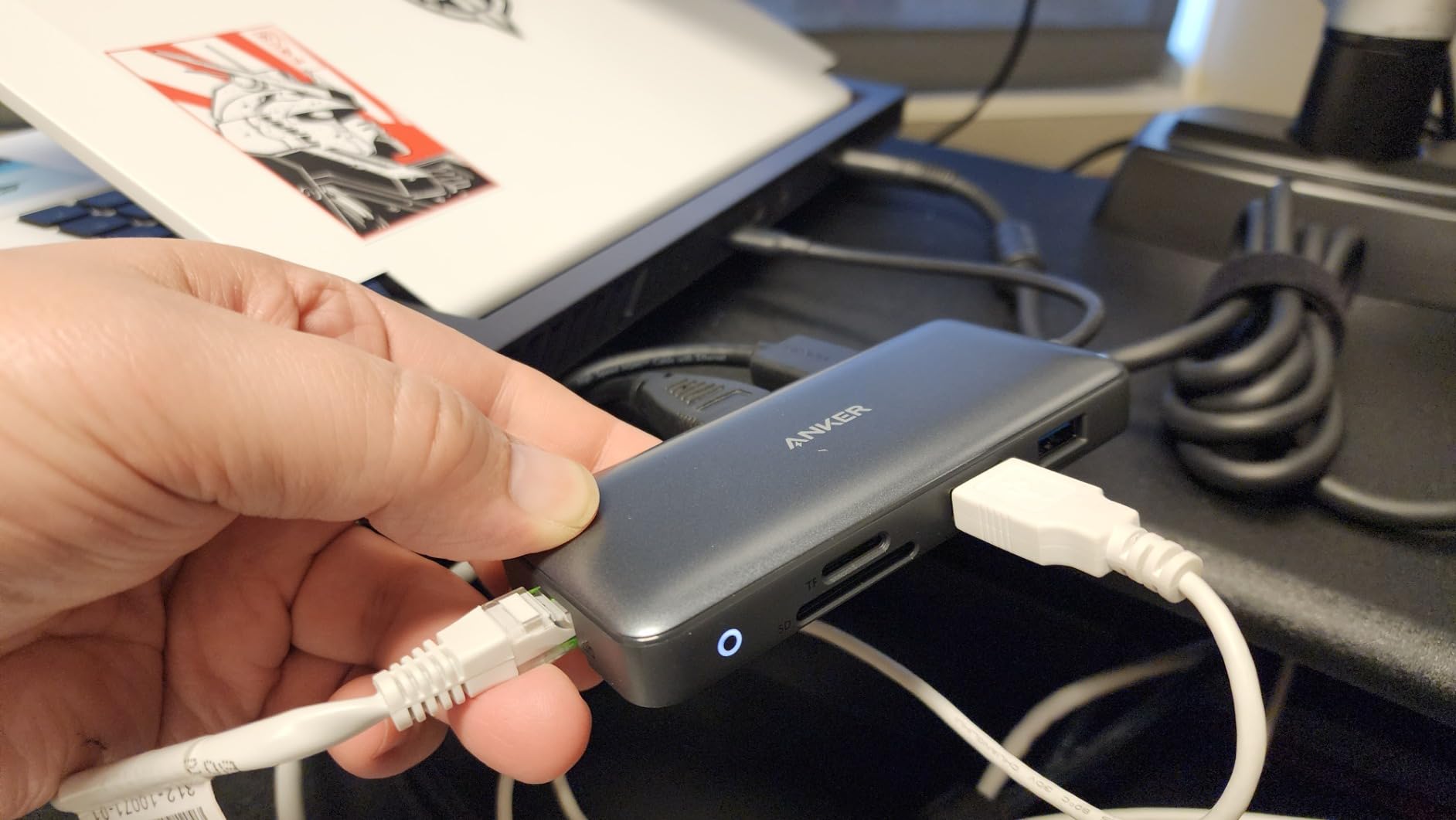
On the technical side you get two HDMI outputs rated at 4K60Hz for a single screen and 4K30Hz when both are running, 85W of pass-through charging, 1Gbps Ethernet, an SD and TF card reader, and two USB-A data ports. That is not a Thunderbolt dock, and the resolution split is the price of staying in that cheaper class.
The data transfer rate is listed at 5120 megabytes per second, which is plenty for a keyboard, mouse, web cam and a card reader at the same time. If you are shuttling multi-gigabyte RAW files, a 10Gbps model further down the list will move them noticeably faster.
Who the Anker 8-in-1 suits
Windows and ChromeOS users with two 4K monitors and a laptop that charges on 85W will get everything they need from this dock. It is also the easiest recommendation we make for someone who wants one device to work at a home desk and a hot desk without thinking about it.
Reviewers report three or more years of heavy use without failure, which is the long-term consistency you want from the box that sits permanently under your monitors. The 18-month warranty is shorter than some rivals but the reliability reports make that a minor concern.
Who the Anker 8-in-1 will disappoint
MacBook owners should look elsewhere. The manufacturer states that on macOS both external monitors show identical content, so you get a mirrored desktop rather than two extended screens. That single limitation accounts for most of the critical reviews we could find.
If both of your monitors are 4K and you need 60Hz on each one at the same time, this dock will run them at 30Hz. The Acer 9-in-1 in this list does dual 4K60 on Windows, so it is the better fit for that specific desk.
2. LIONWEI 13-in-1 USB-C Dock: Thirteen Ports in One Desk Block
Docking Station Dual Monitor 4K HDMI 13-in-1 USB C Hub for Laptop MacBook
13 ports
Dual 4K HDMI plus DisplayPort
10Gbps data
100W PD with 87W output
Pros
- Thirteen ports in one body
- 10Gbps on USB-C and USB-A
- 100W input with 87W reaching the laptop
- Triple display on Windows with MST and SST
- 18-month support
Cons
- macOS extends only a single external monitor
- Runs warm with several devices attached
- Hub draws about 13W which cuts into charging headroom
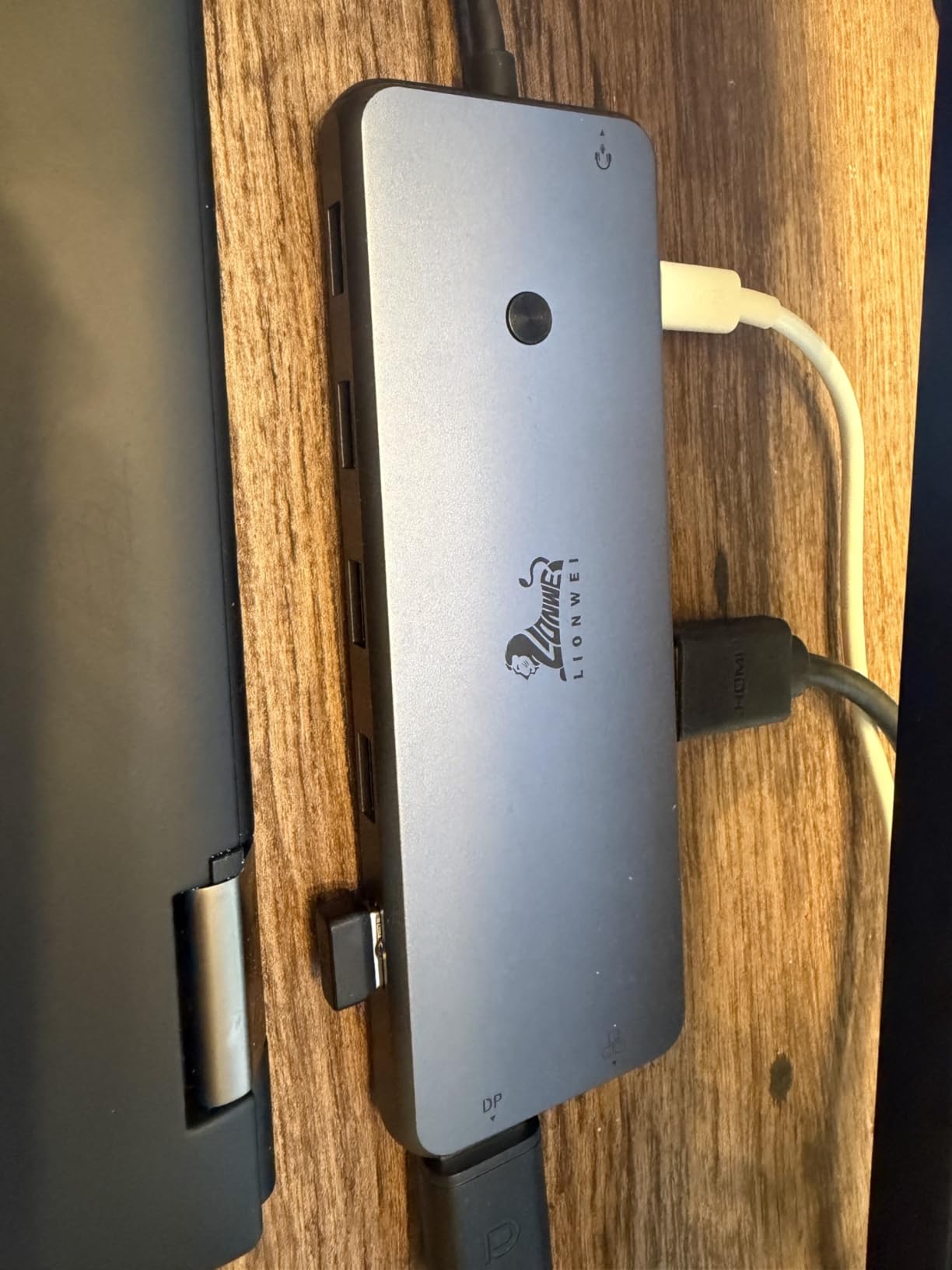
When a dock advertises an in-1 count, the useful number is usually lower. This one is not, because the extra ports are real: two 4K HDMI outputs, a DisplayPort, a 3.5mm audio and microphone jack, Gigabit Ethernet, two USB-C and six USB-A ports, and SD plus TF card readers. At 140 grams it still sits flat on the desk rather than needing a riser.
The headline detail is 10Gbps data transfer on the USB-C and USB-A ports, which is a genuine step up from the 5Gbps common at this size. Reviewers moving footage from an external SSD notice the difference on large project folders.
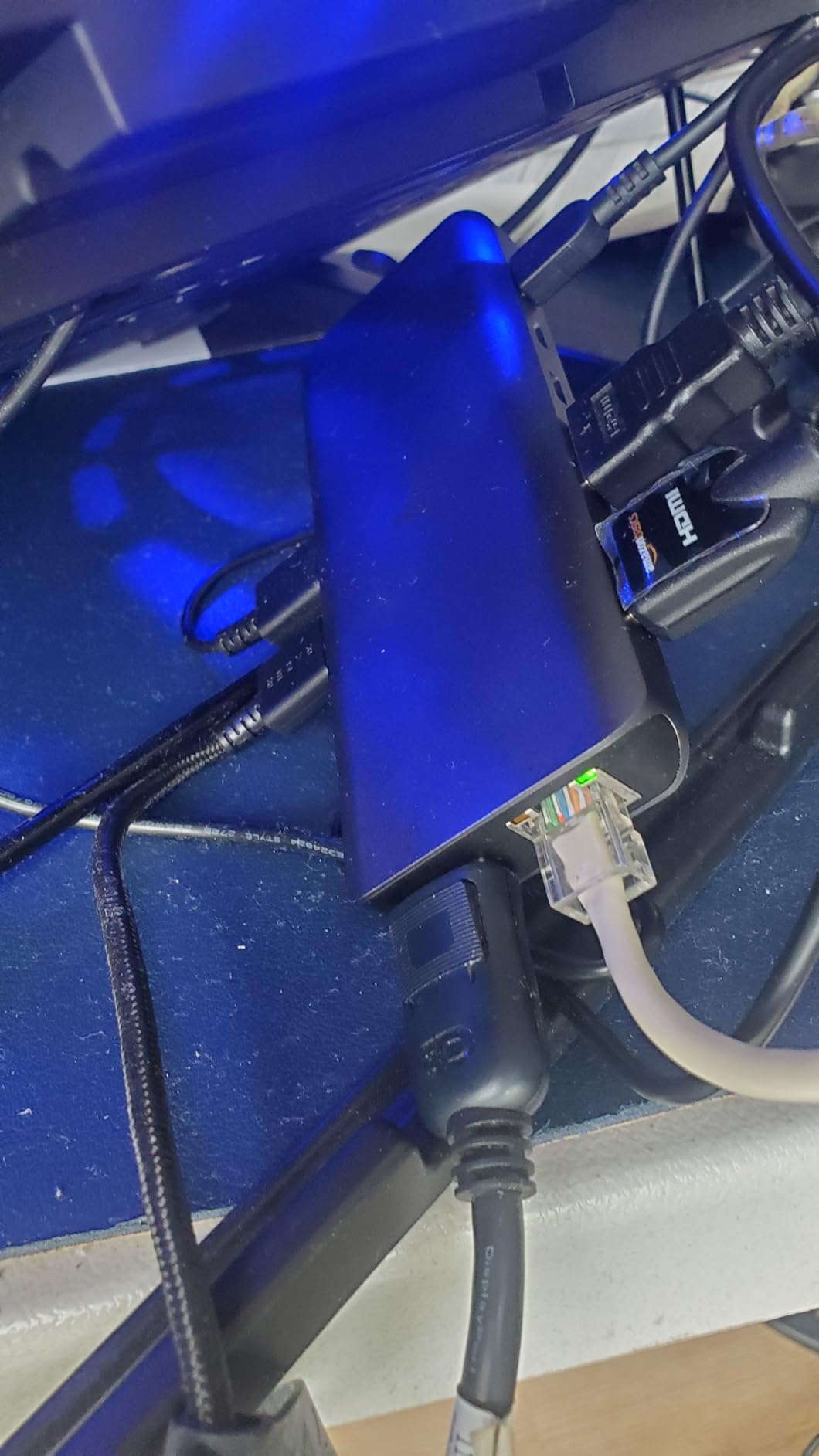
On Windows, MST and SST support means you can run three displays: the dual HDMI pair plus the DisplayPort. The 100W power delivery input passes 87W to the laptop, which covers most ultraportables and a good number of thin workstations, though it will not charge a large gaming machine at full speed.
Compatibility is broad across Dell, HP, Lenovo and Samsung machines, and the manufacturer lists both Windows 10 and Mac OS X as supported systems. There is also a switching mode button on the case for pushing a second display through the same output.
Who the LIONWEI 13-in-1 suits
This is the dock for a desk where everything is plugged in permanently. Ethernet, audio, card readers and a dozen USB ports in one unit removes the second hub most people end up buying anyway. Reviewers consistently call out the port count as good value for what you get.
If you run Windows and occasionally want a third screen for a system monitor or a chat window, the MST support handles it without a second cable to the laptop. The 10Gbps ports also make it a good fit for a photo or video workflow that shuttles files between drives all day.
Who the LIONWEI 13-in-1 will disappoint
Mac users get one extended external display, not two. The specification is explicit about this and it mirrors the wider pattern in this category: native USB-C video output on M-series Macs stops at a single external screen.
Two smaller caveats show up repeatedly in reviews. The hub itself draws around 13W while running, which eats into the power budget available for charging, and the case warms up when several devices are connected at once. Neither is a dealbreaker on a desk, but neither is invisible either.
3. Plugable UD-3900 Universal Dock: The Best Value for Mixed Fleets
Plugable USB 3.0 Universal Laptop Docking Station, Dual HDMI Monitor
Dual HDMI via DisplayLink
Gigabit Ethernet
6 USB ports
2-year warranty
Pros
- Works on Windows Mac and ChromeOS from one model
- DisplayLink avoids any Thunderbolt requirement
- Bus-powered so there is no brick on the desk
- 2-year limited warranty plus lifetime support
- TAA-compliant for government and enterprise
Cons
- DisplayLink driver must be installed on macOS
- Dual output tops out at 1920x1200 on each screen
- Does not charge the host laptop
The Plugable UD-3900 solves a problem none of the newer docks address: it does not care what your laptop has. It ships with a hybrid USB 3.0 and USB-C host cable, so it works with a five-year-old ThinkPad and a current MacBook from the same box. For IT teams standardising across a mixed fleet, that is the argument that matters, and the compatibility list on the product page is long.
It uses DisplayLink technology, which means the video is processed by a software driver rather than passed through natively. That is a real limitation on a Mac, but on Windows it simply works once the driver is in place, and it removes the DP Alt Mode requirement that trips up many cheaper docks.
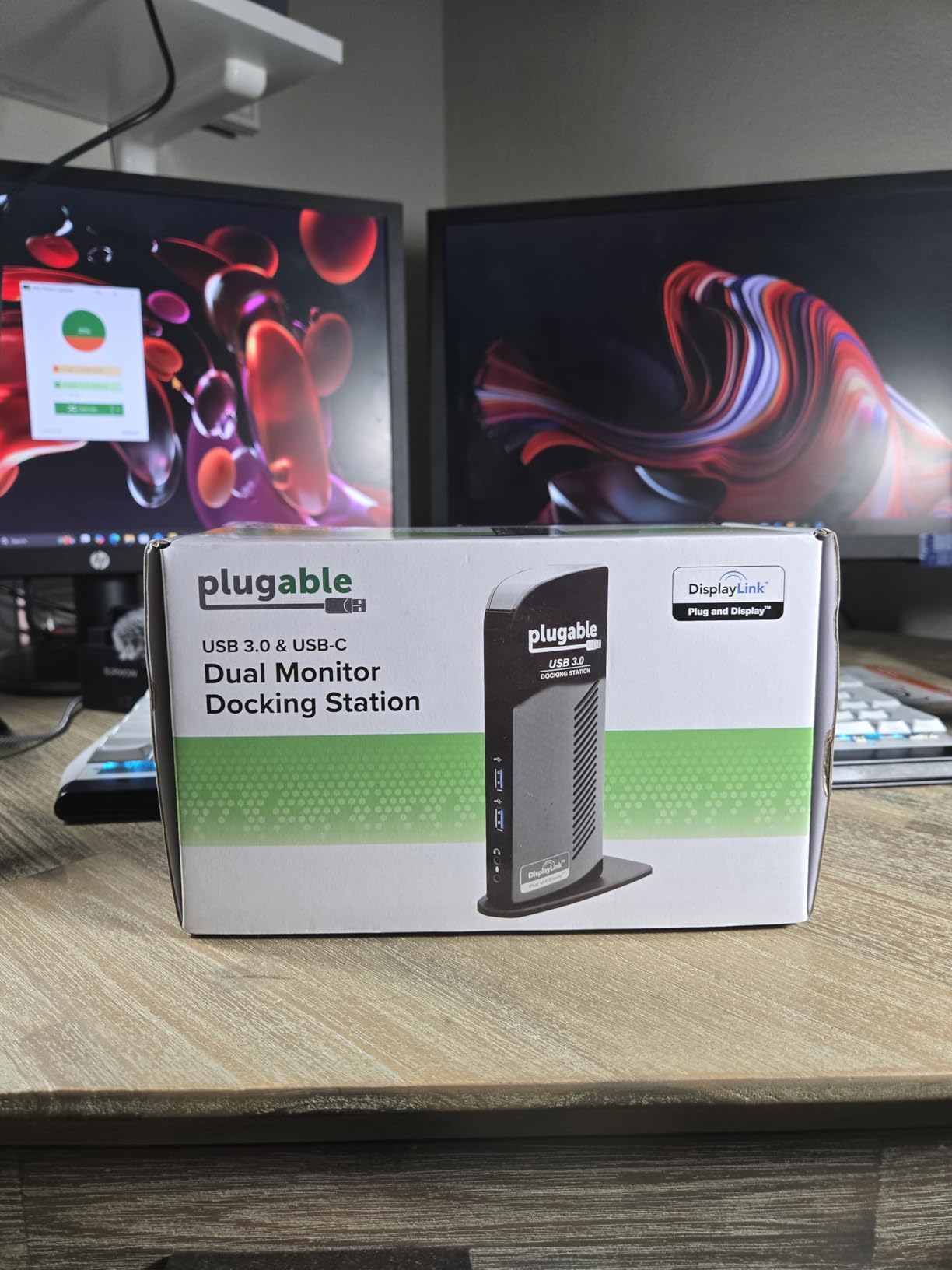
On resolution you are capped at 1920×1200 at 60Hz on both displays simultaneously, or 2560×1440 at 50Hz on a single screen. That ceiling is below what any of the 4K docks in this list can do, and it is the honest trade-off for the universal compatibility.
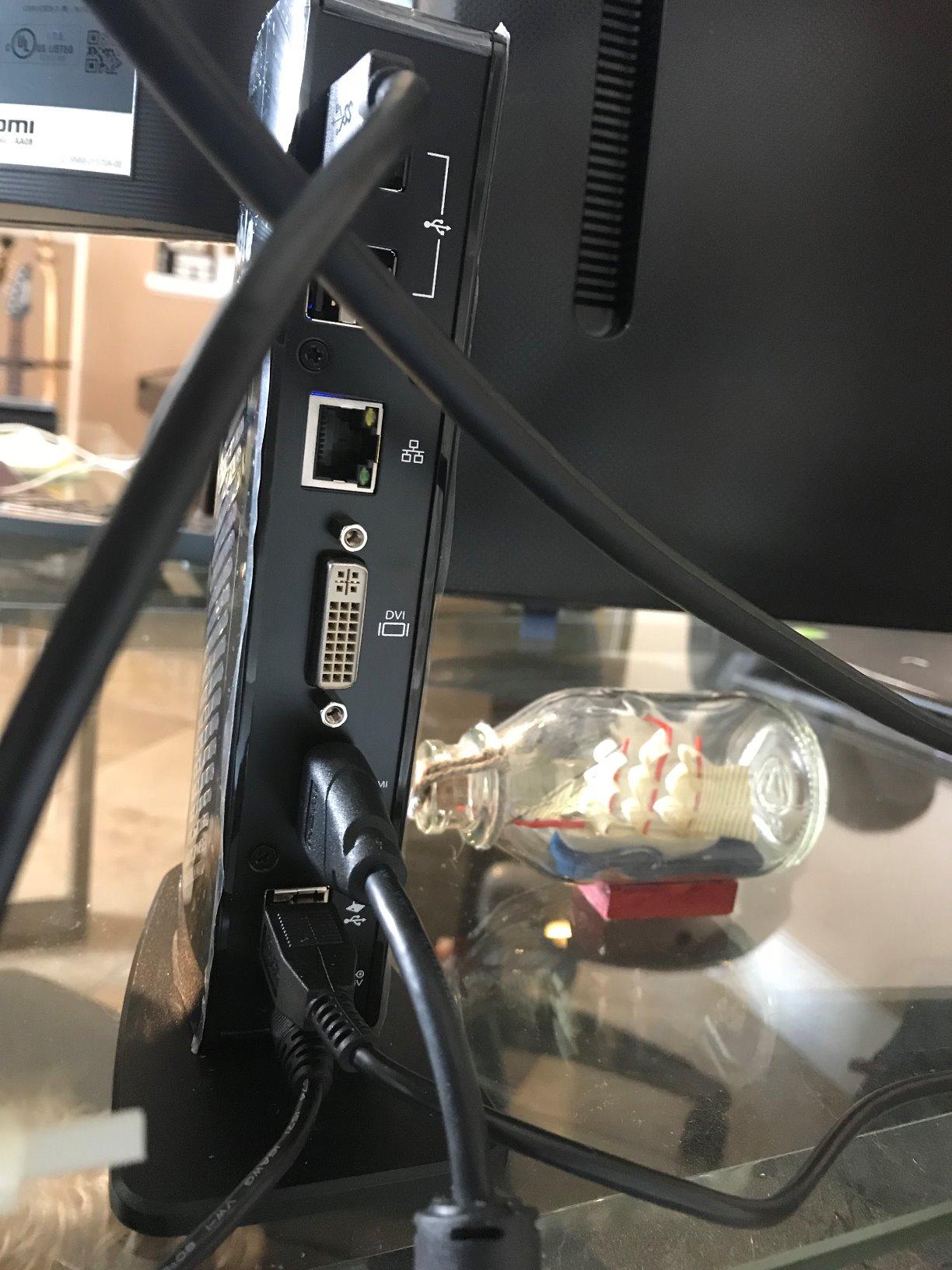
Everything else is generous for a bus-powered unit: Gigabit Ethernet, two USB 3.0 ports, four USB 2.0 ports, and separate headphone and microphone jacks. Because it draws power from the laptop, there is no external adapter adding clutter under the desk.
Who the Plugable UD-3900 suits
Anyone whose monitors are 1080p or 1200p rather than 4K gets an excellent deal here. The two-year limited parts and labour warranty with lifetime email support from the company’s Seattle office is the strongest support commitment in this roundup, and the TAA compliance makes it a legitimate choice for government desks.
It is also the pick for a mixed environment where a USB-A-only laptop must share a setup with a USB-C machine. Forum discussion on r/sysadmin consistently favours exactly this pattern: one dock model that behaves the same across a whole fleet, rather than a different dock per device.
Who the Plugable UD-3900 will disappoint
If your monitors are 4K, stop here. The dual output limit is well under what a 4K panel wants, and the single-screen 1440p mode is capped at 50Hz. For 4K panels the Plugable UD-6950Z later in this list is the same family done properly.
Mac owners need to install the DisplayLink driver, and it has to be updated when macOS updates. The dock also will not charge your laptop and does not support HDCP content, so streaming services that protect their output will show black screens on the DisplayLink outputs.
4. HODO 8-in-1 Quad Display Dock: Best for Three Screens on Windows
USB C Docking Station Dual Monitor for HP,Laptop Docking Station 3 Monitors
2x HDMI plus DisplayPort plus VGA
Triple or quad display on Windows
100W PD with 87W output
Only USB 2.0 data
Pros
- Four video outputs in a small body
- Triple and quad display support on Windows
- 100W pass-through charging
- Light and easy to carry
- Plug-and-play with no driver on Windows
Cons
- All three USB data ports are USB 2.0 at 480 Mbps
- macOS runs external monitors in mirror mode only
- Using VGA drops every display to 1080P
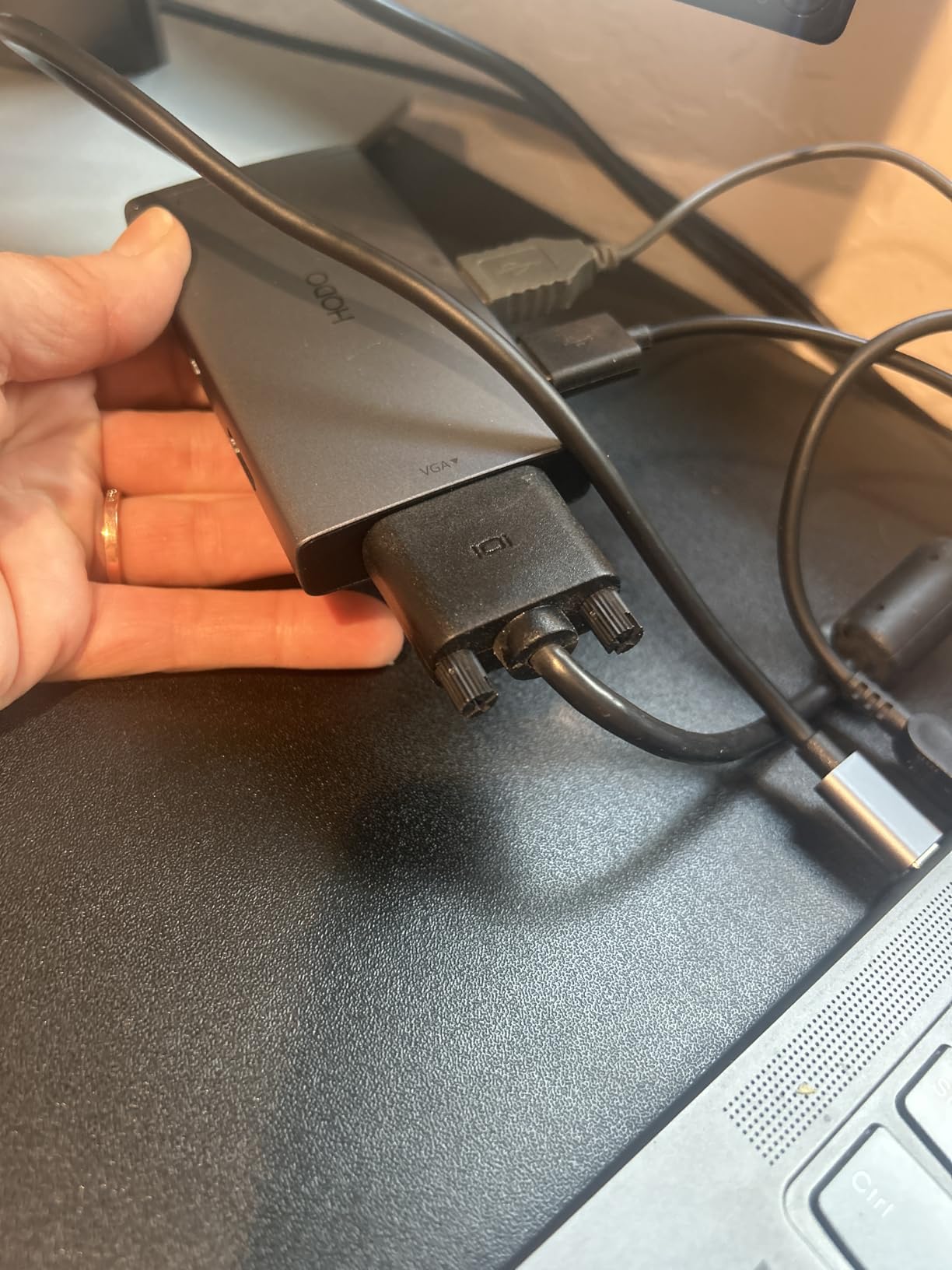
The HODO 8-in-1 is the odd one out in this list because it has four video outputs rather than two: two HDMI, one DisplayPort and one VGA. On Windows that gives you triple or quad display, which turns a two-monitor brief into a three-monitor one without changing the dock.
It weighs 0.13 kg and takes up very little desk. The listed compatibility covers Thunderbolt 3 and 4 laptops as well as USB-C 3.1 and 3.2 ports with DisplayPort Alt Mode, and Dell XPS, HP Spectre, Lenovo ThinkPad and Surface machines are all named.
Charging is 100W in with 87W out, which is enough for most business laptops. The one-year replacement warranty is one of the shortest we cover, so this is a dock to buy from a seller with an easy return process rather than one you plan to keep for a decade.
The resolution story needs care. The specification lists one HDMI at 4K60Hz, a second at 4K30Hz, and DisplayPort at 4K60Hz. Using the VGA output at all caps every connected display at 1080P, which is an old constraint rather than a fault in the hardware.

Who the HODO 8-in-1 suits
Windows users who want more than two screens for very little. The combination of two HDMI and a DisplayPort means you can mix panel types without adapters, and reviewers repeatedly note the value of four video outputs at this size.
It is a sensible second dock to keep in a laptop bag for hot-desking, since the weight and footprint are small. Plug-and-play on Windows means no setup before you arrive at someone else’s desk.
Who the HODO 8-in-1 will disappoint
Anyone moving files around will notice the three USB 2.0 data ports immediately. At 480 Mbps they are fine for a keyboard, a mouse and a card reader, and poor for an external SSD, a webcam that wants 10Gbps, or a multi-gigabyte project folder.
Mac users get mirror mode on the external monitors, and a small number of reviewers report compatibility exclusions on specific Dell and Lenovo models. Full 4K performance on both screens also wants DP 1.4 on the host port, so check your laptop’s specification first.
5. UGREEN 10-in-1 Dock: The Pick for Photo and Media Workflows
UGREEN USB C Docking Station Dual Monitor, 10-in-1 Laptop Dock with 2 HDMI
Dual 4K60 HDMI or single 8K30
100W PD with 85W out
5Gbps data
Gigabit Ethernet
SD and microSD
Pros
- Dual 4K60 on both HDMI ports on Windows
- Single-display 8K30 option
- Aluminium body doubles as a heatsink
- SD and microSD readers plus Gigabit Ethernet
- 24-month warranty is the longest we cover
Cons
- macOS mirrors both external monitors
- PD budget leaves 85W for the laptop and 15W for the hub
- Runs warm under sustained heavy load
This is the dock for anyone whose day involves memory cards. It carries a full-size SD slot and a microSD slot alongside dual 4K60Hz HDMI, Gigabit Ethernet and five USB ports, which is the combination photo and video editors keep asking for and rarely find in a compact body.
The 4.49 by 1.75 by 0.63 inch aluminium housing weighs 100 grams and feels considerably more substantial than the plastic docks at this size. The aluminium is not only cosmetic: reviewers credit it with pulling heat away from the internals during long transfers.
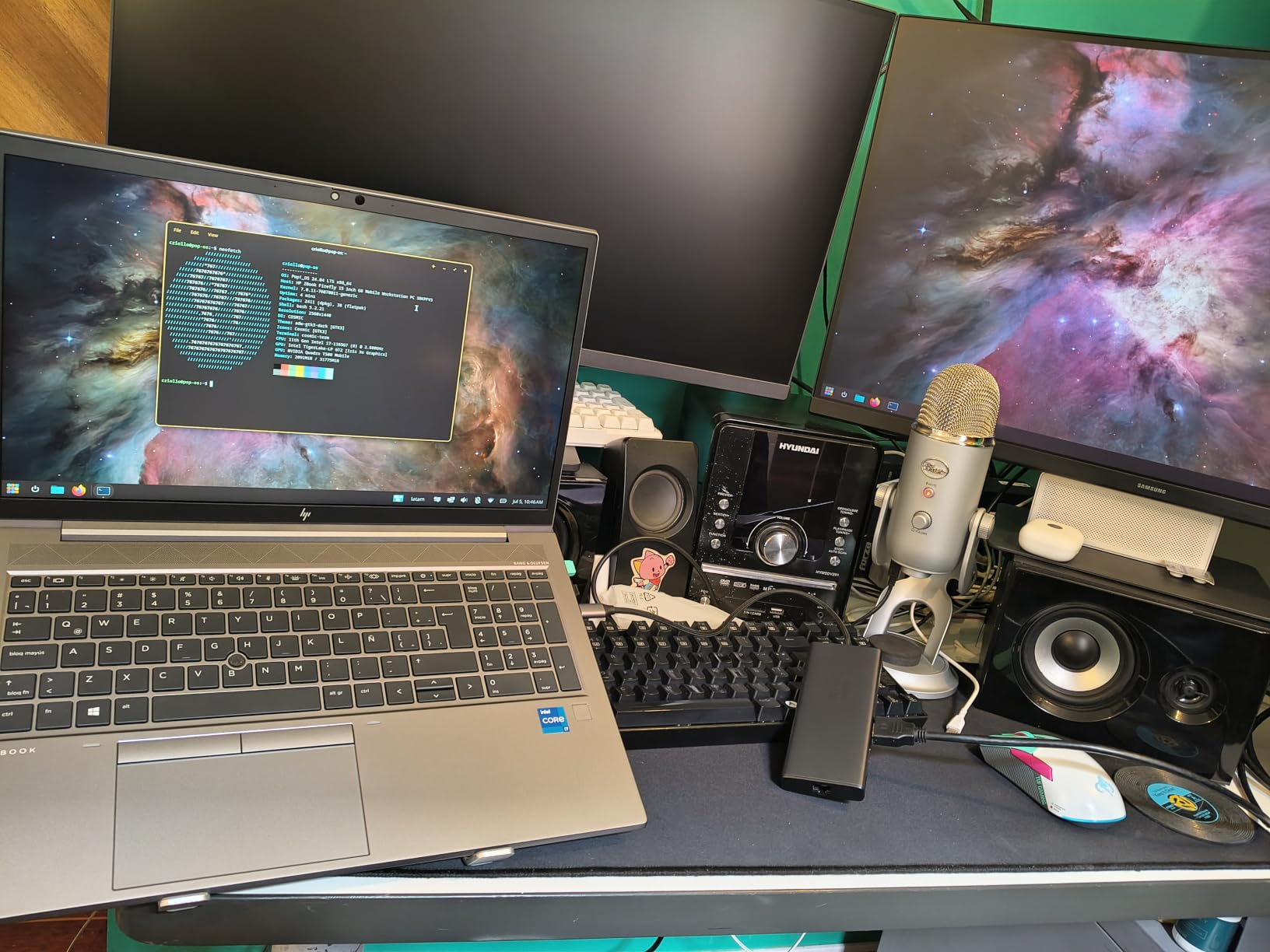
On video outputs you get dual 4K at 60Hz, or a single 8K display at 30Hz. Data runs at 5Gbps on the USB-C and USB-A 3.0 ports, and the card reader is UHS-I rather than UHS-II, so the reader is the limit on the fastest cards rather than the dock.
Power delivery accepts 100W and delivers 85W to the laptop, with the remaining 15W reserved for the hub itself and any attached devices. That split is worth knowing if you own a laptop that draws close to 85W under load.
Who the UGREEN 10-in-1 suits
Photographers and editors who want two 4K panels plus a card reader without a second device on the desk. Reviews describe it as reliable for daily desk use and easy to travel with, which is a rare pairing at this port count.
The 24-month warranty is the longest of the ten docks here, which matters if you intend to keep it past the standard two-year refresh cycle. It is also a good general-purpose home office dock if you never touch SD cards and just want the ports.
Who the UGREEN 10-in-1 will disappoint
MacBook owners again hit the mirror limitation, and the manufacturer states it plainly in the compatibility notes: on macOS the two external monitors show identical content. If you need two extended screens on a Mac, the DisplayLink docks in this list are the only category that delivers it.
A small number of long-term owners report intermittent disconnects after several months of daily use, and the case warms under sustained heavy load. If you run a very high refresh rate panel, the HDMI-only output here also rules it out.
6. UGREEN 7-in-1 Aluminum Dock: Four 10Gbps Ports and Nothing You Do Not Need
UGREEN USB C Docking Station Dual Monitor, 7-in-1 Aluminum Dock with 2xHDMI
Dual 4K60 HDMI
2x 10Gbps USB-A and 2x 10Gbps USB-C
100W PD
91 grams
Pros
- Four data ports running at 10Gbps in a 91 gram body
- Dual 4K60 on both HDMI outputs
- 100W pass-through charging
- 2-year warranty
- Aluminium build at a very low weight
Cons
- No Ethernet port and no card reader
- Data ports cannot carry charging video or audio
- Dual 4K60 needs DP 1.4 on the host laptop
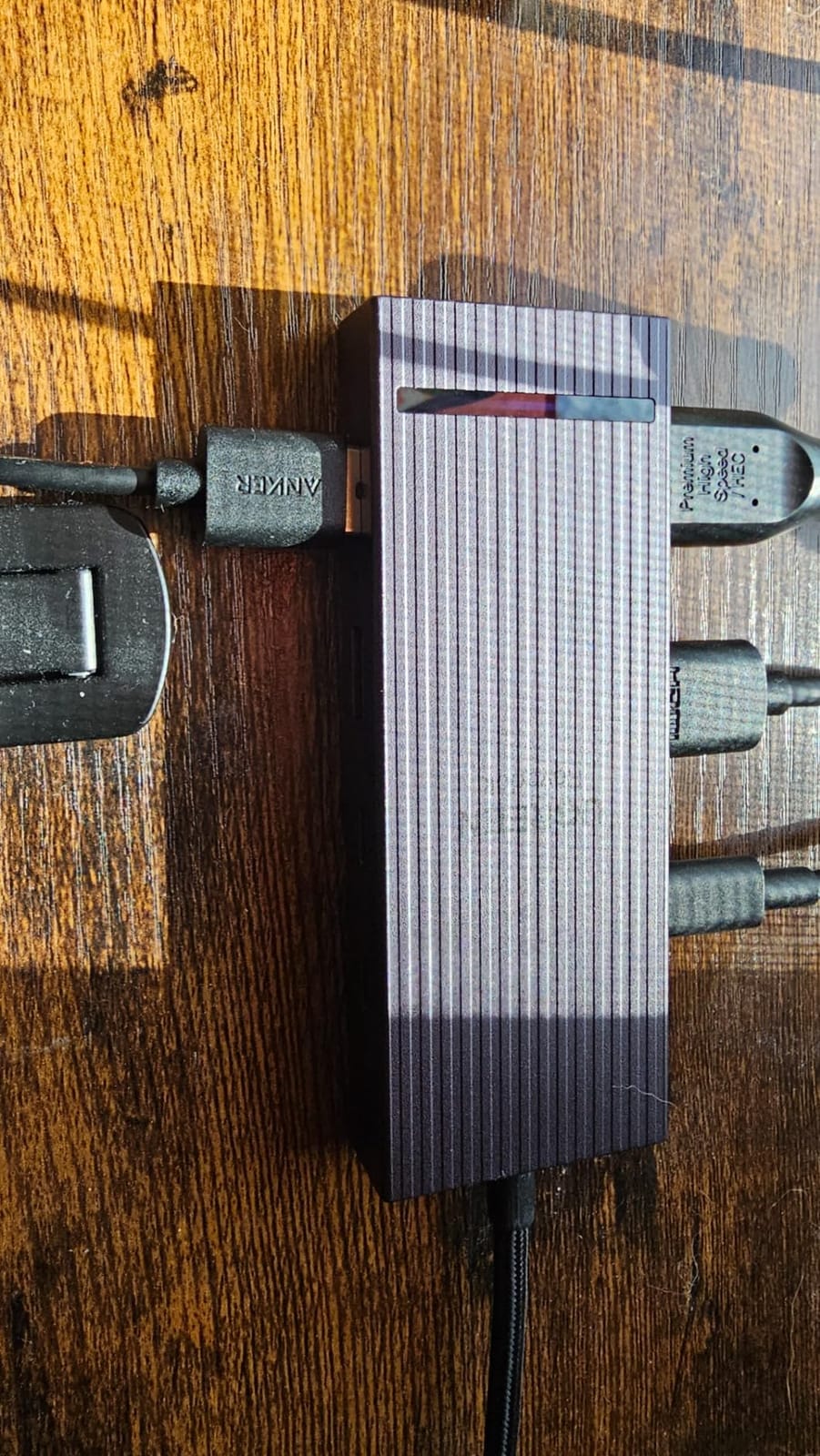
Where most docks at this size give you two fast ports and two slow ones, this UGREEN makes all four data ports 10Gbps. Two USB-A and two USB-C, all rated at 10Gbps, in a 91 gram aluminium body. If you are running external SSDs, a fast web cam and a capture interface, that uniformity is the whole selling point.
Video output is dual 4K at 60Hz across two HDMI ports, and charging is 100W. It is the most stripped-back dock here that still gives you two full-speed 4K screens without an Ethernet jack or card reader in the way.

What it does not have is as important as what it does. There is no Ethernet and no SD card reader, and the four data ports are data only: they cannot carry charging, video or audio. You are buying bandwidth, not variety.
Full 4K60 on both screens also depends on the host port supporting DisplayPort 1.4. Reviewers testing older laptops see the dual output fall back, so verifying your port before buying is worth five minutes.
Who the UGREEN 7-in-1 suits
People who transfer data constantly and do not need legacy ports. Four 10Gbps channels is unusual in a dock this compact, and it makes the difference between copying a project folder over USB-C and waiting on it.
The 91 gram weight and two-year warranty make it a good travel companion, and the aluminium shell resists the fingerprints that show on plastic. It also works on ChromeOS and Windows without special drivers.
Who the UGREEN 7-in-1 will disappoint
Anyone who needs wired Ethernet or reads memory cards will find those features simply absent, and adding a separate adapter undoes the point of a single-cable desk. The data ports also mean you still need a cable in each monitor and your charger brick.
Reviews note a higher share of one-star ratings than the other docks here, around 11 percent, which points to some quality control variance in the batch rather than a design flaw. macOS users get mirrored output on both external monitors as standard.
7. Anker 11-in-1 Dock: The One with HDMI and DisplayPort Together
Anker USB-C Hub, 11-in-1 Docking Station Dual Monitor with 4K HDMI and DP
4K HDMI plus 4K DisplayPort
10Gbps USB-C and USB-A
85W PD
Gigabit Ethernet
Audio and card slots
Pros
- Only dock here pairing HDMI with DisplayPort
- 10Gbps on both the USB-C and USB-A ports
- Gigabit Ethernet plus audio plus SD and microSD
- Aluminium body at 4.8 ounces
- 18-month warranty
Cons
- Dual monitors run at 2K60 not 4K60 on each
- Remaining USB ports are USB 2.0
- 85W pass-through is below the 100W rivals
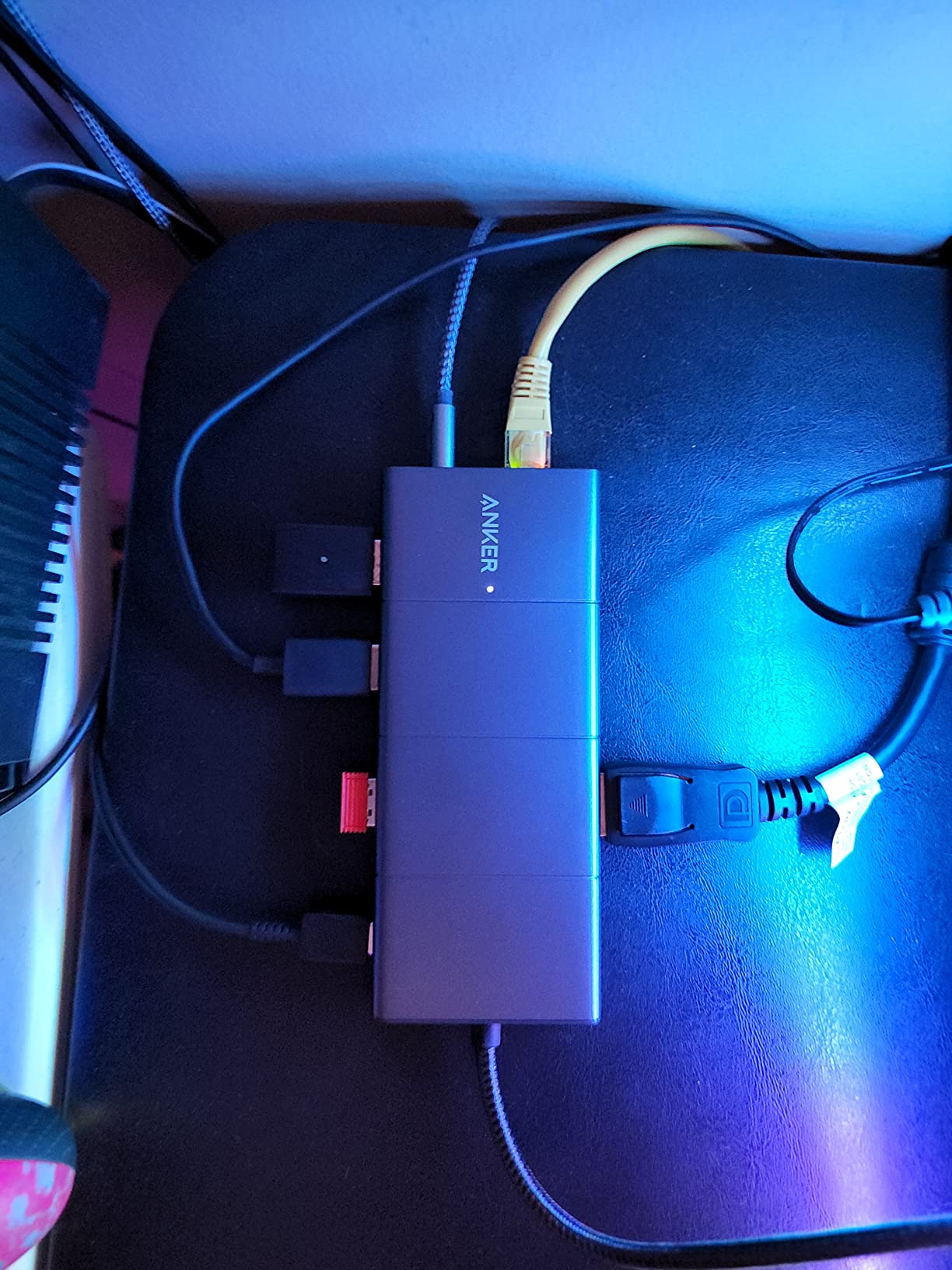
Every other dual-HDMI dock in this roundup sends both signals through the same path. This Anker 11-in-1 gives you one 4K HDMI and one 4K DisplayPort, which matters when one of your monitors has a DisplayPort input and a short cable already run to it.
It is also the most complete port layout in a mid-sized body: Gigabit Ethernet, a 3.5mm audio port, SD and microSD slots rated at 104 MB per second, one 10Gbps USB-C port, one 10Gbps USB-A port and two USB 2.0 ports. The aluminium enclosure measures 5.39 by 2.24 by 0.55 inches and weighs 4.8 ounces.
The catch is resolution. The specification is clear: dual monitor output is 2K at 60Hz with DisplayPort 1.4 on the host, or 1080p at 60Hz with DisplayPort 1.2. Those are respectable numbers, but they are not 4K on both screens and they will not drive a high refresh gaming panel.
Pass-through charging is 85W, which covers mainstream ultraportables and most thin business laptops. A larger machine drawing more than that will charge slowly or not at all while the dock is also driving two displays.
Who the Anker 11-in-1 suits
Mixed-port desks where one monitor is HDMI and the other is DisplayPort, and where you want card readers and Ethernet in the same box. It is also a good pick if you are coming from an older laptop and want to keep using a DisplayPort cable you already own.
Reviewers consistently rate the port variety highly for the size, and the 10Gbps pair handles an external SSD without slowing to the two USB 2.0 ports beside it. Anker’s build quality and 18-month warranty add confidence for a desk-bound device.
Who the Anker 11-in-1 will disappoint
Two 4K monitors at full refresh are out of reach on this one. If your panels are 4K, the UGREEN 10-in-1 and the Acer 9-in-1 both drive them properly, and the Plugable UD-6950Z does so without a Thunderbolt requirement.
It needs macOS 12 or newer, it mirrors rather than extends on macOS, and it has no Linux support. The two remaining USB 2.0 ports are the only place to plug a keyboard and mouse if both fast ports are busy with storage.
8. Acer 9-in-1 USB-C Dock: Dual 4K60 Where It Counts Most
Acer USB-C Docking Station Dual Monitor, 9-in-1 Laptop Dock with 2 HDMI
Dual 4K60 HDMI
4x 5Gbps USB ports
100W PD with 90W out
SD and microSD
Pros
- 4K60Hz on both HDMI ports at the entry level of this list
- 5Gbps on all four USB ports
- 100W input with 90W reaching the laptop
- Lock button for shared desks
- Aluminium alloy body
Cons
- Built-in host cable is only 0.65 feet
- One-year warranty only
- macOS supports mirror modes only
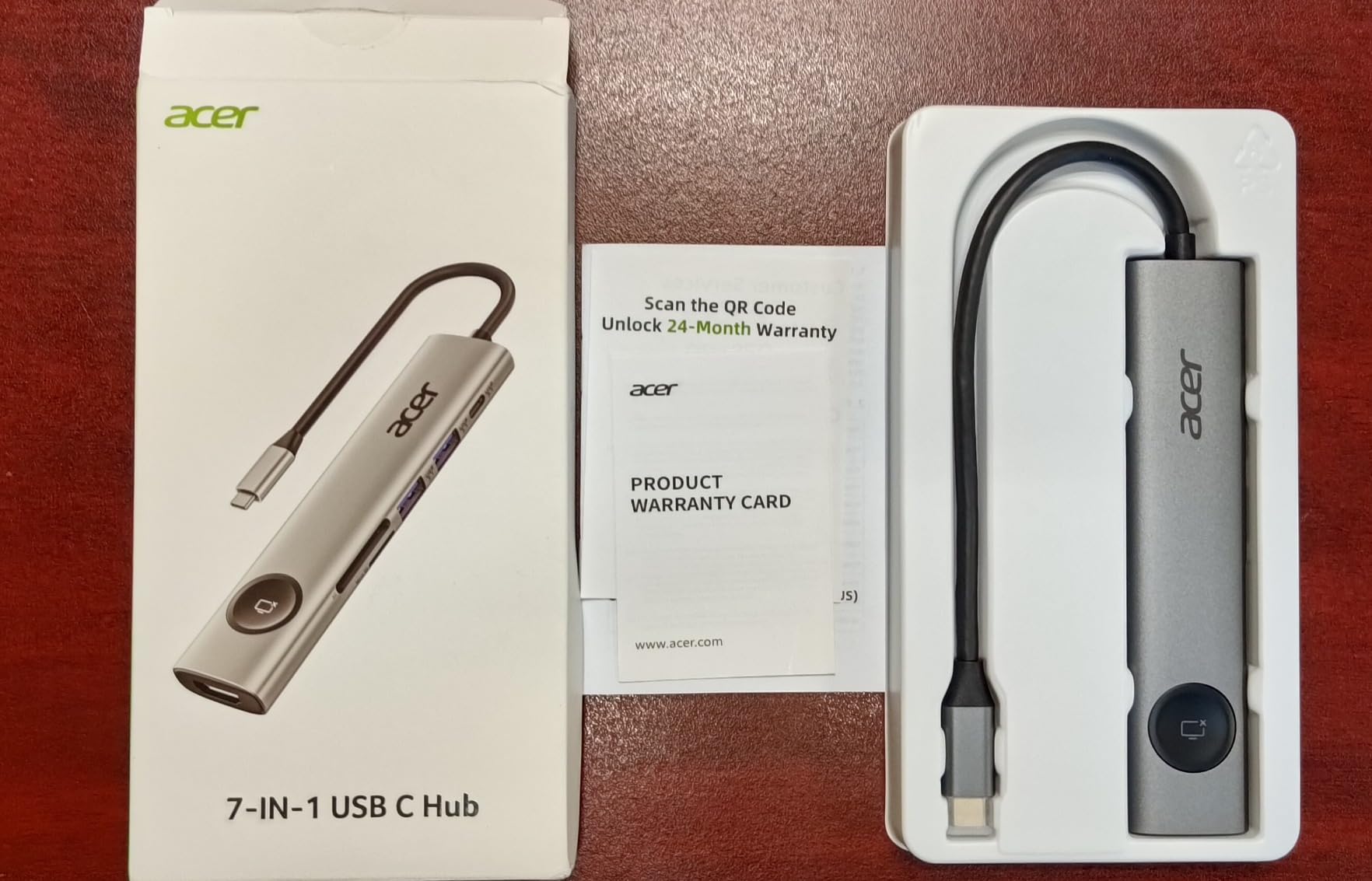
Read the resolution line twice, because it is the reason this dock is on the list. Two HDMI outputs at 4K60Hz each, in a nine-port aluminium body, is a specification that most docks two or three times the size of this one cannot match. For a Windows user with two 4K monitors and no unusual port requirements, nothing else here does it for less outlay.
Data is 5Gbps across three USB-A ports and one USB-C port, and the card slots handle SD and microSD at 104 MB per second. Charging is 100W in and 90W out, which is the highest laptop output of any dock in this roundup.
There is a lock button on the case that behaves differently by platform: a single click on Windows and a three-second hold on Mac. On a shared or hot-desk setup that is a genuinely useful touch, and it is the kind of detail most consumer docks skip.
You will need DisplayPort Alt Mode on the host USB-C port for the full 4K60 picture, and a charger above 65W is advisable for stable charging while two displays are running. Acer, Dell, Lenovo, Surface, HP, ASUS and Samsung laptops are all listed as supported.
Who the Acer 9-in-1 suits
Windows users with two 4K panels who want the simplest possible answer. Nine ports covers two monitors, charging, Ethernet-free peripherals, keyboard, mouse and card readers without needing a second hub.
The slim aluminium body and low profile suit a clean desk, and the uniform 5Gbps on all four ports removes the usual bottleneck where one device gets the fast lane and the rest get the slow one. For value, it is hard to argue with.
Who the Acer 9-in-1 will disappoint
The built-in host cable is 0.65 feet long, which forces the laptop to sit right next to the dock. Reviewers describe this as the single most annoying thing about the dock, and a separate longer cable or a different model solves it.
macOS support is limited to mirror modes, with no extended dual-screen option, and the one-year manufacturer warranty is the joint shortest here. Some owners also report intermittent HDMI or USB behaviour after several months and wireless dongle interference near the 2.4GHz band.
9. VVB 14-in-1 USB-C Dock: The Windows Video Workstation Option
USB C Laptop Docking Station Dual Monitor HDMI USB C Hub Multiport Adapter
14 ports
2x HDMI plus DisplayPort
3x 10Gbps ports
100W PD
Gigabit Ethernet and audio
Pros
- Most ports of any dock in this roundup
- Triple display on Windows through DP Alt Mode
- Three 10Gbps data ports
- Gigabit Ethernet plus 3.5mm audio plus card readers
- Aluminium enclosure
Cons
- Runs hot under sustained load
- macOS mirrors the external monitors
- A few reports of boot issues with some laptops
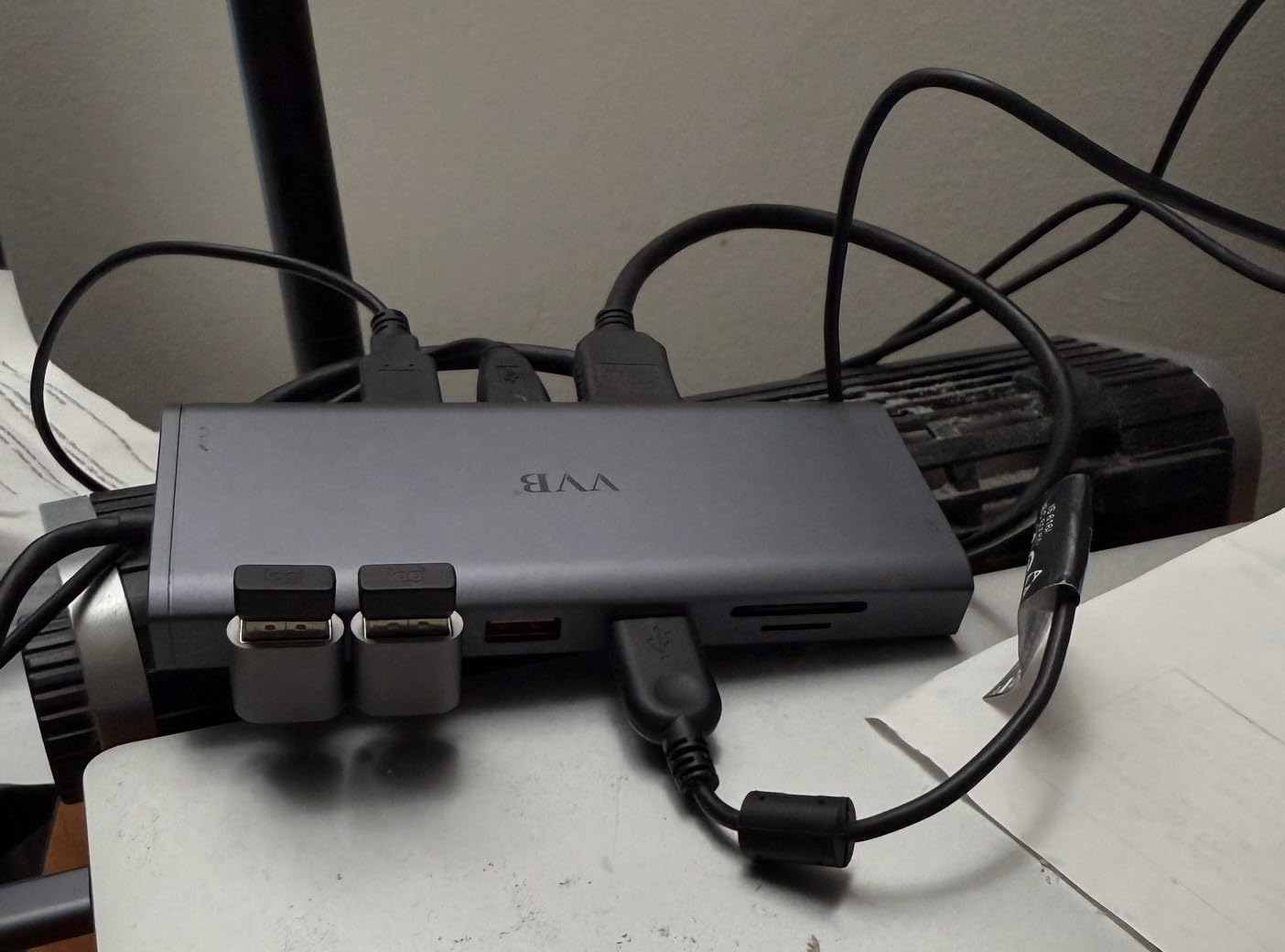
The VVB 14-in-1 has the highest port count in this roundup: two HDMI, a DisplayPort, a 10Gbps USB-C port, two 10Gbps USB-A ports, a USB-C 2.0 port, two USB 2.0 ports, Gigabit Ethernet, a 3.5mm audio jack, SD and microSD readers, and 100W power delivery. For a permanent Windows workstation where nothing is ever unplugged, that is a lot of capability in one block.
Windows users can run three displays: dual 4K at 30Hz plus 1080p, or three 1080p panels. The dual-monitor configuration is listed as 4K at 30Hz alongside 1080p at 60Hz, so this is a productivity dock rather than a 4K60 dock.
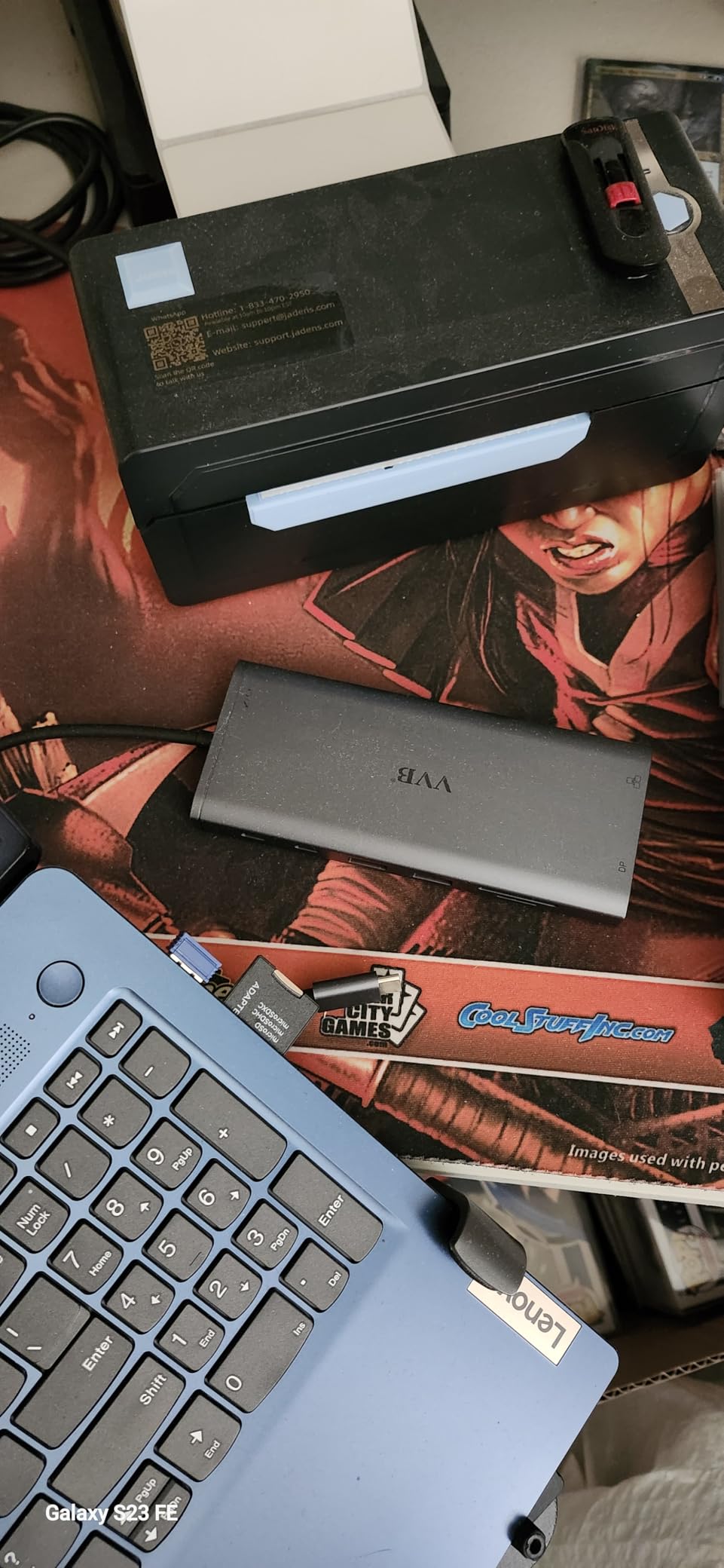
Compatibility names Dell, HP and Lenovo laptops with Thunderbolt 3, 4 and 5 or USB-C video output, and the DisplayPort Alt Mode requirement is stated clearly in the specifications. Charging takes 100W in and passes 87W to the laptop.
Two practical warnings come straight from owner feedback. The enclosure runs hot under sustained heavy load, and a small number of units had a laptop refuse to boot with the dock attached, requiring it to be connected after the machine has started.
Who the VVB 14-in-1 suits
Video editors and streamers on Windows who need three screens and a lot of peripherals. The three 10Gbps ports handle an external SSD plus a capture card plus a fast card reader at the same time without falling back to USB 2.0.
It suits a fixed desk where the laptop is not carried between locations. Reviewers also note good compatibility across the major business laptop brands, and the aluminium body keeps the footprint narrower than the port list suggests.
Who the VVB 14-in-1 will disappoint
Anyone on macOS, because both external monitors mirror. Anyone chasing 4K at 60Hz on two panels will also be disappointed, since the dual configuration is 4K30 plus 1080p60.
Heat, the one-year warranty and a few reports of case separation on early units are the other friction points. Reviewers also describe the headphone output from the 3.5mm jack as average, and note an audible pop when audio is connected or on boot.
10. Plugable UD-6950Z DisplayLink Dock: True Dual 4K60 Without Thunderbolt
Plugable Dual DisplayPort & HDMI Docking Station, USB 3.0 & USB-C
Dual 4K60 via DisplayPort and HDMI
6 USB 3.0 ports
Gigabit Ethernet
Vertical form factor
Pros
- Genuine dual 4K at 60Hz without needing Thunderbolt
- Hybrid USB-A and USB-C host cable works with old laptops
- All six USB ports are USB 3.0
- Vertical design saves desk space
- Plug-and-play on Windows and ChromeOS
Cons
- The priciest dock we covered
- DisplayLink driver required on macOS
- Does not charge the host laptop
This is the most capable dock here for a specific problem: two 4K monitors at 60Hz each from a laptop that has no Thunderbolt port. The DisplayLink approach means the dock does not need DP Alt Mode, so it works on machines where cheaper docks simply produce one screen or drop to 30Hz.
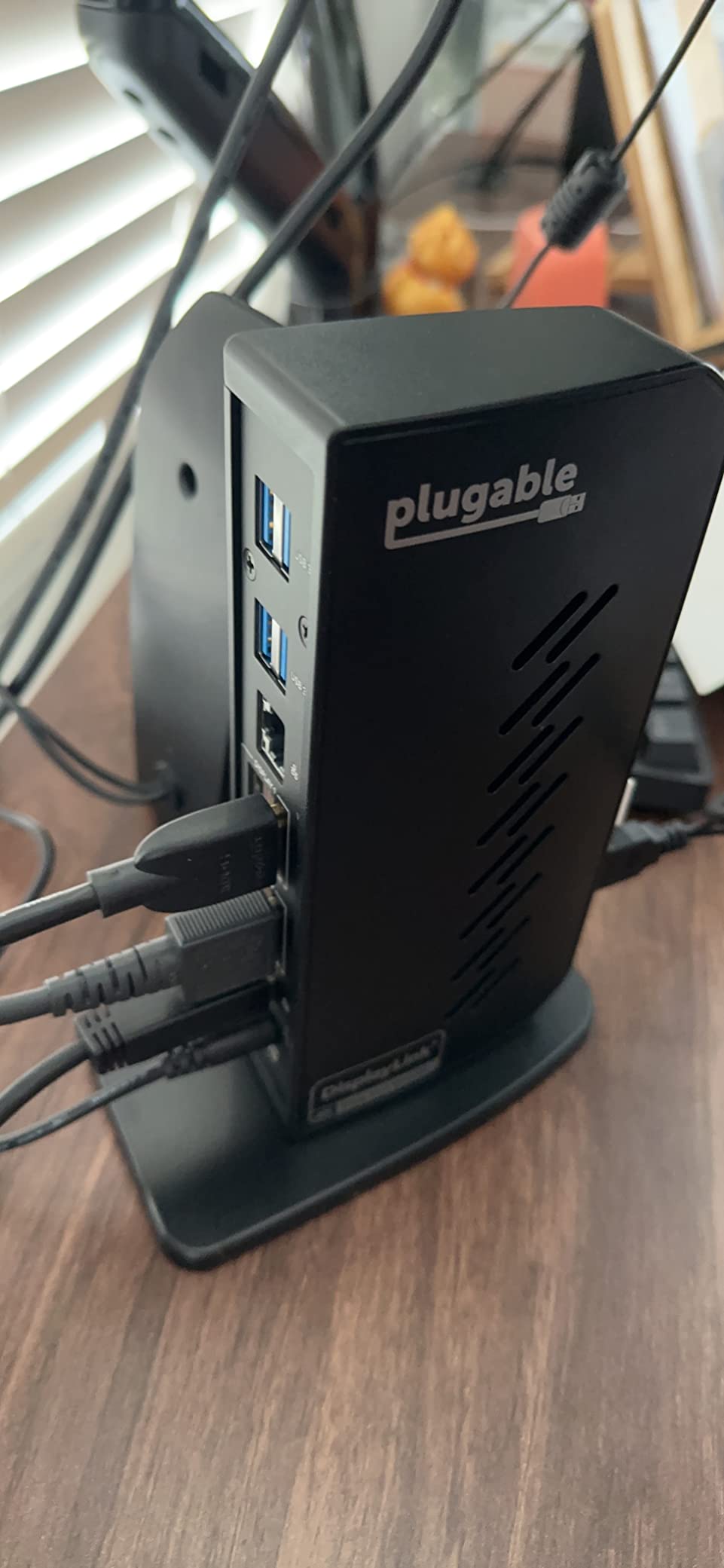
It connects over a hybrid USB 3.0 and USB-C cable, which means the same dock serves a current MacBook Pro or MacBook Air and an older ThinkPad with only USB-A. The vertical form factor, 5.31 by 2.76 by 7.48 inches, is a genuine space saver on a desk with limited depth.

Port-wise you get six USB 3.0 ports, Gigabit Ethernet and a 3.5mm audio jack. That is fewer ports than the 14-in-1 alternatives, but all six data ports are fast rather than mixed, which matters more if you are running several storage devices.
On Windows and ChromeOS it is plug-and-play once the driver is installed. On macOS you need the DisplayLink driver and macOS 10.14 or newer, and the software has to be updated after major operating system upgrades, which is the ongoing cost of this approach.
Who the Plugable UD-6950Z suits
Two 4K60 monitors is the exact job this dock was built for, and it is the only unit in this roundup that reaches that target without needing DisplayPort Alt Mode on the host port. It is a strong choice for a business laptop with a plain USB-C port.
Plugable’s lifetime support is a real advantage over a disposable budget dock, and the vertical design suits a desk where the monitors sit on arms and the space under them is tight. Mixed-fleet offices will like that one model covers both new and old hardware.
Who the Plugable UD-6950Z will disappoint
This is also the most expensive dock we covered, and that gap buys you a DisplayLink driver rather than a faster native link. If your laptop does have DisplayPort 1.4 or Thunderbolt, the UGREEN 10-in-1 gives you dual 4K60 for a fraction of the outlay.
There is no laptop charging, so you keep a charger brick on the desk regardless, and there is no SD card reader for photo work. DisplayLink output also will not carry HDCP-protected streaming or high refresh gaming, so avoid it if either matters.
How to Choose a Docking Station for Two Monitors
Before comparing ports, answer these five questions. They eliminate almost every wrong purchase in this category, because the failure modes are predictable: the wrong video standard, the wrong resolution target, or the wrong operating system.
1. Does your laptop port support DisplayPort Alt Mode or Thunderbolt? A plain USB-C port that only handles data and charging will drive no external display at all. A USB-C port with DP Alt Mode drives displays natively. A Thunderbolt 4 or 5 port does too, with more bandwidth to spare. If you cannot identify your port, the manufacturer’s specification page for your exact model is the fastest check.
2. Which operating system will drive the two screens? This is the single most important question and the one most buyers skip. On Windows, dual HDMI docks work natively. On macOS, a standard USB-C dock with two HDMI ports will mirror both screens instead of extending them, because M-series Macs support only one native external display.
3. What resolution and refresh rate do your monitors actually need? Two 1080p panels need almost nothing. Two 4K panels at 60Hz need either a DisplayPort 1.4 host, a Thunderbolt host, or a DisplayLink dock. Anything above 120Hz is out of reach for every dock in this roundup except with a native Thunderbolt connection and matching panels.
4. Do you need power delivery, and how much? A dock that also charges your laptop needs a charger brick in the setup. Ultraportables are usually fine at 65W to 85W. Larger workstations need 100W. If your dock is bus-powered like the Plugable UD-3900, you keep your existing charger anyway and gain desk space.
5. Do you actually need 14 ports? Port counts are inflated by marketing. Check whether the ports you care about carry video, whether they can charge, and what speed they run at. A dock with four 10Gbps data ports is more useful than one with twelve USB 2.0 ports, and the UGREEN 7-in-1 makes that case clearly.
Decoding the speed language on a spec sheet
USB 3.2 tells you nothing on its own. The generation matters: USB 3.2 Gen 1 is 5Gbps, Gen 2 is 10Gbps, and a listing that says only USB 3.2 may mean either. Always look for the Gbps figure. Anything at 480 Mbps is USB 2.0, which is fine for a keyboard and painful for storage.
The same applies to video. A dock that says 4K HDMI without a refresh rate may run that resolution on one screen at 60Hz and both screens at 30Hz. Check every port against the number of monitors you plan to run, not the number the manufacturer advertises.
Do You Need a Dock or Just a USB-C Hub?
A USB-C hub and a docking station do the same job at different scales. A hub is bus-powered, small, usually lacks Ethernet and power delivery, and is built for a bag. A docking station is meant to stay on a desk, usually carries its own charging input, and adds networking and card readers.
If your setup is two monitors, a keyboard and a mouse on a desk you never move from, you need a dock. Bus-powered hubs often cannot deliver enough current for two displays plus a charging pass-through, and many of them have no Ethernet at all.
The Plugable UD-3900 is the interesting middle case: it is bus-powered, so no brick is needed, and it still gives you Gigabit Ethernet, audio and six USB ports. It also works over a USB-A host cable, which no modern slim hub does.
A hub remains the right answer for a coffee shop, a hotel desk or a week of travel, where weight and pocketability matter more than port count. Our full docking station guide covers that category in more detail.
MacBook vs Windows: Why macOS Needs DisplayLink for Two Extended Screens
On Windows, any dual-HDMI USB-C dock in this roundup will give you two extended displays. On a MacBook, almost none of them will. The reason is hardware, not software: M-series Macs support a single native external display, so a second screen needs a different mechanism entirely.
DisplayLink is that mechanism. It uses a driver and a virtual display adapter to synthesise extra screens over ordinary USB data, which is why it works regardless of DP Alt Mode support. The cost is that you must install and periodically update the software, and some reviewers report occasional added latency or dropped frames compared with native output.
Of the ten docks here, the two Plugable models are the only ones built on DisplayLink, so they are the only two that give a MacBook two genuinely extended screens. Everything else mirrors. If you are on macOS and want two workspaces, that narrows the field considerably and is worth knowing before you start comparing port counts.
Our broader laptop docking station roundup covers macOS compatibility across more of the category if you want to see how this compares with single-screen setups.
Thunderbolt 4 vs Thunderbolt 5 vs USB4: Which Do You Actually Need?
For two 1440p or 4K60 monitors, you do not need Thunderbolt. DP Alt Mode over a good USB-C port handles two 4K displays at 60Hz comfortably, which is why almost every dock on this list is USB-C first with Thunderbolt as a bonus rather than a requirement.
Thunderbolt 4 moves 40Gbps and Thunderbolt 5 moves 80Gbps, but for display purposes the difference shows up only above two 4K panels or with a high refresh gaming monitor. USB4 and Thunderbolt 4 share the same 40Gbps ceiling in practice, so a USB4 badge is not a downgrade for dual-monitor work.
What the extra bandwidth is really for is storage, multiple high-speed peripherals and external GPUs. If your desk is two monitors plus a keyboard, a mouse and a network cable, the money is better spent on a dock with a card reader or a longer host cable.
How to Connect Two Monitors to a Dock on Windows and macOS
On Windows, connect the host cable to the laptop first, then the monitors, then the charger brick if the dock has a power input. Open Settings, go to System, then Display, and choose the second monitor.
Set the multiple displays dropdown to Extend these displays rather than Duplicate. Extend is what gives you two separate desktops; Duplicate is what makes both screens show the same thing. Then set each monitor’s resolution and refresh rate individually, since Windows often defaults a second panel to a lower mode until you change it.
On macOS, do the same physical steps, then open System Settings and Displays. If the dock is DisplayLink-based, install the DisplayLink driver before you expect a second screen to appear, and make sure you have selected Extend these displays in the Arrangement panel rather than Mirror.
If a screen is missing entirely, unplug the host cable and reconnect it from the laptop end rather than the dock end, which forces a full re-negotiation of the display link.
Why Is Your Second Monitor Not Detected?
This is the most common complaint in the category, and in almost every case it is one of five things. Work through them in order before you decide the dock is faulty.
Your USB-C port has no DisplayPort Alt Mode. This is the number one cause on laptops with only USB-C ports. The port may charge and transfer data perfectly while carrying no video signal at all. Check the laptop specification for DP Alt Mode or Thunderbolt support.
You are on Duplicate instead of Extend. Both screens show the same desktop, which people sometimes read as a detection failure. Change the setting to Extend these displays and the second workspace appears.
The DisplayLink driver is missing or out of date. On macOS, a second screen from a DisplayLink dock simply will not appear until the driver is installed, and it needs updating after a major macOS upgrade.
The refresh rate is too high for the link. A dock that lists 4K on one screen at 60Hz may only do 4K at 30Hz with two attached. Lower the refresh rate in display settings and the second screen usually appears immediately.
The cable is seated but not negotiating. Displays that fail to reconnect after sleep, or that swap positions on wake, are almost always a re-negotiation problem. Unplug from the laptop end, wait ten seconds, and reconnect. If it recurs every morning, that is a dock reliability issue rather than a setup one.
Do You Need a KVM Docking Station?
A KVM dock lets two laptops share one dual-monitor desk by pressing a button on the dock rather than unplugging three cables. It is the most requested feature in forum threads about docking stations and the least covered by buying guides.
The workflow looks like this: a work laptop and a personal laptop each plug into separate host ports, the monitors and peripherals hang off the dock, and one button swaps which computer is driving them. Switching typically takes two to four seconds.
None of the ten docks in this roundup has a dedicated KVM switch, though the LIONWEI 13-in-1 has a switching mode button that handles display routing between sources. If you switch between two machines every day, budget for a dedicated two-host dock rather than expecting a manual replug to be painless twice a day.
Best Docking Stations for Dual Monitors: Gaming and High Refresh
None of the docks on this list is a gaming dock, and pretending otherwise would waste your money. Every DisplayLink model is compressed through a virtual display adapter, which is precisely the mechanism that caps refresh rate and makes fast motion less smooth.
Native outputs are better but still limited. The dual-HDMI docks here generally run one screen at 4K60 and the second at 4K30, which is fine for a second screen showing chat or a system monitor. The 2K60 ceiling on the Anker 11-in-1 is another step down.
If you need a high refresh gaming panel at 1440p180 or 4K120, connect it directly to the laptop with a DisplayPort cable over DP Alt Mode rather than through a dock. Use a dock for the second, non-gaming screen and your peripherals, and keep the gaming display on its own cable.
Frequently Asked Questions
What is the best docking station for two monitors?
The Anker 8-in-1 USB-C Dock is the strongest all-rounder in our testing, with the largest review base of any dock we covered and reliable dual 4K HDMI output on Windows at 4K60 on one screen and 4K30 on both. The Plugable UD-3900 is the better value pick if your monitors are 1080p or 1200p and you need one model that works with both USB-A and USB-C laptops. The UGREEN 10-in-1 wins for photo work because of its SD and microSD readers.
Do I need a docking station for dual monitors?
If your laptop has no HDMI port, yes. A dock turns three to six cables into one, adds a second display and restores your peripheral ports in a single step. You do not need one if your laptop already has two video outputs and you never move it from a desk. A small bus-powered USB-C hub is the lighter alternative for travel, but most hubs cannot deliver charging and two displays at once.
Can you run 2 monitors off one USB-C port?
Yes, provided that port supports DisplayPort Alt Mode or is Thunderbolt. A USB-C port with video alternate mode can drive two 4K panels at 60Hz each through a suitable dock, while a data-only USB-C port drives no display at all. You can confirm this in your laptop specification by looking for DP Alt Mode, Thunderbolt 3, 4 or 5, or USB4.
Does DisplayLink work with a MacBook for two monitors?
Yes, and on M-series Macs it is the only practical route to two extended displays, because the hardware supports just one native external screen. You must install the DisplayLink driver and update it after major macOS upgrades, and some users report slightly more latency than native output. Of the docks we covered, the two Plugable models are the DisplayLink options.
What is the difference between a USB-C hub and a docking station?
A hub is bus-powered, small, portable and usually has no Ethernet or power delivery, which makes it right for travel. A docking station stays on a desk, accepts a charger to power your laptop through the same cable, and adds networking, audio and card readers. For a permanent two-monitor desk, the dock is the correct tool because a hub often cannot supply enough current for two displays and charging at once.
Our Verdict on the Best Docking Stations for Dual Monitors
After working through ten dual-monitor docks, the best docking stations for dual monitors come down to two questions. On Windows, the Anker 8-in-1 is the pick we would buy first: it has the largest review base in this roundup, reliable extended dual output, 85W charging and an 18-month warranty in a 3.2 ounce body that travels well.
Choose the Plugable UD-3900 if your monitors are 1080p or 1200p and you want one dock for a mixed fleet of old and new laptops. Choose the UGREEN 10-in-1 for card-heavy creative work, the Acer 9-in-1 for dual 4K60 on a budget, and the Plugable UD-6950Z if you need true dual 4K60 from a laptop with no DisplayPort Alt Mode.
If you are on a MacBook and want two genuinely extended screens, start with the DisplayLink models and accept the driver requirement. Check that your USB-C port supports DP Alt Mode before anything else, and the two-monitor setup will behave exactly as the spec sheet claims.