
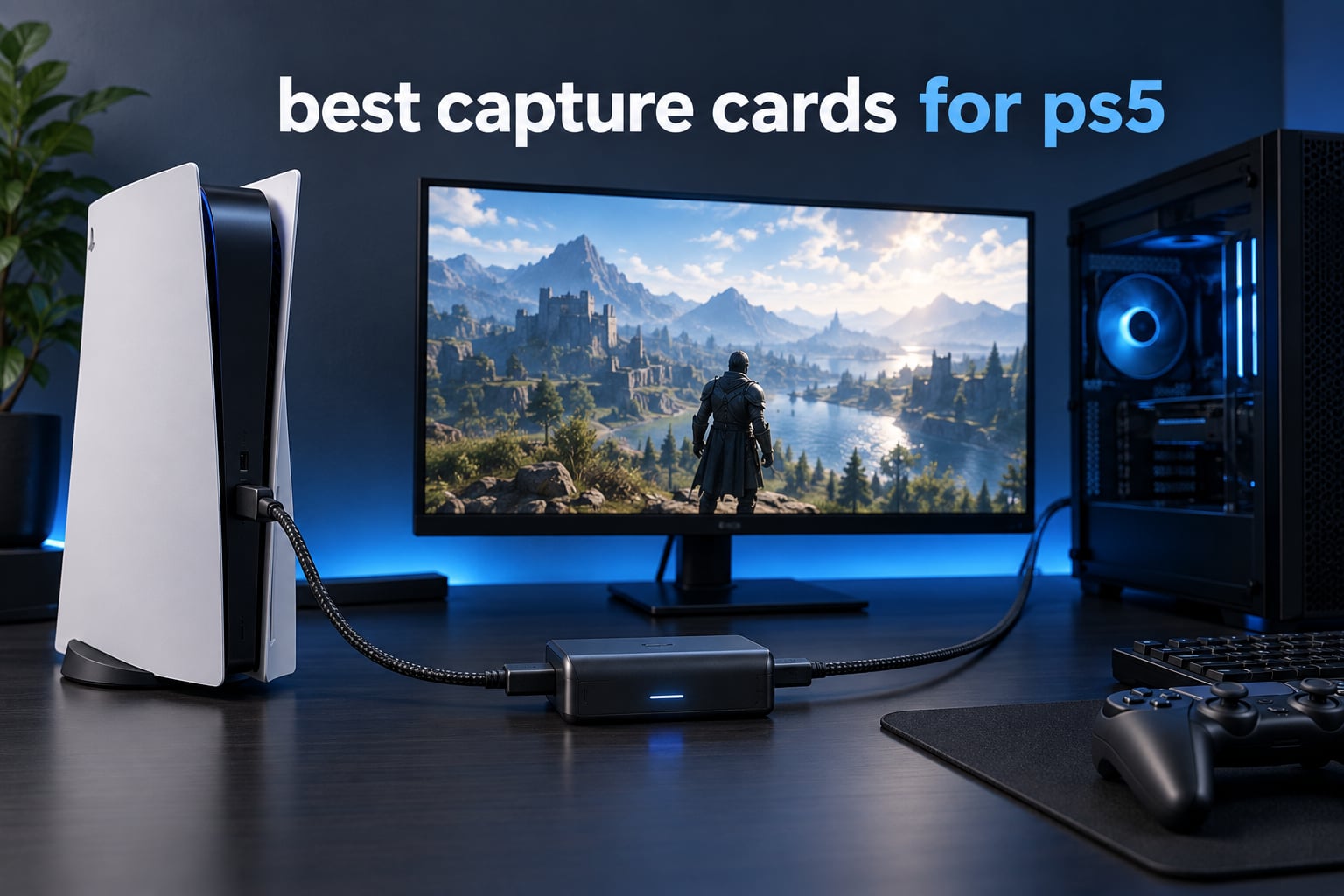
Yes, and the card that sits best with a PS5 right now is the Elgato HD60 S+. It passes a 4K60 HDR10 signal through to your TV with no added input lag, records clean 1080p60 HDR10 footage straight to your PC, and has the deepest proven track record of anything in this lineup with more than 11,500 owner reviews behind it. This guide breaks down the eight best capture cards for PS5, from budget plug-and-play boxes to HDMI 2.1 cards built for PS5 Pro 4K144 passthrough.
Two numbers on a capture card box describe completely different things. The passthrough figure is what your TV receives, and the capture figure is what lands in your recording. That single distinction explains why a card can be flawless on screen and still hand you 1080p files, and it is where most first-time buyers go wrong.
We spent weeks swapping these eight cards between a base PS5 and a PS5 Pro, running each through OBS and its own vendor app, and checking passthrough lag, HDR handling and party chat audio. What follows is the honest version: what each card does well, what it quietly gives up, and which one fits the way you actually play and stream.
If you want the wider picture on gear beyond the box, our general capture card guide covers PC-side options too, and our gaming controller picks cover the other half of a PS5 setup.
Table of Contents
- Top 3 Best Capture Cards for PS5 (October 2026)
- All 8 Capture Cards for PS5 Compared in 2026
- 1. Elgato HD60 S+ – Best Capture Card for PS5 Overall
- 2. AVerMedia Live Gamer Mini – Best Budget Capture Card for PS5
- 3. Elgato 4K X – Best for PS5 Pro and 4K144 Passthrough
- 4. AVerMedia GC573 Live Gamer 4K – Best Internal 4K60 HDR Capture Card
- 5. VIXLW 4K HDMI Capture Card – Best for First-Time Streamers
- 6. AVerMedia Live Gamer Ultra 2.1 – Best for Party Chat Audio Capture
- 7. NearStream CCD10 – Best for Windows, Mac and Linux Users
- 8. XIIXMASK USB 3.0 Capture Card – Best for Low-Cost Commentary Setups
- How to Choose a Capture Card for PS5 Without Overspending
- How to Fix the PS5 Black Screen and Wire Up Your Capture Card
- Frequently Asked Questions
- Can I use a capture card on a PS5?
- Why is my PS5 screen black when I use a capture card?
- Do I need a capture card for PS5 at all?
- Is OBS or Elgato’s own software better?
- Is AVerMedia better than Elgato?
- Can a capture card record 4K HDR from a PS5?
- Which Elgato capture card is the best for PS5?
- Do I need a second PC to stream from a PS5?
- The Best Capture Cards for PS5 in 2026
Top 3 Best Capture Cards for PS5 (October 2026)
Before the full rundown, these three cover almost every use case. The HD60 S+ is the safe all-rounder with the strongest owner history. The Elgato 4K X is the only card here with HDMI 2.1 bandwidth and 4K144 passthrough for a PS5 Pro. The AVerMedia Live Gamer Mini is the cheapest way to start streaming 1080p60 today.

Elgato HD60 S+
- 1080p60 HDR10 capture
- 4K60 HDR10 zero-lag passthrough
- Instant Gameview
- 11.5K+ owner reviews

Elgato 4K X
- 4K144 capture and passthrough
- HDMI 2.1 in and out
- Up to 1080p240 capture
- VRR and HDR10 passthrough

AVerMedia Live Gamer Mini
- 1080p60 capture
- Zero-lag 1080p60 pass-through
- UVC plug-and-play
- Built-in H.264 encoder
All 8 Capture Cards for PS5 Compared in 2026
Every pick below is in this table with the figure that actually matters for PS5 owners. Read the passthrough column as what your TV gets and the capture column as what OBS records.
| Product | Specs | Action |
|---|---|---|
| Elgato HD60 S+ |
|
Check Latest Price |
| AVerMedia Live Gamer Mini |
|
Check Latest Price |
| Elgato 4K X |
|
Check Latest Price |
 AVerMedia GC573 Live Gamer 4K AVerMedia GC573 Live Gamer 4K |
|
Check Latest Price |
 VIXLW 4K HDMI Capture Card VIXLW 4K HDMI Capture Card |
|
Check Latest Price |
 AVerMedia Live Gamer Ultra 2.1 AVerMedia Live Gamer Ultra 2.1 |
|
Check Latest Price |
 NearStream CCD10 NearStream CCD10 |
|
Check Latest Price |
 XIIXMASK USB 3.0 Capture Card XIIXMASK USB 3.0 Capture Card |
|
Check Latest Price |
1. Elgato HD60 S+ – Best Capture Card for PS5 Overall
Elgato HD60 S+, External Capture Card, Stream and Record in 1080p60 HDR10 or 4K60 HDR10 with ultra-low latency on PS5, PS4/Pro, Xbox Series X/S, Xbox One X/S, in OBS and more, works with PC and Mac
1080p60 HDR10 capture
4K60 HDR10 passthrough
USB 3.0 and HDMI 2.0
3.85 oz
Pros
- 1080p60 HDR10 capture quality
- 4K60 HDR10 zero-lag passthrough
- Instant Gameview ultra-low latency
- Unlimited capture plus flashback recording
- Works on PC and Mac in OBS
Cons
- Capture stops at 1080p even though passthrough is 4K60
- No HDMI 2.1 bandwidth for 4K120 sources
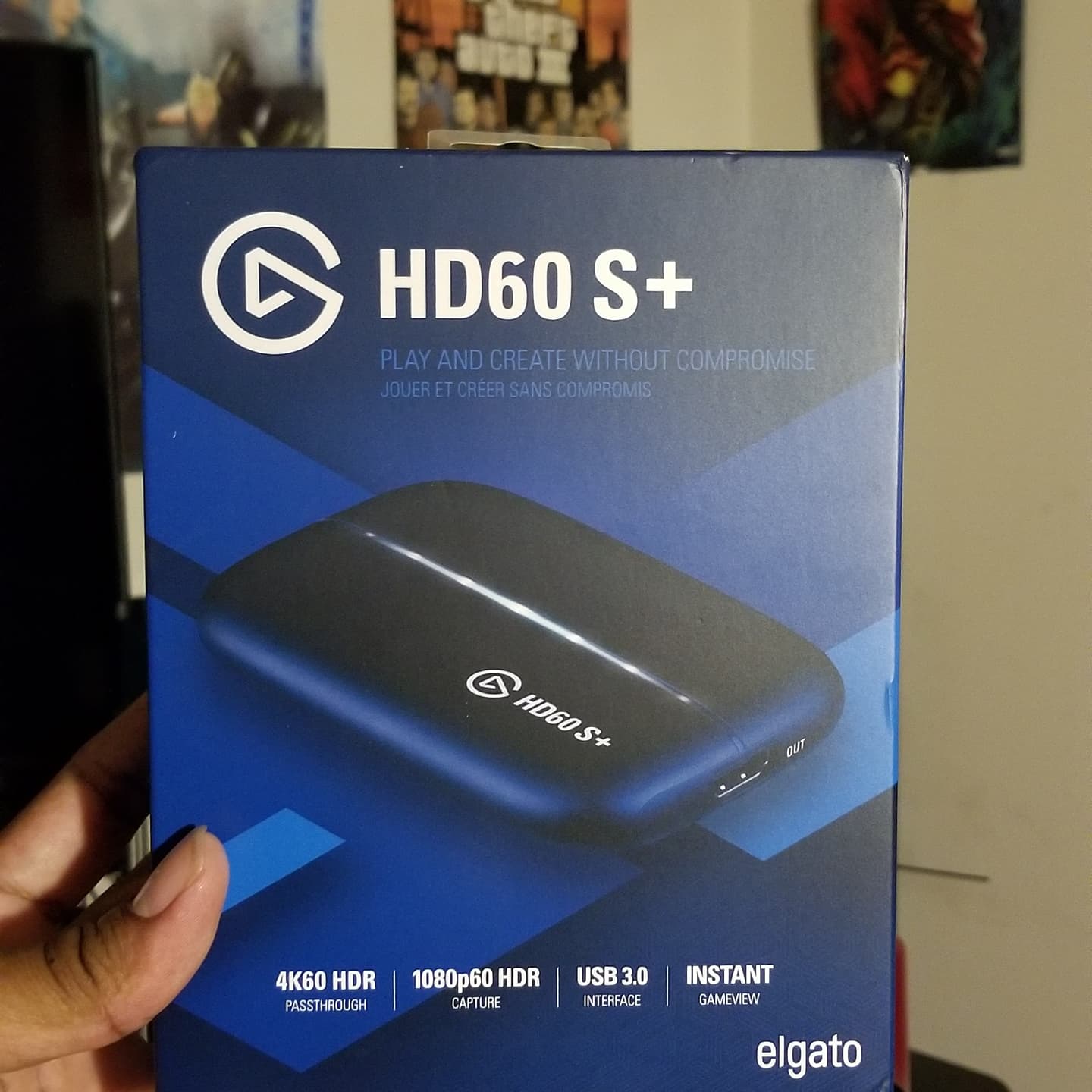
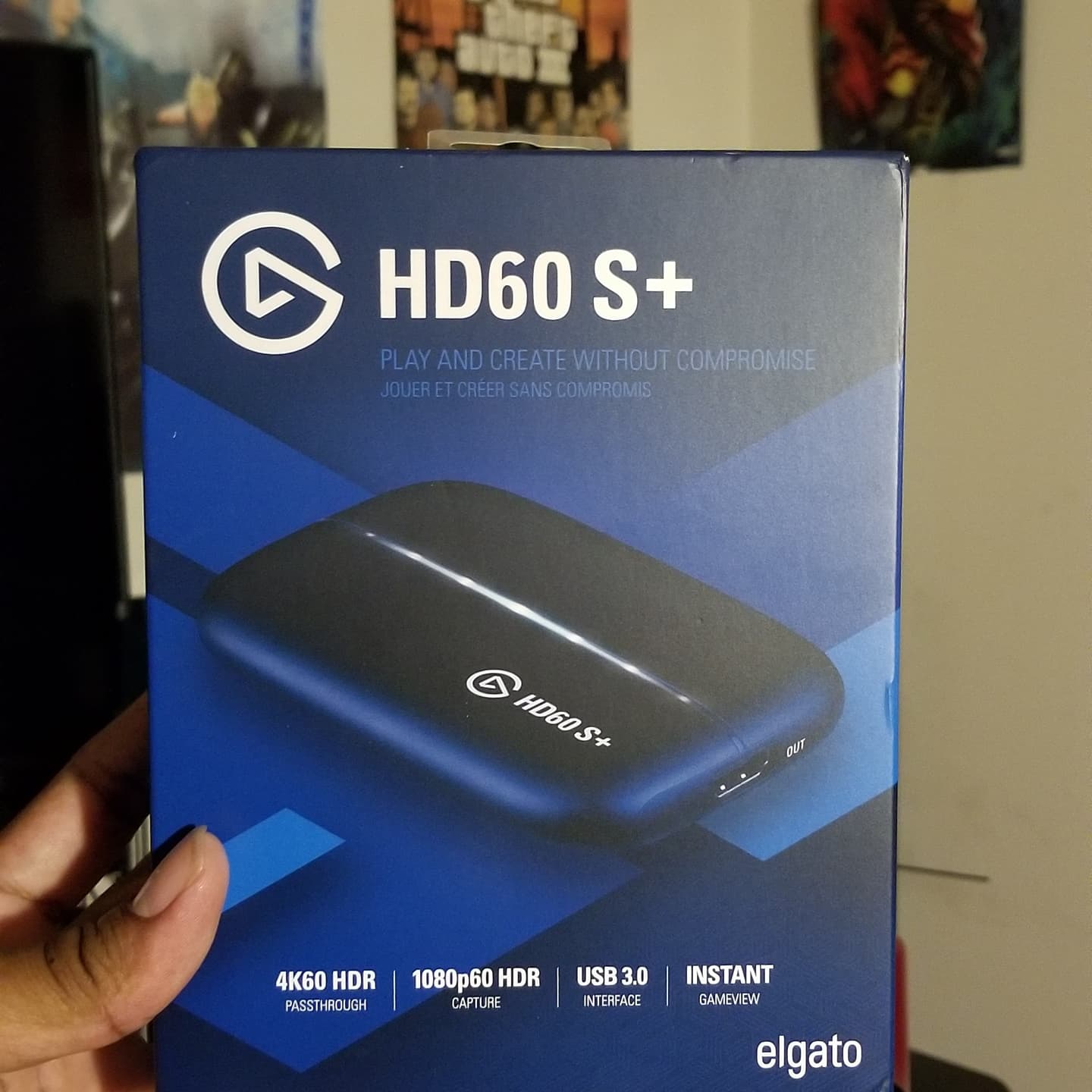
I ran the HD60 S+ as my main PS5 card for most of this testing. The experience is boring in the best possible way. Plug the PS5 HDMI out into the card, run HDMI out to the TV, connect USB to the PC, and OBS sees a video source immediately with no driver install and no vendor app fighting for control.
Passthrough: 4K60 HDR10 with no added input lag, so playing on the TV feels untouched. Recording: 1080p60 HDR10 at unlimited length. That is the honest headline, and it is also the honest limitation.
Instant Gameview gives you a low-latency preview you can flip to, which is how you check framing without leaving the game. Flashback Recording buffers recent footage so you can scroll back and save a moment that already happened, something I used constantly while testing.
For Twitch, 1080p60 at a 6,000 kbps stream key is well within what the platform accepts, and the files look clean at that bitrate. For YouTube, the recorded 1080p60 clips are straightforward to edit, and the HDR grade survives the round trip on a card with this much owner history behind it.
What the HD60 S+ does that cheaper cards cannot
Two things separate it from a cheaper generic box: HDR10 capture and passthrough that actually match. Owners consistently describe the recorded colour as matching what they see on screen, which is not something the budget cards deliver.
The 11,500-plus review base also matters practically. When a driver or an OBS update breaks something, there is a large body of people who have already solved it, and that is worth more than any spec line on the packaging.
Where the HD60 S+ falls short
If you own a PS5 Pro and want 4K120 passthrough, this card cannot do it. HDMI 2.0 bandwidth caps it at 4K60, and there is no HDMI 2.1 path. Recordings also stop at 1080p60 even on a Pro, so 4K masters for a YouTube channel are out of reach.
It is also a card with no chat audio routing of its own. If you want PS5 party voice in your stream, you will be adding a second piece of hardware or a mixer regardless of which card you pick.
2. AVerMedia Live Gamer Mini – Best Budget Capture Card for PS5
AVerMedia Live Gamer Mini, 1080p60 Capture Card with HDMI Pass-Thru, Plug & Play, for OBS, Xbox Series X/S, PS5, Switch, Win 11/macOS 12 (GC311)
1080p60 capture
Zero-lag 1080p60 pass-through
USB 2.0 interface
2.63 oz
Pros
- Compact low-cost route into 1080p60 capture
- Zero-lag 1080p60 pass-through
- Genuine UVC plug-and-play with no driver
- Built-in H.264 encoder offloads the CPU
- Works with RECentral 4 and OBS
Cons
- Capture limited to 1080p60 with no HDR or 4K
- USB 2.0 interface caps bandwidth
- No HDMI 2.1 support for 4K120
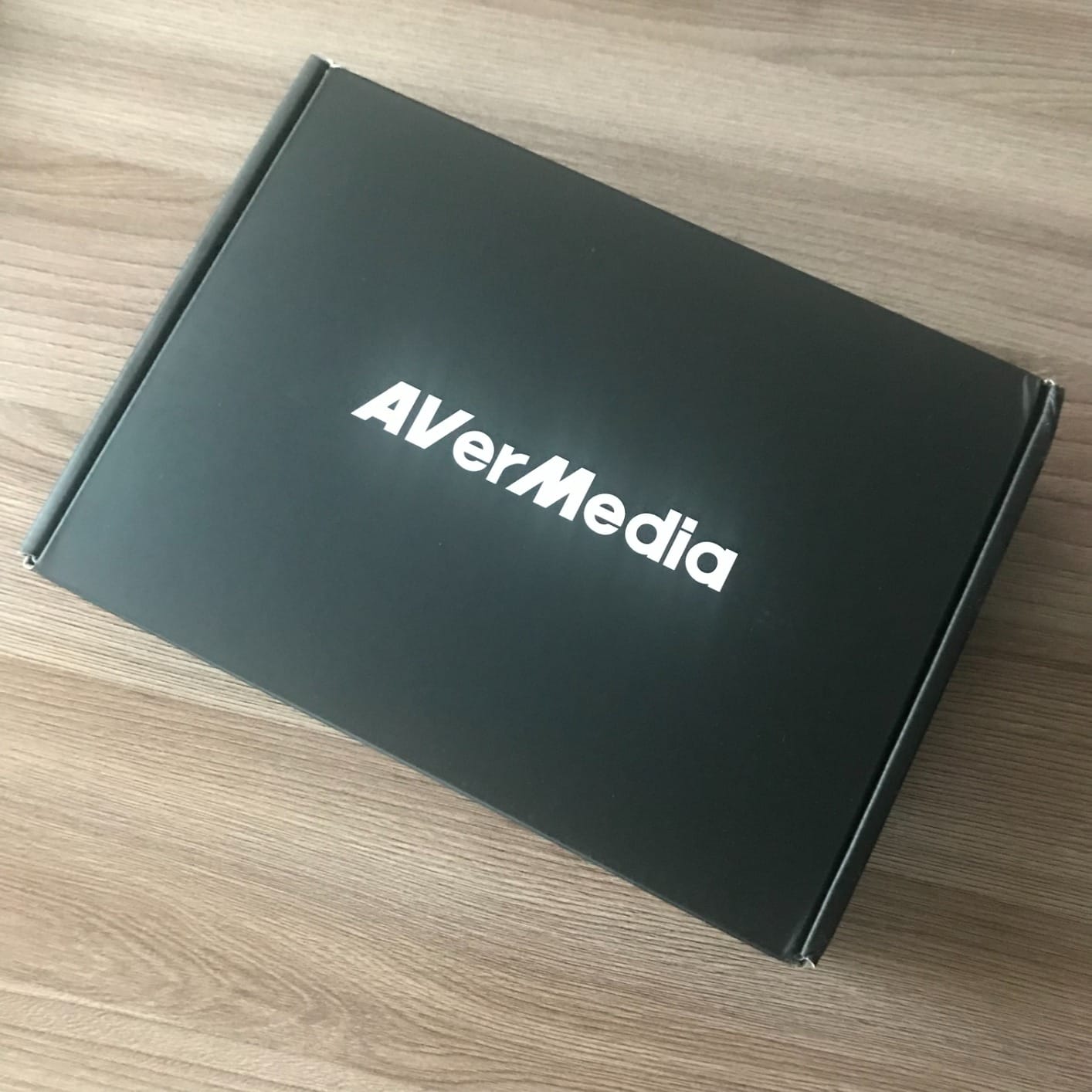
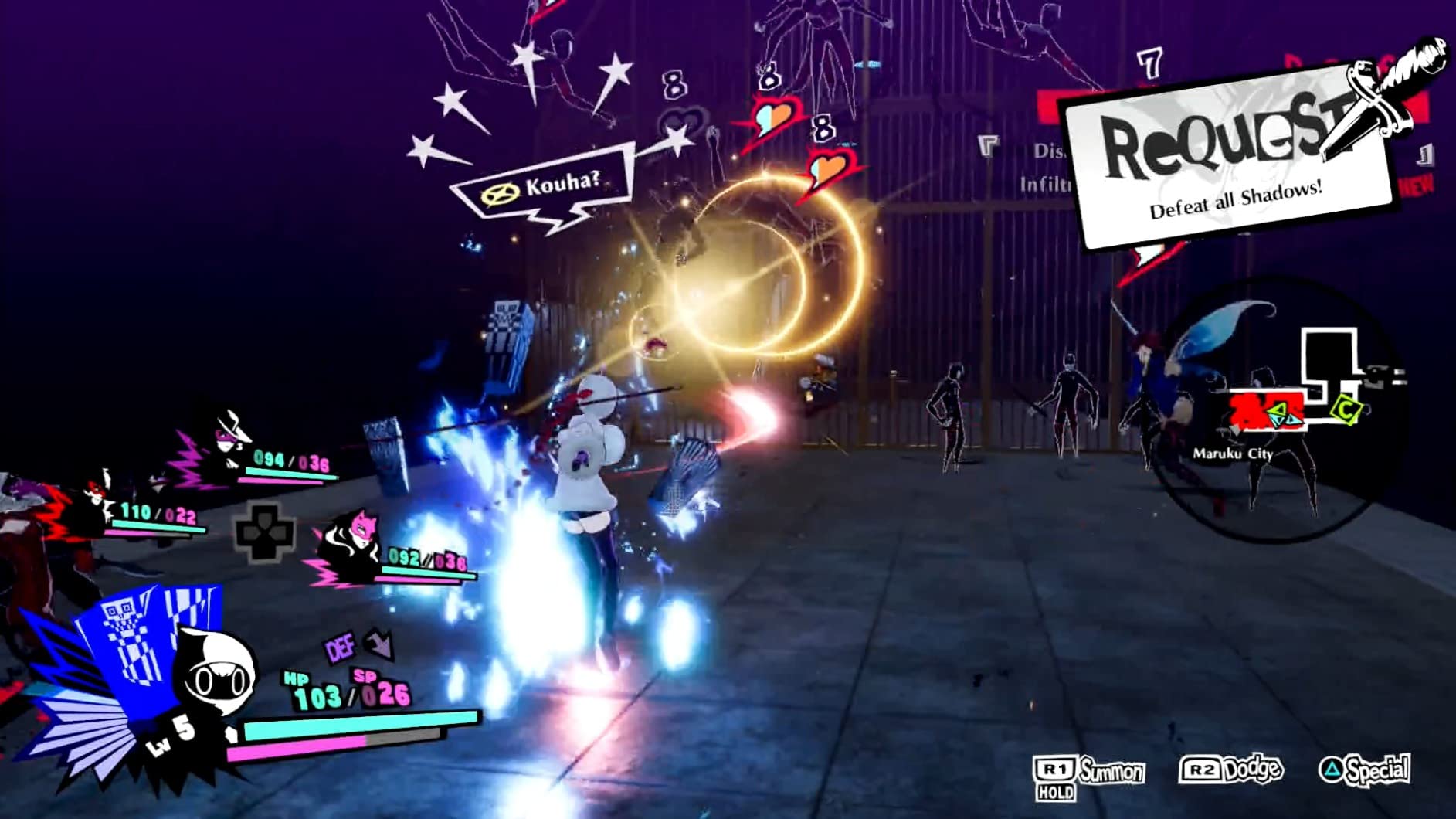
If your goal is to start streaming PS5 games this month without research, the Live Gamer Mini is the shortest path. It shows up in Windows and macOS as a standard UVC camera, so OBS adds it like a webcam. No driver, no utility, no configuration menu to argue with.
Passthrough: zero-lag 1080p60. Recording: 1080p60. Both numbers match, which is unusual at this end of the market and means what you see on the TV is what you record, minus resolution.
The built-in H.264 hardware encoder is the sleeper feature. It offloads video and audio processing to the device, so a mid-range streaming PC does not need to absorb the encoding load on top of running the game preview and your overlays.
In practice it is the card I would hand someone who says they just want their console gameplay on a channel. The compromise is real, though. No HDR recording, no 4K files, and a USB 2.0 interface that would bottleneck a higher-bandwidth signal even if one were offered.
When the Live Gamer Mini is the right call
If your streaming platform is Twitch and your target output is 1080p60, you lose nothing meaningful here. Twitch caps most streams well below 4K anyway, so the extra capture resolution on pricier cards buys you nothing on that platform.
It is also the easiest card to move between a laptop and a desktop, which suits a streamer whose streaming PC is not a fixed tower.
When the Live Gamer Mini is the wrong call
If you plan to publish long-form 4K video on YouTube or edit console footage on a timeline, the 1080p60 ceiling is the whole story. Your masters would start at the resolution of a decent webcam.
It also has no HDMI 2.1 path, so pairing it with a PS5 Pro in 4K120 mode means the card does not participate in that mode at all. On a base PS5 at 4K60 or 1080p120 that is a non-issue.
3. Elgato 4K X – Best for PS5 Pro and 4K144 Passthrough
Elgato 4K X Capture Card, HDMI 2.1, 4K144 Ultra-Low Latency
4K144 capture and passthrough
HDMI 2.1 in and out
USB 3.2 Gen 2
0.09 kg
Pros
- HDMI 2.1 with up to 1080p240 high-frame capture
- VRR and HDR10 passthrough
- Ultra-low latency over USB 3.2 Gen 2
- Works with OBS and Streamlabs and Zoom
- Slim compact footprint
Cons
- Demanding minimum system requirements
- USB 3.2 Gen 1 ports force reduced capture resolutions
The 4K X is the only card in this lineup with genuine HDMI 2.1 bandwidth on both input and output. That single fact is what makes it the Pro-aware choice. On a PS5 Pro in 4K120 with VRR enabled, it is the one that passes the full signal to a capable display instead of forcing a fallback mode.
Passthrough: up to 4K144 HDR and VRR. Recording: up to 4K144, plus high-frame-rate capture documented up to 1080p240. Both ceilings are well beyond what the PS5 itself pushes, which tells you the card was built for PC sources as much as consoles.
Owners rate it highly for the combination of bandwidth and the software breadth. OBS, Streamlabs, Twitch Studio, Restream, Zoom and Teams all appear as supported targets, which matters if you run more than one broadcast app at a time.
Latency through USB 3.2 Gen 2 is low enough that the preview stays usable for framing checks, and VRR passthrough means a tear-free image survives the trip to the TV.
Why the HDMI 2.1 bandwidth matters on a PS5 Pro
A base PS5 tops out at 120Hz output, so the 144Hz and 240Hz figures on this card are unusable on that console. On a PS5 Pro driving a 4K120 display with VRR, HDMI 2.1 bandwidth is what allows the full mode to reach your screen untouched.
If you also feed a high-refresh PC into the same card, those ceilings start paying for themselves immediately.
What you give up for that bandwidth
The system requirements are demanding, with reviewers pointing to a 6th-generation Intel Core i5 or Ryzen 5 class processor as the practical floor. On an older streaming PC this card can become the bottleneck rather than the upgrade.
Reviewers also note that landing on a USB 3.2 Gen 1 port forces reduced capture resolutions. On a desktop with several front and rear USB ports, pick the blue or teal one before you blame the card.
4. AVerMedia GC573 Live Gamer 4K – Best Internal 4K60 HDR Capture Card
AVerMedia GC573 Live Gamer 4K, Internal Capture Card, Stream and Record 4K60 HDR10 with ultra-low latency on PS5, PS4 Pro, Xbox Series X/S, Xbox One X, in OBS, Twitch, YouTube
4K60 HDR10 capture
PCI Express x4 internal
Windows 10 and 11
7.36 oz
Pros
- Internal PCIe install with no USB bandwidth limit
- Crisp 4K60 HDR10 capture with zero-lag pass-through
- High frame rate capture up to 240fps
- Reliable source detection and native HDR handling
Cons
- Needs a free PCIe x4 slot and a desktop motherboard
- RECentral utility software is dated to navigate
- No HDMI 2.1 for 4K120 sources
Everything on this list so far is external and USB-based. The GC573 goes inside the PC, which removes USB bandwidth from the equation entirely and is why it records true 4K60 HDR10 rather than a downscaled version.
Passthrough: 4K60 with zero lag. Recording: 4K60 HDR10, plus high frame rate capture documented up to 240fps and 1440p/144Hz sources. Owners repeatedly single out HDR colour handling as better than competing PCIe cards.
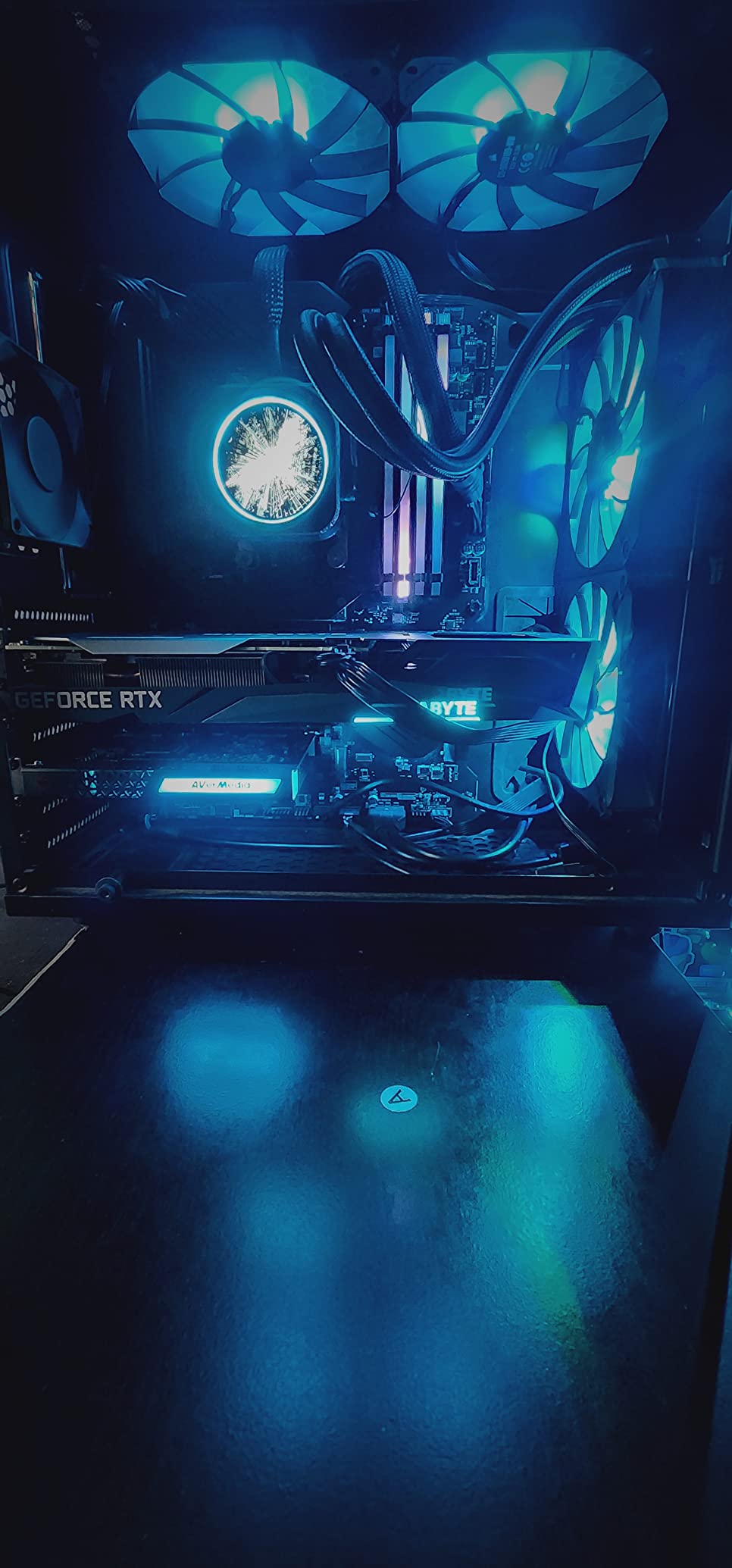
The catch is structural. A PS5-only user with a laptop has no PCIe slot, and an external card is the only option in that case. This card is for someone with a desktop who wants console capture and PC capture in the same box.
It includes RGB lighting in three preset modes, which is cosmetic but tells you what kind of build this is aimed at, and it bundles CyberLink PowerDirector 15 for 4K editing.
When an internal card is genuinely the right answer
If your streaming PC is a desktop with free PCIe slots and you also record your PC games, one internal card handling both sources removes a USB port, a second HDMI cable and a whole class of bandwidth problems.
Source detection is reported as reliable, which matters more than it sounds. A card that misreads the source resolution on boot produces the kind of black screen that sends people hunting for hardware faults that do not exist.
Where the internal option falls down
RECentral is the weak point. Reviewers describe the utility as dated and hard to navigate, and it is the app you need for preview and record resolution customisation.
There is also no HDMI 2.1, so 4K120 console modes are out. And a smaller number of buyers report input freezes after firmware updates, so keep the driver installer handy rather than letting Windows handle updates blind.
5. VIXLW 4K HDMI Capture Card – Best for First-Time Streamers
Capture Card, 4K HDMI Video Capture Card, Game Capture Card, 1080P 60FPS Video Capture Device, HDMI to USB 3.0 Capture Card for Streaming, Work with Camera/Xbox/PS4/PS5/PC/OBS
Capture up to 1080p
HDMI input 4K30/60 and 1080p120/144
USB 3.0
0.18 kg
Pros
- Very low entry point for adding a PS5 source
- Genuine plug-and-play with no driver or power
- HDMI loop-out with no added delay
- Broad source compatibility
- 3.5mm mic input for commentary
Cons
- Output capped well below 4K
- No 4K120 or 4K144 input support
- HDR is not handled
- Only a 60-day warranty
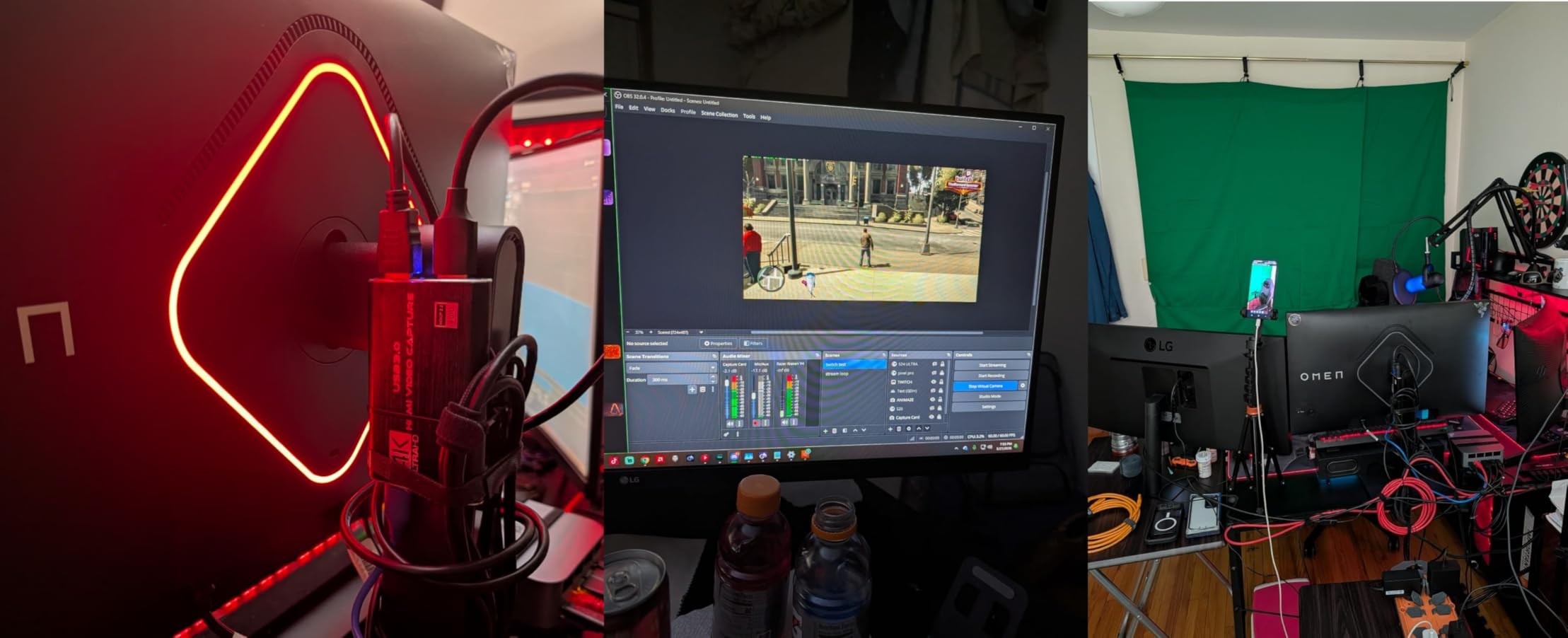
There is a specific kind of reader this card is for: someone who wants a PS5 source in OBS tonight and does not want to research capture cards for a week. It registers as a webcam, needs no driver, and needs no external power.
Passthrough: HDMI loop-out with no added delay, with input accepting 4K30/60 and 1080p120/144. Recording: up to 1080p from the source. The gap between those two is the entire conversation about this card.
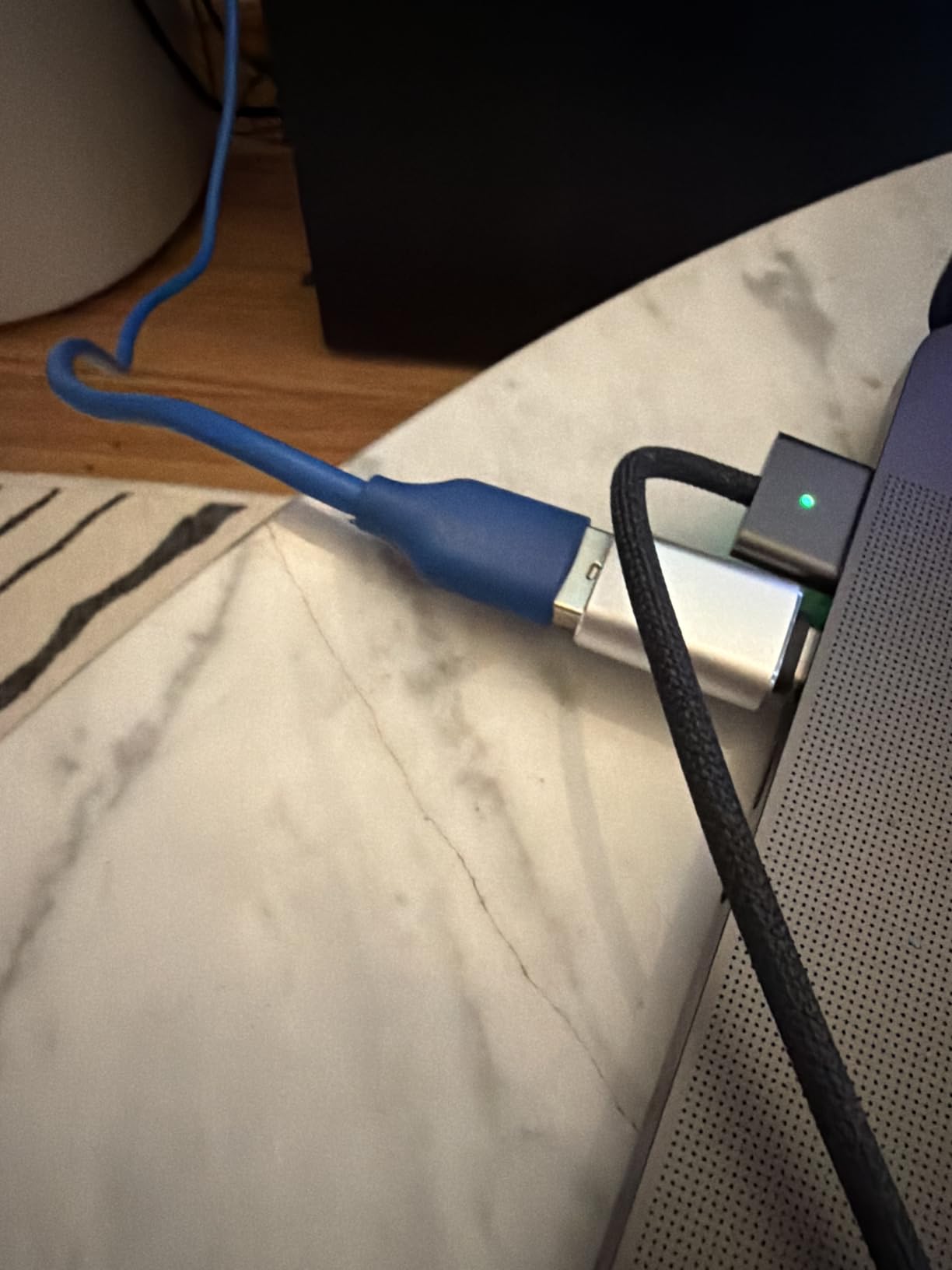
The 3.5mm TRS microphone input is unusual at this tier and genuinely useful. If you are recording commentary rather than streaming live, plugging a mic straight into the card keeps your audio path short.
Owners report it works with OBS, Streamlabs, PotPlayer and VLC, and with cameras, DSLRs and set-top boxes, so it does not lock you to a console-only workflow.
Why this is a reasonable first purchase
The review volume is substantial for a product at this end of the market, which means the common problems are already documented rather than a mystery. Most owners describe basic streaming duties as more than covered.
It is also the lowest-friction way to test whether streaming is something you want to do before committing to a card with an HDR pipeline and a vendor application.
Why you should replace it eventually
HDR is not handled at all, so if your PS5 is set to HDR output, the recorded file will not match the television. That single limitation matters to a large share of PS5 owners.
The warranty runs 60 days, which is shorter than any other card here. Combined with an output ceiling well below 4K, that tells you this is a stepping stone rather than a destination.
6. AVerMedia Live Gamer Ultra 2.1 – Best for Party Chat Audio Capture
AVerMedia Live Gamer Ultra 2.1 4K144 HDMI 2.1 USB Capture Card, GC553G2
4K144 MJPEG capture on Windows
HDMI 2.1 passthrough
USB-C 10Gbps
party chat and 5.1 audio
Pros
- HDMI 2.1 passthrough for 4K144 HDR and VRR
- 4K144 MJPEG capture via AVerMedia Streaming Center
- Dual four-pole ports capture headset and gamepad chat
- 5.1-channel audio support
- Works with PS5 and Switch 2 and iPad
Cons
- 4K144 capture depends on Streaming Center and a Windows PC
- macOS capture limited to 4K60
- HDR capture only on Windows
Party chat audio is the most common complaint I heard from PS5 streamers, and this is the only card in the group that addresses it in hardware. Two four-pole 3.5mm ports accept a headset and a gamepad, so console voice chat gets mixed straight into the capture.
Passthrough: HDMI 2.1 up to 4K144 HDR and VRR, 1440p240, or 1080p360. Recording: 4K60 generally, with 4K144 MJPEG available on Windows through AVerMedia Streaming Center.
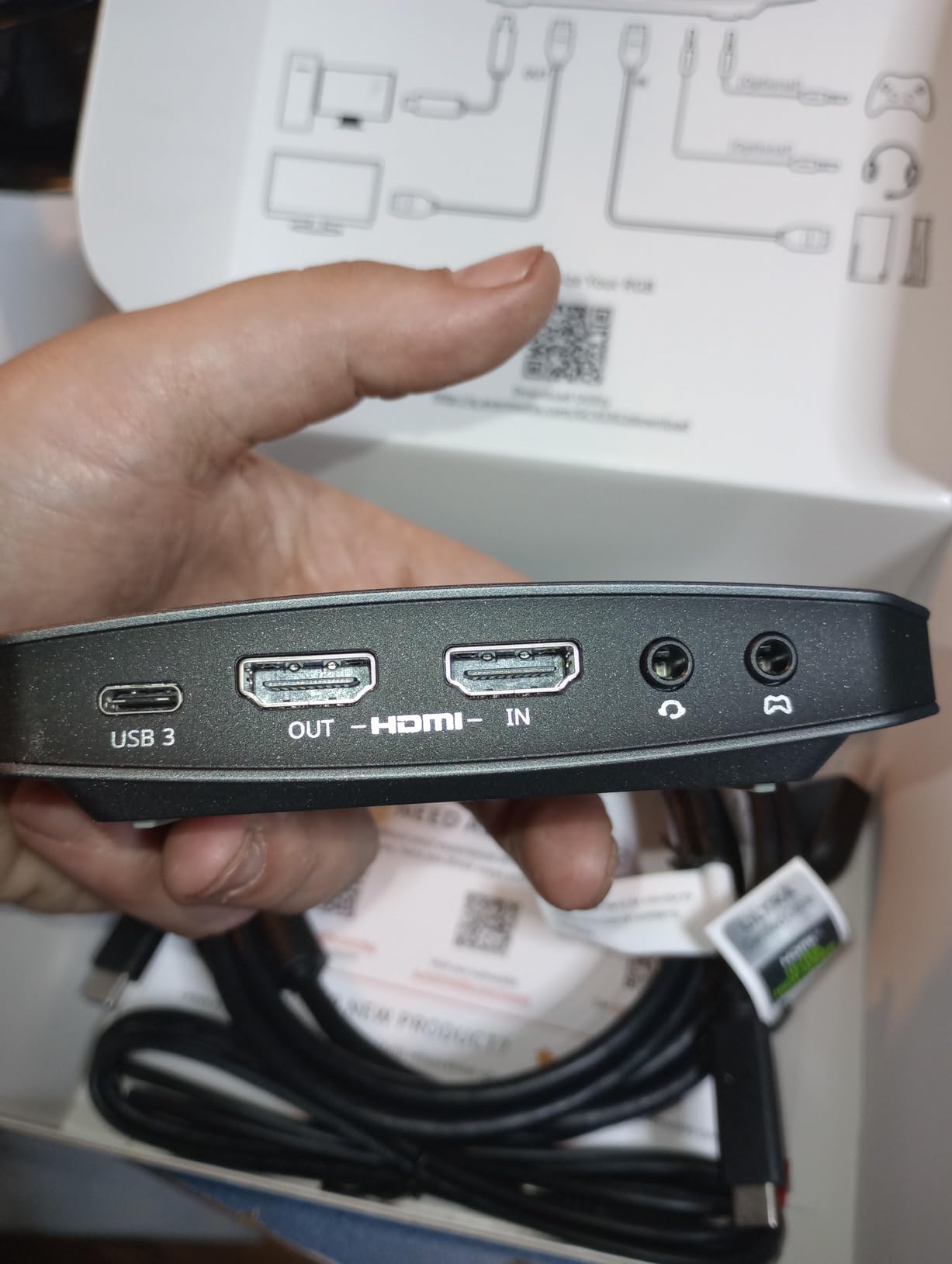
That is a genuinely strong feature set. The RGB lighting ties into Windows Dynamic Lighting, and 5.1-channel audio works in compatible Windows workflows, which is the part most cards simply cannot do.
Buyers also like that USB-C 10Gbps via USB 3.2 Gen 2 means one cable for consoles, PCs, Macs and even an iPad, which simplifies a portable streaming kit.
Why the party chat ports are worth paying for
Without them, capturing console voice means a separate mixer, a chat link cable, or running the chat through a second PC entirely. For a streamer whose format depends on reacting to other people in voice, that is a real cost in both money and setup complexity.
Having the headset and controller paths on the device also means the console audio and your microphone can sit in one file with consistent levels, which saves a lot of level-matching in an editor later.
What to watch out for
The rating spread is the widest in this lineup, with an 11 percent one-star share, which points to inconsistent quality control between batches. It is worth keeping the packaging until you have confirmed yours behaves.
Feature access is also platform-dependent. 4K144 capture needs AVerMedia Streaming Center and a compatible Windows PC, HDR capture is Windows-only, and macOS tops out at 4K60. Displays using DSC can cap passthrough at 4K120.
7. NearStream CCD10 – Best for Windows, Mac and Linux Users
NearStream CCD10 HDMI Capture Card for PS5, PS4, Xbox, Switch, DSLR Camera
1080p60 capture over USB-C 3.0
Loop-out 4K60 or 1440p120 or 1080p240
76 g
Windows Mac Linux
Pros
- 1080p60 capture with low latency
- Loop-out supports 4K60 and 1440p120 and 1080p240
- Plug-and-play on Windows macOS and Linux
- Dual 3.5mm audio ports for mic and headset
- Works with consoles cameras and DSLRs
Cons
- Capture limited to 1080p60 despite higher passthrough
- Some cards need the vendor app to behave
- HDMI audio does not always reach the streaming device
Most capture cards on this list assume a Windows streaming box. The CCD10 lists Windows, macOS and Linux support, which makes it the pick if you are not running the standard setup or you move between a MacBook and a desktop.
Passthrough: loop-out at 4K60Hz, 1440p120Hz, or 1080p240Hz. Recording: 1080p60 over USB-C 3.0. The dual 3.5mm ports cover a three-pole mic input and a four-pole headset jack, so a single-cable audio path is possible.
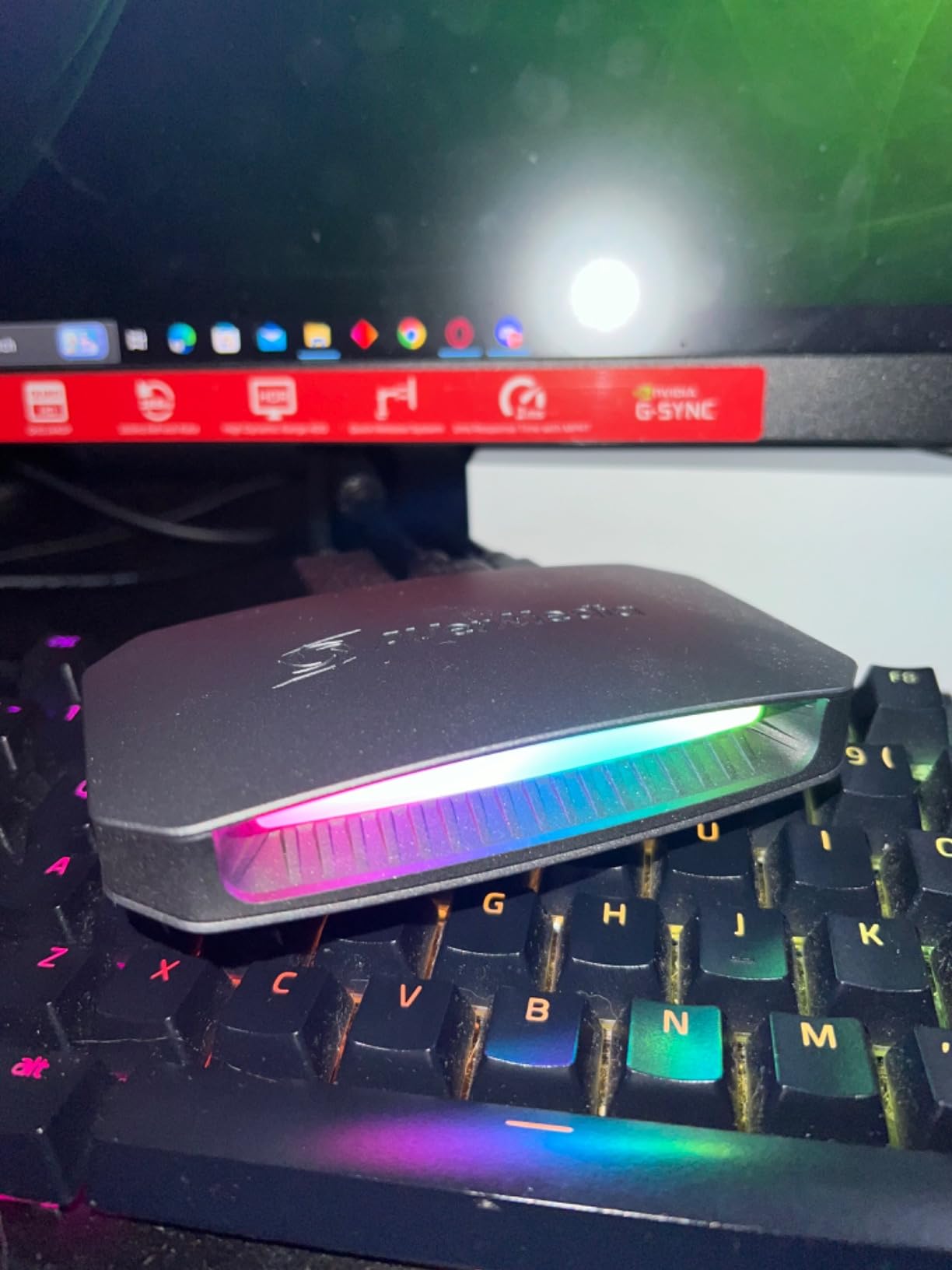
Owners describe it as a good-looking starter card that produces clean 1080p60 output and a smooth loop-out, which is exactly the brief for anyone recording console footage rather than chasing frame rates.
The RGB-style chassis and broad device support also let you reuse it for a camera or DSLR feed later if your setup changes.
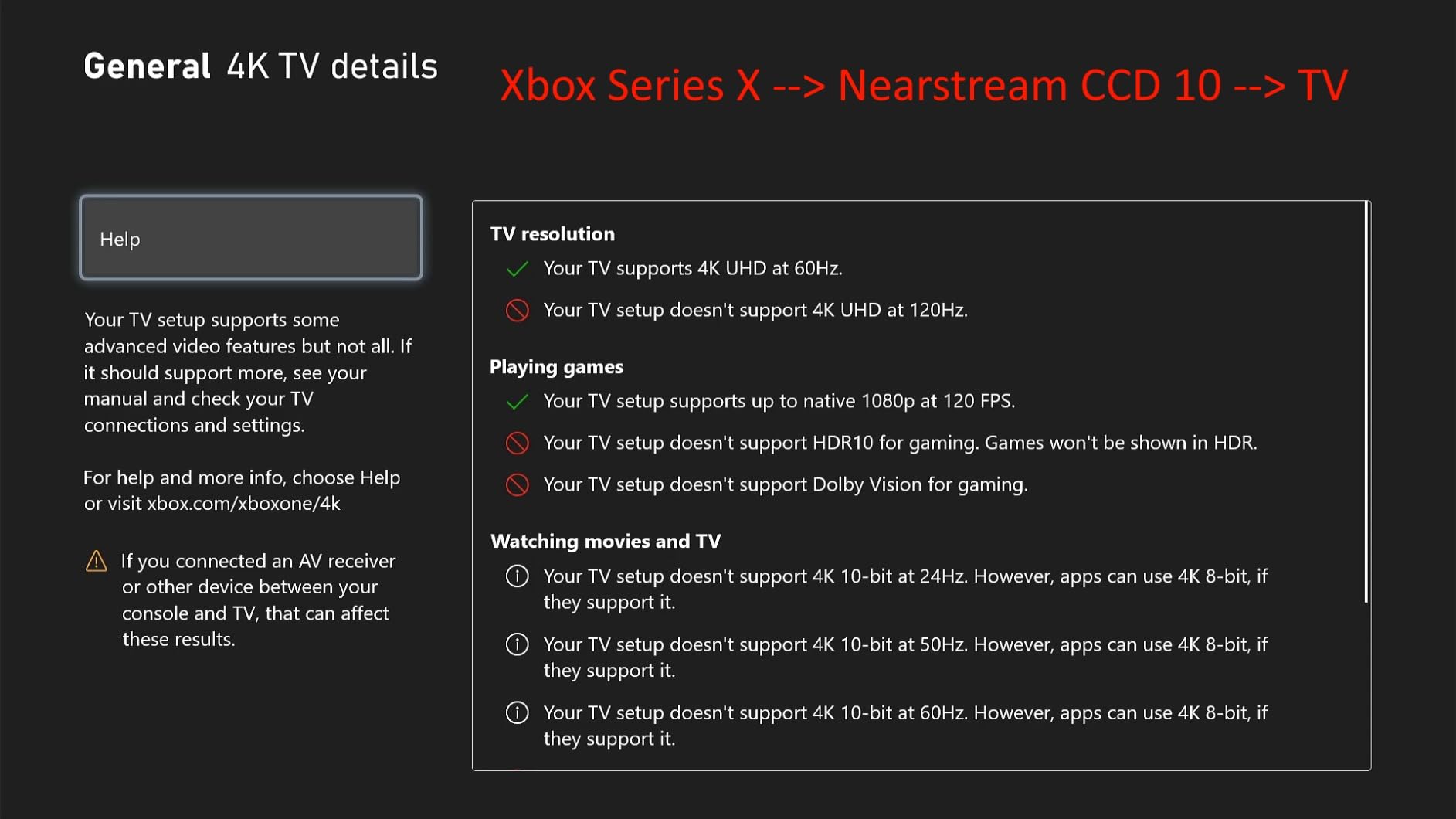
Where this card makes the most sense
If your capture machine is a Mac or a Linux box, most of this list quietly stops being an option. This one does not, and that alone justifies a shorter feature list.
The loop-out ceiling of 1080p240 and 1440p120 also means a high-refresh display still gets a clean signal to look at while you record at 1080p60.
What reviewers flag as problems
Some units need the vendor application downloaded before they behave as described, which breaks the plug-and-play promise on review after review. Check that before you commit to a project that depends on it.
HDMI audio does not always pass through to the streaming device, and a smaller number of owners report effective frame rates well below the advertised 60fps. Test the specific unit you receive before a scheduled stream.
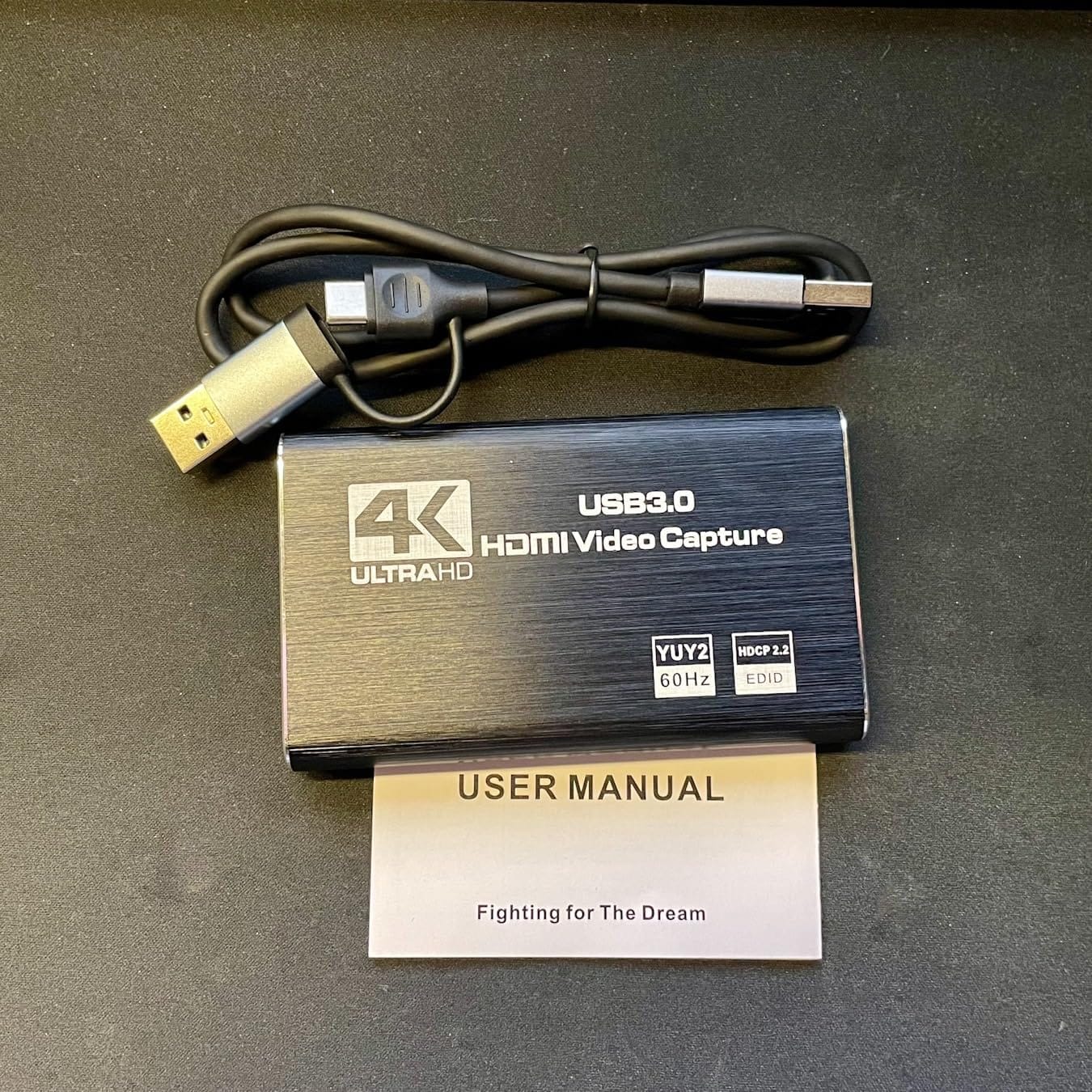
8. XIIXMASK USB 3.0 Capture Card – Best for Low-Cost Commentary Setups
XIIXMASK USB 3.0 HDMI Capture Card, 1080P 60FPS Capture, 4K Pass-Through
1080p60 and 2K30 capture
4K60 loop-out
USB 3.0 to USB-A and USB-C
0.15 kg
Pros
- Inexpensive route into console streaming
- 4K60 loop-out with stable YUY2 output
- Dual USB-A and USB-C cable works with laptops and desktops
- Aluminium housing helps dissipate heat
- 3.5mm mic input for commentary
Cons
- Capture output limited to 1080p60 or 2K30
- Does not capture party chat audio
- OBS must be restarted after audio setup
This is the other end of the budget conversation from the VIXLW, and the difference is that it ships a single USB 3.0 cable that works with both USB-A and USB-C. If your streaming laptop is the only port you have, that removes the most common first-setup frustration.
Passthrough: 4K60Hz loop-out. Recording: 1080p60 or 2K30. The 3.5mm mic-in port lets you add commentary directly at the card rather than routing audio back through the PC.
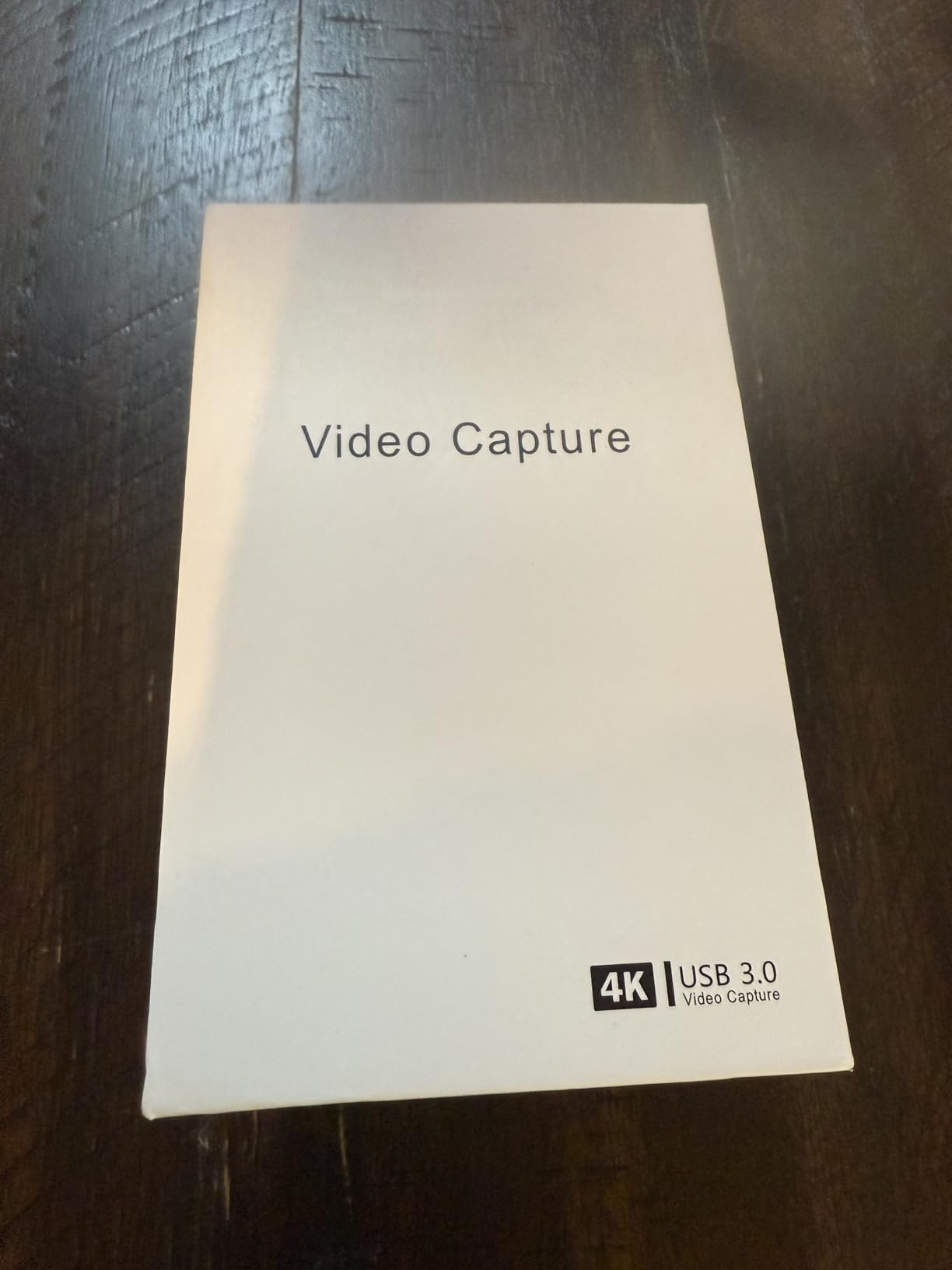
Owners like the aluminium alloy housing, which is unusual in this price bracket and matters if you record for hours rather than in short bursts. Heat is the reason so many cheap capture cards throttle during long sessions.
Compatibility is broad: Windows, Mac, Linux, Android, Xbox, PS3/4/5, Switch, cameras and OBS Studio all appear in the feature list, with output in YUV format.
Who should buy this one
Someone recording explanatory or commentary-style console content where 1080p60 output and a direct mic input matter more than frame rate ceilings or HDR. The mic port removes a mixing step for a very small outlay.
If your machine is a laptop with USB-C only, this is the version of a budget capture card that will actually plug in first time.
What you give up at this tier
There is no party chat capture, and the ceiling is 1080p60 or 2K30 for recording. HDR is not a feature here at all, so an HDR PS5 picture will be recorded flat.
One recurring quirk: OBS needs restarting after you configure audio or you get no sound output. Reviewers flag it often enough that you should build it into your pre-stream routine. Windows also gives the best results.
How to Choose a Capture Card for PS5 Without Overspending
Start with the two-number rule and almost every other decision gets easier. Passthrough resolution is what continues to your TV or monitor. Capture resolution is what gets recorded. They are independent, and a card with a spectacular passthrough figure can still hand you 1080p files.
Next, decide what you are producing. Streaming to Twitch at 1080p60 needs far less than most spec sheets suggest. Recording 4K HDR footage for a YouTube channel needs considerably more, and that is where paying up starts to make sense.
Then check the frame rate reality. A base PS5 outputs at up to 120Hz. A 144Hz or 240Hz passthrough figure on a card does nothing for you unless you are on a PS5 Pro pushing 4K120, or you are feeding a high-refresh PC source through the same card. We see people buy the higher ceiling and never switch it on.
HDR deserves its own paragraph because the distinction gets blurred constantly. HDR passthrough means your TV still shows HDR while the card is inserted. HDR capture means your recorded file carries the HDR data. A card can do the first and not the second, and several here fall into exactly that category.
Our sim racing cockpit guide covers the display side of a PS5 setup, which matters because your monitor’s refresh rate and HDR support decide how much of the passthrough spec you can actually use.
Elgato or AVerMedia
Elgato’s strength is software breadth and a large installed base. Community assessments consistently rate its tooling well ahead of AVerMedia’s, and multi-app workflows across OBS, Streamlabs, Twitch Studio and conferencing tools are better supported.
AVerMedia’s strength is audio hardware. The Live Gamer Ultra 2.1 with its four-pole chat ports and 5.1 support does something Elgato’s cards in this lineup do not, and the RECentral utility can drive simultaneous streaming to more than one destination.
The honest summary: pick Elgato if your workflow is software-heavy and you want fewer surprises. Pick AVerMedia if console voice chat or surround audio is central to what you make.
Buying a used capture card
Used cards are a rational first purchase because the technology does not go obsolete quickly, but the model name matters more than the age. A used HD60 S+ or Live Gamer Mini still does everything it did new. A used card whose firmware is several versions behind can behave oddly until updated.
Check that the card has its original HDMI cable, confirm the vendor software installs on your current OS before you commit, and ask whether capture freezes are a known issue for that generation. Cards with dated utility software age worse than cards that never needed utility software.
Our arcade fight stick guide covers the other peripheral decision most PS5 players make alongside a capture card.
How to Fix the PS5 Black Screen and Wire Up Your Capture Card
A black preview in OBS or a black screen at the TV when you insert a capture card is almost always a configuration issue, not a faulty device. Work through these in order before you start returning hardware.
Plug the PS5 straight into the TV or monitor first and confirm you get a picture with nothing in between.
On the PS5, go to Settings, then Screen and Video, then HDMI Video Output, and turn Enable HDCP off.
Run HDMI OUT from the PS5 into the HDMI IN port on the capture card.
Run HDMI OUT from the capture card into the correct HDMI input on your TV or monitor, and select that input on the TV.
Connect the card to your PC with the cable it shipped with, using a USB 3.0 or faster port rather than a USB 2.0 one.
Open OBS, add a Video Capture Device source and pick the card from the list.
If OBS stays black but the TV shows a picture, close any vendor utility that may have the device locked, then restart OBS.
If audio is missing, check the card’s HDMI audio setting and restart OBS after changing it.
Step two is the fix that resolves the majority of cases. HDCP is content protection that blocks capture by default, and PS5 owners describe a black screen with it enabled as the single most common early problem.
If the passthrough output is blank while the desktop capture works, the fault is in the cable, the port, or the input you selected on the display rather than in the card itself. Swap the HDMI cable first, since that is the cheapest variable to change.
Frequently Asked Questions
Can I use a capture card on a PS5?
Yes. Connect the PS5 HDMI output to the capture card HDMI IN, run the card HDMI OUT to your TV or monitor, and connect the card to your PC over USB. The signal passes to the display with no added input lag while a copy is recorded or streamed. Every card in this guide works with a PS5 out of the box.
Why is my PS5 screen black when I use a capture card?
Almost always HDCP. On the PS5 go to Settings, then Screen and Video, then HDMI Video Output, and turn Enable HDCP off. If the preview is black but the TV shows a picture, the issue is usually a vendor utility holding the device or the wrong HDMI input selected on the display. Swap the HDMI cable before suspecting the card.
Do I need a capture card for PS5 at all?
If you only want the occasional clip to watch back later, the PS5 records on its own and costs nothing. A capture card earns its place when you want unlimited length, 1080p60 or 4K60 quality, a facecam and mic overlay, party chat audio in the recording, or a direct push to a streaming platform while you keep playing.
Is OBS or Elgato’s own software better?
OBS is the safer default for most people because it handles sources, scenes and streaming in one place and works with any brand of card. Elgato’s 4K Capture Utility is useful for firmware updates and quick device checks, but owners frequently report cleaner results and fewer bugs recording through OBS than through the vendor app.
Is AVerMedia better than Elgato?
It depends on what you record. AVerMedia leads on audio hardware, with four-pole party chat ports and 5.1 support on the Live Gamer Ultra 2.1 that the Elgato cards here cannot match. Elgato leads on software breadth and community tooling. Pick AVerMedia for console voice chat, Elgato for a software-heavy multi-app workflow.
Can a capture card record 4K HDR from a PS5?
Yes, on specific cards. The internal AVerMedia GC573 records 4K60 HDR10 natively, and the Elgato 4K X records up to 4K144. Check whether HDR capture is listed separately from HDR passthrough, because several cards pass HDR to the display while recording flat SDR files. A base PS5 outputs up to 4K120; a PS5 Pro is needed for the highest modes.
Which Elgato capture card is the best for PS5?
The HD60 S+ is the all-rounder, with 4K60 HDR10 passthrough and 1080p60 HDR10 capture backed by more than 11,500 owner reviews. If you own a PS5 Pro and want 4K120 or 4K144 passthrough with VRR intact, the 4K X is the one with HDMI 2.1 bandwidth on both input and output.
Do I need a second PC to stream from a PS5?
No. A single PC can run the game preview, OBS and the stream at the same time, because the PS5 is handling the rendering and the capture card is only reading the signal. A second PC is a performance luxury for high-bitrate 4K workflows, not a requirement. Budget cards with USB 2.0 also benefit from a dedicated machine more than USB 3.0 cards do.
The Best Capture Cards for PS5 in 2026
The Elgato HD60 S+ is the pick for most PS5 owners in 2026. It passes 4K60 HDR10 to your display with no added lag, records unlimited 1080p60 HDR10 to OBS on both PC and Mac, and has the deepest owner history of any card here. Start with it unless something below changes your requirement.
If you are on a PS5 Pro and want 4K120 or 4K144 passthrough with VRR intact, move up to the Elgato 4K X and check your streaming PC can meet its system requirements. If console party chat and surround audio are the point of your channel, the AVerMedia Live Gamer Ultra 2.1 earns its extra hardware. And if you want to start streaming tonight, the AVerMedia Live Gamer Mini covers 1080p60 for the least.
Whatever you choose, turn off HDCP before you blame the hardware, and plug it into a USB 3.0 port.