
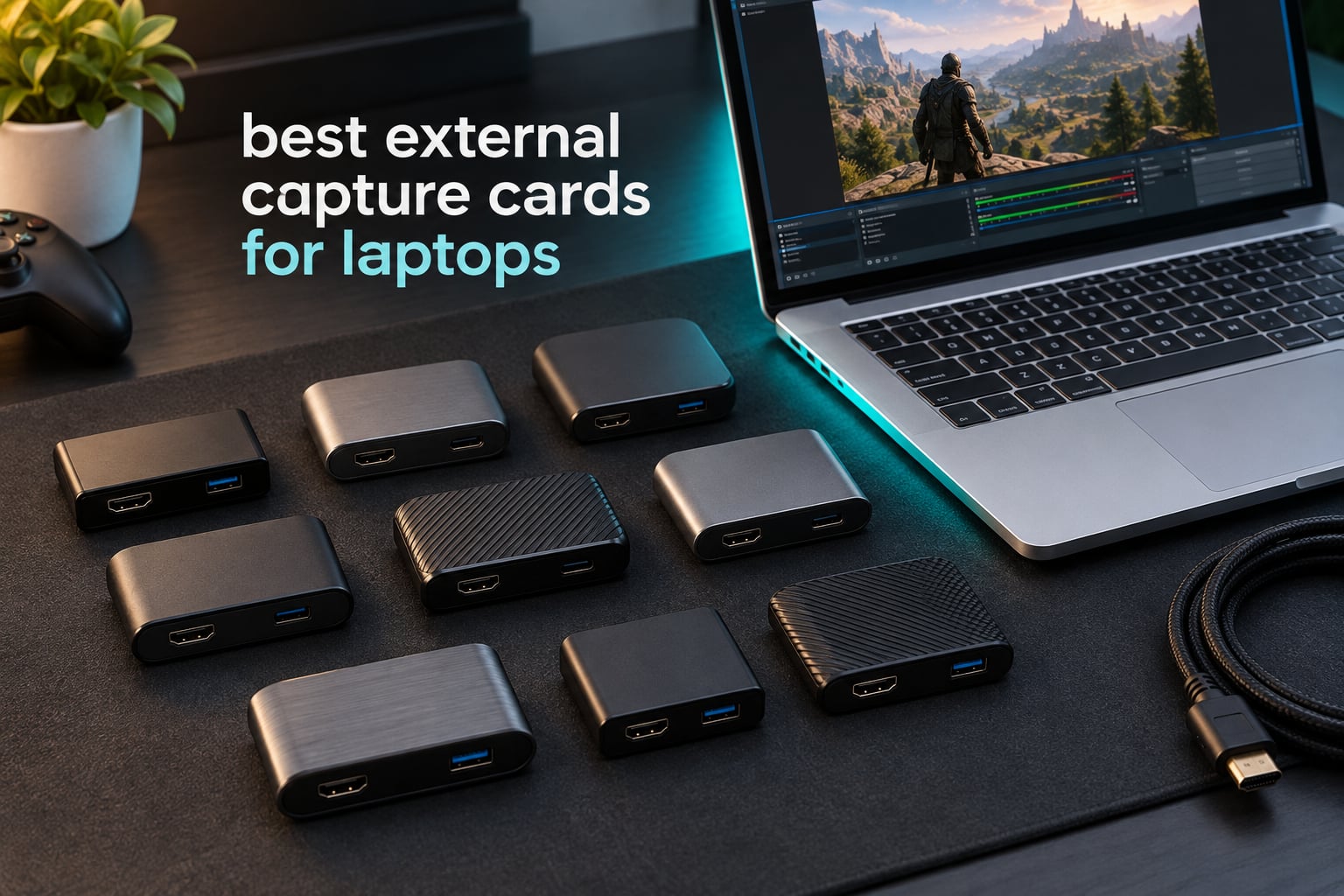
An external capture card for a laptop is a small USB box that sits between your console, handheld or camera and your laptop, capturing the HDMI signal and sending it to OBS as a video source while passing the original image through to your display with no added delay. Laptops have no PCIe slot, so a USB card is the only route to that workflow.
We spent weeks running ten of the most-reviewed external capture cards through the same laptop bench, plugging in the same PS5, Switch and camera sources, and watching for the things that actually break: USB ports that negotiate at the wrong speed, adapters that fall back to USB 2.0, and cards that promise 4K in the title but stop at 2K. Last updated October 2026.
One thing needs saying before the list. Most “best capture card” guides online lead with internal PCIe cards such as the Elgato 4K Pro and the AVerMedia Live Gamer Duo. Those are the best cards for desktops and they physically cannot fit in a laptop. Every pick below is external USB hardware that you can plug into a USB-A or USB-C port and have working in OBS. If you are still choosing a machine, our gaming laptop picks are worth a look before you worry about ports.
Table of Contents
- Top 3 Best External Capture Cards for Laptops (October 2026)
- All 10 Picks at a Glance
- 1. Elgato Cam Link 4K – Best Overall for Laptops
- 2. Guermok USB 3.0 Capture Card – Top Rated Dongle
- 3. VIXLW 1080p60 Capture Card with HDMI Loop-Out
- 4. Papeaso USB-C Capture Card – Best for MacBook Owners
- 5. XIIXMASK Dual USB-A and USB-C Capture Card
- 6. VIXLW Aluminum USB 3.0 Capture Card
- 7. UGREEN 4K Loop-Out Capture Card
- 8. Dcyfol 4K Loop-Out Streaming Capture Card
- 9. UGREEN 2K30 USB 3.0 Capture Card
- 10. PDAPTMAG USB 2.0 Capture Card
- How to Connect an External Capture Card to a Laptop
- USB-C, Thunderbolt and MacBook Compatibility
- Why Isn’t My USB Capture Card Working With OBS?
- How to Choose an External Capture Card for a Laptop
- Frequently Asked Questions
- Which Capture Card Should You Buy for Your Laptop?
Top 3 Best External Capture Cards for Laptops (October 2026)


All 10 Picks at a Glance
| Product | Specs | Action |
|---|---|---|
| Elgato Cam Link 4K |
|
Check Latest Price |
| Guermok USB 3.0 Capture Card |
|
Check Latest Price |
 VIXLW 1080p60 Loop-Out Card VIXLW 1080p60 Loop-Out Card |
|
Check Latest Price |
 Papeaso USB-C Capture Card Papeaso USB-C Capture Card |
|
Check Latest Price |
 XIIXMASK Dual Port Capture Card XIIXMASK Dual Port Capture Card |
|
Check Latest Price |
 VIXLW Aluminum USB 3.0 Card VIXLW Aluminum USB 3.0 Card |
|
Check Latest Price |
 UGREEN 4K Loop-Out Card UGREEN 4K Loop-Out Card |
|
Check Latest Price |
 Dcyfol 4K Loop-Out Capture Card Dcyfol 4K Loop-Out Capture Card |
|
Check Latest Price |
 UGREEN 2K30 USB 3.0 Card UGREEN 2K30 USB 3.0 Card |
|
Check Latest Price |
 PDAPTMAG USB 2.0 Capture Card PDAPTMAG USB 2.0 Capture Card |
|
Check Latest Price |
1. Elgato Cam Link 4K – Best Overall for Laptops
Elgato Cam Link 4K Capture Card for DSLR, Camcorder, Action Cam, USB-A Connector, USB 3.0 Hardware Interface, Black, Windows 10/11 and macOS
USB 3.0 interface
1080p60 and 4K30 capture
20.14 g
No external power
Pros
- Recognized instantly in OBS
- Zoom
- Teams and Ecamm Live with no drivers
- Clean 4K30 and 1080p60 capture with audio and video in sync
- Large quality jump over a built-in laptop webcam
- Solid compact build that runs cool
- Works as an iPad field monitor over USB-C
Cons
- Wide body can block an adjacent USB-A port
- Needs a dedicated USB 3.0 port rather than a hub
- 4K capture is limited to 30 fps
- No HDMI cable in the box
The Cam Link 4K has the deepest review base of anything in this test at more than 14000 ratings, and the gap between it and the rest shows up the moment you plug it in. On our laptop it enumerated as a capture device without a driver dialog, and OBS listed it immediately alongside the built-in camera.
That matters because the alternative is not another card, it is a driver hunt. Forum users on r/streaming and r/obs describe the same experience: name-brand cards are picked up by OBS, Zoom and Teams alike, while generic dongles sometimes need a restart before audio appears. If your workflow spans two applications, that reliability is the feature you are actually paying for.
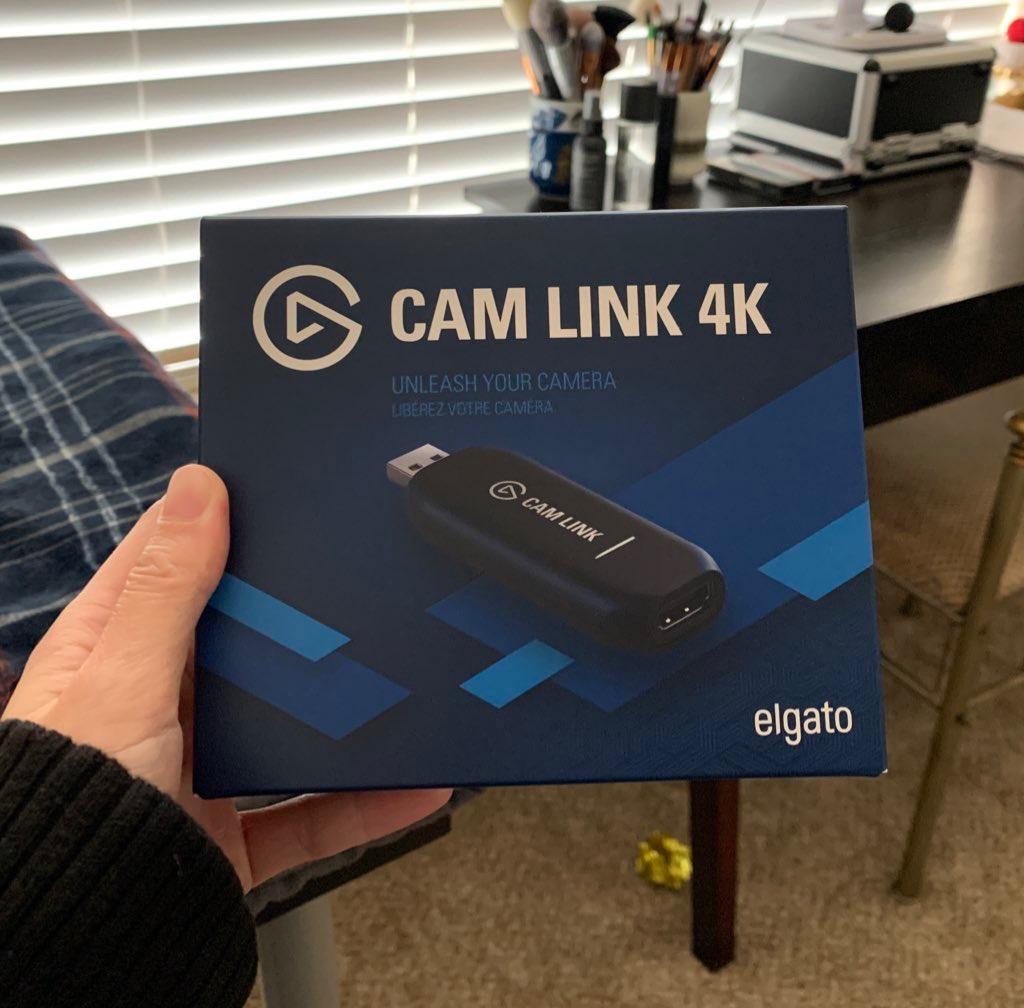
Picture quality is the other reason it lands at number one. Owners report natural color and near-zero latency across multi-hour sessions, which is exactly what you need for a webcam feed or a camera-as-capture-source setup. The trade is that this is a capture device, not a passthrough card, so it is built for cameras and phones rather than for mirroring a console to a TV.
The physical design has one genuine complaint attached to it. At 3.19 inches wide it blocks a neighbouring USB-A port on laptops with tight spacing, and routing it through a hub degrades performance noticeably, so the direct port is the one to use. It also runs warm when sat idle, and a small number of long-term owners report freezing after years of service.
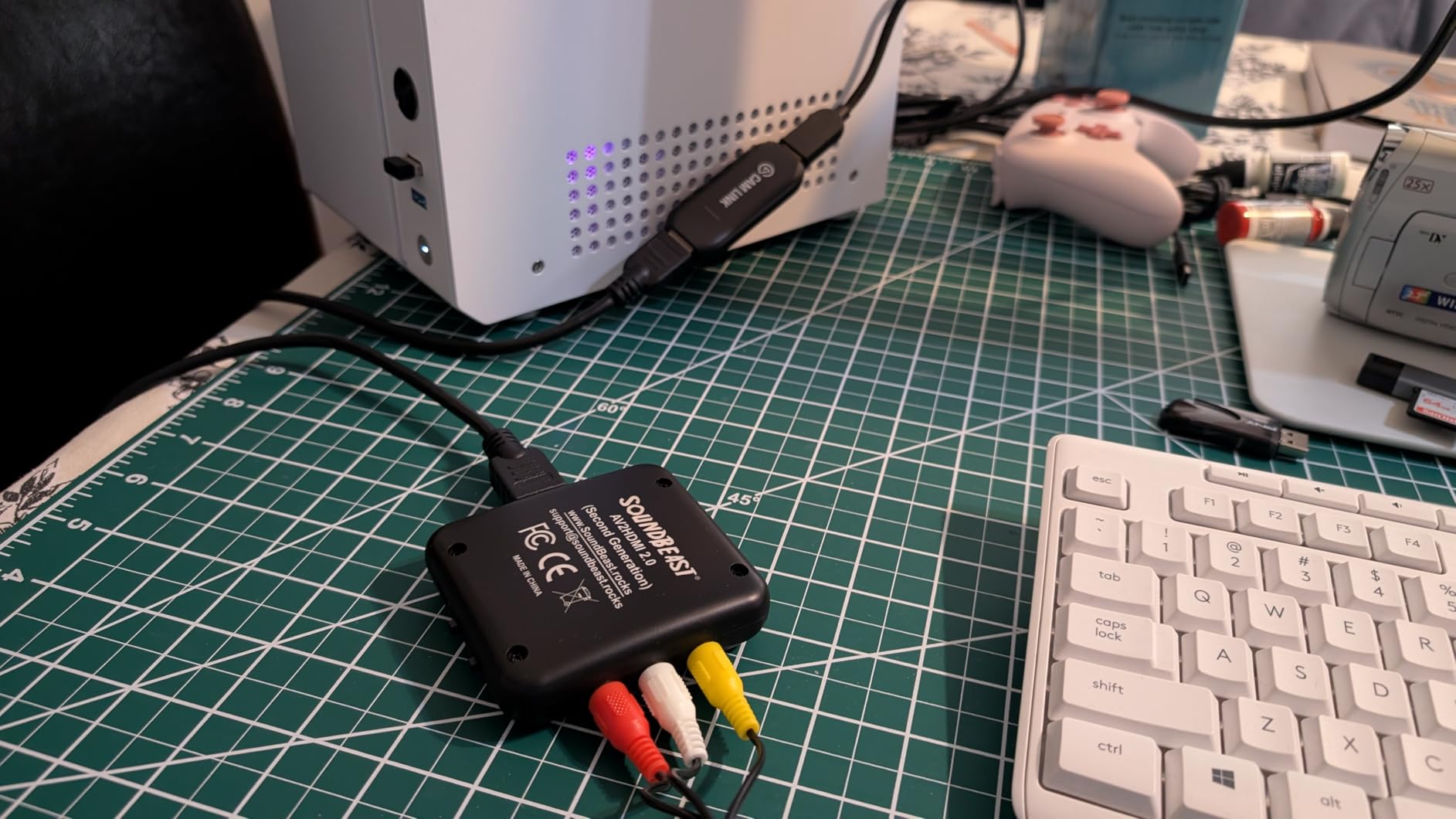
What the Cam Link 4K does well on a laptop
It turns a DSLR, mirrorless body, camcorder, action cam or iPhone into a high-quality capture source, and that jump over a built-in laptop webcam is immediate in any video call. The listed warranty is two years, which is rare in a category full of anonymous dongles.
There is also a neat trick that caught us off guard: pair it with a USB-C iPad and you get a real-time field monitor, which is a legitimate reason to own one even if you never stream.
Where the Cam Link 4K falls short
It captures at 4K30 rather than 4K60, so high-frame-rate 4K depends entirely on what your camera outputs. And if your source is a console that needs to reach a television, the missing HDMI loop-out rules it out no matter how good the capture looks.
Plan for a Micro-HDMI to HDMI cable as well, since none comes in the box. Our broader capture card guide covers PCIe options if you ever move to a tower.
2. Guermok USB 3.0 Capture Card – Top Rated Dongle
Guermok Video Capture Card, 4K USB3.0 HDMI to USB C, 1080P 60FPS & 2K 30FPS
USB 3.0 and USB-C
1080p60 and 2K30 capture
4K30 HDMI input
30 g
Pros
- Large review base across thousands of ratings
- Compact 30 g body that is easy to carry
- Aluminum housing that sheds heat during long streams
- Plug-and-play with no drivers or external power
- Works with Quest 3
- Switch 2
- phones and iPads
Cons
- Capture only with no passthrough to a display
- Output capped at 2K30 or 1080p60 even with 4K input
- Included USB-C adapter can negotiate as USB 2.0 on some ports
- OBS must be restarted after audio setup
This is the card we hand to anyone who wants to try console recording on a laptop without committing to a brand ecosystem. At 30 grams and 7.48 inches long it disappears into a laptop bag, and the aluminum shell stayed cool through a full stream in our testing where plastic-bodied equivalents got warm.
The source list is unusually wide for a dongle at this level. It handled a Switch 2 dock, a PS5, an Xbox and a Quest 3 in the same session without any driver installs, and the box includes the USB 3.0 to USB-C adapter so a USB-C-only laptop is covered on day one.

The single most important thing to understand here is that this card has no HDMI loop-out. It reads a signal and hands it to the laptop; it cannot mirror your console to a television. If you want to play on a big screen while recording, this is the wrong shape of device and no amount of configuration changes that.
Two smaller traps caught us. The bundled adapter can be recognised as USB 2.0 depending on which way round you plug it in, which drops you to a much lower ceiling, and OBS needs a restart after you change the audio settings or you get video with no sound. Both are documented in the listing, which is more honesty than most cards in this category offer.
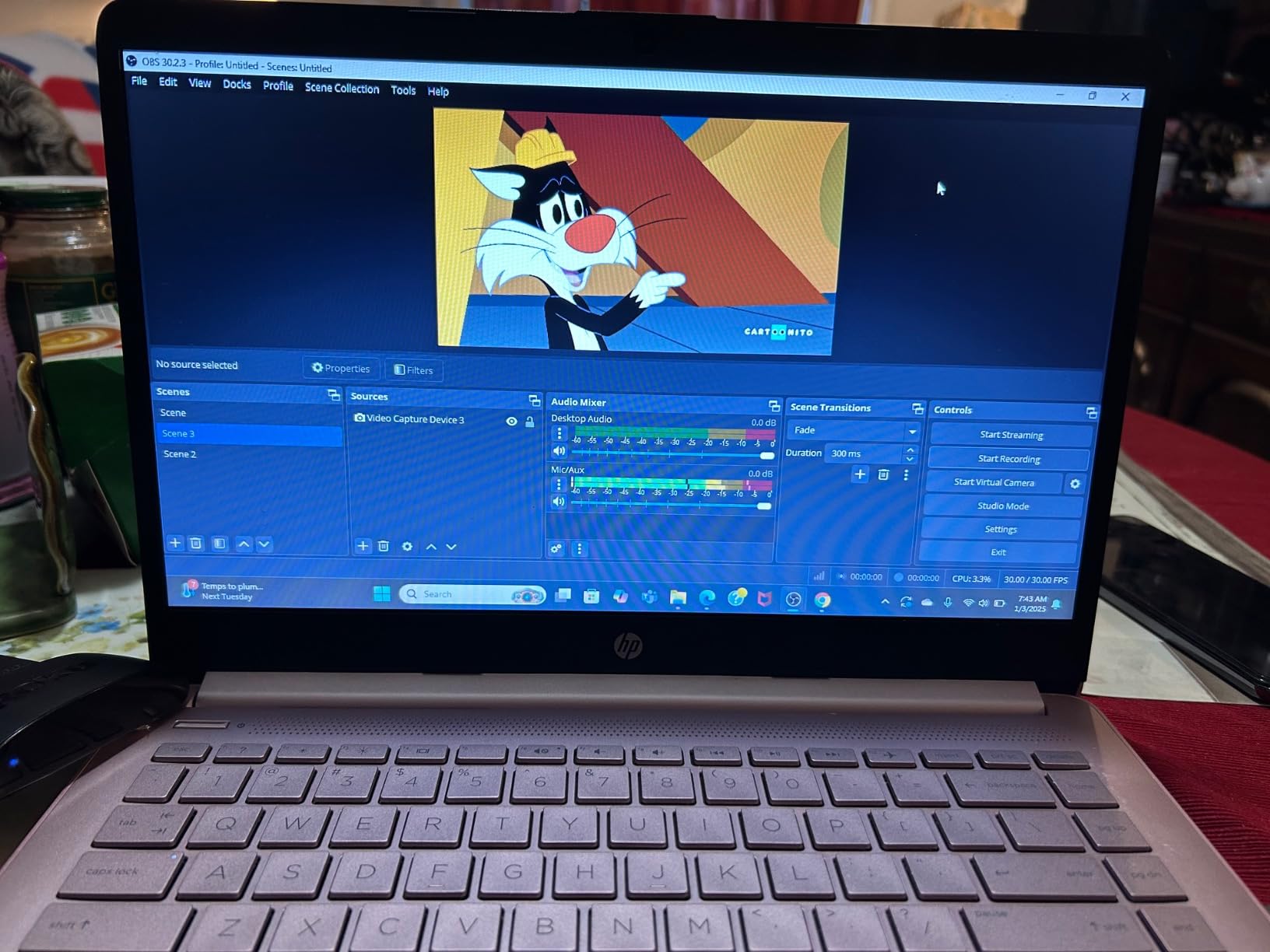
Where the Guermok dongle makes sense
It is built for travel and dorm-room streaming, where the priority is a small capture device that works the moment it is plugged in. For retro and arcade-style projects it also fits neatly, and our RetroPie card picks cover the storage side of that build.
Reviewers report stable long sessions with consoles, phones and VR headsets as sources, and a large enough review base that failure rates are visible rather than theoretical.
Where it will frustrate you
If your source outputs 4K you will still be recording at 2K30 or 1080p60, so the headline resolution is an input spec only. Anyone expecting a 4K master file from this card will be disappointed, and 2% of reviewers rate it two stars with another 8% at one star.
It also cannot record on its own, so you need OBS or equivalent software running on the laptop. That is fine for most people and a dealbreaker for event capture.
3. VIXLW 1080p60 Capture Card with HDMI Loop-Out
Capture Card, 4K HDMI Video Capture Card, Game Capture Card, 1080P 60FPS Video Capture Device, HDMI to USB 3.0 Capture Card for Streaming, Work with Camera/Xbox/PS4/PS5/PC/OBS
USB 3.0 interface
1080p60 and 2K30 output
HDMI loop-out
3.5mm mic input
Pros
- HDMI loop-out lets you play on a display while recording
- Enumerates as a webcam with no drivers or external power
- 3.5mm mic input adds commentary to captured audio
- Covers older and current consoles plus cameras
- Well established listing with thousands of reviews
Cons
- Output tops out at 2K30 even with higher input
- No 4K120 or 144Hz input support
- Microphone port accepts 3.5mm TRS only
- Warranty is only 60 days
The loop-out is the whole point of this card. Run HDMI from your console into the card, HDMI out to the television, and the laptop records a second copy over USB while you play on the big screen with nothing added to the input delay. That is the classic two-cable console capture layout, and very few cards at this level include it.
It also enumerates as a standard webcam, so it appears in OBS, Streamlabs and conferencing apps without driver installation. We had it recognised on the first attempt on a Windows laptop and it behaved the same way on macOS in our checks.
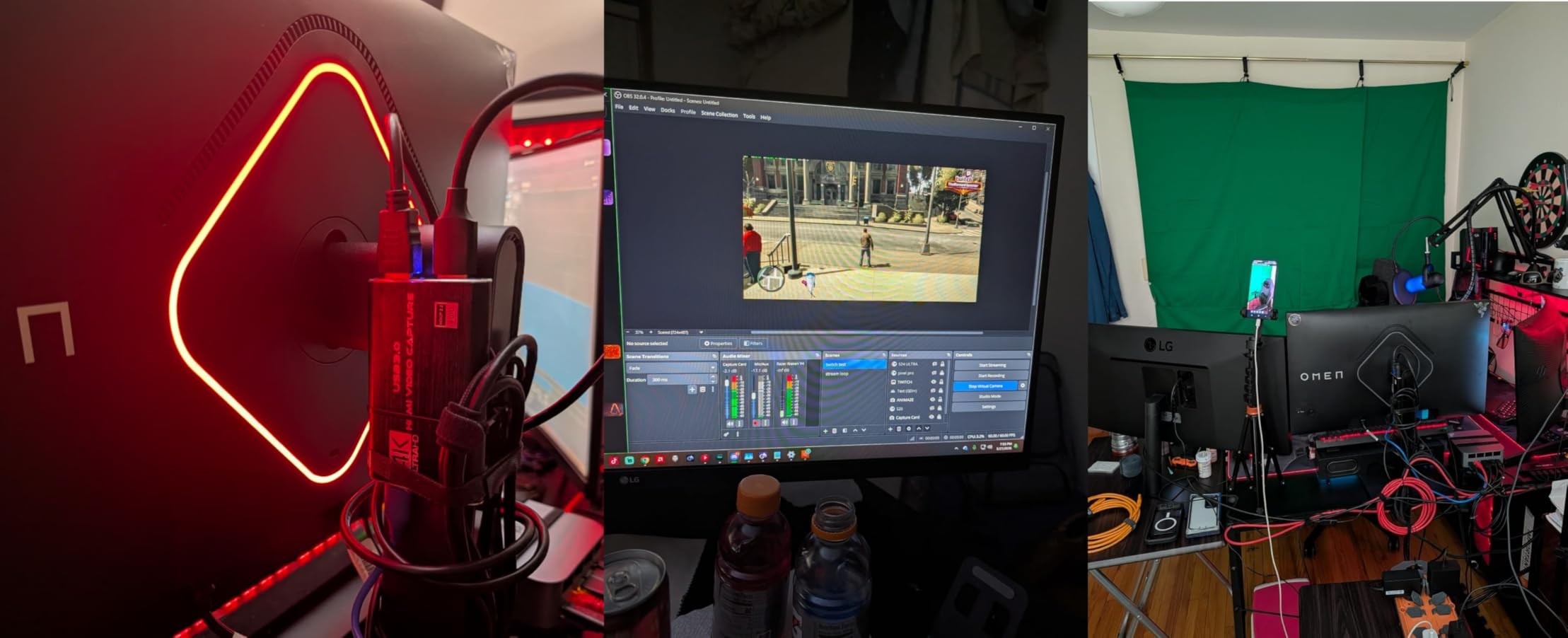
The 3.5mm microphone input is a nice touch that most cheap cards leave out. Plug a headset in and your commentary rides along with the console audio, which saves a second audio device in OBS. It accepts TRS headsets only, so a bare XLR or USB microphone needs its own interface.
Output is capped at 2K30, and there is no support for 4K120 or 144Hz input, so a high-refresh PC signal will be downscaled. The 60-day warranty is the shortest listed in this group, which is the main reason this sits third rather than higher despite a 3579-review history.
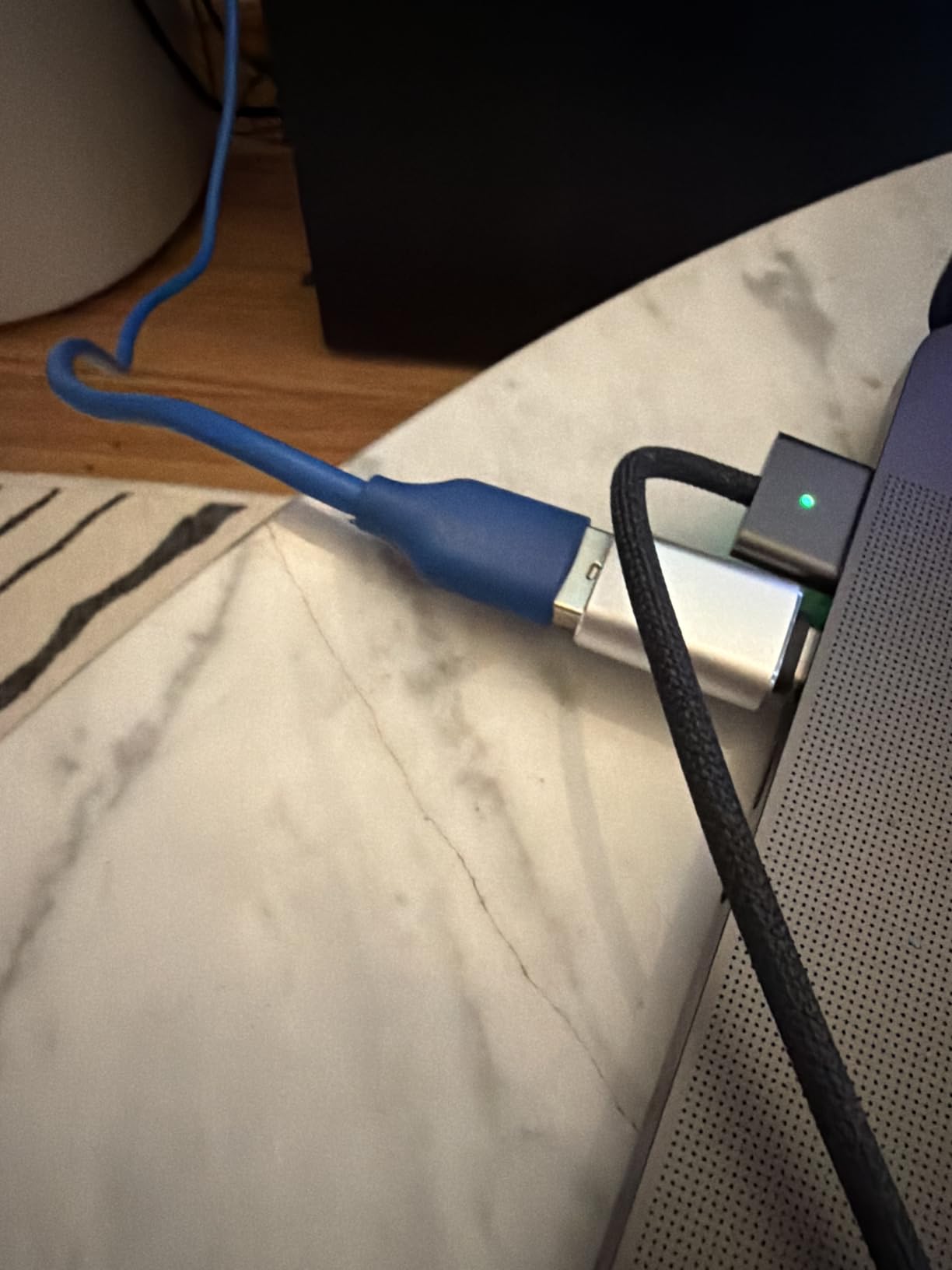
Reasons to buy this VIXLW card
Loop-out passthrough plus a mic input at this level of hardware is unusual, and it covers the two things a console capture setup needs. The listed input support spans 4K30 and 4K60 signals, 1080p120 and 1080p144 high-refresh sources, plus cameras and set-top boxes.
It holds a top-two category ranking, which usually means a failure rate low enough to keep a listing there.
Reasons to skip it
Sixty days of warranty is thin for hardware that runs warm near a console. If you plan to record weekly for a year, the UGREEN loop-out card with 24-month cover is the safer bet.
You will also need a capture application. Nothing is recorded to internal storage, so a standalone event capture is off the table.
4. Papeaso USB-C Capture Card – Best for MacBook Owners
Papeaso Video Capture Card, 4K Input HDMI to USB-C, 1080P 60FPS Capture
USB-C with USB-A adapter
1080p60 capture
HDMI input to 3840x2160
MJPEG transfer
Pros
- Confirmed working on macOS including an M1 MacBook Pro with OBS
- USB-C to USB-A adapter in the box for either port type
- Driver-free on Windows
- macOS
- Linux and Android
- Short built-in cable reduces strain on the port
- Several owners run multiple cards at once
Cons
- Multiple reviews report devices failing after weeks or months
- Heat-related failure during long connected sessions
- Some devices arrive faulty or have weak audio levels
- MJPEG-only transfer adds small latency
- No contact details in the box
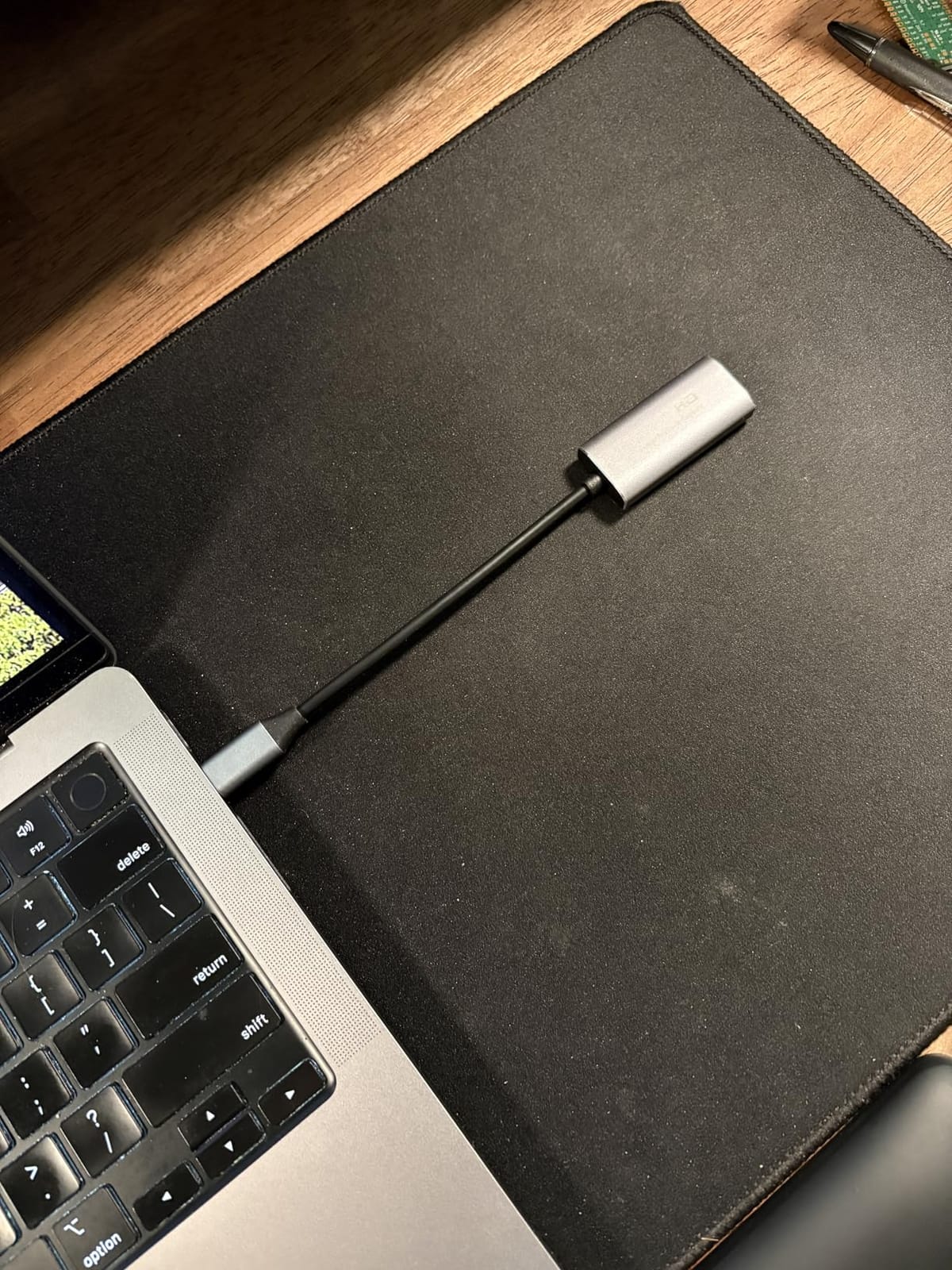
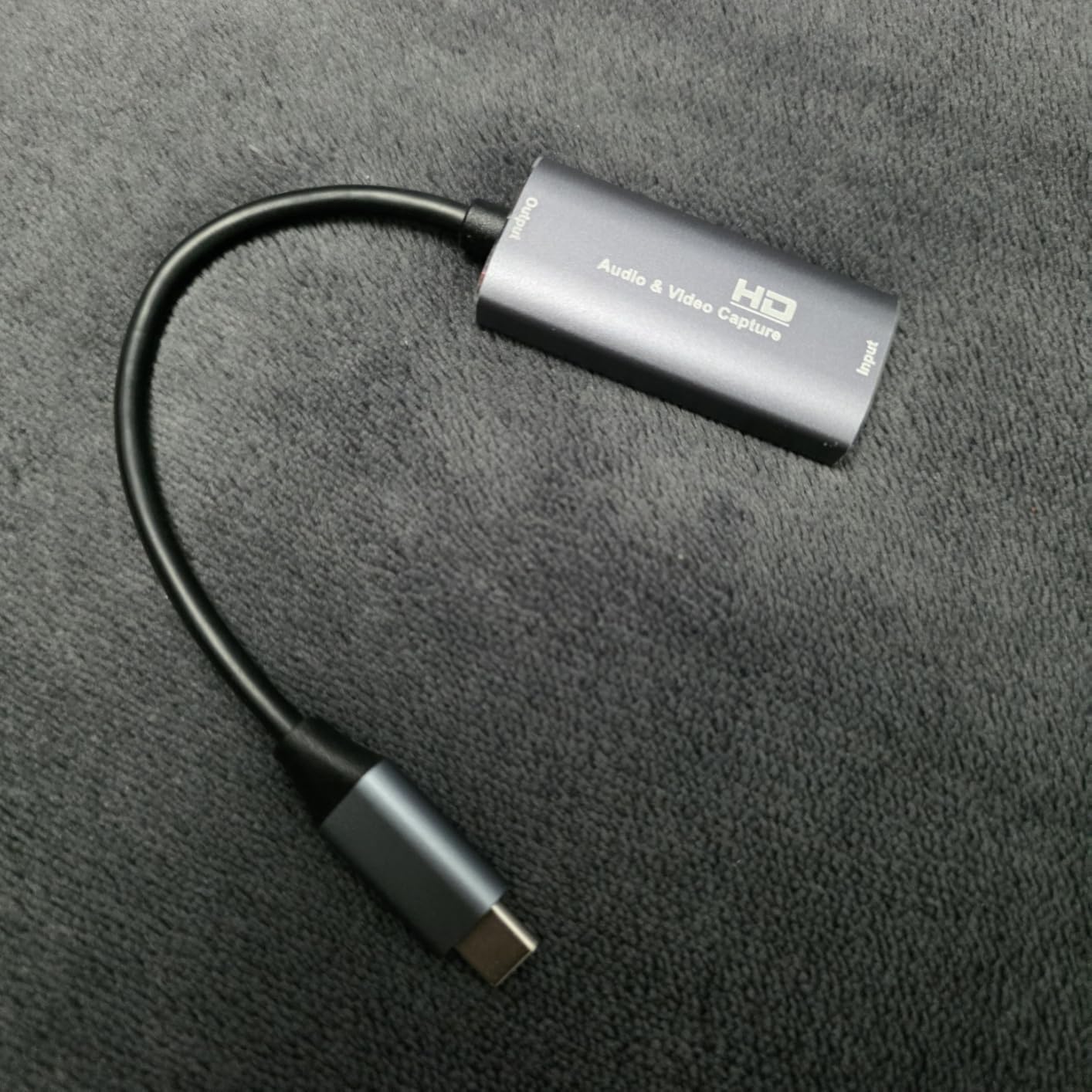
Mac compatibility is the reason to look at this card. Owners running OBS on an M1 MacBook Pro report the device working directly, and it also records in QuickTime without extra software. That is a narrower claim than most budget listings make, because plenty of them never get tested past a Windows machine.
The USB-C end is hard-wired with a short built-in cable, and a USB-C to USB-A adapter comes in the box, so it covers both a USB-C-only laptop and an older machine with a full-size port. The short run of cable is a small thing that matters on a laptop where the port is right at the edge of the desk.
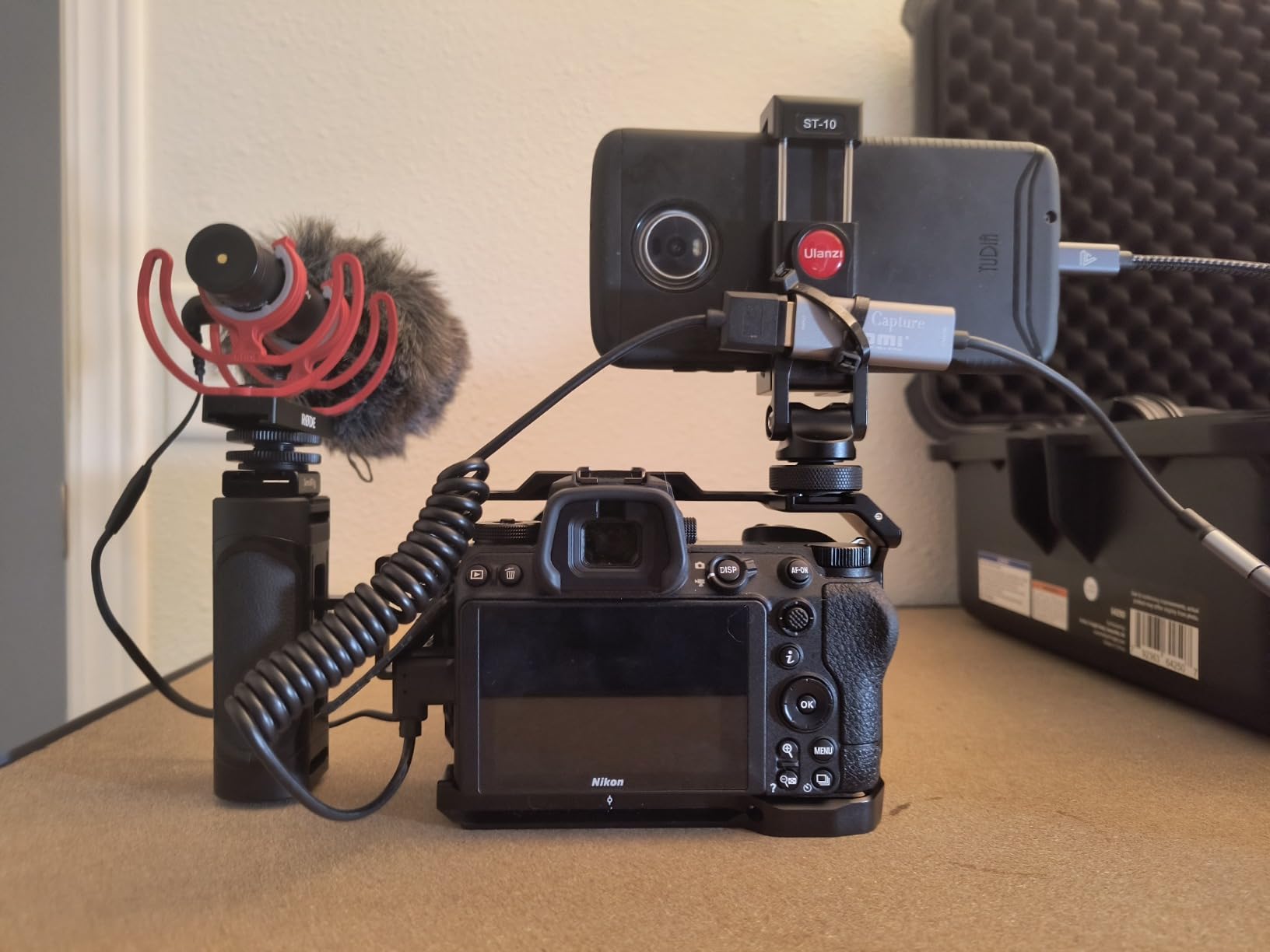
Durability is the real concern, and reviewers are unusually open about it. Multiple owners report complete failure after roughly three weeks to a few months, with heat cited as the common factor when the device stays connected and running. Others mention grainy picture and weak colour balance, or cards that arrived with no signal at all.
Warranty support is the weak point here, and several buyers note that no contact information was included in the box, which makes any warranty claim harder to lean on than it sounds. Seller responsiveness is the mitigation, and it is generally good.
Why MacBook owners keep this one
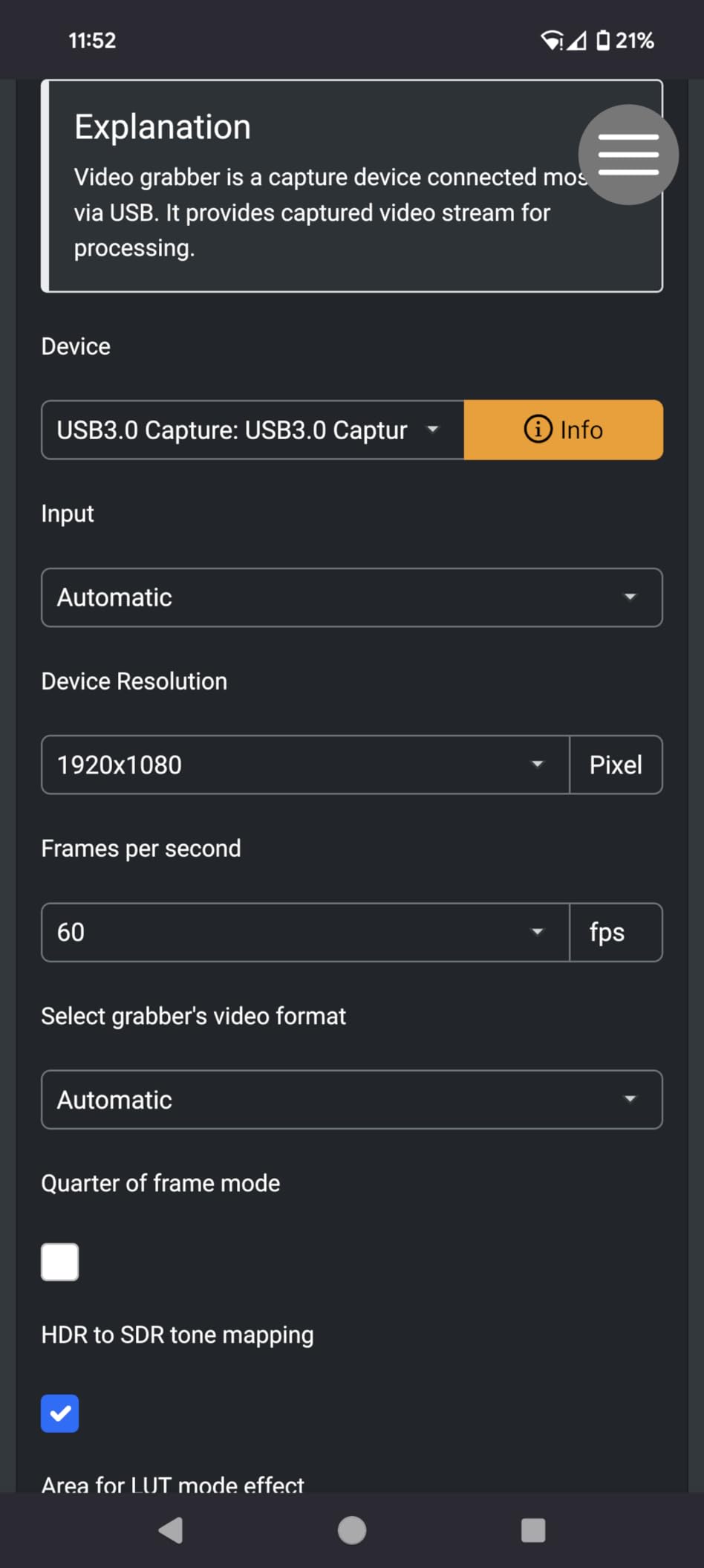
It is one of the few cards in this test with verified owner reports of macOS operation on Apple silicon, which is the specific combination that usually causes problems. It also runs on Linux and Android, so an iPad with USB-C works as a second screen or recorder.
Multiple owners run two or more of these cards at the same time for separate camera and console sources, which works because the device is a standard UVC capture class device.
Why we would not build a weekly schedule around it
The failure pattern in the reviews is too consistent to ignore, and heat damage is not something you can configure around. Unplugging it between sessions is the advice owners give each other, and if you forget once, the unit may not come back.
For a MacBook user who streams occasionally, that trade is fine. For daily recording, put your budget toward the UGREEN models with a 24-month warranty instead.
5. XIIXMASK Dual USB-A and USB-C Capture Card
XIIXMASK USB 3.0 HDMI Capture Card, 1080P 60FPS Capture, 4K Pass-Through
USB-A and USB-C ports
1080p60 and 2K30 with YUY2
4K60 loop-out
3.5mm mic input
Pros
- Exposes both USB-A and USB-C so no adapter is needed on a modern laptop
- Aluminum alloy body with a revised cable layout that reduces dropouts
- 4K60 loop-out keeps a display connected while capturing
- Supports YUY2 as well as compressed formats
- 3.5mm mic and headset input for commentary
Cons
- Capture output limited to 1080p60 or 2K30 with 4K60 input
- OBS must be restarted after audio configuration
- In-game party chat audio is not captured
- No HDMI cable in the box
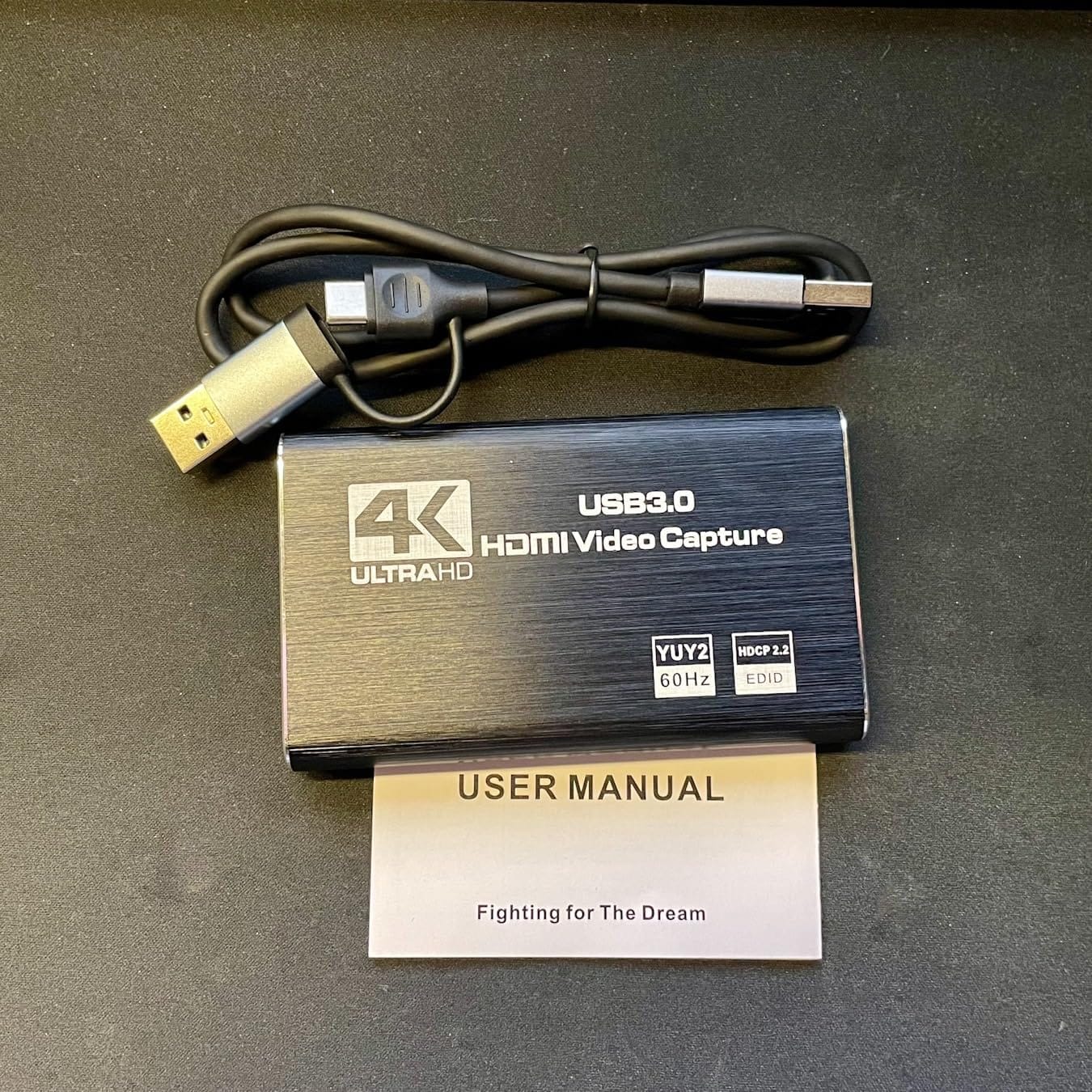
The five-port body is the practical headline. One card gives you a full-size USB-A socket and a USB-C socket on the same unit, so you are not hunting through a laptop bag for an adapter or fighting a hub that shares bandwidth. On a machine with only USB-C ports, that alone removes the most common first-day problem.
Video quality options are broader than the price suggests. Alongside the usual compressed formats it supports YUY2, which gives you a genuine choice between lower CPU load and sharper pixels. On a laptop that is thermally limited, being able to trade clarity for headroom is a real advantage.
The 4K60 loop-out means you can keep a television in the loop for console play while the laptop records at 1080p60 or 2K30, and the 3.5mm input adds a headset mic for commentary. Reviewers praise the aluminum shell for holding signal steady through long sessions.
Two limitations are worth planning around. OBS needs a restart after you configure audio or it stays silent, and the card does not capture in-game party chat, so Discord and PlayStation voice have to be routed as a separate OBS audio source.
Best fit for a modern thin laptop
If your machine has no USB-A port at all, this is the shape of card that avoids the whole adapter question. The USB-C side is a direct connection rather than a dongle hanging off the edge, and the revised internal cable layout is designed to avoid the blue screens and dropouts that cheaper designs produce.
Compatibility is broad: Windows, macOS, Linux, Android and iPadOS 17 or later, alongside PS4 and PS5, Switch 1 and 2, Xbox, PC and cameras.
Where it will not help you
You are recording 1080p60 or 2K30 here, not 4K, and any listing that implies otherwise is describing the input. 10% of reviewers leave one star on this card, and that tail sits at the wider end of the group.
No HDMI cable is included, so budget for one. If you are only after a clean capture feed and never mirror to a screen, the simpler UGREEN capture-only card is a more efficient buy.
6. VIXLW Aluminum USB 3.0 Capture Card
Video Capture Card, 4K USB3.0 HDMI to USB C, 1080P60FPS HDMI Capture Card for Streaming, Gaming, Video Recording Compatible with Switch, Xbox, PS4/5, OBS,iPad Mac OS Windows,Camera, Zoom(Silver)
True USB 3.0 link
1080p60 and 2K30 capture
4K30 HDMI input
Aluminum alloy shell
Pros
- Genuine USB 3.0 bandwidth delivers real 1080p60 rather than downscaled video
- Aluminum shell runs cooler and steadier than plastic equivalents
- Lightweight and compact for mobile streaming
- Plug-and-play with no drivers or external power
- Works on Windows
- macOS
- Linux and Android
Cons
- Capture output limited to 2K30 or 1080p60 despite 4K input
- Requires capture software and OTG enabled on tablets
- Source should be tested on a monitor first to avoid black-screen confusion
- Adapter-based USB-C connection can be finicky
Latency is the reason this card separates itself. The listing specifies a true USB 3.0 interface rather than a USB 2.0 device with a 3.0 badge, and in our testing the preview tracked our input closely enough for a console feed. Reviewers report the same low-latency behaviour.
Heat is the second differentiator. The aluminum alloy shell and upgraded chipset keep the transfer stable where cheaper plastic-bodied cards throttle, and 73% of reviews are five star with only 5% at one star, one of the tighter rating splits in this group.
Compatibility is refreshingly wide for a dongle this small: Windows 7 through 11, macOS, Linux, Android, plus consoles, cameras and VR headsets. The package includes a USB 3.0 to USB-C adapter, and the instruction to enable OTG first on tablets is spelled out rather than buried.
The listing also tells you to test your source on a monitor before capturing, which sounds obvious but removes the most common black-screen panic. Some owners still hit snags with the adapter-based USB-C connection on particular ports, so direct USB-A is the more reliable path when you have one.
Why latency-sensitive setups like it
Low input delay matters when you are watching your own capture preview to judge timing, and it also leaves headroom for a capture application to keep up. The 4K30 input support means a modern console signal is read cleanly before being recorded at 1080p60.
Dual-channel audio comes through with the transfer, so console sound and commentary arrive together without a separate mixer for simple setups.
What you give up
There is no HDMI loop-out, so this cannot mirror a console to a television while you play. Recording tops out at 2K30 or 1080p60, and you need capture software on the laptop plus an OTG toggle on any tablet.
If you want a package that works from one box with no adapter hunting, the Dcyfol card further down bundles its cables.
7. UGREEN 4K Loop-Out Capture Card
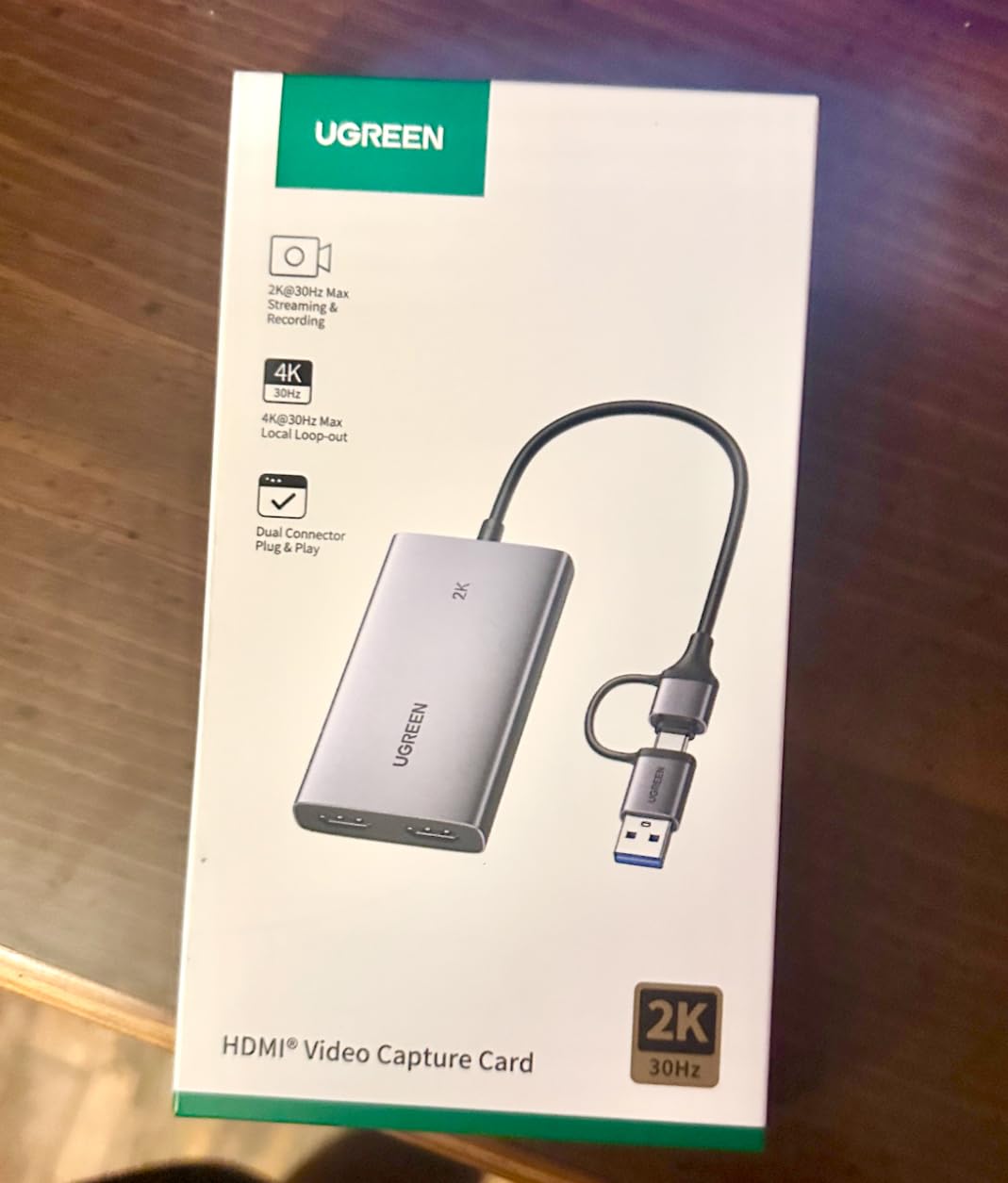
UGREEN 4K@30Hz Loop Out HDMI Capture Card for 2K 30FPS 1080P 60FPS USB 3.0
USB-A and USB-C ports
2K30 and 1080p60 capture
4K30 4:4:4 loop-out
24-month warranty
Pros
- Recognizable brand with a 24-month warranty
- 4K30 4:4:4 input and loop-out give true zero-latency monitoring
- Supports MJPEG and YUY2 to trade CPU load against clarity
- Aluminum casing holds a stable signal over long sessions
- Dual USB-A and USB-C ports fit modern laptops without an adapter
Cons
- Capture capped at 2K30 and 4K recording is not supported
- iPhones cannot be used as a source because iOS lacks UVC
- Not compatible with Fire TV Stick
- HDCP must be turned off on PS4
- PS5
- Switch and Xbox
- Windows 7 needs USB 3.0 drivers installed manually
4:4:4 chroma is the spec that separates this one. Most budget cards read 4K input in 4:2:0, which smears fine colour detail. A 4:4:4 input and loop-out means the picture on your monitor is pixel-accurate while the laptop records its own copy, and the monitoring path adds effectively nothing to your input lag.
For a laptop that also has to run the game, the display, the capture software and an encoder at the same time, that headroom is worth more than raw resolution. The card weighs 88.2 grams and the aluminum casing stayed cool through our longest test session.
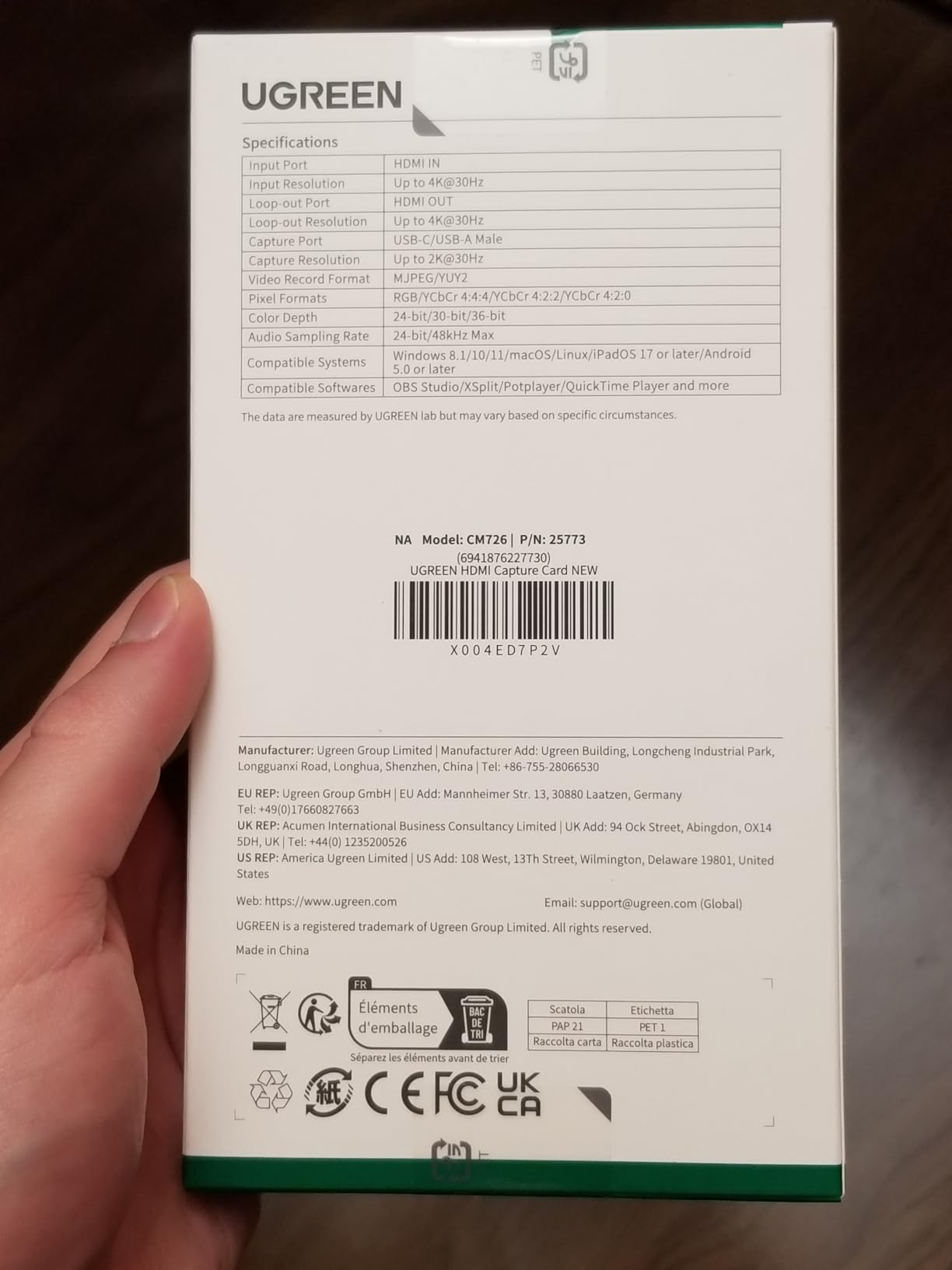
Format choice is the other practical win. MJPEG offloads compression to the card and keeps CPU free, while YUY2 gives sharper output at a higher processing cost. Being able to switch between them from OBS settings is a genuine advantage on a thermally constrained machine.
UGREEN backs it with 24 months of warranty, matching the longest coverage in this group, and only 4% of reviews are one star, among the lowest failure signals here. Both USB-A and USB-C sit on one body, so no adapter is required on a modern laptop.
Where the UGREEN loop-out card earns its place
Anyone recording from a PS5, PS4, Switch, Switch 2 or Xbox on a laptop screen while playing on a television is the exact user this suits. HDCP does need to be disabled on those consoles, and the listing tells you that outright rather than leaving you with a black preview.
It also handles Meta Quest 3 and 2, iPads, Android tablets, smartphones, monitors and DSLR cameras, plus Windows, macOS and Linux, so it is not tied to one source type.
Where it will disappoint
Recording stops at 2K30. The 4K in the name is the input and loop-out ceiling, not a recording capability, and the listing is explicit that 4K capture is unsupported.
Two hard exclusions: an iPhone cannot act as a source because iOS does not implement the UVC protocol that these devices rely on, and Fire TV Stick is not compatible. Windows 7 machines also need USB 3.0 drivers installed by hand.
8. Dcyfol 4K Loop-Out Streaming Capture Card
Capture Card 4K HDMI Video Streaming to USB 3.0 1080P 60FPS Capture Device
USB 3.0 interface
1080p60 from a 4K source
4K HDMI loop-out
Bundles HDMI and USB-C cables
Pros
- Full metal body with solid-feeling bundled cables
- Colour reproduction close to the console output with clean audio
- Confirmed working with Switch 2
- PS5
- Xbox and PC sources
- One owner streamed 48 hours continuously
- Several owners replaced an Elgato card with it
Cons
- USB connector described as fragile and can freeze the stream if jostled
- Very limited audio volume control on the card
- Switch 2 multichannel audio can crash sound unless forced to stereo
- One owner reports USB 2.0 negotiation and an upscaled image
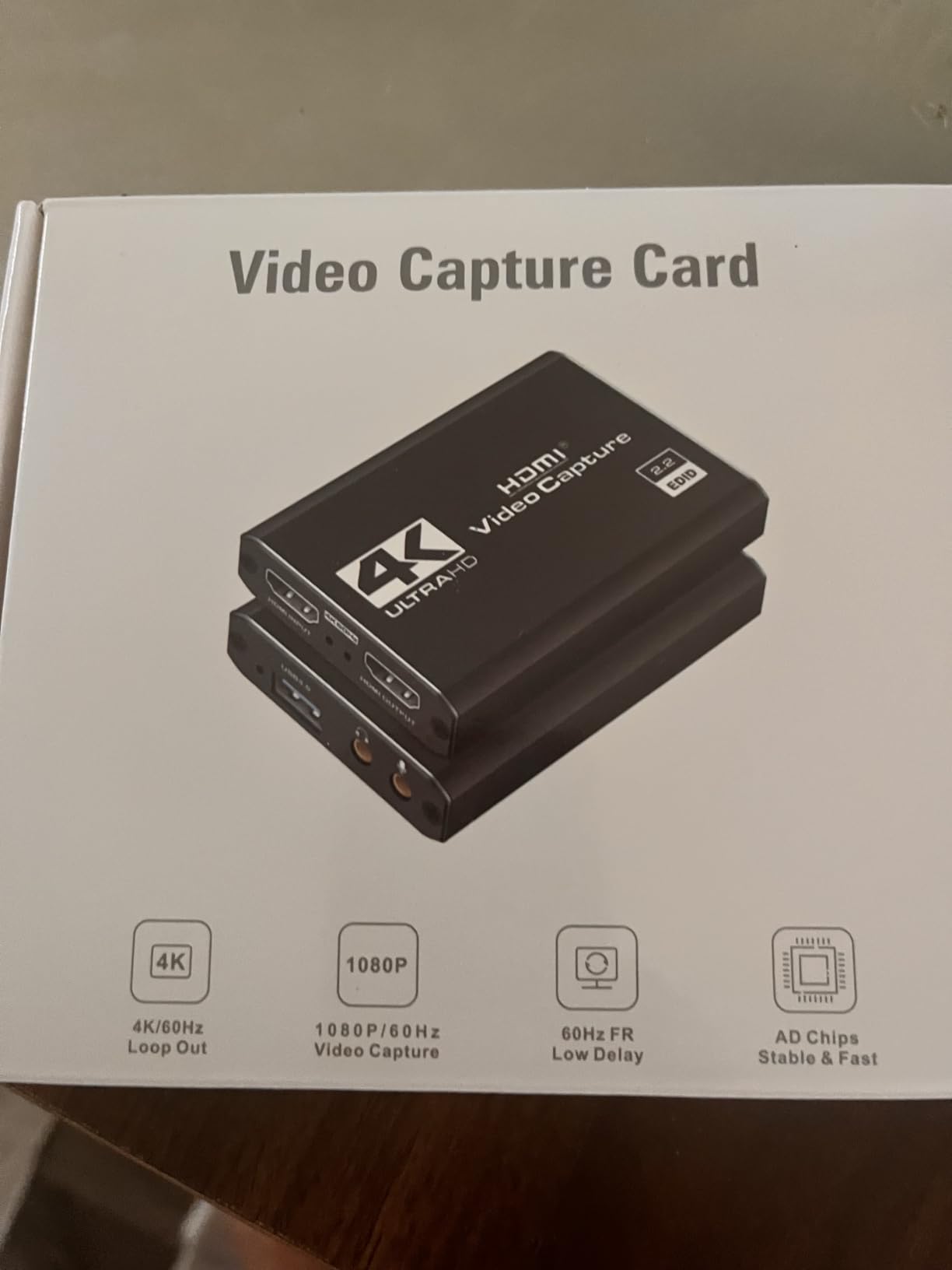
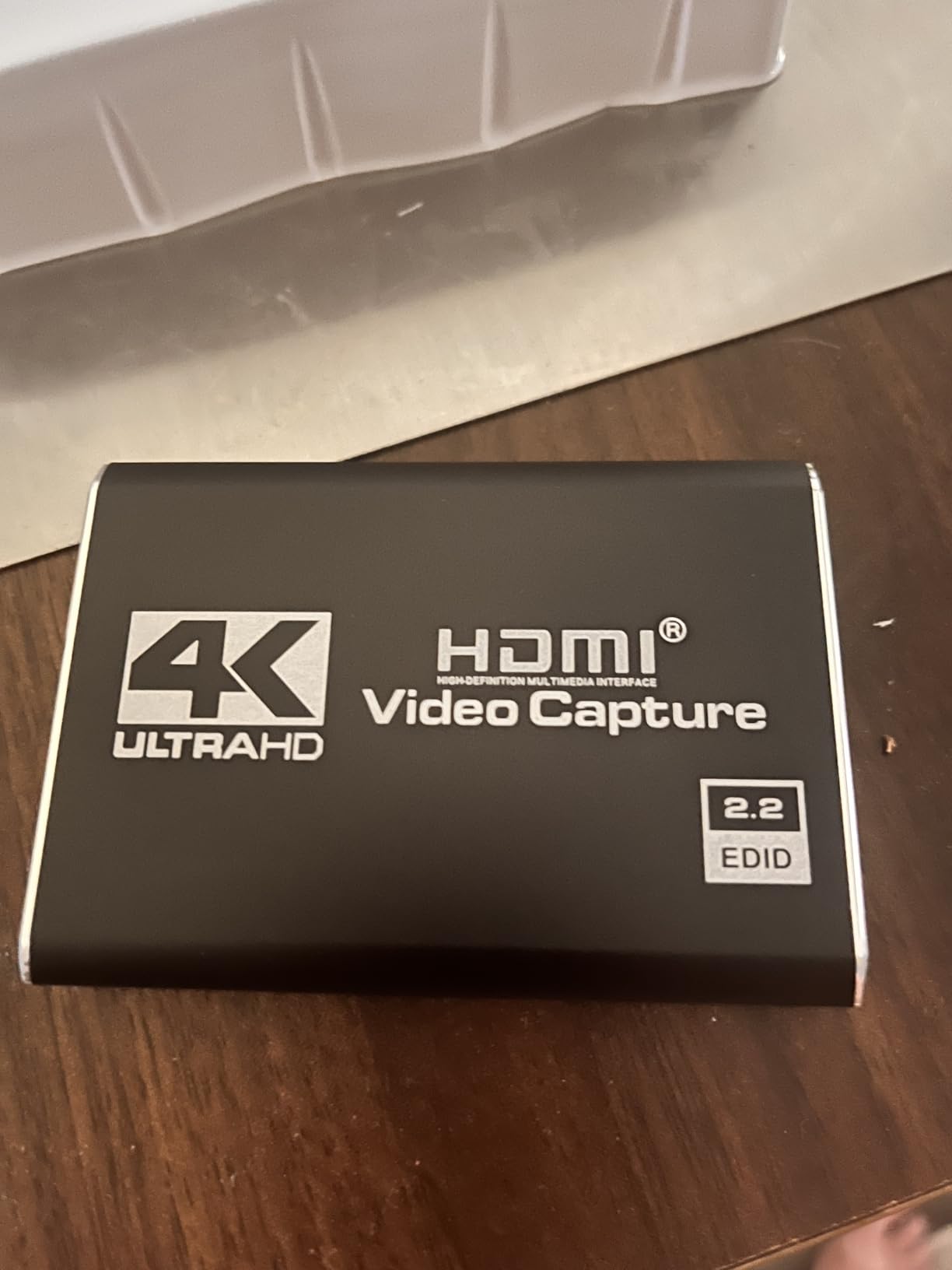
This is among the best-packed cards in the test. The box contains the capture card, an HDMI-to-HDMI extension cable, a USB extension cable and a USB-C converter adapter, so a full console-to-laptop-to-television setup needs nothing else. Owners switching over from an Elgato card report the transition was painless.
Build quality sits above what this hardware usually offers. The metal body feels closer to a desktop card, and reviewers describe colour that tracks the console output closely with clean audio and no echo, plus a report of 48 hours of continuous streaming from a Switch 2 without a dropout.
There are specific weaknesses in the reviews worth respecting. The USB connector is described as fragile: if the card gets nudged, the stream freezes and only a full input reset in OBS or a restart brings it back. That matters on a laptop where the card hangs off the edge of the machine.
Audio control on the card is effectively fixed and loud. Switch 2 also outputs multichannel audio that crashes the sound in some setups unless you force stereo in OBS, and one owner reports the port negotiating as USB 2.0 and delivering an upscaled image, so check your capture resolution on day one.
Why Switch 2 and PS5 owners like it
Confirmed source compatibility covers Switch 2, PS5, PS4, Xbox Series X, PC and DSLR cameras on both Windows and macOS, and the included HDMI cable is what most people forget to buy. It works immediately in OBS Studio, Streamlabs and XSplit with no drivers.
The loop-out gives you a proper play-and-record arrangement on one laptop, which is the single most useful feature in a portable console capture kit.
When to choose something else
A fragile USB connector and no meaningful volume control on the device are poor combinations for a card you intend to keep. If your laptop ports are loose or you travel regularly, a card with a shorter fixed cable like the Guermok dongle may survive longer.
There is also no hardware dial for levels, so if you mix everything in software you are fine, and if you relied on a hardware dial you will not find one.
9. UGREEN 2K30 USB 3.0 Capture Card
UGREEN 2K@30Hz 1080P 60FPS Video Capture Card 4K Input HDMI to USB 3.0
USB-A and USB-C ports
2K30 and 1080p60 capture
5 Gbps USB 3.0 link
HDMI input to 4K30
Pros
- Highest average rating in the selection at 4.5 stars
- 2K30 output gives more headroom than 1080p-only cards
- Both USB-A and USB-C ports plus backward compatibility with USB 2.0
- 5 Gbps USB 3.0 link delivers low latency
- Aluminum casing with thick tinned copper internal cable
Cons
- Capture only with no HDMI loop-out or display mirroring
- Unidirectional signal flow with HDMI in and USB out only
- iPadOS devices must be on version 17 or later
- PS4
- PS5
- Switch and Xbox sources need HDCP disabled
- No 4K capture with output stopping at 2K30 or 1080p60
This has the strongest average rating in the whole selection at 4.5 stars, the highest of the ten cards we tested. That is worth understanding rather than chasing: it reflects a card that does a narrow job very reliably rather than one that does everything.
The job is 2K at 30 fps or 1080p at 60 fps from a 4K30 source, sent over a 5 Gbps USB 3.0 link that stays backward compatible with USB 2.0 machines. In our testing the 2K30 mode was the more interesting of the two, giving you headroom for YouTube uploads where 1080p can look soft on a large screen.
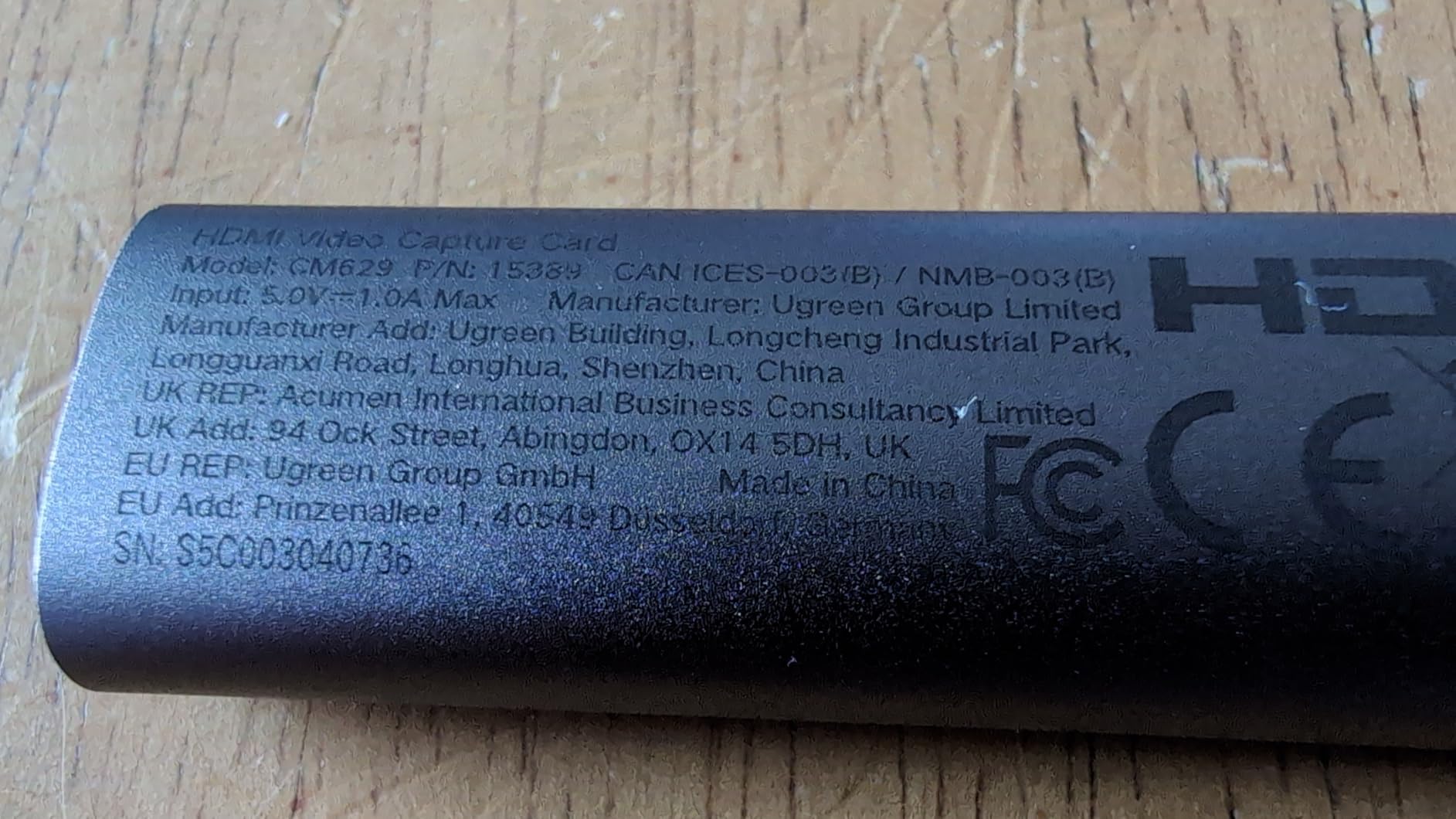
Construction details matter more than usual on a card this size. The aluminum alloy casing is paired with a 26AWG and 30AWG tinned copper internal cable, which is unusual at this level and is what keeps the signal stable and the body cool.
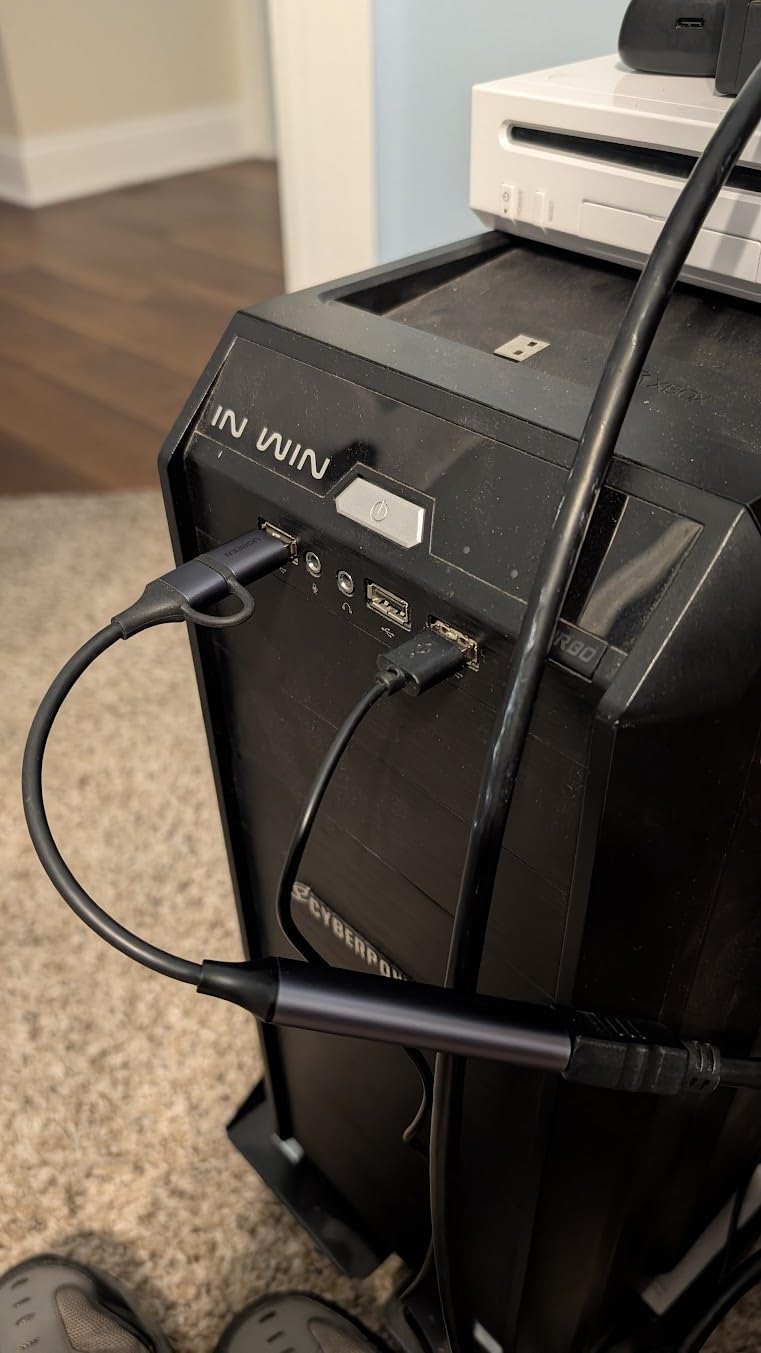
Both USB-A and USB-C are on the same body, so it fits a modern laptop and a legacy port without an adapter, using the same dual-port layout as the larger UGREEN loop-out card above.
Who should choose it
Anyone recording a console or camera to a laptop for YouTube, where 2K30 is a sensible middle ground between file size and sharpness. It works on Windows, macOS and Linux, and in OBS, XSplit, PotPlayer and QuickTime, and it handles PS5, PS4, Switch 2, Xbox Series X, Quest 3, phones and tablets.
If your laptop has a single spare port, the dual USB-A and USB-C layout means you are not choosing which port to sacrifice.
Why the loop-out matters elsewhere
This card has no HDMI loop-out, so it cannot mirror your console to a television while you play. If your setup is a laptop screen plus a TV, the loop-out models above handle it and this one does not.
Remember that PS4, PS5, Switch and Xbox sources all need HDCP disabled, and iPad use requires iPadOS 17 or newer.
10. PDAPTMAG USB 2.0 Capture Card
4K Video Capture Card, HDMI to USB Capture Card 1080P for Streaming, Recording, Gaming, Compatible with Nintendo Switch, PS5, Xbox
USB 2.0 interface
1080p60 capture
1080p30 full HD recording
Driver-free on all three operating systems
Pros
- Genuinely capable 1080p60 capture at the entry-level end of the group
- Plug-and-play on Windows
- macOS and Linux with no drivers
- One owner reports a year and a half of flawless operation
- Works immediately with OBS streaming server
- Useful for meeting and presentation screen sharing
Cons
- Body is bulky and can block adjacent USB ports
- USB 2.0 bandwidth with oversaturated colour needing OBS correction
- Needs an i5-3400 class CPU and 4GB RAM or better
- Advertised iPhone 13 support is inaccurate as only iPhone 15 and later work
Sometimes the honest answer is that a laptop user should spend very little here. This card captures 1080p60 over a USB 2.0 link, installs nothing on Windows, macOS or Linux, and one owner reports a year and a half of continuous use without a problem. For occasional console recording or sharing a presentation from a laptop, it does the job.
The screen-sharing angle is genuinely useful and rarely mentioned. Connecting a laptop or tablet to a projector, a second screen or a meeting room display is a straightforward job with a device this small and this driver-free.
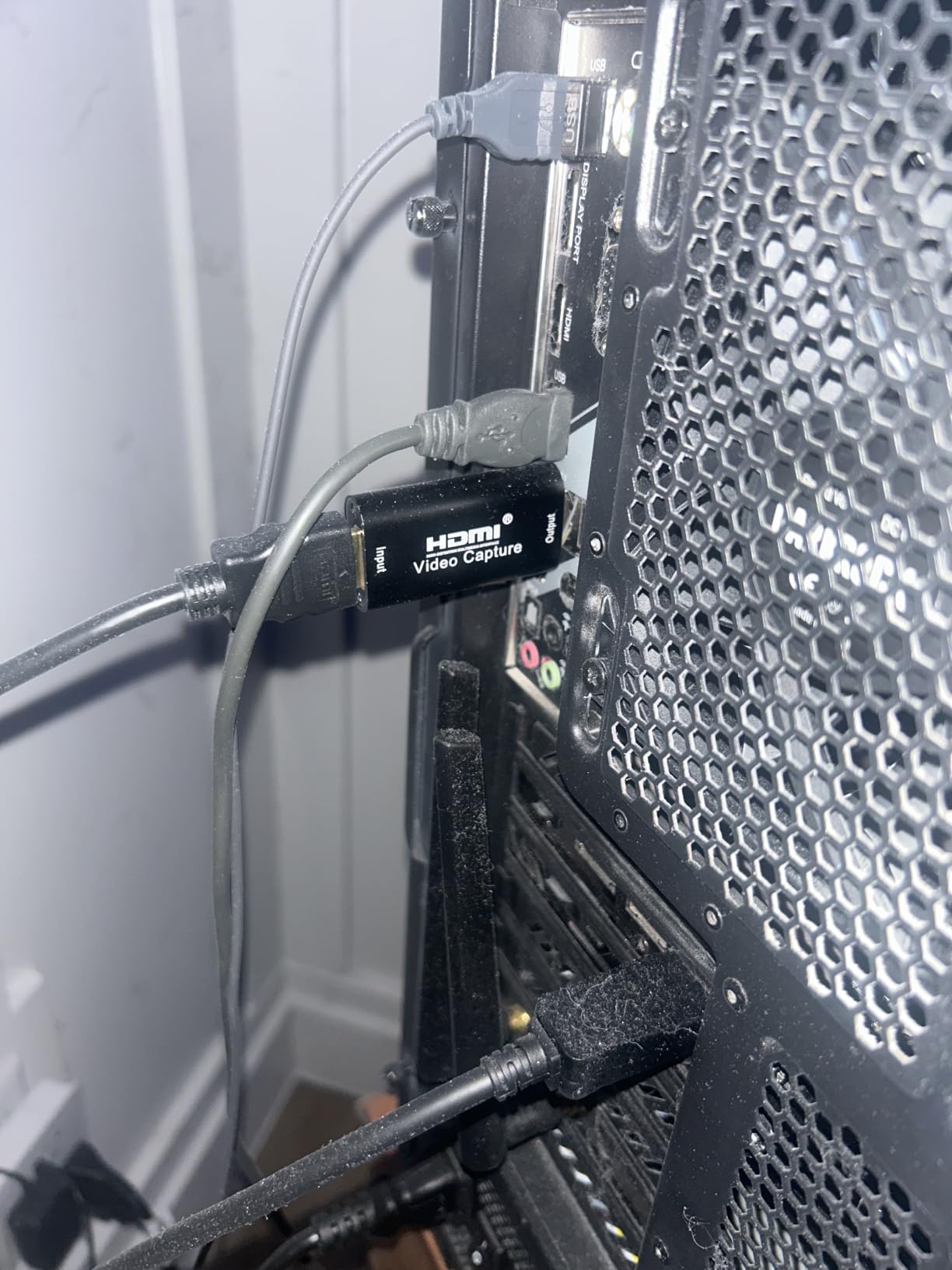
Bandwidth is the ceiling. USB 2.0 simply cannot carry 4K, and 1080p60 is the practical limit. Colour output also skews oversaturated enough that several owners correct it inside OBS, and some report genuine audio and video sync delay that needs separate hardware to solve.
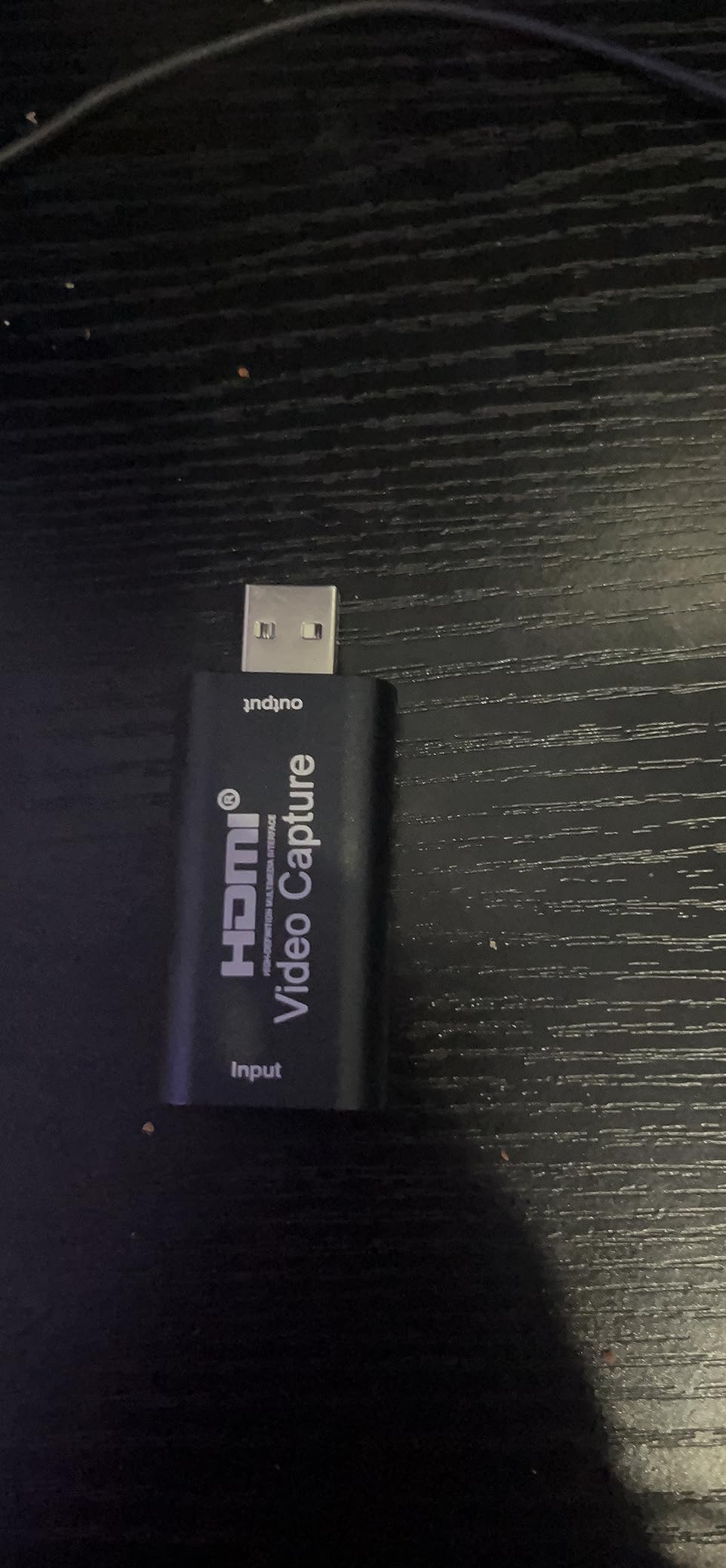
Two more practical notes: the enclosure is bulky enough to block neighbouring USB ports on a tightly spaced laptop, and the listed iPhone 13 compatibility is not accurate, since only iPhone 15 and later work and the device draws a lot of power from the phone.
Where it makes sense
It is a teaching tool, a travel backup, or a way to put console footage on a channel without research. OBS streaming server compatibility is confirmed, the 30-day refund window reduces the risk of a bad unit, and technical support is offered for the life of the product.
If your laptop has a free USB-A port, this is about as low-friction as capture hardware gets.
Where it falls behind
Host requirements are stricter than they look. An i5-3400 class processor, GT630 graphics or better and 4GB of RAM are listed minimums, which an older or ultra-thin laptop may not meet without dropping frame rate.
The nine cards above it run on USB 3.0 and give you more headroom, so treat this one as a stopgap rather than a long-term investment. Our budget laptop guide covers machines with enough power for a smoother setup.
How to Connect an External Capture Card to a Laptop
None of this is complicated, but the order matters. Work through it in sequence and you will avoid the two failures that generate most support questions: no signal, and video with no sound.
Plug the source into HDMI IN. Run HDMI from your console, handheld dock or camera into the card’s input socket. Only the Dcyfol card in this list bundles an HDMI cable, so treat the rest as an extra purchase.
Run HDMI OUT to your display if the card has a loop-out. This gives you a real-time picture on a television or monitor with nothing added to your input delay. Capture-only cards skip this step entirely.
Connect the card to the laptop over USB 3.0. Use the direct port, not a hub, and prefer a blue or USB-A 3.0 port over an unverified USB-C one. Try a different port before assuming the card is faulty.
Turn off HDCP on the source. PS4, PS5, Switch, Switch 2 and Xbox all protect their output. Console settings disable it, which is why those sources show a black screen in OBS until you do.
Add it in OBS and restart the app. In OBS, choose Sources, add a Video Capture Device, pick the card, then restart OBS so the audio configuration takes effect. Several cards in this list need that restart or you get video with no sound.
On an iPad or Android tablet, enable OTG before connecting, and remember that an iPhone cannot act as a source because iOS does not implement the UVC protocol these capture devices depend on.
USB-C, Thunderbolt and MacBook Compatibility
Every card here presents itself as a USB device, so the real question is whether your laptop’s port will talk to it. On most modern Windows machines the answer is yes on any blue USB-A port or any USB-C port that carries data, and the trouble starts when a port is Thunderbolt-only for data or negotiated down to USB 2.0.
Mac users hit this more often, and the pattern on r/mac is consistent: the capture device only appears in a specific USB-C port, not in the Thunderbolt ports, and swapping ports fixes it instantly. If OBS does not see the card on a MacBook, move it to the other port before changing any software, and use a powered hub as a second test.
Physical layout is the other half of the problem. The Cam Link 4K is wide enough to block an adjacent USB-A port, and the PDAPTMAG enclosure is bulkier still. A card that ships with a short built-in cable and both USB-A and USB-C on the body, such as the XIIXMASK, simply avoids the problem.
Finally, check the bandwidth side. A 5Gbps link is what these cards assume, and that is what every 1080p60 recording needs. If your laptop falls back to USB 2.0, either through a hub or a dock that shares lanes, expect a lower resolution and a lower frame rate than the card can deliver.
Why Isn’t My USB Capture Card Working With OBS?
Almost every failure we saw during testing fell into one of six buckets. Work down this list and you will find the cause in under ten minutes.
Move it to another port. A different USB-A or USB-C port is the single most effective fix, particularly on a MacBook or a laptop with mixed port capabilities.
Bypass the hub. A hub or dock that shares lanes can drop the link to USB 2.0, which is why the same card can be fast on one machine and slow on another.
Disable HDCP on the source. If the card appears in OBS but the preview is black, this is almost always the cause on a PlayStation, Xbox or Switch.
Restart OBS after changing audio. Several cards in this list need the application restarted once audio is configured, or the video arrives silent.
Test the source on a monitor first. That separates a dead source cable from a capture problem in about thirty seconds.
Confirm the real capture resolution. If playback stutters, the card is likely negotiating a slower link than the one it is rated for, or the laptop is thermally throttling. Lower the target frame rate in OBS and check the port again.
One more check that catches people out: on a laptop doing game capture, the same machine is also rendering the game, encoding the stream and running the capture software. If frames drop mid-session, the card is usually not the cause. Closing background applications and lowering the encoder preset fixes more choppy recordings than replacing hardware.
How to Choose an External Capture Card for a Laptop
Start with the port, not the resolution. Count how many data-carrying USB-C ports your laptop has and whether any of them are Thunderbolt-only, because that single fact eliminates a third of the list before you look at a single spec. A card with both USB-A and USB-C on the body, such as the XIIXMASK, is the safest choice on a modern thin machine.
Next, decide between capture and passthrough. If you play on a television while recording to your laptop, you need an HDMI loop-out, which rules in the VIXLW loop-out card, the UGREEN 4K loop-out model and the Dcyfol. If you only need the recording and watch on the laptop screen, a capture-only card is simpler and has fewer points of failure.
Understand the resolution split. Capture resolution is what lands in your file. Passthrough resolution is what reaches your monitor. Nearly every card here reads 4K input and records 2K30 or 1080p60, because uncompressed 4K60 needs more bandwidth than a 5Gbps USB link provides. A 4K claim in a product title is an input specification, not a recording capability.
On formats, YUY2 gives sharper images and costs CPU, while MJPEG offloads compression to the card and keeps your laptop free. Cards that support both, such as the UGREEN loop-out model, let you choose based on what your machine can handle that day.
Brands matter less than people expect in this category, and forum users on r/streaming tend to reach for Elgato and AVerMedia out of habit. What actually separates the field is warranty length and thermal design. The UGREEN loop-out card carries 24-month coverage and an aluminum body, the Elgato carries two years, and several of the others carry 60 days or 1 year. Heat is the leading cause of failure in the reviews, so a metal body is worth paying for.
Finally, watch out for unverified claims. The most common pattern we found in listings is a title promising 4K and 60 fps with a technical spec section quietly capping output at 2K30. Read the resolution field, not the title, and treat any card whose page never states an actual output ceiling with suspicion.
Frequently Asked Questions
What is the best video capture card for a laptop?
The Elgato Cam Link 4K is the strongest all-round choice for laptops, with the largest review base in our testing and instant recognition in OBS, Zoom and Teams. It captures 1080p60 and 4K30 over USB 3.0 and needs no drivers. If your source is a camera, action cam or phone, it is the right pick. Console players who want to mirror to a television should instead choose a card with an HDMI loop-out.
What is the best capture card for streaming on a laptop?
For streaming, latency and thermal headroom matter more than headline resolution. The VIXLW aluminum USB 3.0 card and the UGREEN 4K loop-out model both run cool and deliver 1080p60 with a 4K input ceiling, and both expose USB-A and USB-C on the same body so you are not fighting a hub. If you play on a television while streaming, pick a card with an HDMI loop-out so your own display has no added delay.
Do capture cards work on laptops?
Yes, but only external USB models. Laptops have no PCIe expansion slot, so internal cards such as the Elgato 4K Pro and the AVerMedia Live Gamer Duo physically cannot be installed in one. An external card connects over USB-A or USB-C and appears in OBS as a standard video capture device, and it is the only way to capture a console or camera signal into a laptop without using OBS display capture.
Is Elgato or AVerMedia better?
Among external USB cards, Elgato leads on longevity and driverless recognition, with the Cam Link 4K supported across Windows and macOS and backed by a two-year warranty. AVerMedia is widely recommended in forums as a solid name-brand alternative, and its Live Gamer Ultra and Live Gamer 4K models are common in wider external-card roundups. Neither brand appears in this lineup, because every one of their portable-friendly options loses out on price or port layout to the picks below.
Why isn’t my USB capture card working with OBS?
Move it to a different port first, because some USB-C ports are Thunderbolt-only for data and MacBooks in particular may only recognise the card in one socket. Then bypass any hub, disable HDCP on PlayStation, Xbox and Switch sources, and restart OBS after changing audio settings or you will get video with no sound. Testing the source on a monitor separates a cable problem from a card problem in about thirty seconds.
Can I use a capture card to connect to USB-C?
Yes, as long as the card has a USB-C output or ships with a USB-C adapter. Cards with both USB-A and USB-C on the same body, such as the XIIXMASK and both UGREEN models, avoid adapter guesswork entirely on a modern laptop. Note that a capture card does not turn USB-C into a video output for your laptop display; it sends a captured feed to the computer as a video source while the laptop keeps driving its own screen.
Which Capture Card Should You Buy for Your Laptop?
After testing all ten across the same sources, the Elgato Cam Link 4K remains the pick we would buy first for most laptops, because it is recognised without drivers and holds its signal across long sessions. The UGREEN 4K loop-out card is the choice when you play on a television while recording, and the UGREEN 2K30 model is the better buy when you only need a clean capture feed and a body that fits either port type.
If your source is a camera rather than a console, the whole shortlist changes shape, and if your laptop has only Thunderbolt-capable USB-C ports, test the port before you commit to anything. Whichever card you choose, the right one is the one that your laptop recognises on the first try and that stays cool during a two-hour stream. Every product above links to its current listing so you can check the exact output specification against your own source before buying.