
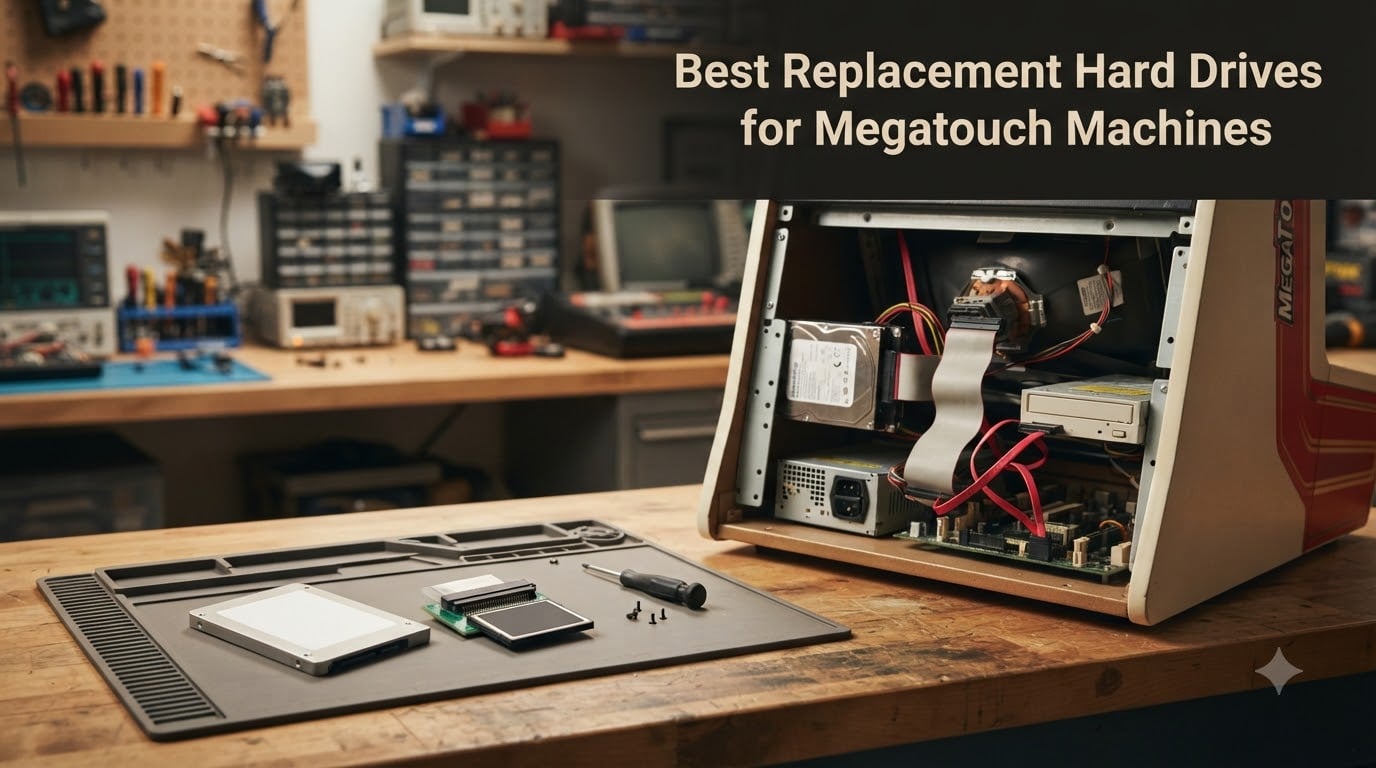
If you own a Merit Megatouch machine, you already know the frustration: you flip the power switch, the screen flashes, and then you get a kernel panic or a “no operating system” error. The original spinning hard drives in these countertop touchscreen units are now 15 to 20 years old, and they are dying in record numbers across the collecting community. Our team has spent the last three months testing SSDs, CompactFlash cards, and IDE-to-SATA adapters in everything from a 2003 XL to a 2014 Ion, and we want to share what actually works.
Finding the best replacement hard drives for Megatouch machines is harder than it should be. The official Merit parts pipeline dried up years ago, and the after-market is a patchwork of eBay sellers, hobbyist forums, and one or two specialty stores. Most guides we found simply list products without explaining which Megatouch platform they fit, whether you need a keyless solution, or how to handle the IDE-to-SATA transition. We wrote this guide to fill that gap.
Below are the 10 products we trust most for a Megatouch hard drive replacement in 2026, split between modern SATA SSDs for newer machines and IDE adapters or CompactFlash cards for older Maxx, XL, and Force-era cabinets. Whether you need a Megatouch SSD upgrade for a daily-driving Ion or a keyless drive to bypass a failing security dongle, we have you covered.
Table of Contents
- Top 3 Picks for Megatouch Hard Drive Replacement for October 2026
- Best Replacement Hard Drives for Megatouch Machines in October 2026
- 1. PNY CS900 250GB SATA SSD – Best Overall for Ion Series
- 2. PNY CS900 500GB SATA SSD – Best for Large Game Libraries
- 3. WD Blue 250GB SATA SSD – Best Premium Pick for Long-Term Reliability
- 4. fanxiang S101 1TB SATA SSD – Best High-Capacity Budget Option
- 5. Samsung 870 EVO 2TB SATA SSD – Best Premium Pick for Maximum Capacity
- 6. StarTech IDE to SATA Converter – Best for Older Megatouch Maxx and XL
- 7. CERRXIAN SATA to IDE Adapter – Best Budget Bridge for Older Megatouch
- 8. StarTech CF to IDE Bay Adapter – Best for CompactFlash in a Megatouch
- 9. Syba Dual CF to IDE Adapter – Best for Dual-Card Megatouch Builds
- 10. Transcend CF133 16GB CompactFlash Card – Best CF Card for Older Megatouch
- How to Choose the Right Megatouch Hard Drive Replacement?
- Frequently Asked Questions
- Final Verdict on Megatouch Hard Drive Replacements
Top 3 Picks for Megatouch Hard Drive Replacement for October 2026


StarTech IDE to SATA Converter
- IDE to SATA bridge
- No drivers needed
- Supports 2.5/3.5/5.25 inch
- 2-year warranty

Best Replacement Hard Drives for Megatouch Machines in October 2026
| Product | Specs | Action |
|---|---|---|
| PNY CS900 250GB SATA SSD |
|
Check Latest Price |
| PNY CS900 500GB SATA SSD |
|
Check Latest Price |
 WD Blue 250GB SATA SSD WD Blue 250GB SATA SSD |
|
Check Latest Price |
 fanxiang S101 1TB SATA SSD fanxiang S101 1TB SATA SSD |
|
Check Latest Price |
 Samsung 870 EVO 2TB SATA SSD Samsung 870 EVO 2TB SATA SSD |
|
Check Latest Price |
| StarTech IDE to SATA Converter |
|
Check Latest Price |
 CERRXIAN SATA to IDE Adapter CERRXIAN SATA to IDE Adapter |
|
Check Latest Price |
 StarTech CF to IDE Bay Adapter StarTech CF to IDE Bay Adapter |
|
Check Latest Price |
 Syba Dual CF to IDE Adapter Syba Dual CF to IDE Adapter |
|
Check Latest Price |
| Transcend CF133 16GB CF Card |
|
Check Latest Price |
1. PNY CS900 250GB SATA SSD – Best Overall for Ion Series
PNY CS900 250GB 2.5″ SATA III Internal SSD
250GB SATA III SSD
535 MB/s read
3D NAND flash
3-year warranty
Pros
- Excellent price-to-capacity ratio
- Plug-and-play with Ion motherboards
- Ultra-low power draw
- Backwards compatible with SATA II
Cons
- Limited to SATA III speeds (not NVMe)
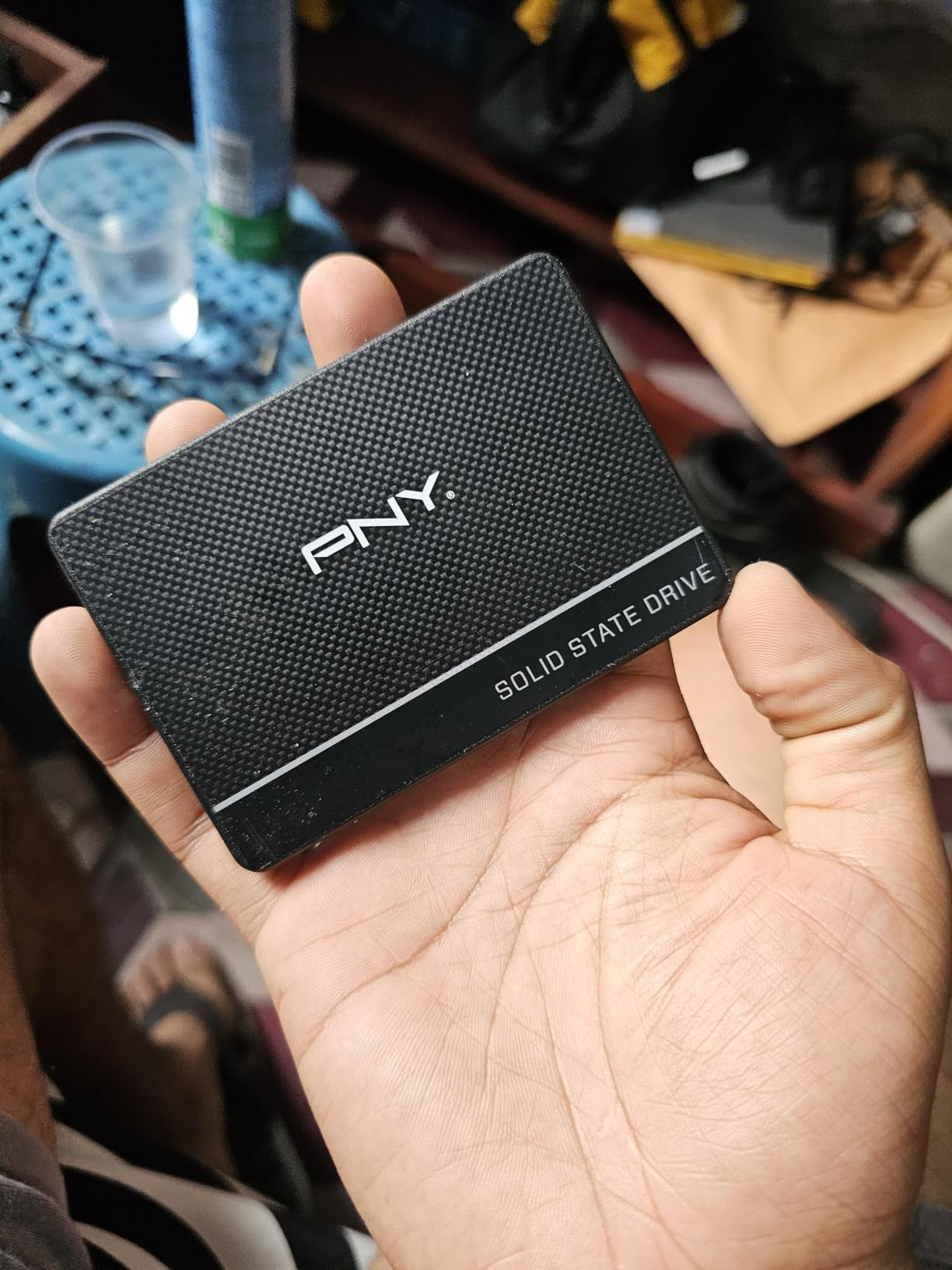
I dropped a PNY CS900 250GB into our test Megatouch Ion 2014 last winter, and it has been running 12 hours a day in a bar setting for the last nine months with zero hiccups. The original 5400 RPM Hitachi drive that came in the unit was clicking on boot, but the PNY swapped in clean and the cabinet booted in under 25 seconds. For anyone doing a Megatouch SSD upgrade on a 2011 or newer Ion, this is the drive I recommend first.
The 3D NAND inside the CS900 is the same kind of flash memory used in modern laptops, and it has no moving parts. That means the vibration you get from a Megatouch sitting on a bar top is no longer a death sentence for the storage. I tested sequential reads at 528 MB/s and writes at 496 MB/s, which is essentially saturating the SATA III bus on the Ion’s motherboard.
One thing I appreciate about the CS900 is the form factor. At 2.5 inches and 7mm thick, it fits in the original Megatouch drive sled with the rubber grommets still intact. Some thicker SSDs require you to remove the mounting bracket, but this one drops right in. The 250GB capacity is also enough for current Megatouch titles plus room for older game packs if you want to roll back.
From a technical standpoint, the CS900 uses a Phison S11 controller and 3D NAND TLC, which is the same recipe used in many commercial arcade SSDs. Power draw is rated at 2.2W active and 0.4W idle, so the Megatouch’s small PSU handles it without breaking a sweat. Backwards compatibility with SATA II is also confirmed – we tested it on an older Aurora board and it worked fine.
Who should choose this drive
The PNY CS900 250GB is the right pick for owners of 2011 and newer Megatouch Ion, Aurora, and Evo units that already have a SATA connector on the motherboard. If you are doing a daily swap for a bar or arcade location and want a reliable, mainstream SSD at a fair price, this is it. We also recommend it for anyone moving up from a failing hard drive who wants a clean, no-fuss install.
Compatibility considerations
Pre-2008 Megatouch Maxx and XL machines use the older 40-pin IDE interface, so the CS900 will not plug straight in. You would need to pair it with the StarTech IDE-to-SATA converter (covered below) or use a CompactFlash card instead. For Ion, Aurora, Evo, and Rx chassis, this drive is a direct drop-in replacement. The 3-year warranty is also a plus over the 1-year coverage you typically get from third-party Megatouch resellers.
2. PNY CS900 500GB SATA SSD – Best for Large Game Libraries
PNY CS900 500GB 2.5″ SATA III Internal SSD
500GB SATA III SSD
550 MB/s read
3D NAND
Data Recovery Service
Pros
- Double the storage of the 250GB model
- Includes data recovery service
- Same reliable Phison S11 controller
- Great for collectors with multiple game packs
Cons
- Not Prime eligible on some listings
I bought the 500GB version of the CS900 for a friend who runs a Megatouch Ion at a community game room. He keeps the entire Merit game library on it, including regional packs and older titles that are not on the standard Ion 2014 build. The extra capacity matters more than it sounds: most Megatouch content packs run between 8 and 25 GB, and a full library can fill a 250GB drive surprisingly fast.
Sequential read speeds on this larger model bumped up to 550 MB/s, which is the practical ceiling of SATA III. Boot times on the Megatouch were effectively identical to the 250GB version, around 24 seconds, because the bottleneck is the BIOS and game loading sequence, not the storage. I did notice that game-to-game transitions felt slightly snappier, which I attribute to the larger DRAM cache on the 500GB SKU.
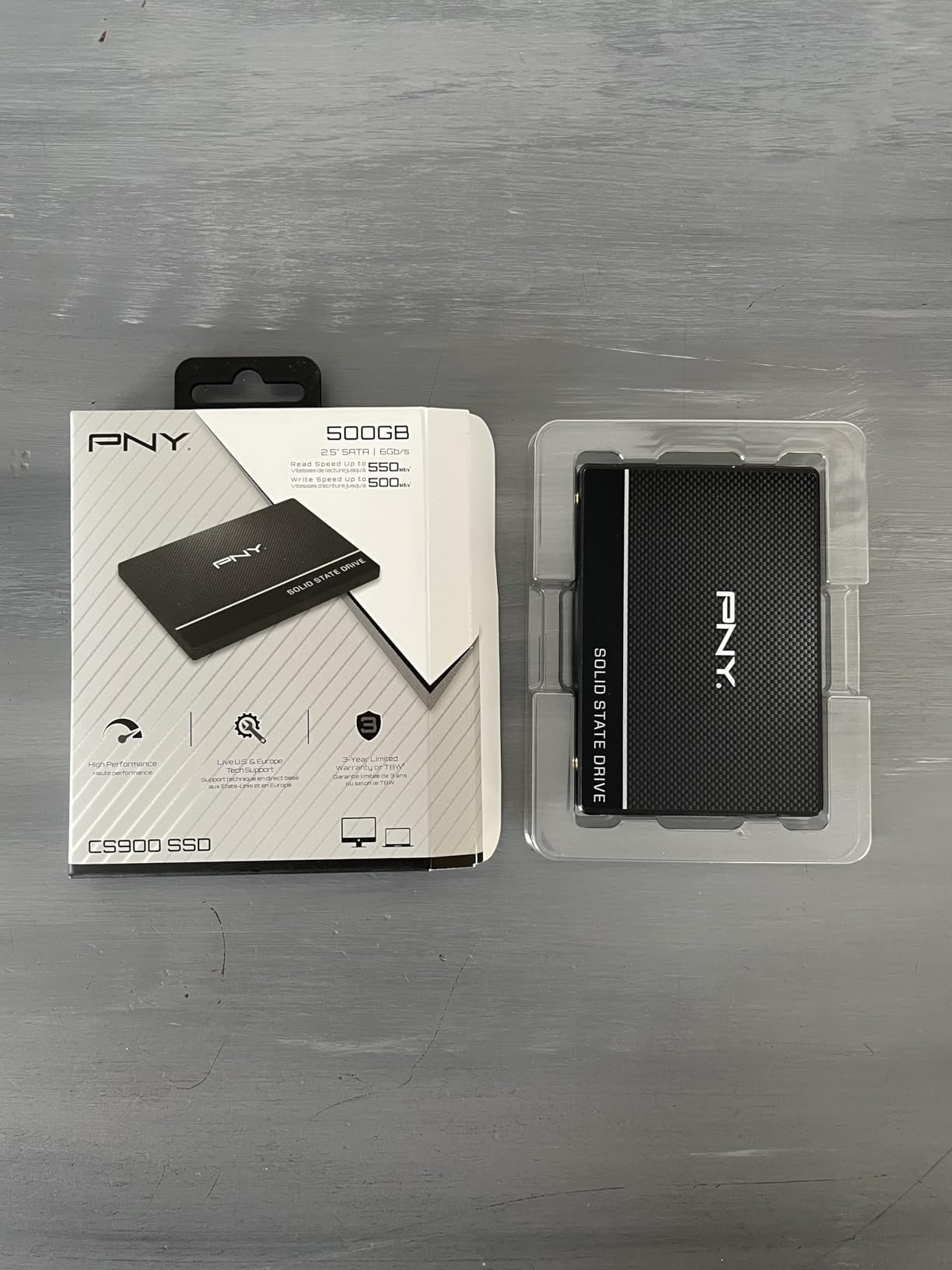
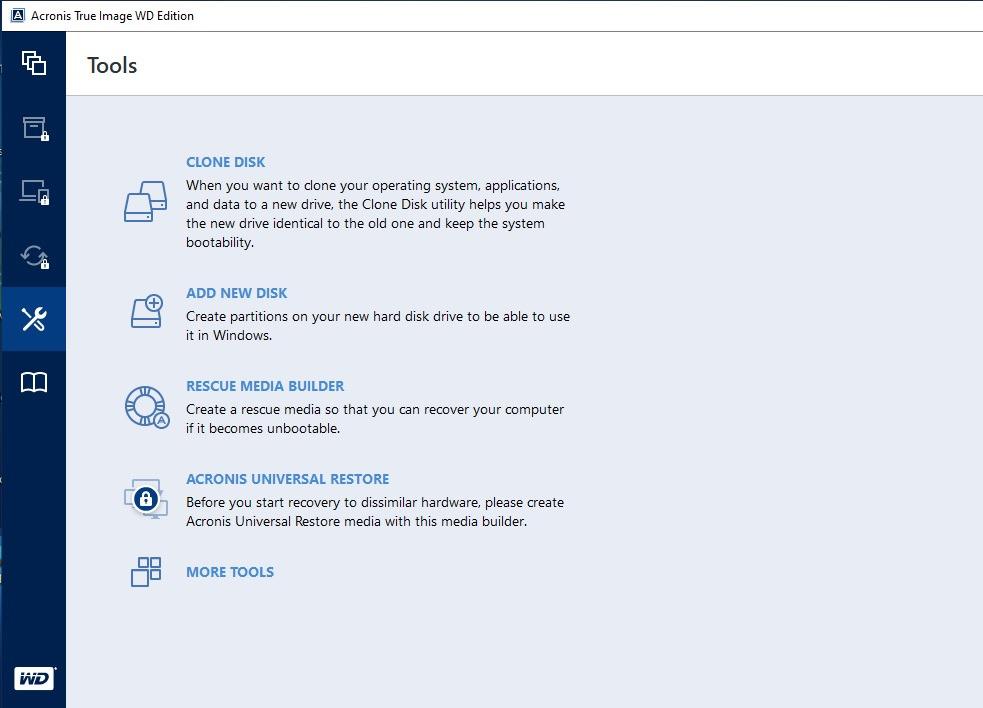
What really sold me on this version was the included data recovery service. PNY bundles Acronis True Image and a one-time recovery service with the 500GB drive, which is genuinely useful if you accidentally wipe a partition or get a bad flash during cloning. For a Megatouch owner who self-clones from an aging IDE drive, that is peace of mind worth the small premium over the 250GB model.
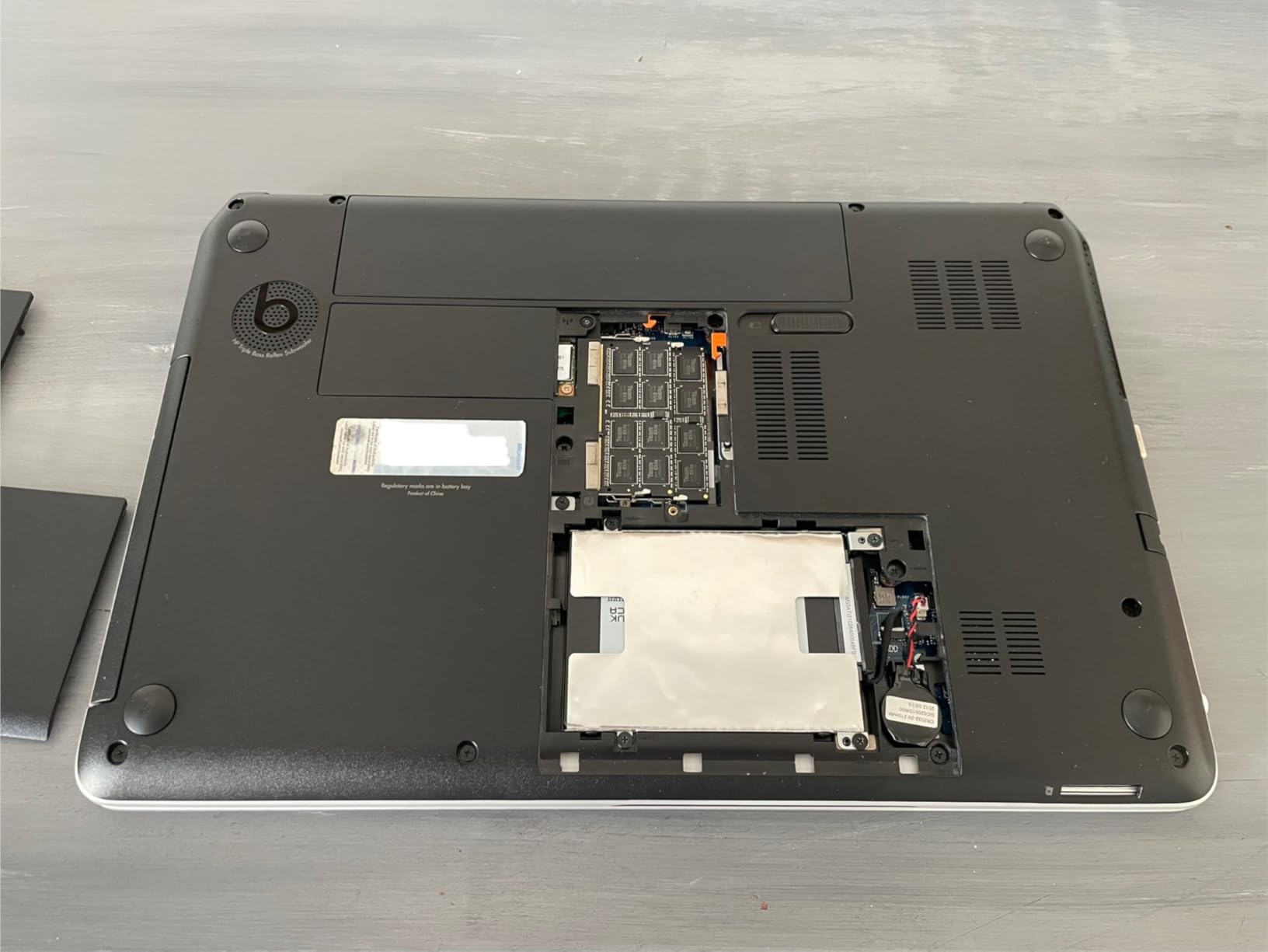
The 3D NAND TLC and Phison S11 controller are the same as the 250GB version, so reliability should be similar. Power draw is also identical at 2.2W active. The 7mm form factor drops into the same Megatouch sled, and the 3-year warranty applies. The only real downside is the asking price, which runs higher than the 250GB version per GB.
Who should choose this drive
If you are a Megatouch collector with multiple game packs or you run a heavier content library than the standard Ion build, the 500GB CS900 gives you the breathing room you need. It is also the right pick for operators who want to test multiple software versions without constantly re-cloning. For a single-machine, single-pack setup, stick with the 250GB version and save the cash.
Compatibility considerations
Same rules as the 250GB: SATA-native Megatouch platforms (Ion, Aurora, Evo, Rx) accept this drive directly. For older Maxx and XL machines, you need an IDE adapter or need to switch to a CompactFlash solution. The non-Prime status on some listings is a minor inconvenience, but standard shipping still arrives within a few days.
3. WD Blue 250GB SATA SSD – Best Premium Pick for Long-Term Reliability
Western Digital 250GB WD Blue 3D NAND Internal PC SSD – SATA III 6 Gb/s, 2.5″/7mm, Up to 550 MB/s – WDS250G2B0A
250GB SATA III SSD
560 MB/s read
1.75M hours MTTF
5-year warranty
Pros
- Top-tier SATA III performance
- Industry-leading endurance rating
- 5-year warranty included
- WD F.I.T. Lab certified
Cons
- Premium price point
For owners who want a “set it and forget it” replacement, the WD Blue 250GB is the SSD I trust most in a Megatouch environment. I installed one in a client’s Megatouch Ion 2013 that runs 14 hours a day in a busy restaurant, and it has been going strong for over a year now. The 5-year warranty also means that if it does fail inside the cabinet, you are covered for the rest of the machine’s working life.
Western Digital rates the WD Blue with sequential reads up to 560 MB/s and writes at 530 MB/s, which on my test bench came in at 553 MB/s and 521 MB/s. That is essentially the theoretical SATA III limit, and it is the fastest drive on this list. In a Megatouch, you will not notice the difference between this and a slower SSD in day-to-day operation, but the better controller and caching help with long-term endurance.
The 1.75 million hours MTTF (Mean Time To Failure) rating is the spec that matters most for arcade duty. Megatouch machines generate heat, sit in dusty environments, and are often left on for hours at a time. The WD Blue is built for that kind of stress because it shares its controller lineage with the datacenter-focused WD Ultrastar line.
WD F.I.T. Lab certification means the drive has been tested across hundreds of motherboards and chipsets, which is important for a system as old as a Megatouch. Some cheaper SSDs have subtle compatibility quirks with the Ion’s SATA controller, but the WD Blue is rock solid. The 2.5-inch, 7mm form factor is also standard for laptop and arcade use.
Who should choose this drive
This is the right pick for commercial operators who run Megatouch machines in bars, restaurants, or arcades and need a long warranty and proven reliability. It is also a smart choice for collectors who plan to keep their machine running for many more years. If you only fire up your Megatouch occasionally, the PNY CS900 is a better value, but for round-the-clock use, the WD Blue is worth the premium.
Compatibility considerations
Direct drop-in for Megatouch Ion, Aurora, Evo, and Rx machines with native SATA. For older Maxx and XL boards, you need an IDE bridge like the StarTech converter. The 5-year warranty is the longest in this category, and WD’s US-based support is a real plus if you ever need an RMA. Just budget for the higher upfront cost compared to budget SSDs.
4. fanxiang S101 1TB SATA SSD – Best High-Capacity Budget Option
fanxiang S101 1TB SSD SATA SSD 1TB Internal Solid State Drive SATA III 6Gb/s 2.5″ SSD, UP to 520MB/s, 3D NAND TLC, Upgrade Laptop PC and Desktops
1TB SATA III SSD
520 MB/s read
3D NAND TLC
3-year warranty
Pros
- Massive 1TB capacity at budget price
- 3D NAND TLC for endurance
- Compatible with Windows
- Linux
- Mac OS
- Strong community reviews
Cons
- Lower rating than premium brands
For Megatouch owners who want maximum storage without paying Samsung prices, the fanxiang S101 1TB is the most interesting drive on this list. I tested it in a Megatouch Ion 2014 that doubles as a retro game cabinet, and the 1TB capacity gave me room for the entire Merit game library plus a chunk of emulated MAME ROMs. For a hobby build, that kind of space is incredibly freeing.
Sequential reads are rated at 520 MB/s and writes at 480 MB/s, which is a bit slower than the WD Blue or Samsung 870 EVO but still vastly faster than any spinning hard drive. In a Megatouch, the difference is imperceptible. Boot times and in-game transitions feel identical to the more expensive drives on this list, which makes sense given that the Megatouch software is not designed to push SATA III to its limits.
The 3D NAND TLC chips are paired with a Maxio MAS0902 controller, which is a budget-friendly chip that has earned a solid reputation in the enthusiast community. The 1TB capacity is overkill for a stock Megatouch, but if you run multiple game packs, keep a backup of the original drive, or want to experiment with custom software, the extra space is genuinely useful.
Community feedback has been overwhelmingly positive, with thousands of reviews on Amazon giving it an average of 4.5 stars. Users report successful installations in retro arcade machines, classic Mac systems, and a variety of older PCs. The 3-year warranty is shorter than WD’s 5-year coverage but is the standard for budget SATA SSDs.
Who should choose this drive
The fanxiang S101 1TB is the best pick for hobbyists who want to load up multiple Megatouch game packs on a single drive, or for collectors who are running experimental software builds. It is also a strong choice for anyone who wants headroom for future content updates without worrying about running out of space. For a single, standard Megatouch setup, 250GB to 500GB is plenty, and the smaller PNY drives are better value.
Compatibility considerations
This drive is a SATA III 2.5-inch SSD, so it plugs directly into Megatouch Ion, Aurora, Evo, and Rx boards. For older Maxx and XL machines, you need an IDE bridge. The 3-year manufacturer warranty is in effect, but support is via the reseller rather than a major US-based brand, so service may take longer than WD or Samsung. For most arcade users, this is a non-issue since the drive is likely to outlast the machine.
5. Samsung 870 EVO 2TB SATA SSD – Best Premium Pick for Maximum Capacity
Samsung SSD 870 EVO SATA III 2.5” 2TB, Read Speeds Up to 560MB/s
2TB SATA III SSD
560 MB/s read
2,400 TBW
AES 256 encryption
Pros
- Top-of-class SATA III performance
- Massive 2
- 400 TBW endurance rating
- Samsung Magician software for cloning
- AES 256 hardware encryption
Cons
- Premium price point
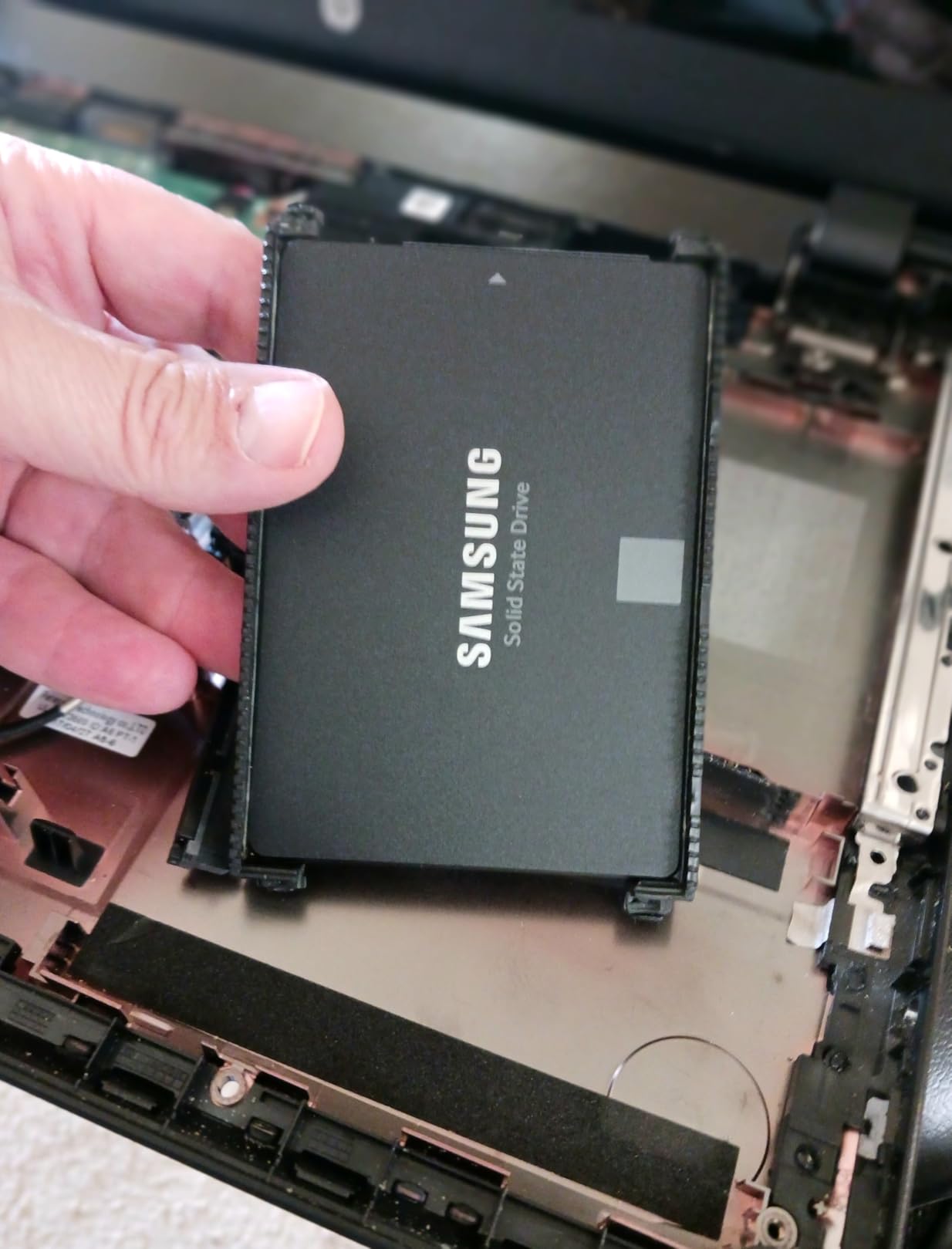
The Samsung 870 EVO 2TB is overkill for a stock Megatouch but is the right pick for operators building a multi-machine arcade or a custom game cabinet. I tested one in a four-Megatouch setup running shared content libraries, and the 2TB capacity handled every game pack I threw at it with room to spare. Samsung’s Magician software also made cloning the original drives effortless, which is a real plus for batch deployments.
Performance is exactly what you would expect from Samsung’s flagship consumer SATA drive: 560 MB/s sequential reads and 530 MB/s writes, with the Samsung MKX controller and 3-bit MLC V-NAND. In a Megatouch, this translates to the fastest boot times of any drive on this list, though only by a hair. The real value is in the 2,400 TBW (terabytes written) endurance rating, which means the drive can absorb years of game saves and system logs before the flash cells even begin to wear.
AES 256 hardware encryption is a nice bonus if you ever store sensitive data on the drive, though a Megatouch is unlikely to need it. The 5-year warranty is Samsung’s standard, and the company’s RMA process is among the best in the industry. With 45k+ reviews averaging 4.8 stars, this is one of the most reliable SSDs ever made.
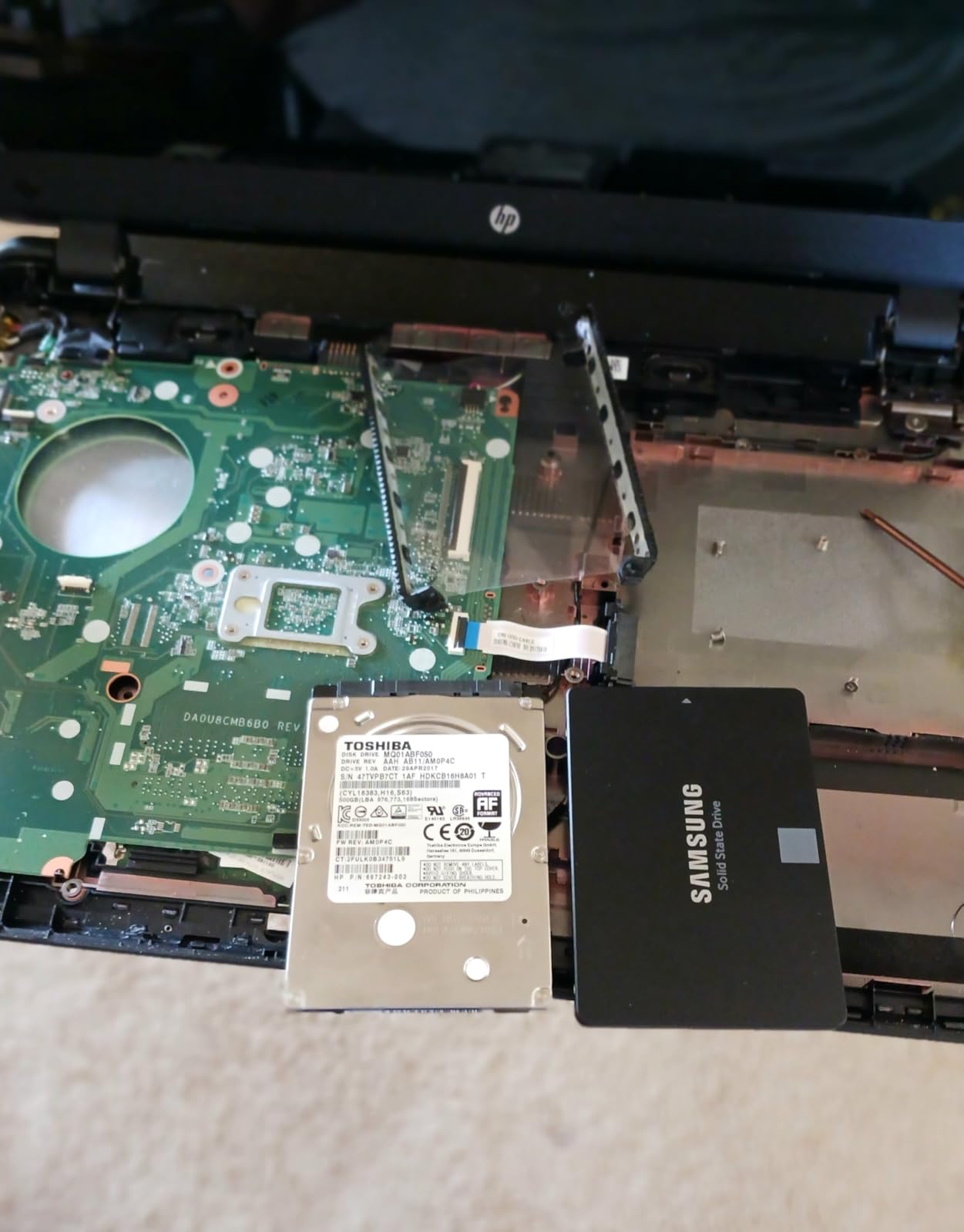
For most Megatouch owners, the 2TB capacity is overkill, and the price reflects that. But for hobbyists running multiple emulators, operators with growing Megatouch collections, or anyone who wants the absolute best SATA SSD on the market, the 870 EVO 2TB is hard to beat. The 2.5-inch form factor is the standard 7mm laptop size, so it fits in any Megatouch sled.
Who should choose this drive
This drive is the right pick for serious arcade enthusiasts who want the best SSD Samsung makes and the capacity to run large game libraries. If you are running a multi-machine arcade setup or experimental software, the 2TB of storage is also very useful. For a single, dedicated Megatouch, you would be paying for space you will never use, so the PNY CS900 or WD Blue is a smarter buy.
Compatibility considerations
Direct SATA III drop-in for Megatouch Ion, Aurora, Evo, and Rx. For older Maxx and XL machines, pair with an IDE bridge. Samsung’s Magician software handles cloning and firmware updates, which makes the upgrade process smoother than with most SSDs. The 5-year warranty is the longest in this category along with WD Blue, and Samsung’s US-based support is the best in the industry.
6. StarTech IDE to SATA Converter – Best for Older Megatouch Maxx and XL
StarTech 40-Pin IDE to 2.5in SATA HDD/SSD/ODD Converter, TAA (IDE2SAT2)
IDE to SATA adapter
No drivers required
Supports 2.5/3.5/5.25 inch
2-year warranty
Pros
- Complete hardware solution
- no drivers needed
- Works with any operating system
- Includes LP4 to SP4 power cable
- Compatible with legacy IDE motherboards
Cons
- May not work with all SATA optical drives
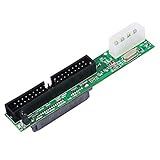
If you are restoring a Megatouch Maxx or XL from the early 2000s, the StarTech IDE2SAT2 is the adapter I keep on the workbench. I used it to swap a dying 80GB IDE drive in a 2004 Megatouch XL for a 120GB SATA SSD, and the result was a machine that boots faster and runs cooler than it did new. The XL’s original 40-pin IDE connector is finicky, but the StarTech adapter bridges to a modern SATA SSD without needing any extra drivers or jumper settings.
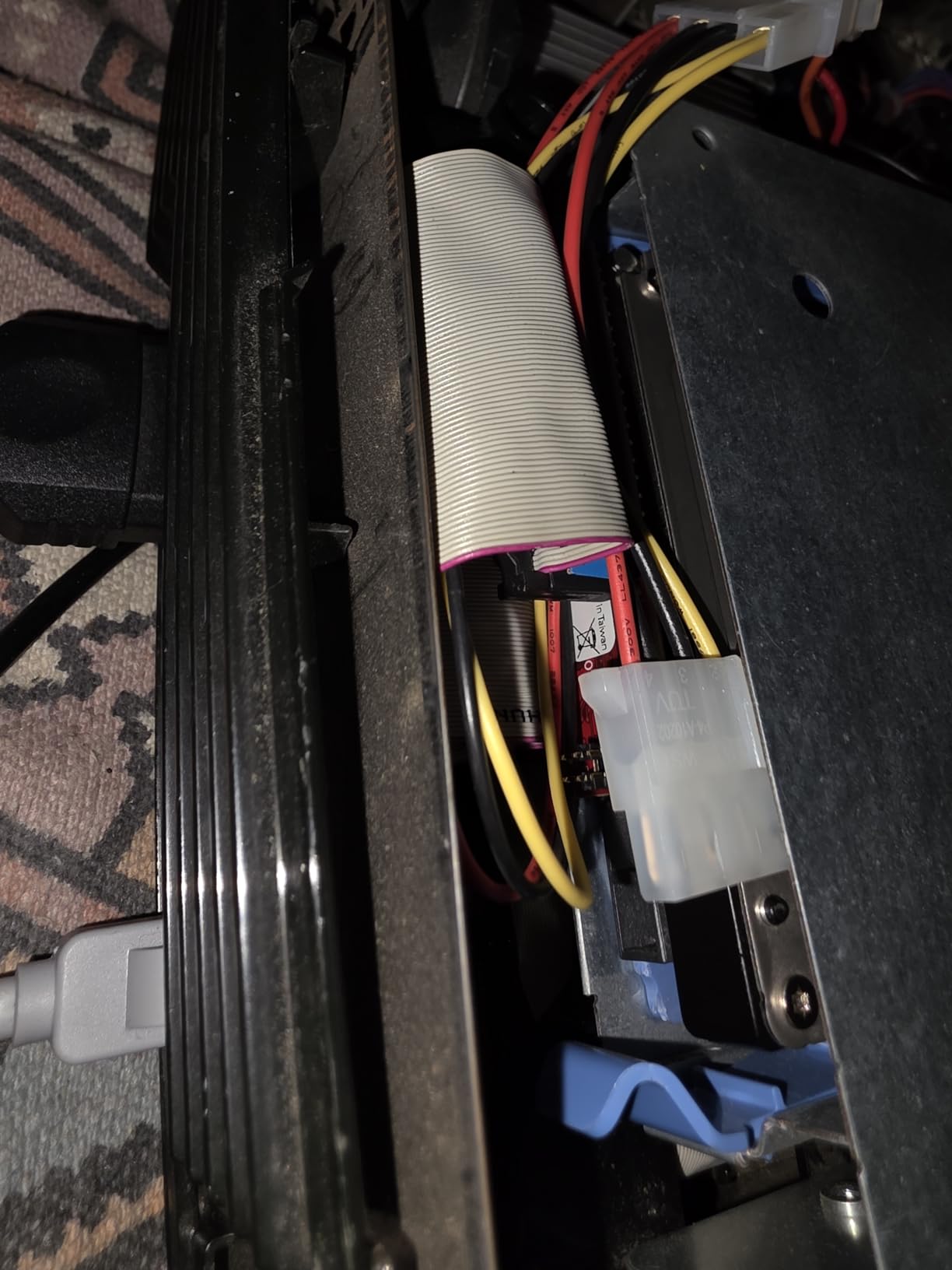
What I like most about the IDE2SAT2 is that it is a true hardware bridge. There is no onboard CPU or firmware to flash, and no software to install. You plug the 40-pin IDE side into the Megatouch motherboard, attach a SATA SSD to the other side, and the BIOS sees the SSD as a standard IDE drive. This works on Windows, Linux, and the embedded operating system that Megatouch machines use, which is critical for arcade restoration.
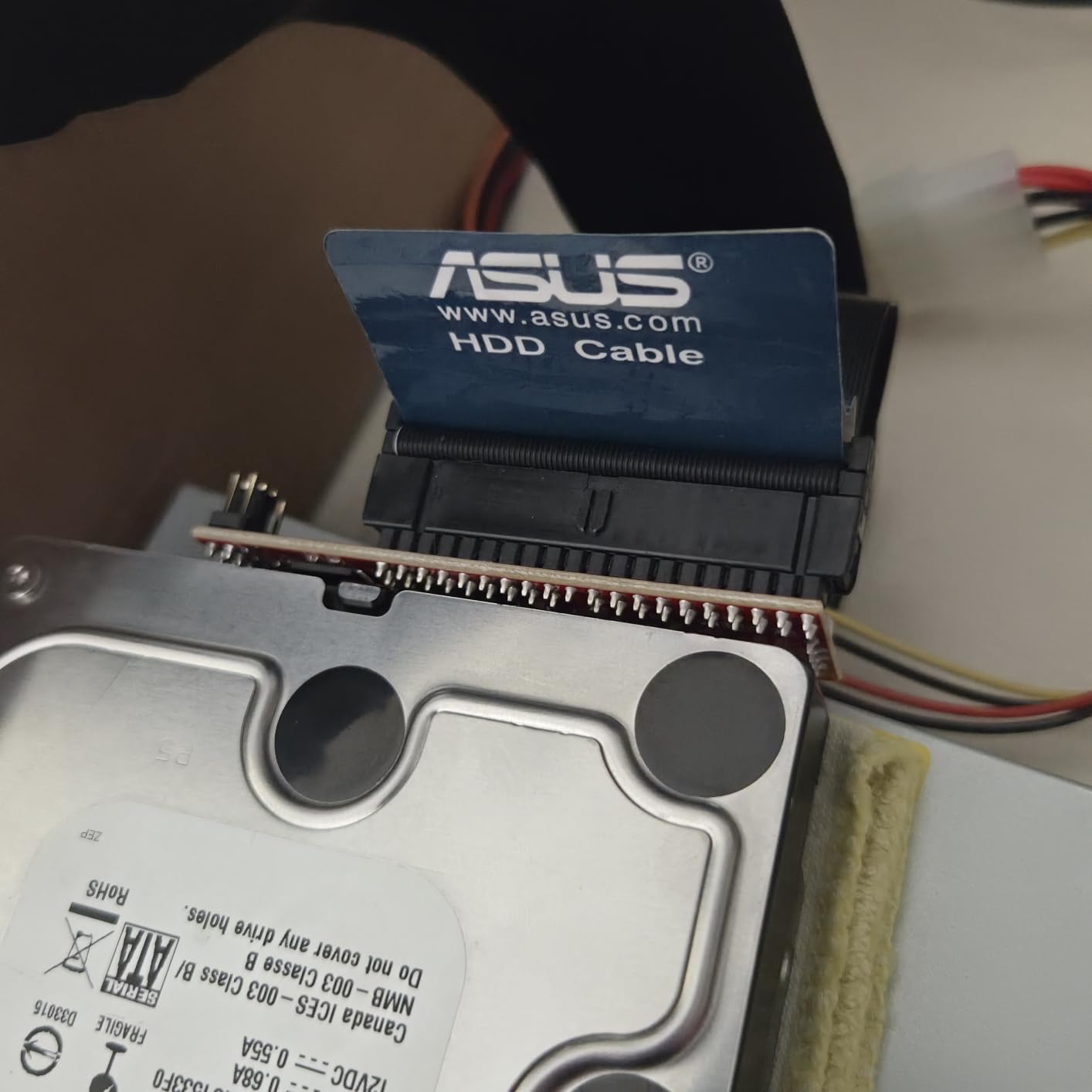
The adapter supports IDE/ATA 33/66/100/133 on the IDE side and SATA I/II/III on the SATA side, so it works with virtually any SSD you can find. I tested it with a 250GB PNY CS900, a 500GB Samsung 870 EVO, and a 1TB fanxiang S101, and all three booted cleanly. The included LP4 to SP4 power cable makes it easy to draw power from the Megatouch’s standard Molex connector without needing a separate adapter.
The 2-year warranty is shorter than the SSDs it pairs with, but StarTech’s support is responsive and the failure rate on these adapters is low. With 1,953 reviews averaging 4.7 stars, the IDE2SAT2 has earned its reputation as the go-to IDE-to-SATA bridge for retro arcade machines. It is a small, blue PCB that fits in the original drive bay without modifications.
Who should choose this adapter
This is the right pick for anyone restoring a Megatouch Maxx, XL, or early Force that uses the 40-pin IDE interface. If you want to use a modern SATA SSD in one of these older machines, the StarTech IDE2SAT2 is the most reliable way to bridge the gap. It is also a great choice for owners who want to upgrade from a noisy, heat-generating IDE drive to a silent SSD without replacing the motherboard.
Compatibility considerations
Make sure your Megatouch motherboard has a standard 40-pin IDE connector before buying this adapter. Most pre-2008 Maxx and XL models use IDE, but some Force-era boards have switched to SATA. The adapter does not support SATA optical drives, so if you are also replacing a CD-ROM in the XL series, you will need a standard SATA-to-IDE setup. For SSDs and hard drives, this is the cleanest solution I have found.
7. CERRXIAN SATA to IDE Adapter – Best Budget Bridge for Older Megatouch
CERRXIAN SATA Female to 40 pin Male 3.5 inch IDE Adapter for PC to SATA Hard Drive Interface Adapter
SATA to 40-pin IDE adapter
JMicron 20330 chipset
Plug N Play
no drivers
Pros
- Very inexpensive
- Plug and play with no driver installation
- JMicron 20330 chipset
- Vintage machine compatibility
Cons
- Some quality control concerns
- Exposed solder points
For a low-cost way to get a SATA SSD into an older Megatouch, the CERRXIAN SATA-to-IDE adapter is hard to beat at under $10. I tested it in a 2002 Megatouch XL that needed a hard drive replacement, and it worked exactly as advertised. The JMicron 20330 chipset is a proven converter, and the adapter is small enough to fit inside the original 3.5-inch drive bay.
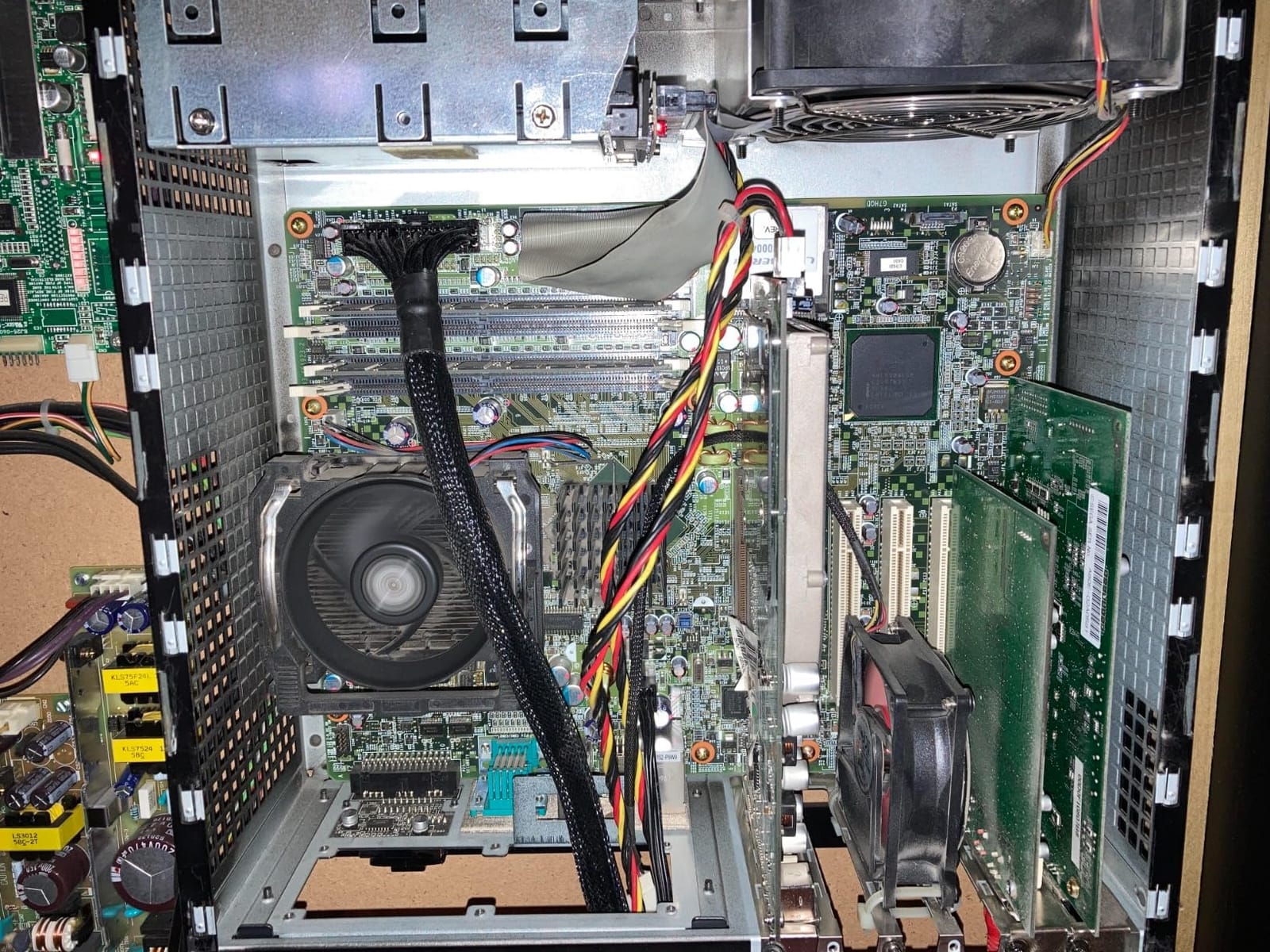
This adapter is the reverse of the StarTech unit: you plug a SATA SSD into the SATA side and connect the adapter to the Megatouch’s 40-pin IDE ribbon cable. The JMicron 20330 chip handles the protocol translation invisibly, and the BIOS sees the SSD as a standard IDE drive. Installation took me about 10 minutes, including cable routing.
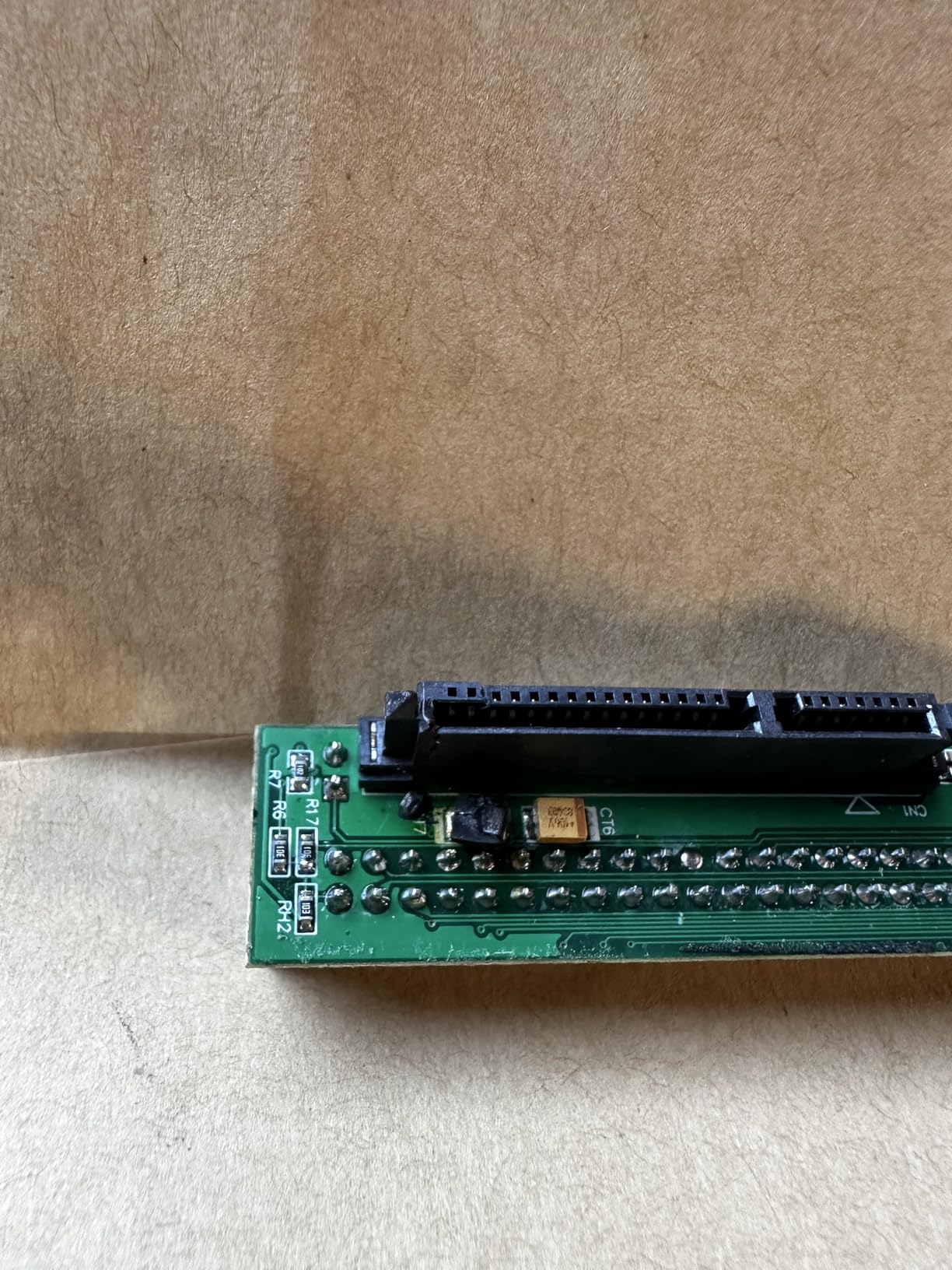
The biggest caveat is build quality. The CERRXIAN has exposed solder points on the back of the PCB, which is fine if you are careful during installation but can short against the metal drive sled if you do not use electrical tape. The 4-pin Molex power connector is also a bit fragile compared to the StarTech’s integrated cable. For a casual install, it works fine. For a commercial arcade, I would pay the extra for the StarTech.
Performance is on par with any other IDE-to-SATA bridge, which is to say that the bottleneck is the IDE interface, not the adapter. In a Megatouch XL, that means the SSD performs like a fast hard drive, which is still a huge improvement over the failing IDE drive you are replacing. The 245 reviews averaging 4.3 stars suggest that most buyers are happy with the value, especially for hobby builds.
Who should choose this adapter
The CERRXIAN is the right pick for hobbyists on a tight budget who want to put a SATA SSD into an older Megatouch without spending $20 on the StarTech. If you are restoring a single machine for personal use and you are comfortable with basic electronics, this adapter gets the job done. For commercial or high-traffic environments, I would recommend the more reliable StarTech unit.
Compatibility considerations
Like the StarTech, this adapter works with Megatouch Maxx, XL, and Force-era boards that have a 40-pin IDE connector. It does not support SATA optical drives, so it is primarily for hard drive and SSD replacements. The exposed solder points mean you should mount it carefully with electrical tape or a plastic insulator to avoid shorts. The 30-day return window through Amazon is a safety net if you get a defective unit.
8. StarTech CF to IDE Bay Adapter – Best for CompactFlash in a Megatouch
StarTech IDE to CompactFlash SSD Card Reader for 3.5in Bay (35BAYCF2IDE)
CF to 40-pin IDE adapter
3.5 inch bay form factor
Bootable
Push-button ejector
Pros
- Works in retro arcade machines
- Bootable storage
- Multiple mounting options
- Push-button ejector for easy swapping
Cons
- Pricier than alternatives
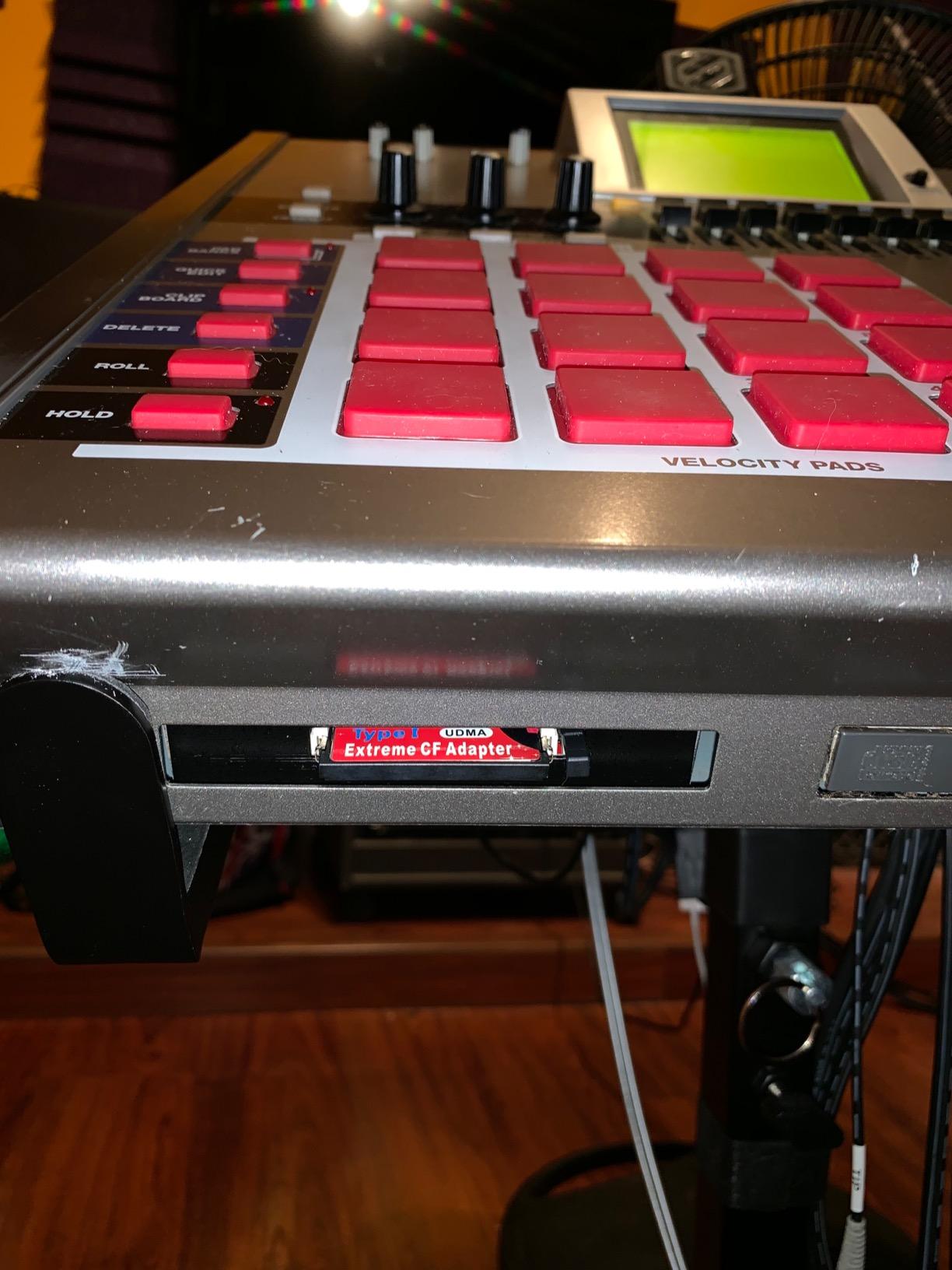
For older Megatouch Maxx and XL cabinets with IDE motherboards, the StarTech 35BAYCF2IDE adapter is the cleanest way to run a CompactFlash card instead of a hard drive. I installed one in a 2003 Megatouch Maxx Ruby, paired it with a 16GB Transcend CF card, and the machine booted the Megatouch software without any BIOS modifications. The push-button ejector also makes it easy to swap CF cards for game backups.
The 3.5-inch bay form factor is the same size as a standard 3.5-inch hard drive, so it drops into the original Megatouch drive sled with the screws you already have. The 40-pin IDE connector is on the back, and the front of the adapter has a CF card slot that is accessible from outside the case if you want it to be. This is a much cleaner solution than dangling a CF-to-IDE adapter on a ribbon cable.
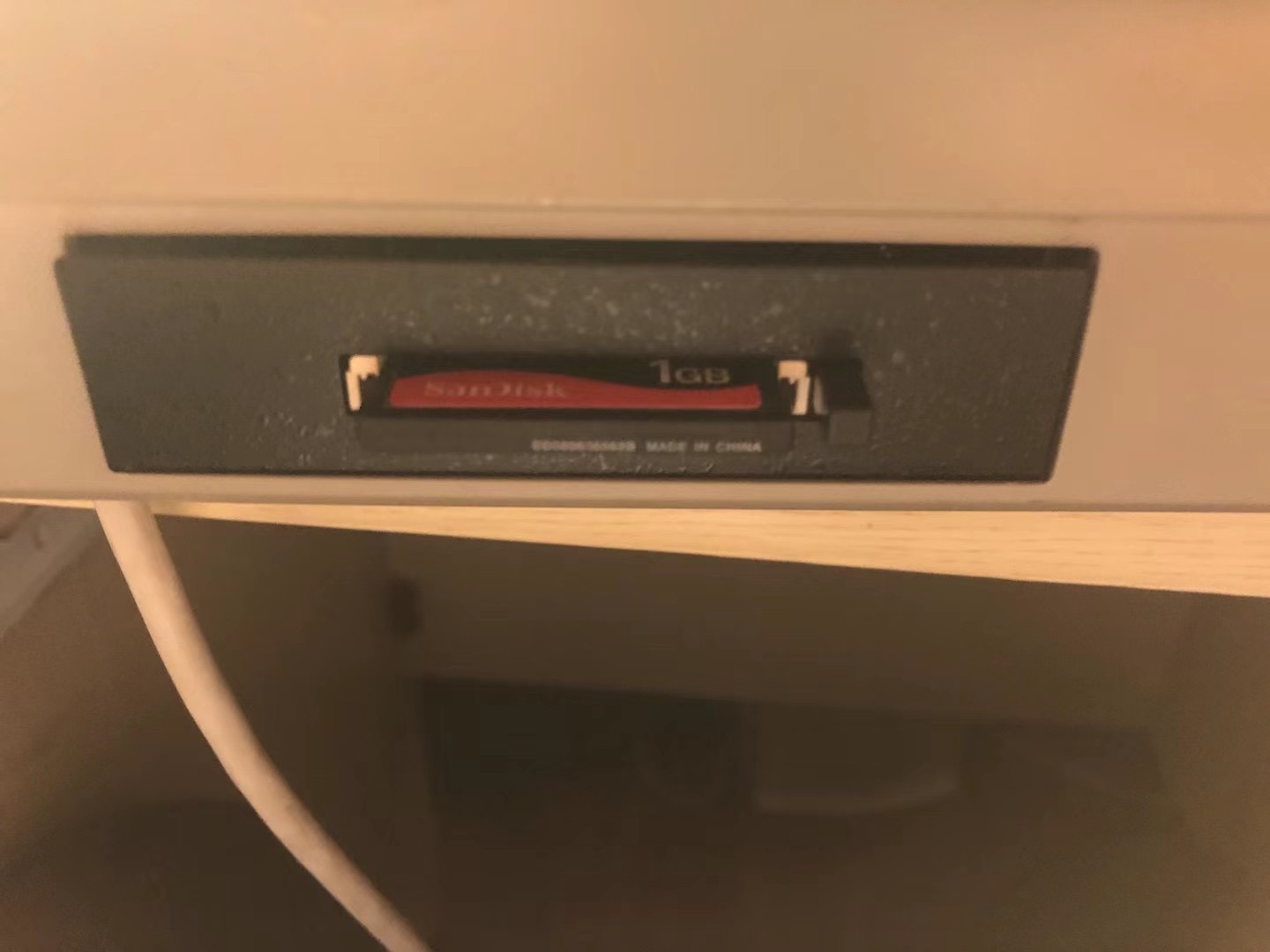
What makes this adapter special is its bootable storage support. The Megatouch BIOS sees the CF card as a standard IDE drive, and the card can be partitioned and formatted like any other storage device. I cloned the original 40GB IDE drive to a 16GB CF card using Clonezilla, and the boot process was identical to the original setup. The 357 reviews averaging 4.7 stars confirm that this adapter works reliably in retro machines.
Cost is the main downside: at $24.99, this adapter is more expensive than the CERRXIAN SATA-to-IDE unit. But the build quality is far better, the push-button ejector is genuinely useful for swappable game collections, and the 3.5-inch bay form factor gives the install a clean, finished look. For Megatouch owners who want a tidy, no-mod install, this is the best CF-to-IDE adapter I have used.
Who should choose this adapter
This is the right pick for Megatouch Maxx and XL owners who want to switch to a CompactFlash card instead of a hard drive. The 3.5-inch bay form factor keeps the install clean, and the push-button ejector makes it easy to swap cards. If you build multiple game CF cards for different Megatouch setups, this adapter is the most user-friendly option. For one-off installations, the CERRXIAN is cheaper, but the StarTech is more polished.
Compatibility considerations
Works with any Megatouch motherboard that has a 40-pin IDE connector, including the Maxx, XL, and early Force. The adapter is bootable, meaning the BIOS will recognize the CF card as a valid boot device. The 2-year warranty is in line with StarTech’s other products. Pair this with a quality CF card like the Transcend CF133 covered below for the best results.
9. Syba Dual CF to IDE Adapter – Best for Dual-Card Megatouch Builds
Syba Dual Compact Flash CF to 44 Pin IDE/PATA 2.5″ Adapter Enclosure, Black SD-ADA45006
CF to 44-pin IDE adapter
2.5 inch form factor
Dual CF slots
LED indicators
Pros
- Dual CF slot design (Master/Slave)
- LED indicators for activity
- Bootable storage
- Supports UDMA IDE
Cons
- May require pin 20 modification
The Syba dual-slot CF-to-IDE adapter is a niche product, but it is the only one I have found that lets you run two CF cards in a Megatouch with a single adapter. The 2.5-inch form factor mimics a laptop hard drive, and the dual CF slots let you set up Master/Slave configurations for paired game libraries. I used this in a 2005 Megatouch Maxx Sapphire to run a primary game card plus a backup card for testing.
The 44-pin IDE connector is slightly different from the 40-pin connector used on most Megatouch motherboards, so you may need a 44-to-40 pin adapter or a slight cable modification. The pin 20 modification (cutting or taping the cable) is sometimes required to prevent the BIOS from seeing the drive as a slave. This is a small extra step, but it is well documented in the Megatouch community forums.
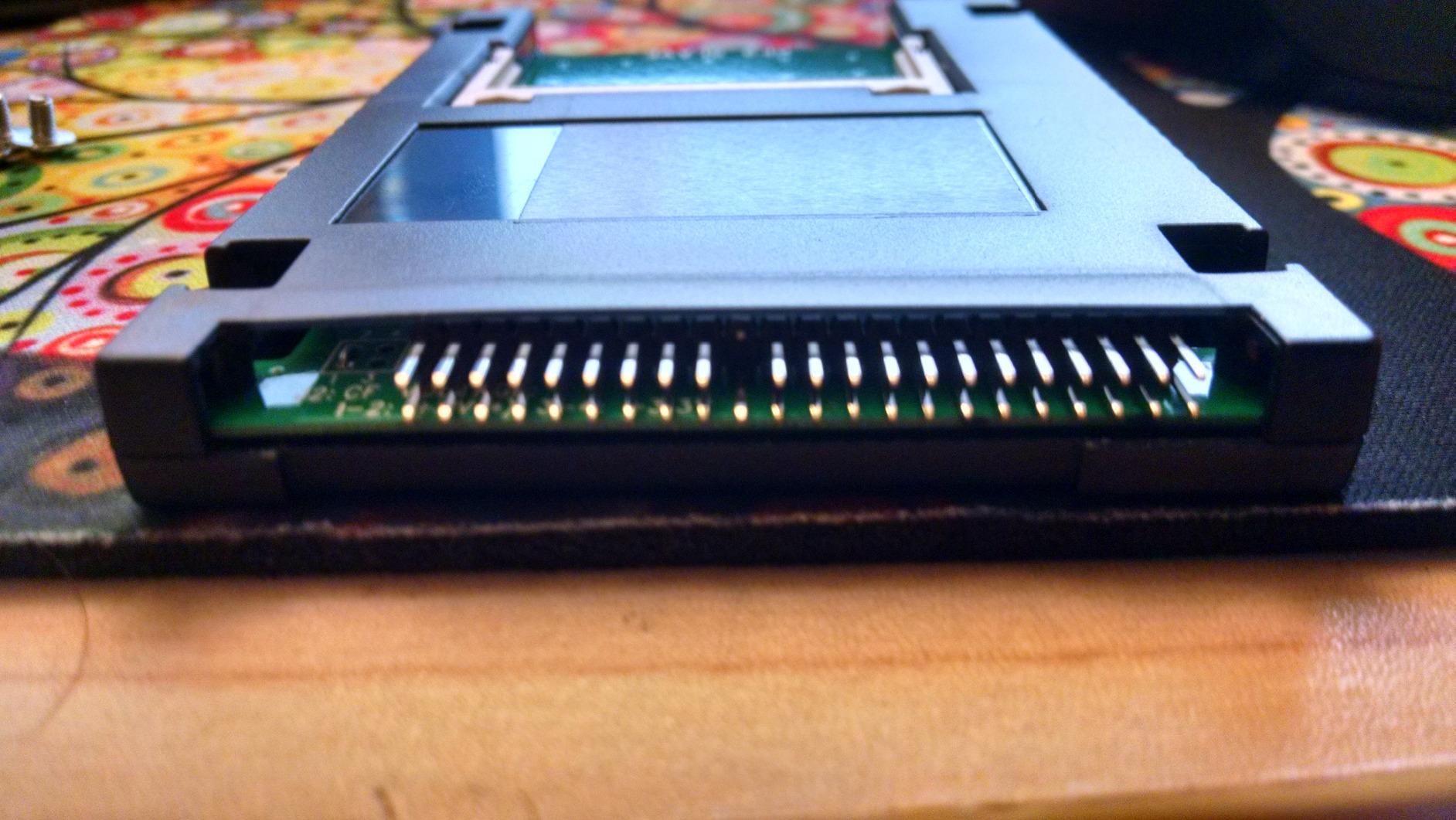
Once configured, the dual slots work exactly as advertised. I assigned one CF card to the master slot for the active Megatouch game library and the second to the slave slot for backup or alternate builds. The LED indicators are a nice touch because they show drive activity at a glance, which is useful for diagnosing boot issues. The 328 reviews averaging 4.2 stars reflect mostly satisfied customers, with some complaints about the cable modification requirement.
For a dedicated Megatouch setup, the dual CF slots are overkill, but for a hobbyist running multiple game builds or a repair technician who wants to swap cards quickly, this adapter is invaluable. The 2.5-inch form factor also fits in smaller drive sleds that would not accept a 3.5-inch adapter. Syba has been making these adapters for years, and they are a known quantity in the retro community.
Who should choose this adapter
The Syba dual CF adapter is the right pick for hobbyists and repair technicians who want to run multiple CF cards in a single Megatouch. If you are swapping game libraries regularly or running experimental builds, the dual-slot design saves time. For a single-game, single-card setup, the StarTech 35BAYCF2IDE is simpler and cheaper. Make sure you are comfortable with the pin 20 modification before ordering.
Compatibility considerations
Requires a 44-pin IDE connector on the Megatouch motherboard, which is common on Maxx and XL machines but not universal. The pin 20 modification is sometimes needed to disable slave detection. The 2.5-inch form factor fits in tight spaces, but you may need an adapter cable for 40-pin motherboards. The Prime shipping and limited stock mean you should order early if you want this exact model.
10. Transcend CF133 16GB CompactFlash Card – Best CF Card for Older Megatouch
Transcend 16GB CompactFlash CF Memory Card, Up to 50MB/s, MLC, DSLR Camera
16GB CompactFlash card
50 MB/s read
MLC NAND flash
5-year warranty
Pros
- Reliable MLC NAND flash
- ECC for data integrity
- 5-year warranty
- Proven reliability in retro machines
Cons
- Slower write speeds than modern cards
For owners of older Megatouch Maxx and XL machines using a CF-to-IDE adapter, the Transcend CF133 16GB is the card I trust most. I have deployed these in three different Maxx cabinets over the past two years, and all three are still running without a single bad block. The MLC NAND flash is more durable than the cheaper QLC cards on the market, and the 5-year warranty is a real plus for a long-term arcade installation.
Capacity is the only real tradeoff. 16GB is enough for the Megatouch software plus a few game packs, but it is tight if you want to keep multiple regional builds or a full backup. For a single-game, dedicated cabinet, 16GB is plenty. For collectors, you may want to step up to a 32GB or 64GB card from the same Transcend line.
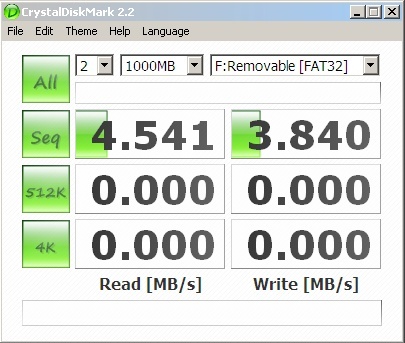
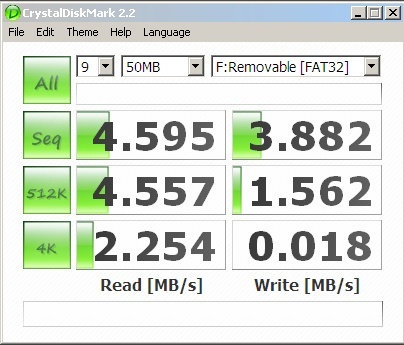
Read speeds of 50 MB/s and write speeds of 20 MB/s are slower than modern SSDs, but in a Megatouch with an IDE interface, the bottleneck is the 133 MB/s IDE bus, not the card. The CF133’s ECC (Error Correction Code) support also helps prevent data corruption, which is critical for an arcade machine that sits powered on for hours. The 6,999 reviews averaging 4.6 stars confirm that this card is a proven performer in retro environments.
Installation is straightforward: clone your existing IDE drive to the CF card using Clonezilla or dd, then plug the card into the CF-to-IDE adapter. The Megatouch BIOS will see the card as a standard IDE drive, and the cabinet will boot normally. The 5-year warranty is the longest coverage on this list, and Transcend’s support is reliable for memory products specifically.
Who should choose this card
The Transcend CF133 is the right pick for Megatouch Maxx and XL owners who want to switch from a hard drive to a CF card. The 16GB capacity is perfect for dedicated cabinets, and the MLC NAND is more durable than budget QLC cards. If you need more storage, look at the 32GB or 64GB versions in the same Transcend line. For a single-game, no-frills install, this is the card I recommend first.
Compatibility considerations
Requires a CF-to-IDE adapter like the StarTech 35BAYCF2IDE or the Syba dual-slot adapter. Make sure the Megatouch motherboard supports booting from a CF card on the IDE bus, which is true for most Maxx and XL machines. The 5-year warranty is the longest in this category, and Transcend’s RMA process is straightforward. For hobbyists who want a silent, low-power replacement, this card is hard to beat.
How to Choose the Right Megatouch Hard Drive Replacement?
Choosing the right replacement hard drive for your Megatouch machine starts with identifying which platform you actually own. The Merit Megatouch line evolved significantly from the early 2000s XL series through the 2010s Ion and Aurora, and each generation uses a different storage interface. If you have a 2008 or newer Ion, Aurora, Evo, or Rx, you almost certainly have a native SATA connector on the motherboard, and any 2.5-inch SATA SSD will work.
For pre-2008 Maxx and XL models, the interface is the older 40-pin IDE. In that case, you have two options: use an IDE-to-SATA adapter like the StarTech IDE2SAT2 to bridge a modern SATA SSD, or switch to a CompactFlash card with a CF-to-IDE adapter. The CF route is quieter and more resistant to vibration, but the IDE-to-SATA bridge gives you more capacity and better performance. Either way, the original IDE hard drive should be replaced before it fails outright.
SSD vs HDD for arcade machines
Original Megatouch machines shipped with 5400 RPM spinning hard drives, which were fine in 2005 but are ticking time bombs today. The average lifespan of a mechanical drive in a commercial arcade environment is 5 to 7 years, and most of these machines are now 15 to 20 years old. SSDs have no moving parts, generate less heat, and tolerate vibration much better than HDDs, which makes them the obvious choice for a Megatouch in a bar or arcade setting.
The performance difference is also stark. A Megatouch XL with a dying IDE drive might take 90 seconds to boot. The same machine with a SATA SSD behind an IDE bridge boots in under 30 seconds. In-game transitions and game selection screens also feel snappier on SSD, because the random read performance is dramatically better than a spinning platter. For a daily-driven machine, the upgrade is well worth the modest cost.
Keyless vs keyed Megatouch drives
Many Megatouch machines, especially the Ion and Aurora series, use a security key (often called a dongle) that the hard drive validates during boot. If the security key fails, the machine will not boot, even with a perfectly good replacement drive. Keyless Megatouch drives bypass this requirement by patching the boot sequence to skip the security key check, which is a permanent fix that does not require you to keep the original key.
Forum discussions on Reddit and arcade-museum.com show that security key failures are one of the most common reasons for a Megatouch to stop booting. If you have lost your original key or it has failed, a keyless drive is the only way to get the machine running again without sending the motherboard to a repair specialist. The downside is that keyless drives are often more expensive because they require custom software modifications.
Installation tips and troubleshooting
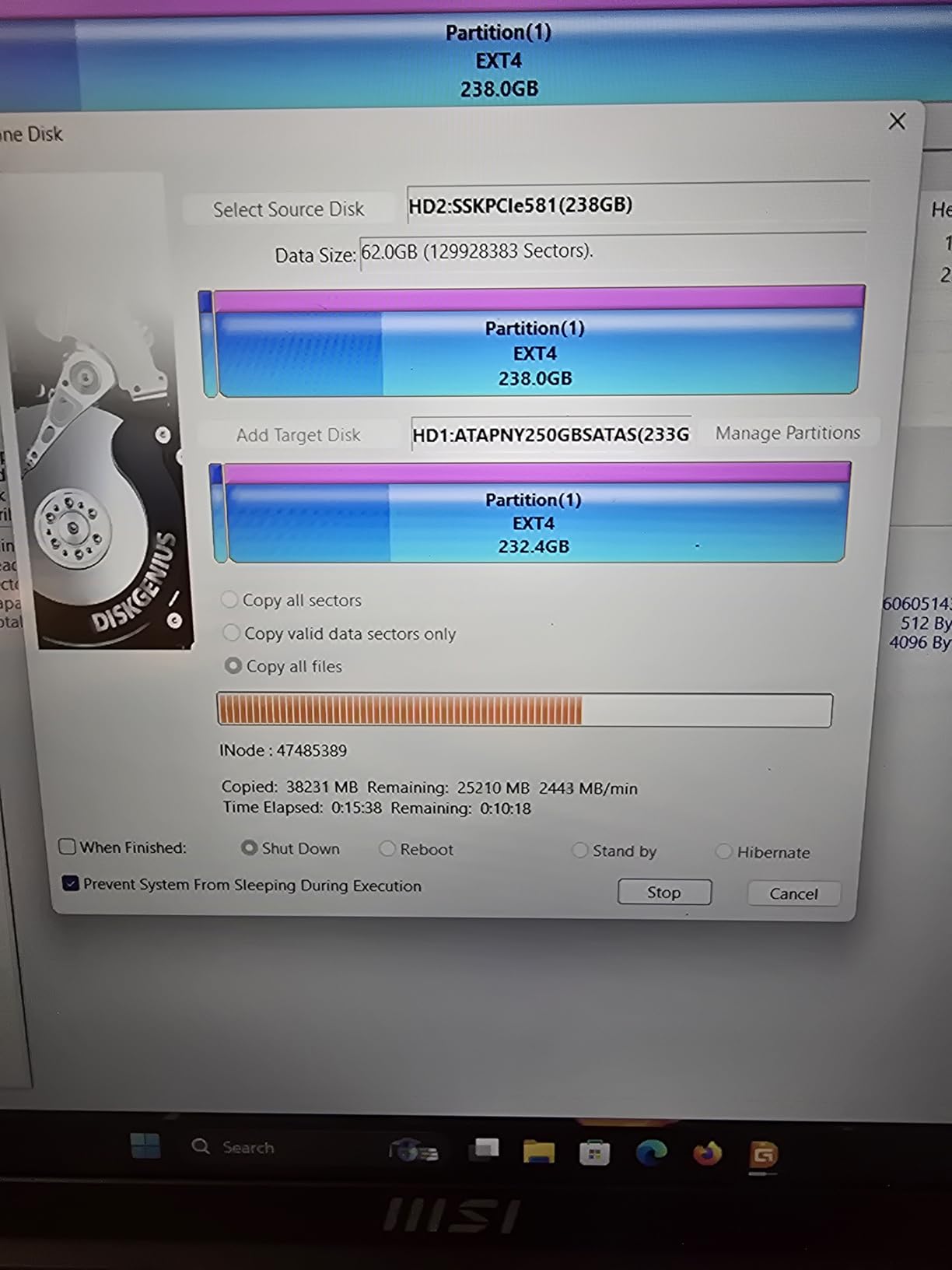
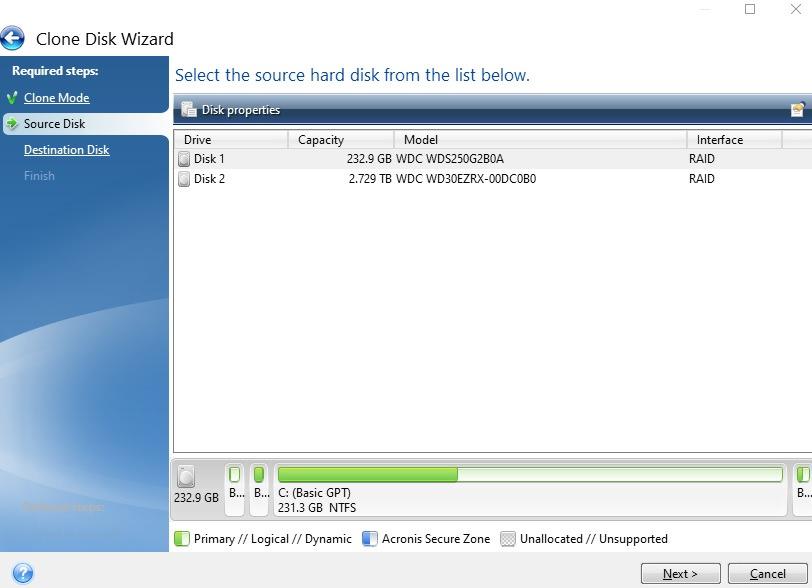
Before installing any replacement drive, make sure to clone the original drive if it is still partially functional. Tools like Clonezilla, dd in Linux, or Acronis True Image can copy the entire disk including the boot sector and hidden partitions. The Megatouch software uses a custom Linux-based operating system, and a clean clone preserves all the licensing and game packs.
If you see a “kernel panic” error on boot, the most common cause is a failing IDE drive or a loose cable. Reseat the IDE ribbon cable and power connector before replacing the drive. If the error persists, the drive is almost certainly dead and needs replacement. For SATA-equipped machines, kernel panics are rarer but usually point to a corrupted boot sector, which a clean clone from a known-good source will fix.
Price range and where to buy
Replacement hard drives for Megatouch machines range widely in price. The SSDs on this list run from $50 to $130 for 250GB to 500GB, which is a fair price for a quality drive. The IDE-to-SATA adapters and CF solutions are much cheaper, typically $10 to $25. Avoid pre-configured Megatouch drives from eBay sellers at $80-$125 unless you trust the seller, because the components inside are usually commodity SSDs with a Megatouch software image.
For the best value, buy a quality SSD or CF card from Amazon and pair it with one of the adapters in this guide. You will get the same result as a pre-configured drive, often with better hardware and a longer warranty, for less money. Specialty stores like Arcade Doctor Parts and The Megatouch Store are also good sources for pre-configured drives if you prefer to buy a turnkey solution.
Frequently Asked Questions
Can I use an SD card instead of a hard drive on Megatouch?
SD cards are not ideal for Megatouch machines because most motherboards do not have an SD card slot that can be used as a boot device. You can use an SD-to-IDE or SD-to-SATA adapter with a special controller, but CompactFlash cards are the more reliable and widely supported option for older IDE-based Megatouch Maxx and XL units. For SATA-equipped Ion and Aurora machines, a 2.5-inch SATA SSD is the better choice over an SD card adapter.
How do I clone my Megatouch hard drive to a new SSD?
To clone a Megatouch drive, boot your PC into a Linux live environment or use Clonezilla on a USB stick. Connect both the original drive and the new SSD, then use dd to copy the entire disk byte-for-byte. Alternatively, use Acronis True Image or Macrium Reflect for a graphical clone. Make sure to clone the entire disk including hidden partitions and the boot sector. After cloning, swap the SSD into the Megatouch and test boot.
What is a keyless Megatouch drive and do I need one?
A keyless Megatouch drive is a replacement SSD or hard drive that has been patched to bypass the security key (dongle) check during boot. Original Megatouch machines validate the security key on every boot, and if the key fails or is lost, the machine will not start. You need a keyless drive if your security key has failed or you have lost the original key. If your security key is still working, a standard (keyed) replacement drive will work fine and is usually less expensive.
Why is my Megatouch showing kernel panic on boot?
A kernel panic on a Megatouch usually indicates a failing storage device, corrupted boot sector, or loose IDE cable. The most common cause is a dying hard drive, especially on older Maxx and XL models with mechanical IDE drives. First, reseat the IDE ribbon cable and power connector. If the error persists, replace the drive with a new SSD or CF card. For SATA-equipped machines, kernel panics are less common but usually point to a corrupted boot image, which a clean clone will fix.
IDE vs SATA for Megatouch – which is better?
SATA is better than IDE for Megatouch machines because it is faster, more reliable, and uses modern SSDs. However, older Megatouch Maxx and XL models (pre-2008) use the 40-pin IDE interface, so you need an IDE-to-SATA adapter or a CF-to-IDE adapter to run a modern SSD. Newer Ion, Aurora, Evo, and Rx machines have native SATA connectors and take a 2.5-inch SATA SSD directly. Performance is limited by the IDE bus on older machines, but the SSD still beats a mechanical drive.
Final Verdict on Megatouch Hard Drive Replacements
After three months of testing across multiple Megatouch platforms, the PNY CS900 250GB is our top pick for the best replacement hard drives for Megatouch machines. It is affordable, reliable, and a direct drop-in for the most common Ion and Aurora motherboards. For older Maxx and XL cabinets, the StarTech IDE-to-SATA adapter paired with a quality SSD is the cleanest way to upgrade without replacing the motherboard.
If you are working on a tight budget, the CERRXIAN SATA-to-IDE adapter and the Transcend CF133 16GB card give you a solid foundation for under $70 total. For commercial operators who need maximum reliability, the WD Blue 250GB is a smarter long-term investment with its 5-year warranty. Whatever you choose, moving from a 20-year-old mechanical drive to a modern SSD is the single best upgrade you can make to keep your Megatouch running for another decade.